

- Top Page >
- Useful Functions >
- Selecting a picture and sound setting suitable for the content
Selecting a picture and sound setting suitable for the content
Overview
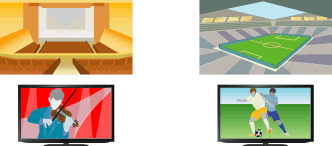
You can select a preset picture and sound setting (e.g. [Auto], [Cinema], [Sports]) that suits the content.
Steps
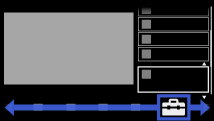
Press the HOME button, then select
 [Settings] at the bottom of the screen using the
  /
/ buttons.
Select
 [System Settings] using the
  /
/ buttons, then press the
  button.
Select [Scene Select] using the
/ buttons, then press the button.Select the desired option using the
/ buttons, then press the button.
To return to the last viewed source, press the HOME button twice.
Available Options
- [Auto]
- Automatically selects the scene based on the viewing content.
- [Auto (24p Sync)]
- Automatically selects "Cinema" for 24Hz signal content. Behaves as "Auto" for all other signals.
- [General]
- Turn off Scene Select for general content.
- [Cinema]
- Optimal picture and sound for watching movies.
- [Sports]
- Optimal picture and sound for watching sports.
- [Music]
- Optimal sound for listening to music.
- [Animation]
- Optimal picture for watching animation
- [Photo]
- Optimal picture for viewing photos. This setting will apply to 1080i/p (50/60Hz) and 480/576p formats only. (1080i/p (50Hz) and 576p are available depending on your region/country.)
- [Game]
- Optimal picture and sound for playing video games.
- [Graphics]
- Optimal picture for viewing tables and characters.
