

- Top Page >
- Configuring Various Settings >
- Selecting picture mode
Selecting picture mode
Overview
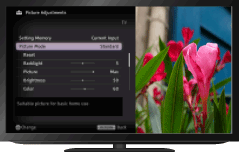
You can select the picture mode according to your preference. The [Picture Mode] setting works in accordance with the [Scene Select] setting.
Steps
Set [Scene Select].
Jump to the pagePress the HOME button, then select
 [Settings] at the bottom of the screen using the
  /
/ buttons.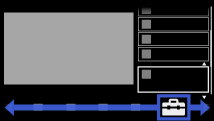
Select
 [Display] using the
  /
/ buttons, then press the
  button.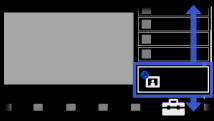
Select [Picture] using the
/ buttons, then press the button.Select [Picture Mode] using the
/ buttons, then press the button.Select the desired option using the
/ buttons, then press the button.
Note that the options change depending on the [Scene Select] setting. (e.g. If [Scene Select] is set to [General], the options in [Picture Mode] will be [Vivid], [Standard] and [Custom].)
To return to the last viewed source, press the HOME button twice.
Available Options
- [Vivid]
- Enhances picture contrast and sharpness.
- [Standard]
- Provides standard picture for basic home use.
- [Custom]
- Stores your preferred settings.
- [Cinema 1]
- Provides film-based content for a cinema-like environment.
- [Cinema 2]
- Provides film-based content for basic home use.
- [Sports]
- Optimises picture quality for viewing sports.
- [Game-Standard]
- Provides standard pictures suitable for games.
- [Game-Original]
- Adjusts the game picture according to your preference.
- [Graphics]
- Optimises picture quality for viewing graphics.
- [Photo-Vivid]
- Enhances contrast, sharpness, and colour of photographs.
- [Photo-Standard]
- Optimises picture quality for viewing photographs.
- [Photo-Original]
- Enhances the visual warmth of photographs.
- [Photo-Custom]
- Adjusts the detailed settings for viewing photographs and stores your preferred settings.
- [Animation]
- Optimises picture quality for viewing animations.
