

- Top Page >
- Using “BRAVIA” Sync Devices >
- Setting Buttons to Control the HDMI Device
Setting Buttons to Control the HDMI Device
Overview
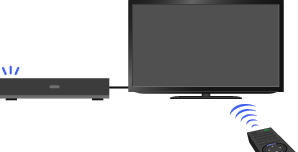
You can set the remote buttons of the TV to control the connected HDMI device.
Steps
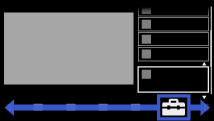
Press the HOME button, then select
 [Settings] at the bottom of the screen using the
  /
/ buttons.
Select
 [External Inputs] using the
  /
/ buttons, then press the
  button.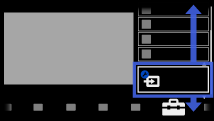
Select [HDMI Set-up] using the
/ buttons, then press the button.Select [Device Control Keys] using the
/ buttons, then press the button.Select the desired option using the
/ buttons, then press the button.
To return to the last viewed source, press the HOME button twice.
Available Options
- [None]
- Deactivates the control by the TV’s remote.
- [Normal]
- Enables basic operations, such as navigation buttons (up, down, left or right, etc.).
- [Tuning Keys]
- Enables basic operations and operation of channel-related buttons, such as the PROG +/– buttons or the 0 - 9 buttons, etc.
Useful when you control a tuner or set-top box, etc., via the remote. - [Menu Keys]
- Enables basic operations and operation of the HOME/OPTIONS buttons.
Useful when you control BD player menus, etc., via the remote. - [Tuning and Menu Keys]
- Enables basic operations and operation of the HOME/OPTIONS buttons and channel-related buttons.
