

- Top Page >
- Configuring Various Settings >
- Setting screen size/position
Setting screen size/position
Overview
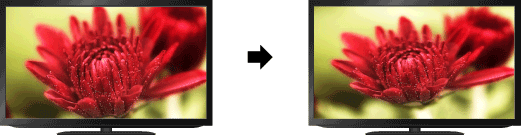
You can set the screen size and position according to your preference.
Steps
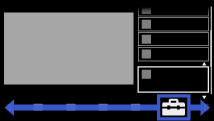
Press the HOME button, then select
 [Settings] at the bottom of the screen using the
  /
/ buttons.
Select
 [Display] using the
  /
/ buttons, then press the
  button.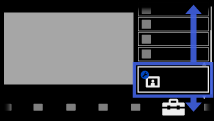
Select [Screen] using the
/ buttons, then press the button.Select the desired option using the
/ buttons, then press the button.
To return to the last viewed source, press the HOME button twice.
Available Options (for inputs other than a PC)
- [Target Inputs]
- Applies custom screen settings to the current input or to common memory shared by other inputs.
- [Screen Format]/[Wide Mode]*
- * Option name differs depending on your region/country.
[Wide Zoom]: Enlarges the picture, preserving the original picture as much as possible.
[Normal]: For 4:3 original source, displays a 4:3 picture in its original size, with side bars to fill the 16:9 screen. For 16:9 original source, displays a 4:3 picture that has been horizontally stretched to 16:9, in 4:3 format.
[Full]: Enlarges the picture horizontally to fill the screen when the input signal is 4:3. When the input signal is 16:9 (High-definition source), select this option to display the 16:9 picture in its original size.
[Zoom]: Displays a 16:9 picture that has been converted into 4:3 letter box format, in the correct aspect ratio.
[14:9]: Displays the 14:9 picture in the correct proportion. As a result, side bars are shown on the screen. ([14:9] is available depending on your region/country.)
[Captions]: Enlarges the picture horizontally, while fitting captions in the screen.
If component input (480p) is selected and [Scene Select] is set to [Game] or [Graphics], the available options change to [Fine-Normal]/[Fine-Full]/[Portable Game 1]/[Portable Game 2].
[Fine-Normal]: Displays a 4:3 picture in its original size. Side bars are shown to fill the 16:9 screen.
[Fine-Full]: Stretches the 4:3 picture horizontally, to fill the 16:9 screen.
[Portable Game 1]: Stretches a black-framed game picture from PlayStation®Portable.
[Portable Game 2]: Stretches a black-framed picture (e.g. browser) from PlayStation®Portable. - [Auto Format]/[Auto Wide]*
- * Option name differs depending on your region/country.
Automatically changes [Screen Format]/[Wide Mode] to match the input signal.
- [4:3 Default]
- Sets the default screen format for a 4:3 input signal.
- [Auto Display Area]
- Automatically adjusts the picture to the most appropriate display area.
- [Display Area]
- [Full Pixel]: Displays the original picture when parts of the picture are cut.
[+1]: Displays the picture using the TV’s maximum display area.
[Normal]: Displays the recommended size picture.
[-1]: Enlarges the picture.
([Full Pixel] is available only when the input signal is 1080i/1080p and [Screen Format]/[Wide Mode] is set to [Full].)
([Full Pixel] is available depending on the TV model.) - [Screen Position]
- Adjusts the vertical position and horizontal position of the picture.
- [Vertical Size]
- Adjusts the vertical size of the picture.
Available Options (for PC input)
- [Auto Adjustment]
- Automatically adjusts the display position, and phase of the picture in PC mode.
([Auto Adjustment] may not work well with certain input signals. In such cases, manually adjust [Phase], [Pitch], [Horizontal Shift], and [Vertical Shift].) - [Reset]
- Resets all PC screen settings to factory settings.
- [Phase]
- Adjusts the phase when the screen flickers.
- [Pitch]
- Adjusts the pitch when the picture has unwanted vertical stripes.
- [Horizontal Shift]
- Adjusts the horizontal position of the picture.
- [Vertical Shift]
- Adjusts the vertical position of the picture.
- [Screen Format]/[Wide Mode]*
- * Option name differs depending on your region/country.
[Normal]: Displays the original picture.
[Full 1]: Enlarges the picture to fill the display area maintaining the original picture.
[Full 2]: Enlarges the picture to fill the display area.
