

- Top Page >
- Configuring Various Settings >
- Adjusting various sound settings (e.g. bass/treble/balance)
Adjusting various sound settings (e.g. bass/treble/balance)
Overview
You can adjust various sound settings, such as bass, treble, balance, etc.

Steps
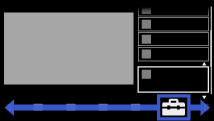
Press the HOME button, then select
 [Settings] at the bottom of the screen using the
  /
/ buttons.
Select
 [Sound] using the
  /
/ buttons, then press the
  button.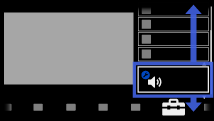
Select [Sound] using the
/ buttons, then press the button.Select the desired option using the
/ buttons, then press the button.
To return to the last viewed source, press the HOME button twice.
Available Options
- [Target Inputs]
- Applies custom sound settings to the current input or to common memory shared by other inputs.
- [Sound Mode]
- [Dynamic]: Enhances the treble and bass for a clearer sound.
[Standard]: Provides natural sound.
[Clear Voice]: Makes voice clearer by lowering background sound.
[Custom]: Customises the sound setting.
([Custom] is available depending on your region/country.) - [Reset]
- Resets all the [Sound] settings to the factory settings excluding [Target Inputs] and [Sound Mode].
- [Treble]
- Adjusts higher-pitched sounds.
- [Bass]
- Adjusts lower-pitched sounds.
- [Balance]
- Emphasises sound from the left or right speaker.
- [Surround]
- Before selecting [Surround], be sure to set options in [Scene Select] according to your target programme type to obtain surround effects.
[S-Force Front Surround]: Virtually reproduces realistic sound.
[Sports]: Delivers surround effects that make you feel like you are watching a live sports event.
[Music]: Delivers surround effects that make you feel like you are in a music hall.
[Cinema]: Delivers surround effects, like the high-grade audio systems found in cinemas.
[Game]: Delivers surround effects for a virtual game-playing experience.
[Simulated Stereo]: Adds a surround-like effect to monaural programmes. ([Simulated Stereo] is available depending on your region/country.)
[Off]: Turns off [Surround].
(Sound will be interrupted if you change the [Surround] setting while listening to Dolby Digital multi-channel audio.) - [S-Force Front Surround 3D]
- Virtually generates 3 dimensional sound.
([S-Force Front Surround 3D] is not available when [Surround] is set to [Off].) - [Sound Enhancer]
- Reproduces clear sound by complementing high-frequency bands.
- [Equalizer]
- Adjusts the level of the low and high bands.
([Equalizer] is available depending on your region/country.) - [Advanced Auto Volume]
- Keeps volume level constant across all programmes and adverts. (Adverts tend to be louder than programmes.)
- [Volume Offset]
- Adjusts the current volume level relative to other inputs, when [Target Inputs] is set to the current input.
