

- Top Page >
- Configuring Various Settings >
- Setting sound according to TV position
Setting sound according to TV position
Overview
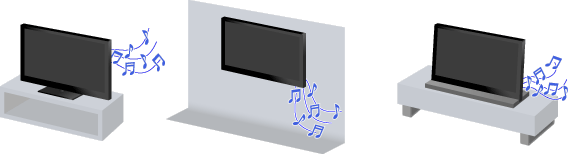
You can create different sound images from the TV speakers according to how you position the TV.
Steps
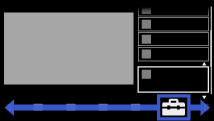
Press the HOME button, then select
 [Settings] at the bottom of the screen using the
  /
/ buttons.
Select
 [Sound] using the
  /
/ buttons, then press the
  button.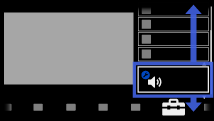
Select [TV Position] using the
/ buttons, then press the button.Select the desired option using the
/ buttons, then press the button.
To return to the last viewed source, press the HOME button twice.
Available Options
- [Table-Top Stand]
- Provides the best sound quality when you place the TV on a TV stand.
- [Wall Mount/Floor Stand]
- Provides the best sound quality when you hang the TV on a wall or use a floor stand.
- [Speaker Integrated Stand]
- Provides the best sound quality when you use a stand with an integrated speaker.
(This option is available only when using a stand with integrated speaker.)
