

- Top Page >
- Parts Description >
- Home Menu screen
Home Menu screen
Overview
The Home Menu, which can be displayed by pressing the HOME button, contains various categories.
You can select a desired category in the Home Menu and access items, such as programme listings, input sources, TV settings menu, etc.
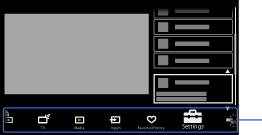
Categories
Categories in the Home Menu

Categories
 [Settings]
- Provides settings (e.g. picture settings, sound settings, key tone setting) that allow you to customise your TV.
 [Widgets]
- Enables access to Widgets.
Available Widgets depend on your region/country. If Widgets are unavailable, the [Widgets] category is not displayed.  [Applications]
- Launches applications that require an Internet connection.
 [Sony Entertainment Network]
- Enables selection of content from the online service “Sony Entertainment Network.” If “Sony Entertainment Network” is unavailable, the [Sony Entertainment Network] category is not displayed.
 [Internet Content]
- Enables access to Internet services for TV.
 [TV]
[TV]
- Allows you to select a list of TV channels, or a programme guide. (Programme guide is available depending on your TV model or region.)
 [Media]
- Enables selection of media files (photo, music, video) to play in a connected USB storage device or your home network.
 [Inputs]
- Enables selection of devices connected to the TV.
 [Favourites/History]
- Displays items in Favourites and recently viewed items.
Steps
Press the HOME button.
The Home Menu appears.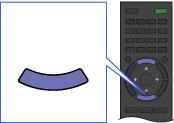 HOME
HOMESelect the category at the bottom of the screen using the
 /
/ buttons.
(Illustration example: When selecting the [Settings] category.)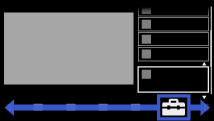
Select the item using the
 /
/ buttons, then press the
  button.
(Illustration example: When selecting [Display].)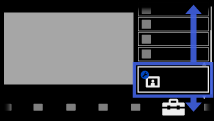
In the displayed screen, perform the operation using the
/// and buttons.
(Illustration example: When selecting [Picture] using the/ and buttons.)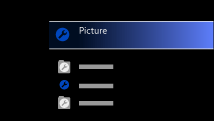
To return to the last viewed source, press the HOME button twice.
Tips
- The items you can select may vary depending on the situation.
- Unavailable items are greyed out or not displayed.
