

- Top Page >
- Using “BRAVIA” Sync Devices >
- Using the Sync Menu
Using the Sync Menu
Overview
Sync Menu provides various functions such as controlling the connected device by the TV’s remote, etc.
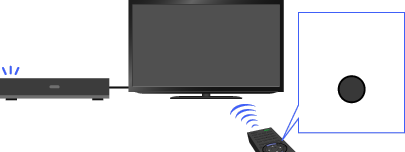
SYNC MENU
Steps
Press the SYNC MENU button.
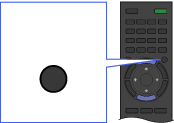 SYNC MENU
Select the desired item in the Sync Menu using the
 /
/ buttons, then press the
  button.
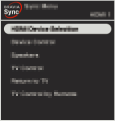
To exit the Sync Menu, press the SYNC MENU button.
Available Items
- [HDMI Device Selection]
- Enables selection of a “BRAVIA” Sync-compatible device to be controlled by the TV’s remote.
- [Device Control]
- Displays the menu, options and title list of the connected device, or turns the device off.
- [Use TV speakers for audio output]/[Use audio system for audio output]
- Switches the speaker output between the TV and the connected audio device.
- [TV Control]
- Displays the menu and options of the TV, or shows/hides the display items on the TV screen.
- [Return to TV]
- Returns to the TV tuner.
- [TV control with the TV remote]/[Device control by TV remote]
- Switches the device to be controlled by the TV’s remote, between the TV and the connected device.
Tips
- Any “BRAVIA” Sync-compatible device (except an audio system) is listed as a new input source under
 [Inputs] in the Home Menu.
