

- Top Page >
- Configuring Various Settings >
- Adjusting various picture settings (e.g. picture brightness/colour)
Adjusting various picture settings (e.g. picture brightness/colour)
Overview
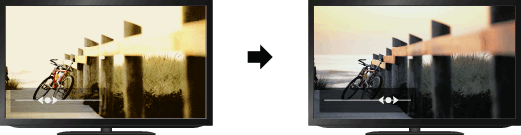
You can adjust various picture settings, such as picture brightness/colour, etc.
Steps
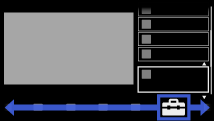
Press the HOME button, then select
 [Settings] at the bottom of the screen using the
  /
/ buttons.
Select
 [Display] using the
  /
/ buttons, then press the
  button.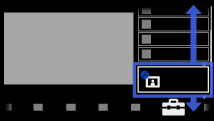
Select [Picture] using the
/ buttons, then press the button.Select the desired option using the
/ buttons, then press the button.
To return to the last viewed source, press the HOME button twice.
Available Options
- [Target Inputs]
- Applies custom picture settings to the current input or to common memory shared by other inputs.
- [Picture Mode]
- Enables selection of a picture mode according to your preference.
Jump to the page - [Reset]
- Resets all the [Picture] settings to the factory settings excluding [Target Inputs], [Picture Mode] and [Advanced Settings].
- [Backlight]
- Adjusts the brightness of the backlight. Reducing the brightness of the screen will reduce the power consumption.
- [Contrast]/[Picture]*
- * Option name differs depending on your region/country.
Adjusts picture contrast. - [Brightness]
- Adjusts the brightness of the picture.
- [Colour]
- Adjusts colour intensity.
- [Hue]
- Adjusts green and red tones.
([Hue] is available depending on colour system.) - [Colour Temperature]
- Adjusts the whiteness of the picture.
[Cool]: Gives white colours a bluish tint.
[Neutral]: Gives white colours a neutral tint.
[Warm 1]/[Warm 2]: Gives white colours a reddish tint. [Warm 2] gives a redder tint than [Warm 1]. - [Sharpness]
- Adjusts sharpness of the picture.
- [Noise Reduction]
- [Auto]: Automatically reduces picture noise.
[High]/[Medium]/[Low]: Modifies the effect of noise reduction.
[Off]: Turns off [Noise Reduction]. - [MPEG Noise Reduction]
- [Auto]: Automatically reduces noise in MPEG-compressed videos.
[High]/[Medium]/[Low]: Reduces noise in MPEG-compressed videos.
[Off]: Turns off [MPEG Noise Reduction]. - [Dot Noise Reduction]
- [Auto]: Automatically reduces dot noise around objects on the screen.
[Off]: Turns off [Dot Noise Reduction]. - [Reality Creation]
- Adjusts detail and noise for a realistic picture.
([Reality Creation] is available depending on the TV model.) - [Video Area Detection]
- Adjusts effect level optimally by detecting video area within a picture.
([Video Area Detection] is available depending on the TV model.) - [Resolution]
- Adjusts detail and clarity of the picture.
([Resolution] is available depending on the TV model.) - [Noise Filtering]
- Adjusts to reduce noise of the picture.
([Noise Filtering] is available depending on the TV model.) - [Smooth Gradation]
- Creates smooth gradations on flat surfaces of the picture.
([Smooth Gradation] is available depending on the TV model.) - [Motionflow]
- [Smooth]: Provides smoother picture movement; especially effective for film-based content.
[Standard]: Provides smoother picture movement for standard use.
[Clear]: Reduces motion blur while maintaining brightness for high-speed picture content.
[Clear Plus]: Reduces motion blur for high-speed picture content more than [Clear].
[Impulse]: Reproduces original picture quality. Provides cinema-like picture, which may flicker.
[Off]: Use this setting if [Smooth], [Standard], [Clear], [Clear Plus] or [Impulse] results in picture noise.
(Depending on the picture content, you may not see the effect visually even if you have changed the settings.) - [Film Mode]/[Cinema Drive]/[CineMotion]*
- * Option name differs depending on your region/country.
[Auto 1]: Provides smoother picture movement than the original film-based content by applying a film-specific process. Use this setting for standard use.
[Auto 2]: Displays film-based content with picture expression close to the original by applying a film-specific process.
[Off]: Turns off [Film Mode]/[Cinema Drive]/[CineMotion].
(If the image contains irregular signals or too much noise, this setting is automatically turned off even if [Auto 1] or [Auto 2] is selected.) - [Advanced Settings]
- Sets [Picture] settings in more detail.
