

- Top Page >
- Using Internet >
- Watching Internet Video
Watching Internet Video
Overview
You can enjoy Internet video content, including movies and cartoons, by accessing a gateway that delivers a variety of on-demand entertainment.
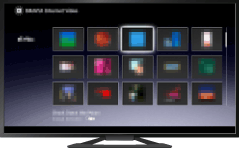
Steps
Make a broadband Internet connection.
Press the HOME button, then select [Applications] using the
 /
/ buttons.
Select [All Applications] using the
 /
/ buttons, then press the
  button.
Select the desired service using the
/// buttons, then press the button.Select the desired content using the
/// buttons, then press the button.
To return to the last viewed source, press the HOME button twice.
To seek forward/backward in video content
Press the buttons on the remote that correspond with the control indications on the screen.
To avoid video/sound interruption
Depending on your network environment or the data size of content, video or sound interruption may occur.
The interruption can be avoided by temporarily storing the content on a USB device (not supplied), and you can enjoy smooth video playback. This function is available with services that are indicated by the icon  when you select them.
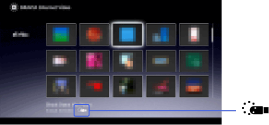
Perform the following to use this function.
- USB device connection
Connect a USB device that supports USB 2.0 or higher to the TV’s USB port.
- USB device registration
Press the HOME button, then select [Settings] →
 [System Settings] → [Register USB device].
Note that a USB device will be formatted once registered, and all the stored data will be deleted.
To deregister a USB device, select [Deregister USB device].
When you view content of an available service, connect a registered USB device to the TV’s USB port. The content will be stored temporarily on the USB device should an interruption occur during playback.
This registered USB device does not appear in the list of devices connected to the TV.
To update Internet Video content services
Press the HOME button, then select [Settings] →  [Network] → [Refresh Internet Content].
Tips
- Information about the highlighted icon appears in the information banner.
- The interface to Internet content depends on the Internet content providers.
Notes
- If you experience difficulties, check that the Internet connection is set up properly.
- Services block video content based on the [Parental Lock] setting of the TV. Some service providers do not support this function.
