

- Top Page >
- Using “BRAVIA” Sync Devices >
- Setting “BRAVIA” Sync
Setting “BRAVIA” Sync
Overview
If a “BRAVIA” Sync-compatible device (e.g. BD player, AV amplifier) is connected with an HDMI cable, or a “BRAVIA” Sync-compatible device (e.g. smartphone, tablet) is connected with an MHL cable, this TV allows you to control the device with the TV’s remote.
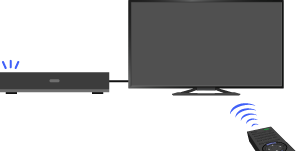
Steps
Turn on the connected device.
Press the HOME button, then select [Settings] using the
 /
/ buttons.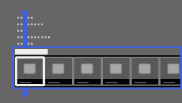
Select
 [External Inputs] using the
  /
/ buttons, then press the
  button.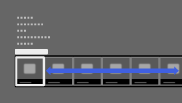
Select [BRAVIA Sync Settings] using the
/ buttons, then press the button.Select [BRAVIA Sync Control] using the
/ buttons, then press the button.Select [On] using the
/ buttons, then press the button.Activate “BRAVIA” Sync on the connected device.
When a specific Sony “BRAVIA” Sync-compatible device is connected and powered on, and [BRAVIA Sync Control] is set to [On], “BRAVIA” Sync is automatically activated on that device.
For details, refer to the instruction manual of the connected device.
To return to the last viewed source, press the HOME button twice.
To not turn off the connected device automatically when turning off the TV
Press the HOME button, then select [Settings] → [External Inputs] → [BRAVIA Sync Settings] → [Auto Devices Off] → [Off].
To not turn on the TV automatically when turning on the connected device
Press the HOME button, then select [Settings] → [External Inputs] → [BRAVIA Sync Settings] → [Auto TV On] → [Off].
To switch the TV input to the corresponding device connected with an MHL cable
Press the HOME button, then select [Settings] → [External Inputs] → [BRAVIA Sync Settings] → [Auto Input Change(MHL)] → [On].
Available “BRAVIA” Sync Operations
BD/DVD player
- Automatically turns the “BRAVIA” Sync-compatible device on and switches the input to that device when you select it from the Home Menu or Sync Menu.
- Automatically turns the TV on and switches the input to the connected device when the device starts to play.
- Automatically turns the connected device off when you turn the TV off.
- Controls menu operation (/// buttons), playback (e.g.
 button) and channel selection of the connected device through the TV’s remote.
AV amplifier
- Automatically turns the connected AV amplifier on and switches the sound output from the TV speaker to the audio system when you turn the TV on. This function is only available if you have previously used the AV amplifier to output TV sound.
- Automatically switches the sound output to the AV amplifier by turning the AV amplifier on when the TV is turned on.
- Automatically turns the connected AV amplifier off when you turn the TV off.
- Adjusts the volume (
 +/– buttons) and mutes the sound (
 button) of the connected AV amplifier through the TV’s remote.
Video camera
- Automatically turns the TV on and switches the input to the connected video camera when the connected video camera is turned on.
- Automatically turns the connected video camera off when you turn the TV off.
- Controls menu operation (/// buttons), playback (e.g. button) and channel selection of the connected video camera through the TV’s remote.
Notes
- “BRAVIA Sync Control” (“BRAVIA” Sync) is only available for a connected “BRAVIA” Sync-compatible device that has the “BRAVIA” Sync logo.
