
- Top Page >
- Parts Description >
- Displaying Screen Keyboard
Displaying Screen Keyboard
Overview
You can display the screen keyboard when using the One-touch Remote Control. You can also move the position of the screen keyboard.
Steps
Press the KEY PAD button on the One-touch Remote Control.
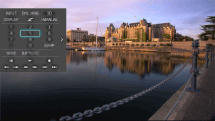
The screen keyboard is displayed on the screen.
Select buttons to use using the  /
/ /
/ /
/ buttons, then press the
  button. The same functions as the remote buttons can be used.
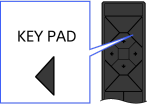
Press the KEY PAD button to close the screen keyboard.
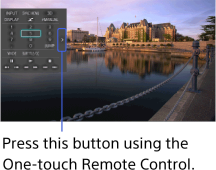
To move the position of the screen keyboard
Press the arrow mark button on the right or left edge of the screen keyboard to switch the position of the screen keyboard right or left.