

- Top Page >
- Watching TV >
- Selecting channels by the PROG +/- buttons
Selecting channels by the PROG +/- buttons
Overview
You can find and tune a desired programme in the programme list easily with the PROG +/- buttons. To enable this feature, set [Settings] →  [System Settings] → [Fast Zapping] to [On]. If you set to [Off], the PROG +/- buttons work just to toggle through channels.
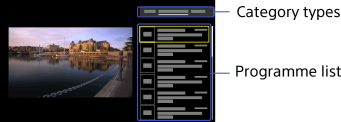
Steps
Press the PROG +/- buttons.
Press the MEDIA or
 /
/ buttons to select the desired category type.
Select the desired programme from the programme list using the PROG +/- or
 /
/ buttons, then press the
  button.
To close this screen, select a programme or press the RETURN button.
To change the settings later.
Press the HOME button, select [Settings] → [System Settings] → [Fast Zapping], then the desired option.
Available Options
- [Auto Programme Selection]
- [On]: The TV automatically switches to the selected content after a certain period of time, even if the button is not pressed.
[Off]: The TV switches to the selected content only when the button is pressed.
When launching [Fast Zapping], you can set up this option by pressing the OPTIONS button. - [Fast Zapping]
- [On]: When the PROG +/- button is pressed, [Fast Zapping] is launched.
[Off]: When the PROG +/- button is pressed, the channel is switched one by one as usual.
While watching TV, you can set up this option by pressing the OPTIONS button.
