

- Top Page >
- Using Home Network >
- Using a Smartphone/Tablet as a Remote
Using a Smartphone/Tablet as a Remote
Overview
You can control the TV using a mobile device with the “TV SideView” application installed. You can enjoy watching the TV with touch panel operation on a mobile device, such as a smartphone or tablet. To use your mobile device as a TV’s remote, register it to the TV as a remote device. (Registration is required only for the first time.)
Available operations using the mobile device with the “TV SideView” application installed
- Powering on and controlling the TV as a remote
- Entering text using the mobile device’s keyboard
Tips
- You can search and download the “TV SideView” application from:
- - Google Play (for Android OS-equipped phones)
- - App Store (for iPhones)
Steps
Connect the TV to your home network, following the steps in “Connecting to the Internet.”
Press the button to jump to the title list. Then, press the button again to go to “Connecting to the Internet” for details.
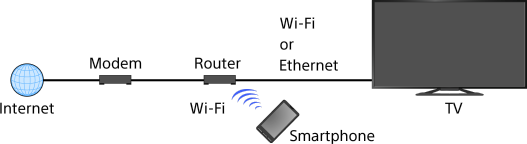
Connect the mobile device to the home network that the TV is connected to.
Launch the “TV SideView” application on the mobile device, then search for the TV in the home network.
The detected device list appears on the mobile device.Select the TV in the detected device list, then perform the required operation on your device.
The mutual registration (above steps) are required only for the first time.
To turn on the TV when you turn on your mobile device
Press the HOME button, then select [Settings] →  [Network] → [Home Network Setup] → [Remote Start] → [On].
The standby power requirement will increase if [On] is set.
Note that this function is not available if you create a wireless network connection by inserting the USB Wireless LAN Adapter UWA-BR100 into your TV’s USB port.
Notes
- Make sure that [Remote Device / Renderer] is set to [On]. To confirm the setting, press the HOME button, then select [Settings] → [Network] → [Home Network Setup] → [Remote Device / Renderer] → [Remote Device / Renderer].
- The name and available functions of “TV SideView” are subject to change.
