

- Top Page >
- Using Home Network >
- Using Wi-Fi Direct Function
Using Wi-Fi Direct Function
Overview
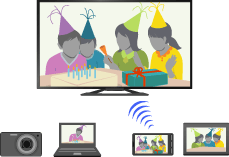
The TV can be connected directly with a Wi-Fi Direct/Wi-Fi compatible device (e.g. smartphone, PC) that also supports the “DLNA Push controller” function. Content such as photos/music/videos on the device can be played on the TV. No wireless router (or access point) is required to use this feature.
Steps
Press the HOME button, then select [Settings] using the
 /
/ buttons.
Select
 [Network] using the
  /
/ buttons, then press the
  button.
Select [Wi-Fi Direct] using the
/ buttons, then press the button.Select [On] using the
/ buttons, then press the button.Select [Wi-Fi Direct Settings] using the
/ buttons, then press the button.Select the TV name displayed on the TV screen with the Wi-Fi Direct compatible device.
In the case of a Wi-Fi compatible device, press the OPTIONS button, then select [Manual].Operate the Wi-Fi Direct/Wi-Fi compatible device to connect with the TV.
Send the content from the Wi-Fi Direct/Wi-Fi compatible device to the TV.
For details, refer to the instruction manual of the device.
If the connection does not succeed
When the standby screen for the Wi-Fi Direct Settings is displayed, press the OPTIONS button, then select [Manual].
Select [WPS (Push Button)] if the device supports WPS. Otherwise, select [Other Methods] and follow the on-screen instructions to complete the set-up.
To connect another device
Follow the steps above to connect devices. Up to 8 devices can be connected at the same time. To connect another device when 8 devices are already connected, disconnect an unnecessary device, then connect the device.
To change the name of the TV shown on the connected device
Press the HOME button, then select [Settings] → [Network] → [Device Name].
To list connected devices/deregister devices
When the standby screen for the Wi-Fi Direct Settings is displayed, press the OPTIONS button, then select [Show Device List / Delete].
To deregister a device, select the device in the list to delete, then press the button. Then, select [Yes] in the confirmation display.
To deregister all devices, press the OPTIONS button in the list, select [Delete All], then [Yes] in the confirmation display.
Icons on the left of the list show the following.
 (check icon): Connected devices
 (display icon): Screen mirroring compatible devices
To display dialogue when attempting to connect a device with the TV
Activating this function can avoid an unintended device from being connected.
When the standby screen for the Wi-Fi Direct Settings is displayed, press the OPTIONS button, then select [Registration Notification].
Note that once you decline registration request from a device, you will not be able to connect the device unless you delete it from the device list.
To connect the declined device, press the OPTIONS button, select [Show Device List / Delete], then delete the declined device. Then, make a new connection with the device.
Notes
- If the TV is connected with a wireless router (or access point) at 5GHz using the USB Wireless LAN Adapter;
- - 5GHz connection will be disconnected when [Wi-Fi Direct] is set to [On].
- - Connection will be resumed when [Wi-Fi Direct] is set to [Off].
- Connecting devices must conform to the following:
- - Wi-Fi Direct compatible devices: 2.4GHz connection (5GHz not supported).
- - Wi-Fi Direct unsupported devices: IEEE802.11 g/n, 2.4GHz connection (5GHz not supported).
