

- Top Page >
- Using Home Network >
- Using Screen Mirroring
Using Screen Mirroring
Overview
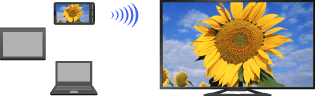
“Screen mirroring” is a function to display the screen of a mobile device on the TV by Miracast technology.
The TV can be connected directly with a Screen mirroring compatible device (e.g. smartphone, PC). You can enjoy the display screen of the device on your large TV screen. No wireless router (or access point) is required to use this feature.
Steps
Press the
 button, then select [Screen mirroring] using the
  /
/ buttons.
Operate the Screen mirroring compatible device to connect with the TV.
When the device is connected with the TV, the screen displayed on the device will also be displayed on the TV.
For details, refer to the instruction manual of the device.
To list connected devices/deregister devices
When the standby screen for the Screen mirroring is displayed, press the OPTIONS button, then select [Show Device List / Delete].
To deregister a device, select the device in the list to delete, then press the  button. Then, select [Yes] in the confirmation display.
To deregister all devices, press the OPTIONS button in the list, select [Delete All], then [Yes] in the confirmation display.
Icons on the left of the list show the following.
 (check icon): Connected devices
 (display icon): Screen mirroring compatible devices
To display dialogue when attempting to connect a device with the TV
Activating this function can avoid an unintended device from being connected.
When the standby screen for the Screen mirroring is displayed, press the OPTIONS button, then select [Registration Notification] → [On].
Note that once you decline registration request from a device, you will not be able to connect the device unless you delete it from the device list.
To connect the declined device, press the OPTIONS button, select [Show Device List / Delete], then delete the declined device. Then, make a new connection with the device.
Notes
- Connecting devices must conform to the following:
- - Screen mirroring compatible devices: 2.4GHz connection (5GHz not supported).
- - Miracast compatible devices: 2.4GHz connection (5GHz not supported).
