Audio volume and panning
Catalyst Edit allows you to adjust the audio mix of your project by controlling the overall volume of the project, adjusting volume and panning for each track, and adjusting volume for each clip.
Adjusting your project volume
The Gain fader in the Timeline Inspector controls the overall volume of your project.
As you drag the fader, the meters in the Timeline Inspector and in the activity pane at the top of the Catalyst Edit window are updated.
For more information, see "Using the Timeline Inspector" and "Monitoring audio levels."
Adjusting track volume and panning
Each track provides controls to adjust the volume that is sent to the project's main output.
The Volume fader in the track header controls the volume of the track, and the Pan knob adjusts the position of the track in the stereo field.

The Track Inspector also provides access to the track Volume fader and Pan knob and allows you to change the panning model that is used for the track.
As you drag the fader and knob, the meters in the Track Inspector display the levels for the current track, and the meters in the activity pane at the top of the Catalyst Edit window display the overall project levels.
For more information, see "Adjusting track controls," "Using the Track Inspector," and "Monitoring audio levels."
Adjusting clip volume
Each clip provides controls to adjust the volume that is sent to the track.
You can use the Fade Tool to adjust the clip's gain:
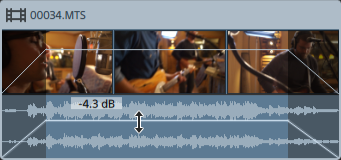
The Clip Inspector also provides access to the clip level via the Gain fader.
For more information, see "Clip fades," "Using the Clip Inspector," and "Monitoring audio levels."