Finding media
The Media Browser pane allows you to browse the media files on drives and devices connected to your computer.
When you double-click a file in the Media Browser, it is added to the end of the selected track as a clip. If no track is selected, a new track is created. For more information, see "Adding tracks to a project" or "Adding media and creating clips."
Choosing a folder
Click the Organize button at the top of the Catalyst Edit window to view the Media Browser.
Use the Media Browser to browse your computer for video files.
The top of the Media Browser will display the current folder and its parent folder. You can click the link to the parent folder to navigate up one level.

To navigate quickly, click the 
Displaying files in a list or thumbnail mode
Click the Media Browser Settings button  to display the Media Browser Settings menu, where you can choose to view media in grid or list mode.
In
In list mode, the Media Browser displays a simple list of thumbnail images and file names.
Showing source clips
-
Select a file.
-
Click the
Select a clip on the timeline, click the Clip button
 below the timeline, and choose Show in Finder (macOS) or Show in Explorer (Windows) to view the source clip in its containing folder.
Displaying media from a Catalyst Prepare library
You can also add media from Sony Catalyst Prepare libraries to your Catalyst Edit projects.
In the Media Browser, double-click a .cpreplib file ( ). When you open a Catalyst Prepare library, the Media Browser displays all the media contained in that library sorted in bins.
The default location for .cpreplib files is C:\Users\<username>\Videos\ on Windows and /Users/<username>/Movies/ on macOS.
If you want to use a storyboard from a Catalyst Prepare library, open a library as described above. A separate bin ( ) is displayed for each storyboard. Drag a storyboard bin to the timeline to add it.
You can also create clips by dragging clips from the Catalyst Prepare window to the Catalyst Edit timeline. For more information, see "Adding media and creating clips."
Previewing media from the Media Browser
Select a file in the Media Browser and click the Preview button  at the bottom of the Media Browser to play it.
During playback, the Preview button changes to a Pause button  . You can click the Pause button to suspend playback, or playback will stop at the end of the selected clip.
In grid mode, the video will play in the thumbnail. In list mode, a video preview is displayed above the file list.
Previewing clips in the primary display
Click the Media Browser Settings button to display the Media Browser Settings menu, and then use the Primary display buttons to preview Media Browser files in the primary display above the timeline.
|
Item |
Description |
|---|---|
|
Off |
The primary display is not used for previewing files from the Media Browser. |
|
On |
Files from the Media Browser are played in the Media Browser and in the primary display above the timeline. |
|
2 Up |
Files from the Media Browser are played in the Media Browser and in the left side of the primary display above the timeline. The right side of the primary display shows the frame at the cursor position in the timeline. |
Previewing clips in the secondary window
If you're using the secondary window, you can choose to preview Media Browser files in the secondary window. For more information, see "Editing Catalyst Edit options."
Click the Media Browser Settings button to display the Media Browser Settings menu, and then use the Secondary window buttons.
|
Item |
Description |
|---|---|
|
Off |
The secondary window is not used for previewing files from the Media Browser. |
|
On |
Files from the Media Browser are played in the Media Browser and in the secondary window. |
|
2 Up |
Files from the Media Browser are played in the Media Browser and in the left side of the secondary window. The right side of the secondary window shows the frame at the cursor position in the timeline. |
Using hover scrub
When Hover scrub is selected in the Media Browser Settings menu, you can hover your mouse over the play cursor in the thumbnail (or the video preview in list mode) to change the playback position and scrub the media. When the button is not selected, you can click and drag the cursor to scrub.
You can scrub the selected clip in the Media Browser using the JKL keys: press and hold K while pressing J or L to emulate a shuttle knob mode. Press K+J to scrub left or K+L to scrub right.
In grid mode, the audio waveform is displayed in the video preview to help you navigate the file, and the timecode above the video preview displays the current cursor position. You can click the timecode to type a new value and reposition the cursor.
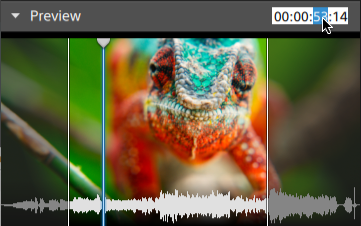
Setting mark in/out points in the Media Browser
Mark in/out points are displayed in the Media Browser and allow you to add partial clips to the timeline.
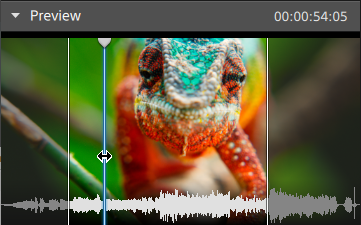
-
Press I to set the mark in point to the cursor position or press O to set the mark out point.
-
You can also drag the mark in/out points to change their positions.
When you add a clip to your project, only the area between the mark in/out points will be added to the timeline. For more information, see "Adding media and creating clips."
Managing SxS and Professional Disc volumes
If you need to format an SxS card, please use the Memory Media Utility.
If you need to format or finalize an XDCAM Professional Disc volume, please use the XDCAM Drive Software.