Marking in and out points for playback
If you want to play only a portion of
-
Click the
-
 below the timeline and choose Mark in or press I.
 -
Click the
-
below the timeline and choose Mark out or press O.
When you click the Play
 button, playback will start from the playback position indicator and continue until the Mark Out position or the end of the file.
If you want to play the Mark In/Mark Out region in a continuous loop, select the Loop Playback button
 .
.Double-click a clip with the Edit, Slip, or Fade tool to select a clip and set the Mark In/Out region to match its length.
Double-click the fade between two clips with the Edit, Slip, or Fade tool to select a fade area and set the Mark In/Out region to match its length.
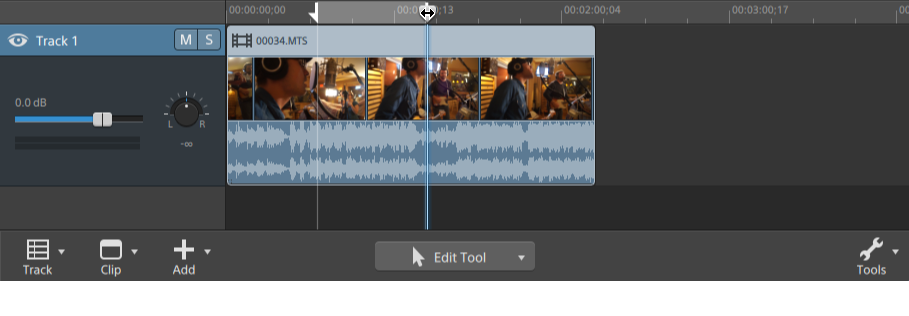
You can adjust mark in/out points by dragging the indicators above the
You can adjust the mark in/out region without changing its length by dragging the area between indicators above the
To reset mark in/out points, click the Tools button
below the timeline and choose Reset mark in/out points.
You can also use the Preview pane in Organize mode to adjust mark points.