Animating video parameters with keyframes
Keyframes define the state of an effect's parameters for a specified point on the timeline. The settings for intermediate frames are interpolated to create smooth animation.
You can click the Keyframe Editor button  at the bottom of the Inspector to switch the timeline to keyframe mode, where you can edit parameters for individual keyframes.
Adding keyframes
In the Inspector window, each parameter that can be automated displays a Keyframes button  . Select the button to create a row in the keyframe editor for that parameter.
-
Add an effect to your project. For more information, see "Using video effects."
-
Select the track or clip where you added the effect and click the Timeline Inspector, Track Inspector, or Clip Inspector.
-
Select the effect in the Timeline Inspector, Track Inspector, or Clip Inspector.
-
In the Inspector, select the Keyframes button
for the parameter you want to animate. An initial keyframe is created, and the timeline switches to keyframe mode.Notice that the keyframe editor includes a row for each keyframed parameter
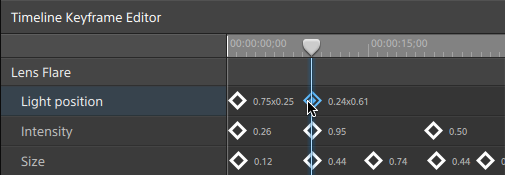 .
. -
In the keyframe editor, click to position the cursor where you want to add a keyframe
You can also double-click the keyframe editor to add a keyframe or click the Add button
 in the toolbar below the keyframe editor.
 -
In the Inspector, adjust the parameter's control as needed. A keyframe is added to the keyframe editor.
-
Click the Keyframe Editor button
at the bottom of the Inspector to exit keyframe mode when you're finished editing.
Editing keyframes
-
Click a keyframe to select it. The keyframe's current value is displayed in the keyframe editor.
Click the Previous
 or Next
  button in the toolbar below the keyframe editor.
 -
In the Inspector, adjust the parameter's control as needed. The selected keyframe is updated.
Moving keyframes
You can drag a keyframe in the keyframe editor to change its position on the timeline.
Removing keyframes
Select a keyframe in the keyframe editor and press Delete to remove it from the timeline or click the Remove button  in the toolbar below the keyframe editor.