Stabilizing clips
Catalyst Prepare allows you to use metadata from clips to stabilize the image.
-
Click the Organize button at the top of the Catalyst Prepare window to view the Media Browser.
-
Select the clip you want to stabilize. An
 on a thumbnail indicates a clip that contains stabilization metadata.
The stabilize icon is not displayed for clips on FTP devices, XDCAM Station volumes via CIFS, XDCAM decks, XDCAM Drive units, or Optical Disc Archive volumes.
For information about camera settings for enabling stabilization using metadata, please see Information on Software Applications.
Clip stabilization is not supported when changing camera settings or detaching the lens during clip recording.
-
Perform any of the following actions to display the Adjust clip workspace:
-
Click the Adjust clip
 at the bottom of the Catalyst Prepare window.
 -
Right-click the clip in the Organize pane and choose Adjust clip
from the shortcut menu.
The Adjust clip
is not available when multiple clips are selected.Below theCatalyst Prepare window, you can see the Adjust clip
. If you click it, you can use the corrections from the Stabilization  . Additionally, by clicking the Adjust Color
  , you can also adjust the color.
 -
-
Use the Adjust clip workspace to preview and adjust stabilization settings for the selected clip:
-
Set the Mark In/Out points to indicate the portion of the clip you want to correct. For more information, see "Marking in and out points for playback."
-
Choose a Stabilization mode setting:
-
Select the Auto button in the Inspector to adjust stabilization automatically.
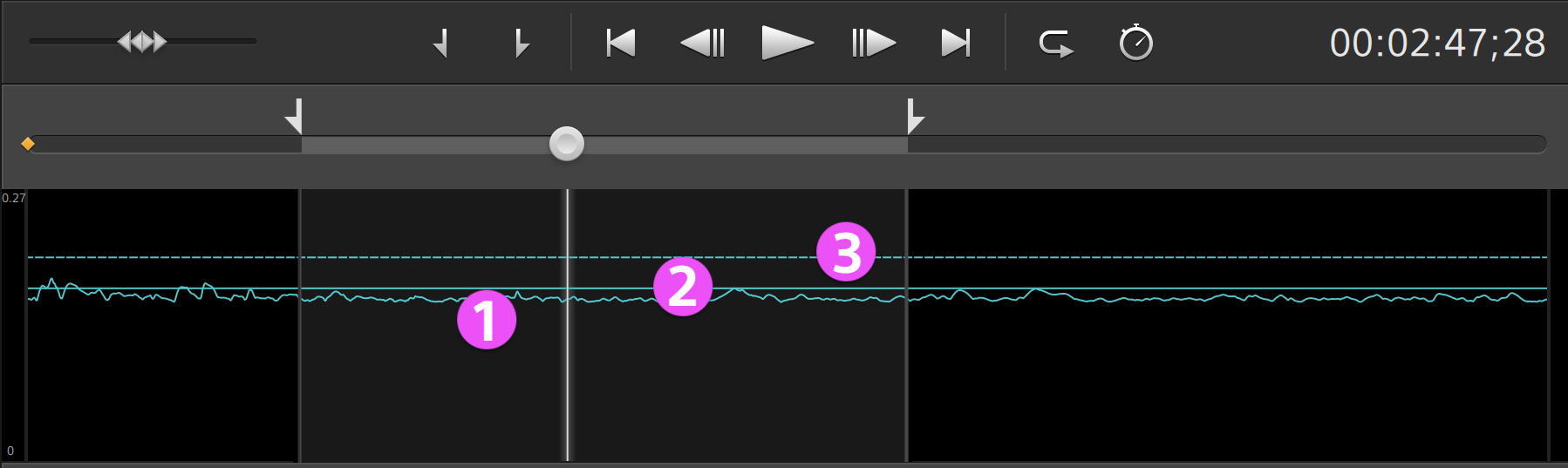
The graph below the preview helps you visualize the stabilization. Please note that the graph is not displayed when multiple clips are selected.
-
The curve (1) represents the amount of stabilization that is required based on clip analysis.
-
The solid line (2) represents the Auto cropping amount after analysis.
-
The dashed line (3) represents the setting for Limit Auto Crop Amount.
Click the Graph button
 to customize the display of the graph:
Item
Description
After the clip is analyzed, this indicator represents the amount of cropping that will be used to stabilize the clip.
Displays the dimensions of the source media before cropping is applied.
Displays the dimensions of the stabilized frame after cropping is applied.
If source clips captured with Active image stabilization mode exhibit blurring when using Auto mode, choose Manual mode and decrease the Cropping amount setting.
-
-
Select the Manual button if you want to adjust stabilization settings:
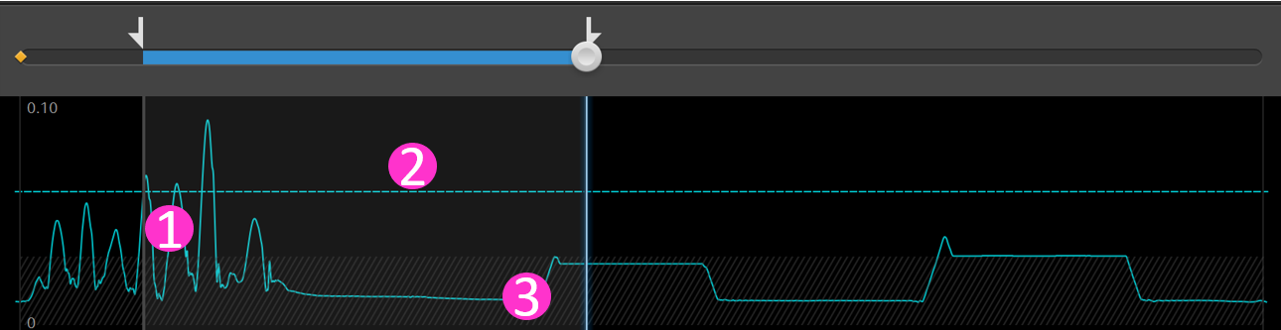
The graph below the preview helps you visualize the stabilization. Please note that the graph is not displayed when multiple clips are selected.
-
The curve (1) represents the amount of stabilization that is required based on clip analysis.
-
The dashed line (2) represents the Cropping amount setting.
-
Region (3) indicates the minimum cropping amount without displaying black borders around the frame.
Item
Description
Drag the slider — or the line (2) in the graph — to set the amount of cropping that is applied to stabilize a clip.
This setting is persisted when changing the selected clip.
When stabilizing a clip using a Cropping amount setting smaller than the default value, clips with significant camera shake may exhibit a black border around the frame. We recommend using a Cropping amount setting that is close to the default value. You can double-click the slider handle to reset the setting to its default.
Displays the dimensions of the source media before cropping is applied.
Displays the dimensions of the stabilized frame after cropping is applied.
-
-
-
You can select the [Adjust Strength] mode to change the stabilization strength.
You can select and adjust the [Strength] from 1 (weak), 2, 3 (default), 4, 5 (strong).
-
Turn ON the [Apply] check box for [Framing optimization] to enable Framing optimization.
Framing optimization is a function that suppresses the phenomenon where the amount of cropping increases and the field of view narrows due to camera movement, while maintaining correction performance and keeping a wide field of view.
In Catalyst Prepare you can suppress the camera's motion crop.
-
-
Click the Analyze button to analyze the selected clip and update the preview to show the stabilized clip.
After analysis, the Summary section of the Info panel displays the corrected crop resolution.
If you change the selected clip, the preview will indicate that the clip has not been analyzed. Click the Analyze button at the bottom of the workspace to analyze the selected clip and update the preview to show the corrected clip.
-
Click the Before/After button at the top of the video preview to choose a preview mode so you can compare your original and stabilized video before applying the changes, and then use the transport controls above the timeline to preview the clip.
-
 Before: the clip is displayed in its original state.
 -
 After: the cropped and stabilized clip is displayed.
 -
 2 Up: two full frames are displayed in a split-screen view with the original video on the left and the stabilized video on the right.
By ticking the check box for Allow black area, you might be able to strengthen the effects of stabilization.
Only when stabilization is turned on can you switch the Allow black area function on or off.
By enabling Allow black area, the limit on the cropping amount of the corrections will be removed. However, black borders may be shown.
-
-
To save a clip with the stabilization settings, click the Export button
 at the top of the Catalyst Prepare window, and use the Export pane to choose a destination and format for your exported files. Click the Export button at the bottom of the Export pane to start exporting the selected clip.
If multiple clips are selected, the Export button at the bottom of the Export pane is displayed as Batch Export. Click to display a confirmation dialog that lists all selected clips. You can select or clear check boxes to add or remove clips from the selection. Click OK to begin exporting the selected clips using the current settings.
Correct clip adjustments will be applied to each clip when batch exported.
The same effect is applied to all clips (sub-clip, storyboard, etc.) that refer to the same file.For more information about the controls, please see "Exporting media from a library".
By enabling Allow black area and analyzing, [Frame that exceeds the maximum cropping amount and includes black areas] will be displayed in the graph below the preview. Note that if you select multiple clips, the graph will not be displayed.