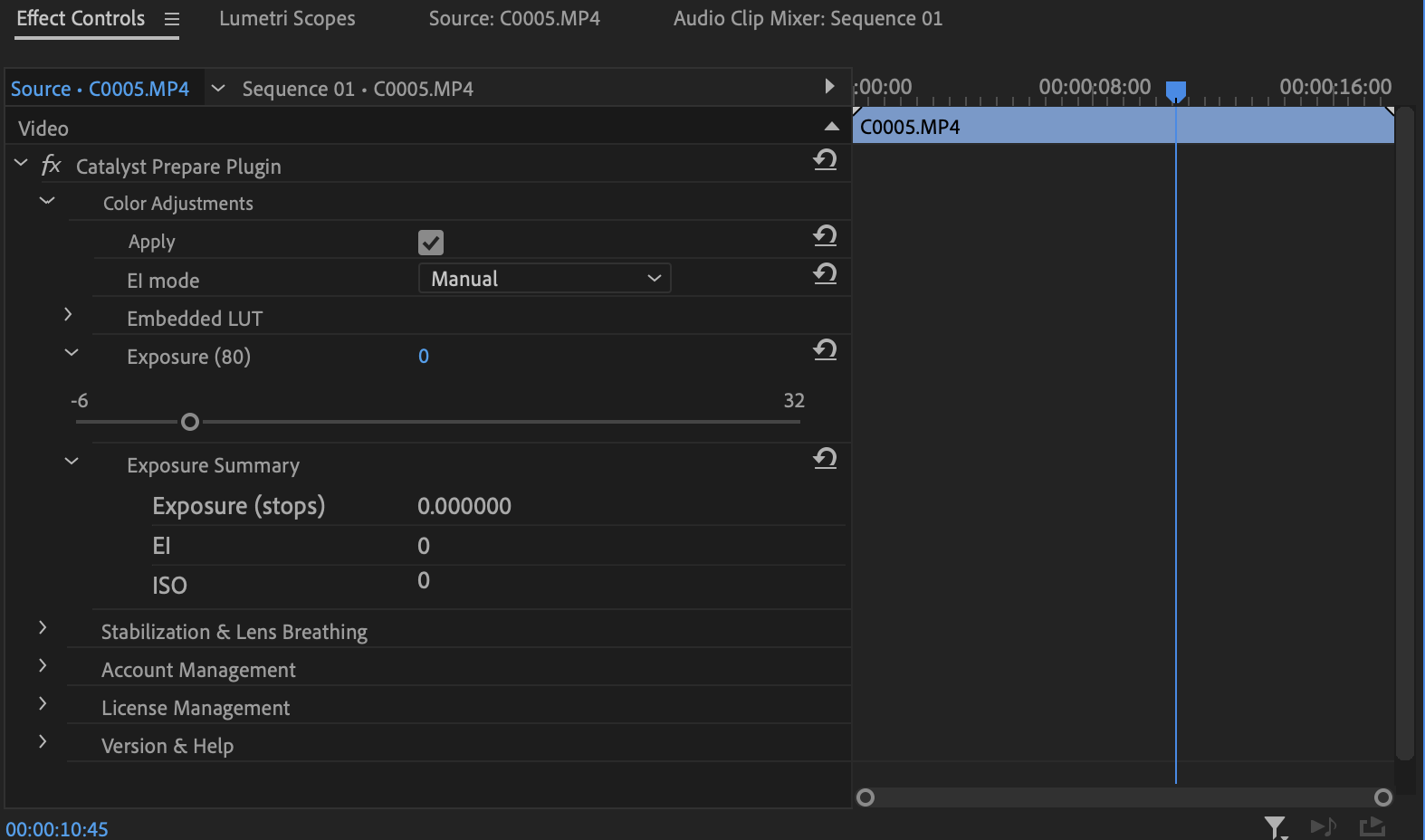
Adjust color
With the Adjust color plugin of the Catalyst Prepare Plugin, you can apply embedded LUTs and adjust the exposures within clips.
For information about supported cameras, please visit https://www.sony.net/catalyst/help.
Follow these steps to use the Adobe Premiere Catalyst Prepare Plugin v2.3 adjust color.
-
Load into the project panel and drag the clip to the timeline panel.
-
Dragging the Adjust color from the Catalyst Prepare Plugin in the effects to the clip on the timeline will add the Adjust color.
-
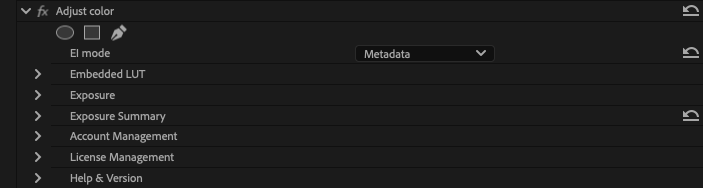
Select the Use embedded LUT check box to apply the LUT effect, which will be reflected in the preview screen.
-
From the EI Mode dropdown list, select any setting to specify how the exposure index is applied.
-
Embedded LUT
To automatically apply LUT metadata based on camera settings, select the Embedded LUT check box. Uncheck it to ignore the LUT metadata.
When a clip with LUT metadata is selected, this mode is enabled by default and the LUT name is shown.
-
Exposure
If Manual is selected in the EI Mode dropdown list, drag the Exposure slider to adjust the overall brightness of your video (a fixed value is applied to all frames).
The slider is only available if Manual is selected in the EI Mode dropdown list.
| Mode | Description |
|---|---|
|
Metadata |
Choose Metadata to automatically apply exposure metadata based on camera settings. The Exposure and EI values in the Exposure Summary section display the EI value. This mode is selected by default when you choose a clip with color adjustment metadata . |
|
Manual |
Choose Manual to adjust exposure manually. The Exposure and EI values in the Exposure Summary section display the EI value. Drag the Exposure slider to adjust the overall brightness of your video (a fixed value is applied to all frames). |
|
Off |
Choose Off to turn off exposure adjustment. The adjustment slider and exposure values are unavailable, and the original sensitivity is used. |
Follow these steps if your version of Catalyst Prepare Plugin is 1.2.1 or earlier.
-
Select the clip in the Source Monitor window.
-
Select the Effect Controls window. The Catalyst Prepare Plugin controls are displayed.
-
Expand the Color Adjustments controls.