
How to Use
Getting Started
Customer Registration Website
Before Use
- Before first use [2]
- Walkman instruction manuals [3]
- About the operating explanations in this Help Guide [4]
Parts and Controls
Power/Charging
- Turning the power on [6]
- Turning the power off [7]
- Turning the screen on and off [8]
- Charging the battery [9]
- Extending the battery life [10]
- Notes on charging the battery [11]
Flow of Initial Settings
Basic Operations
How to Use the Buttons
- Using “Play/Pause,” “Next” and “Previous” buttons [13]
- Using the volume “+” and “-” buttons [14]
- Volume operation (Only for countries/areas complying with European Directives) [15]
How to Use the Touch Screen
microSD Card
- Inserting a microSD card [18]
- Removing a microSD card [19]
- Selecting the storage to use [20]
- Formatting a microSD card [21]
- Notes on microSD cards [22]
Home Screen
- Home screen [23]
- Basic operation keys [24]
- Switching Home screens [25]
- Main notification icons [26]
- Displaying the notification panel and shortcuts from the status bar [27]
Microphone
Google™ Account
Location Information
- What is location information? [31]
- Enabling/disabling GPS [32]
- Setting to search for your current position with a wireless network [33]
- Notes on the GPS function [34]
Connecting Your Walkman to Your Computer
- Connecting to a computer [35]
- Setting to automatically connect as USB storage [36]
- Exchanging data with a computer connected using USB [37]
- Disconnecting the USB cable [38]
- Notes on connecting your Walkman to a computer [39]
Initializing/Updating
Using the Contents
Transferring Content
Operation Flow for Transferring Content to Your Walkman
Installing Media Go
Installing Content Transfer
Importing Content to the Software
- Importing and transferring content from media using Media Go [50]
- Importing content on your Windows computer into Media Go [51]
- Importing podcasts into Media Go [52]
Transferring Content to Your Walkman
- Transferring content using Media Go [53]
- Transferring iTunes content using Media Go [54]
- Transferring content using Content Transfer [55]
- Transferring content using Explorer [56]
- Transferring content using the Finder [57]
- Notes for transferring content such as music from your computer [58]
Deleting Content from Your Walkman
- Deleting content from your Walkman using Media Go [59]
- Deleting content from your Walkman using Content Transfer [60]
- Deleting content from your Walkman using Explorer [61]
- Deleting content from your Walkman using the Finder [62]
Operating with Media Go
- Playing live albums with no gaps in between songs [63]
- Deleting content imported to Media Go [64]
- Inputting the lyrics information using Media Go [65]
Bluetooth
What Is the Bluetooth Function?
Connecting with Bluetooth Audio Devices
Making a Bluetooth Connection from the Menu
- Turning the Bluetooth function on/off [68]
- Making your Walkman detectable by Bluetooth audio devices [69]
- Pairing a Bluetooth audio device [70]
- Connecting to a Bluetooth audio device [71]
- Disconnecting a Bluetooth audio device [72]
- Deleting a paired Bluetooth audio device [73]
Bluetooth Settings
Notes on the Bluetooth Function
NFC
What Is the NFC Function?
Connecting with One Touch (NFC)
Wi-Fi (Wireless LAN)
What Is Wi-Fi Communications?
Connecting to a Wi-Fi Network
- Turning Wi-Fi on/off [80]
- Connecting to a Wi-Fi network [81]
- Connecting to a Wi-Fi network from the settings screen [82]
- Connecting to a Wi-Fi network using the WPS button [83]
- Adding a Wi-Fi network manually [84]
- Checking the Wi-Fi network status [85]
Notes on Wi-Fi Connection
Settings
Sound Settings
- Enjoying various sound quality [87]
- Setting the sound quality with a single touch [88]
- Customizing sound quality settings [89]
- Presetting your equalizer settings [90]
- Adjusting the volume [91]
- Limiting the volume [92]
Bluetooth Settings
Common Settings
Announcement
Precautions
- Notes on handling your Walkman [98]
- Notes on headphones [99]
- Notes on the software [100]
- Maintenance of your Walkman [101]
Customer Support Website
Specifications
Specifications
- Specifications [103]
- Battery life [104]
- Maximum recordable number of songs and time (Approx.) [105]
- Maximum recordable time of videos (Approx.) [106]
- Supported formats [107]
- System requirements [108]
- Contents [109]
- Preinstalled applications [110]
Troubleshooting
Troubleshooting
What Can I Do to Solve a Problem?
Q&A
Operation
- Your Walkman does not operate or the power does not turn on. [113]
- Your Walkman does not work properly. [114]
- Your Walkman power turns off or on automatically. [115]
- You cannot unlock the screen. [116]
- You want your Walkman screen to stay on longer before it turns off automatically. [117]
- The date and time have been reset. [118]
- The touch screen does not operate properly. [119]
- A drink (water, coffee, etc.) was spilled on your Walkman, or the Walkman was washed in the washing machine. [120]
- You want to back up the content such as music stored on your Walkman. [121]
- You cannot get your current position using the GPS. [122]
- An application does not start. [123]
- You want to find the product name (model name) of your Walkman. [124]
- An alarm (beep) is heard and the message [Check the volume level] is displayed. [125]
Sound
- There is no sound. [126]
- Content such as music suddenly stops during playback. [127]
- Noise is generated. [128]
- Volume cannot be turned up, or the volume remains low when the playback volume is turned up. [129]
- Sound can only be heard from one side of the headphones. [130]
- Sound is interrupted or skips. [131]
Power
- You cannot charge your Walkman. [132]
- How long is the life of the built-in rechargeable battery? [133]
- The rechargeable battery needs to be replaced. [134]
- The battery life is short. [135]
- How long is the standard battery duration? [136]
- How long does it take to charge the battery? [137]
Connection to a Computer
- The computer does not recognize your Walkman. [138]
- The computer does not recognize a microSD card inserted in your Walkman. [139]
- You cannot install software to your computer. [140]
- The progress bar on the install screen does not proceed while installing the software. [141]
- Your Walkman is not recognized by Media Go. [142]
- Content such as music cannot be transferred from the computer to your Walkman. [143]
- Only a small amount of content such as music can be transferred to your Walkman. [144]
Bluetooth
- Pairing cannot be done. [145]
- You cannot connect via the Bluetooth function. [146]
- The screen to enter the passkey appears when pairing with a Bluetooth device. [147]
- You cannot hear sound from the Bluetooth audio device. [148]
- You cannot operate your Walkman from a Bluetooth audio device. [149]
- Sound skips or noise is generated during a Bluetooth connection. [150]
- Video sound is delayed when listening to sound via a Bluetooth audio device. [151]
NFC
Wi-Fi
- You cannot connect to a Wi-Fi network. [153]
- You want to turn the Wi-Fi function off at the same time the Walkman screen is turned off. [154]
microSD Card
- Your Walkman does not recognize a microSD card that is inserted. [155]
- The computer does not recognize a microSD card inserted in your Walkman. [156]
Other
Message
[1] How to UseGetting StartedCustomer Registration WebsiteCustomer registration website
We recommend that you register your Walkman so we can provide better customer support. Visit one of the following websites to register the Walkman.
For customers in the USA:
For customers in Latin America:
For customers in Europe:
For customers in Asia/Oceania/Middle East/Africa:
English/Korean/Traditional Chinese
http://www.sony-asia.com/dmpwalkman/register/
Simplified Chinese
https://www.sonystyle.com.cn/b2c_sony/b2c/productRegister.do
[2] How to UseGetting StartedBefore UseBefore first use
Thank you for purchasing this Walkman.
This “Help Guide” explains how to transfer content to your Walkman, and how to use the various functions. Browse this “Help Guide” for necessary information.
The printed manuals (supplied), such as “Quick Start Guide,” also contain important information for you. For information about the customer support website, see “Customer support website.”
- For information on laws, regulations and trademark rights, refer to “Important Information” contained in the supplied software. To read it, install the supplied software on your computer.
- Google, Android and other marks are trademarks of Google Inc.
- The Android robot is reproduced or modified from work created and shared by Google and used according to terms described in the Creative Commons 3.0 Attribution License.
- All other trademarks and registered trademarks are trademarks or registered trademarks of their respective holders. In this manual, TM and ® marks are not specified.
About model names mentioned in this “Help Guide”
Depending on the country/region in which you have purchased your Walkman, some models may not be available.
Computer system requirements when connecting your Walkman
See “System requirements” for details on computer system requirements.
Battery charging
The battery might be low when you use your Walkman for the first time. Charge the battery before using the Walkman.
About microSD cards
In this “Help Guide,” microSD cards, microSDHC cards and microSDXC cards are called “microSD cards.”
About images used in this “Help Guide”
The screens and illustrations shown are for reference only and may differ from the actual product or screen.Design and specifications are subject to change without notice.
[3] How to UseGetting StartedBefore UseWalkman instruction manuals
The operations of this Walkman are explained in the following instruction manuals.
Quick Start Guide (paper)
Describes the basic operating instructions (provided only in some languages).
Help Guide
You are currently viewing the Help Guide. This contains information such as explanations of Walkman operations and software.
Help for applications
Help is available for some applications, such as the Music player, Video player, Photo viewer and DLNA. This help can be launched from the application or the application launcher.
Important Information
Contains information on trademark rights, laws, and regulations. You can read it by installing the software (supplied) on your computer.
[4] How to UseGetting StartedBefore UseAbout the operating explanations in this Help Guide
This Help Guide shows icons displayed on your Walkman screen as follows:  ,
,  ,
,  ,
,  ,
,  .
.
Items such as menus on the screen are shown as follows: [ Storage], [USB storage settings].
Some of the operating explanations assume that you are starting from the Home screen. Tap (Home) to display the Home screen.
Hint
- If a function or setting can be done in more than one way, the simpler method is explained.
[5] How to UseGetting StartedParts and ControlsParts and controls
Functions of buttons, jacks, and other parts on your Walkman are explained here.
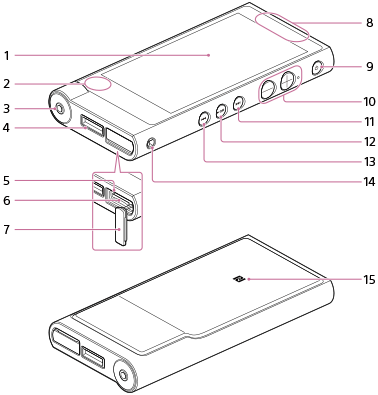
-
Screen (touch screen)
Touch (tap) icons, items, etc., on the screen to operate your Walkman.
-
Built-in microphone
-
Headphone jack
Push the headphone plug all the way in. If the headphones are connected improperly, the sound from the headphones will be impaired. Sound is not emitted from the headphones connected to the headphone jack when a Bluetooth connection is active. End the Bluetooth connection.
-
WM-PORT jack
Connect the USB cable (supplied) or other accessories that support WM-PORT (not supplied).
-
Access lamp
The access lamp is located under the microSD card slot cover.
-
microSD card slot
The microSD card slot is located under the microSD card slot cover. Open the cover before inserting a microSD card (not supplied). Insert a microSD card until it clicks into place to increase the available storage of your Walkman.
-
microSD card slot cover
-
Built-in antenna
Wi-Fi, Bluetooth, and GPS antennas are built-in.
-
 (Power)/Screen lock button
Press to turn the power on. Press and hold to turn the power off. Press to turn the screen on/off.
Your Walkman will be reset if you press and hold the
button for about 8 seconds. -
Volume “+” and “-” buttons
Press the volume “+” button to turn up and the volume “-” button to turn down the volume.
There is a tactile dot beside the “+” button. Use it to help with button operations.
-
 (Next) button
Skip to the next song, the next chapter of a video, or a scene playing 5 minutes later. If you press and hold the button, songs or videos are fast-forwarded.
-
 (Play/Pause) button
Play back or pause songs or videos.
There is a tactile dot on the button. Use it to help with button operations.
-
 (Previous) button
Skip to the previous (or current) song, the previous chapter of a video, or a scene that played 5 minutes ago. If you press and hold the button, songs or videos are fast-rewound.
-
Strap hole
This is used to attach a strap (not supplied).
-
N-mark
Touch a Bluetooth audio device equipped with the NFC function to this mark.
[6] How to UseGetting StartedPower/ChargingTurning the power on
Turn on the power to start your Walkman.
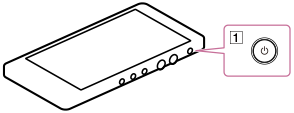
- Press the button (
 ).
When you start your Walkman, it is locked, and the lock screen will be displayed.
).
When you start your Walkman, it is locked, and the lock screen will be displayed. - Drag
 out of the circle.
Your Walkman is then unlocked, and the Home screen will be displayed.
out of the circle.
Your Walkman is then unlocked, and the Home screen will be displayed.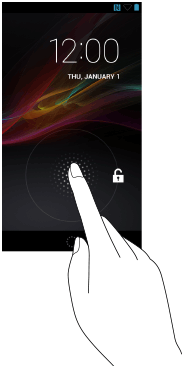
Note
- It may take some time before the lock screen is displayed.
- Charge the battery if your Walkman cannot be turned on.
- The lock screen differs depending on the screen lock type you have set on the security setting screen.
[7] How to UseGetting StartedPower/ChargingTurning the power off
Turn off the power when not using your Walkman for an extended period of time.

- Press and hold the button ().
- Tap [ Power off] - [OK].
The power will then turn off.
[8] How to UseGetting StartedPower/ChargingTurning the screen on and off
You can turn off the screen when not using your Walkman in order to prevent the touch screen from being operated accidentally.
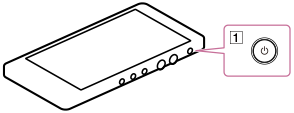
- Press the button ().
The screen will turn off. Press the button () again to turn the screen on.
Hint
- The default setting is for the screen to be turned off automatically after no operations are performed for a certain length of time. You can set the time after which the screen is turned off.
- The lock screen is displayed when you turn on the screen. Touch and drag it out of the circle to unlock your Walkman.
[9] How to UseGetting StartedPower/ChargingCharging the battery
Charge your Walkman by connecting it to a computer.
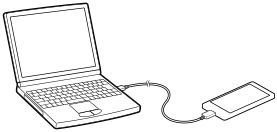
- Connect your Walkman to a running computer via USB.
[Charged] is displayed on the lock screen when charging is complete.
- Disconnect your Walkman from the computer when charging is complete.
Swipe the status bar of your Walkman down, and then tap [Turn off USB storage] on the notification panel. Tap [Turn off USB storage] displayed on the screen of the Walkman.
Hint
- For information about the time to fully charge the battery, see “Specifications.”
Note
- When you charge your Walkman when it has not been used for a long period of time or when you use it for the first time, your computer may not recognize it. The Walkman should start operating normally again after charging for about 10 minutes.
-
If a large battery symbol is displayed while you are charging your Walkman, the remaining charge is still too low for the Walkman to operate. Charge it continuously for about 10 minutes before attempting any operations, and then the Walkman will start automatically.

[10] How to UseGetting StartedPower/ChargingExtending the battery life
You can reduce battery consumption by using your Walkman as follows.
For a comparison of battery life based on set effects, default settings and functions, see “Battery life.”
- Turn off the power manually.
- Set a shorter time for [Sleep].
- Adjust the screen brightness.
- Set all sound quality settings to off.
- Turn off the Bluetooth function when not in use.
- Turn off the NFC function when not in use.
- Turn off the Wi-Fi function when not in use.
- Turn off the GPS function when not in use.
[11] How to UseGetting StartedPower/ChargingNotes on charging the battery
- The charging time differs depending on the battery usage conditions.
- If the battery life is reduced to about half of its normal life even if sufficiently charged, it has probably worn out. Please contact your nearest Sony dealer.
- If you charge your Walkman when it has not been used for a long period of time, your computer may not recognize it, or the Walkman may not respond. Charge the Walkman for about 10 minutes, after which it should start operating normally again.
- Charge the battery in an ambient temperature between 5 °C to 35 °C (41 ºF to 95 ºF).
- The number of times the battery can be recharged from complete discharge is approximately 500 times. This number may vary depending on the conditions under which you use your Walkman.
- To prevent battery deterioration, charge the battery at least once every six months to one year.
- Charging is not guaranteed with homebuilt or modified computers.
- Operation with a USB port extended with a USB hub is only guaranteed when a self-powered USB hub that carries an authorized logo is used.
- Do not leave your Walkman connected for an extended period of time to a laptop computer that is not connected to an AC power supply. Doing so may discharge the computer’s battery.
- Do not turn on, restart, wake up from sleep mode, or shut down the computer with your Walkman connected to the computer via USB. Doing so may cause the Walkman to malfunction. Disconnect the Walkman from the computer before conducting these operations.
- Heat may build up in your Walkman depending on the usage conditions such as while charging and/or using an application. This is not a malfunction.
[12] How to UseGetting StartedFlow of Initial SettingsFlow of initial settings
The first time you turn your Walkman power on, a screen for the initial settings is displayed. This explanation assumes that the settings for Wi-Fi connections and Google accounts are skipped at first and set as necessary later.
- Press the button () to turn on your Walkman.
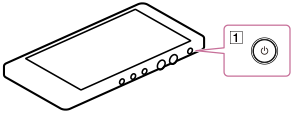
Your Walkman may not turn on if the battery power is insufficient. Connect the Walkman to your computer with the USB cable (supplied) and wait about 10 minutes before turning it on.
- Tap a language to view the software license agreement in that language.
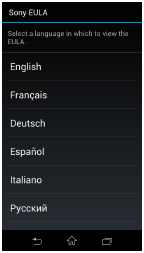
- Confirm the content of the software license agreement, and then tap [Agree].
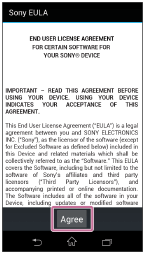
- Tap [Start].
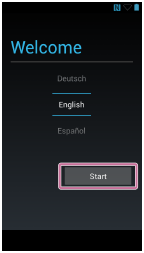
The initial setup begins.
- Tap [Skip].
Hint
- The settings for Wi-Fi connections can be set as necessary later.
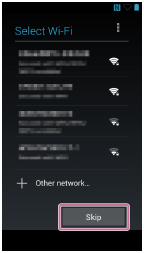
- Tap [Skip anyway].
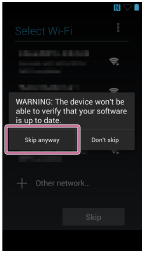
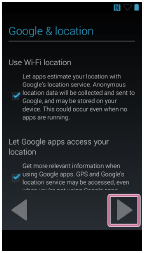
- Tap
 to confirm the entire content, and then tap .
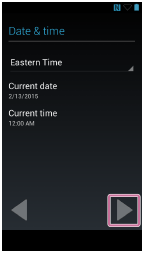
- Set the date and time, and then tap .
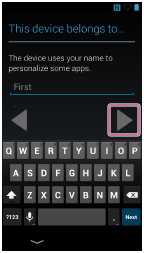
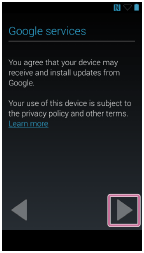
- Confirm the content or enter content as necessary, tap , and then tap .
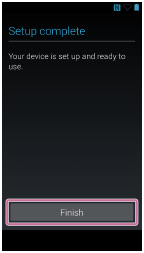
- Tap [Finish] on the completion screen.
- Confirm the content, and then tap [OK].
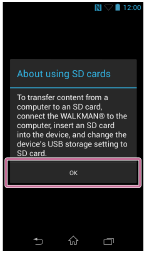
- Tap [OK] to confirm the content of [Guide to quality sound].
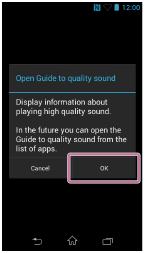
[Guide to quality sound] contains information on how to get even more enjoyment from high quality sound. Tap [Next ], [Back] or [Exit] to navigate through [Guide to quality sound].
- Confirm the content, and then tap [OK].
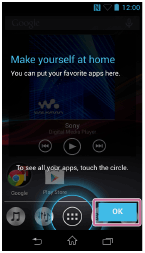
- Confirm that the Home screen is displayed.
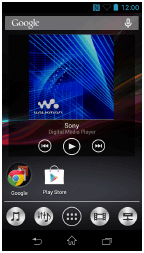
This completes the initial settings of your Walkman.
[13] How to UseBasic OperationsHow to Use the ButtonsUsing “Play/Pause,” “Next” and “Previous” buttons
You can operate Music player, Video player, etc. using the buttons ( / / ) on the side of your Walkman.
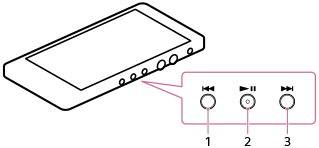
- button
During music playback, press this button to skip to the beginning of the previous (or current) song.
During video playback, press this button to skip to the beginning of the previous (or current) chapter or scene (5 minutes rewind).
During music or video playback, press and hold this button to fast-rewind.
- button
Press this button to start playback of a song or video.
During playback, press this button to pause.
- button
During music playback, press this button to skip to the beginning of the next song.
During video playback, press this button to skip to the next chapter or scene (5 minutes forward).
During music or video playback, press and hold this button to fast-forward.
Hint
- You can deactivate these buttons while the screen is turned off or the lock screen is displayed. Swipe the status bar down and tap
 -
-  [SETTINGS] - [
 Device settings] - [Button protection].
Note
- These buttons may not work depending on the application you use.
[14] How to UseBasic OperationsHow to Use the ButtonsUsing the volume “+” and “-” buttons
Adjust the master volume quickly using the buttons () on your Walkman.
For more customized volume control, see “Adjusting the volume.”

Hint
- If there is no sound even if you press the buttons (), swipe the status bar down, tap - [SETTINGS] - [
 Sound] - [Volumes], and then slide [Music, video, games, & other media] to turn up the volume.

[15] How to UseBasic OperationsHow to Use the ButtonsVolume operation (Only for countries/areas complying with European Directives)
An alarm (beep) and a warning [Check the volume level] are meant to protect your ears when you turn the volume up to a level that is harmful for your ears for the first time. You can cancel the alarm and warning by tapping the [OK] button on the alert dialog.
Note
- You can turn up the volume after canceling the alarm and warning.
- After the initial warning, the alarm and warning repeat every 20 cumulative hours that the volume is set to a level that is harmful for your ears. When this happens, the volume is turned down automatically.
- If the volume is set to a level that is harmful for your ears and you turn off your Walkman, the volume is turned down to a level that is safe for your ears automatically.
- The alarm (beep) does not sound when connected to a Bluetooth audio device.
[16] How to UseBasic OperationsHow to Use the Touch ScreenHow to use the touch screen
The display of your Walkman is a touch screen. Make operations by directly touching the screen. The basic operations are explained as follows.
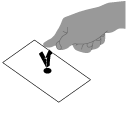
Tap
Lightly touch an item such as an icon or menu with your finger and immediately remove your finger. Tapping twice quickly is called “double tapping.”
Press and hold
Keep pressing an item such as an icon or menu.

Flick (Swipe)
Lightly move your finger across the touch screen.
This switches screens or quickly scrolls through a page.

Drag
Keeping your finger on the touch panel, move to the desired point and release.
This moves icons, etc. and scrolls the screen.

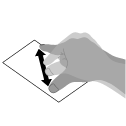
Pinch in/pinch out
Touch the screen with two fingers, and move the fingers apart (pinch out) or together (pinch in).
On some screens, pinching out zooms in and pinching in zooms out.
[17] How to UseBasic OperationsHow to Use the Touch ScreenNotes on the touch screen
- Your Walkman uses a capacitive touch screen. Tap the screen directly with your fingertip. Do not scratch it or tap it with sharp objects such as a needle, pen, or fingernail. You cannot operate the touch screen with a stylus.
- If you touch the touch screen with gloved fingers, it may operate incorrectly or may not operate at all.
- Do not operate your Walkman with objects on the touch screen.
- If the touch screen is touched by objects other than your fingertip, it may not react correctly.
- Do not put the touch screen close to other electrical devices. Electrostatic discharges can make the touch screen malfunction.
- If there are water droplets on the touch screen, or if you touch it with wet fingertips, the touch screen may not react correctly.
[18] How to UseBasic OperationsmicroSD CardInserting a microSD card
You can store content such as music on microSD cards (not supplied) in addition to [System storage].
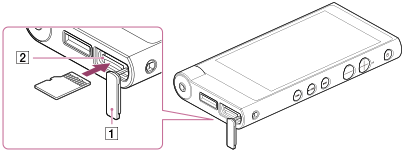
- Pull the microSD card slot cover () all the way out.
- Swing the microSD card slot cover () downwards to expose the microSD card slot (
 ).
). - Insert a microSD card into the microSD card slot () with the gold contact pins side facing up until it clicks into place.
Your Walkman starts updating the database and playback of music or videos stops.
- Close the microSD card slot cover ().
Note
- If the microSD card is not recognized, remove it and then insert it into your Walkman again.
- Do not insert any liquids, metal, flammable substances or any object other than a microSD card into the microSD card slot ().
- When you insert a microSD card, your Walkman starts updating the database and the information on the previous playback point is lost. Select the desired song again.
- If you insert a microSD card that contains a lot of content, it may take 10 or more minutes for the database to be rebuilt on your Walkman. Rebuilding the database takes longer when the content is stored on a microSD card than when it is stored in the system storage.
[19] How to UseBasic OperationsmicroSD CardRemoving a microSD card
You can remove the microSD card (not supplied) from your Walkman.
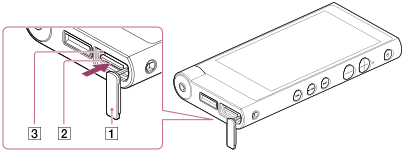
- Swipe the status bar down and tap - [SETTINGS].
- Tap [ Storage], scroll down and then tap [Unmount SD card] - [OK].
[Safe to remove SD card] is displayed on the notification panel.
- Pull the microSD card slot cover () all the way out.
- Swing the microSD card slot cover () downwards to expose the microSD card slot ().
- Push the microSD card into the microSD card slot (). When the microSD card pops out, remove it from the slot ().
Your Walkman starts updating the database and playback of music or videos stops.
- Close the microSD card slot cover ().
Note
- Check that the access lamp (
 ) is off before you remove the microSD card.
 - If you have added songs stored on a microSD card to a playlist, these songs are deleted from the playlist when you remove the microSD card from your Walkman and are not recovered even if the microSD card is reinserted. Insert the microSD card and add the deleted song to the playlist again.
- Data relating to content stored on a microSD card, such as 12 TONE ANALYSIS information and cover art settings, is deleted once the microSD card is removed from your Walkman and is not recovered even when the microSD card is reinserted correctly. This data needs to be set every time you insert the microSD card.
[20] How to UseBasic OperationsmicroSD CardSelecting the storage to use
You can select the storage to store content and other data on from [System storage] or [SD card].
- Swipe the status bar down and tap - [SETTINGS].
- Tap [ Storage] - [USB storage settings] - [System storage] or [SD card].
Hint
- [System storage] is selected at the time of purchase.
- You can switch the storage while your Walkman is connected to a computer. Swipe down the status bar at the top of the screen and tap [System storage selected] or [SD card selected] to put a checkmark in [System storage] or [SD card].
- If you switch the storage while your Walkman is connected to a computer, the USB connection is lost. To connect the Walkman as USB storage again, swipe down the status bar and tap [Turn on USB storage] - [Turn on USB storage]. The storage ([System storage] or [SD card]) selected in the USB storage settings is recognized as USB storage and the USB connection is reestablished.
[21] How to UseBasic OperationsmicroSD CardFormatting a microSD card
Before using a microSD card (not supplied) in your Walkman for the first time, be sure to format the microSD card using the Walkman by following the steps below. Formatting a microSD card will delete all data stored on the microSD card, so be careful not to delete important data.
-
Swipe the status bar down and tap - [SETTINGS].
-
Tap [ Storage], scroll down and then tap [Erase SD card] - [Erase data] - [Erase everything].
All data stored on the microSD card is deleted.
Note
- Be sure to format the microSD card using your Walkman when you use it on the Walkman for the first time.
[22] How to UseBasic OperationsmicroSD CardNotes on microSD cards
- Use a microSD card (not supplied) that has been formatted using your Walkman. Operations of microSD cards formatted with computers or other devices are not guaranteed.
- If you format a microSD card containing data, the data will be deleted. Be careful not to delete important data.
- Do not leave a microSD card within the reach of small children. They might accidentally swallow it.
- Do not remove the microSD card without unmounting it. Doing so may cause a malfunction in your Walkman.
- We do not guarantee the operation of all types of compatible microSD cards with your Walkman.
- Data may be corrupted in the following cases:
- When a microSD card is removed or your Walkman is turned off during a read or write operation.
- When a microSD card is used in locations subject to static electricity or electrical noise.
- We assume no responsibility for any loss or damage of stored data.
- We recommend that you save a backup copy of important data.
- Do not touch the terminal of a microSD card with your hand or a metal object.
- Do not strike, bend or drop a microSD card.
- Do not disassemble or modify a microSD card.
- Do not expose a microSD card to water.
- Do not use a microSD card under the following conditions:
- Locations beyond the required operating conditions, including locations such as the hot interior of a car parked in the sun and/or in the summer, outdoor areas exposed to direct sunlight, or near a heater.
- Humid locations or locations with corrosive substances present.
- When using a microSD card, make sure to check the correct insertion direction into the microSD card slot.
- Do not insert foreign objects into the microSD card slot.
[23] How to UseBasic OperationsHome ScreenHome screen
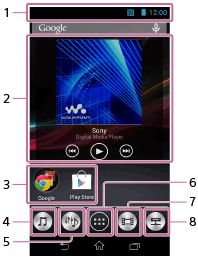
Application widgets, shortcuts, folders, and more are displayed on the Home screen. There are several Home screens and you can switch the screen by flicking the screen left or right.
-
Status bar
Displays the status of your Walkman and notifications.
-
[Music player] widget
Plays back music.
-
Application shortcuts
Starts application individually.
-
[Music player] shortcut
Plays back music transferred by Media Go or drag-and-drop.
-
[Sound adjustment] shortcut
Starts the sound adjustment application.
-
Apps
Displays all your applications and widgets.
-
[Video player] shortcut
Starts video player.
-
[DLNA] shortcut
Starts DLNA application.
[24] How to UseBasic OperationsHome ScreenBasic operation keys
The following explains the basic operation keys at the bottom of your Walkman screen.
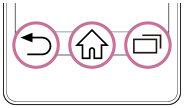
- (Back)
Returns to the previous screen.
- (Home)
Returns to the Home screen.
- (Recent Apps)
Displays recently used applications.
[25] How to UseBasic OperationsHome ScreenSwitching Home screens
There are several Home screens. You can switch the Home screen by flicking the screen left or right.
- Flick the Home screen left or right.
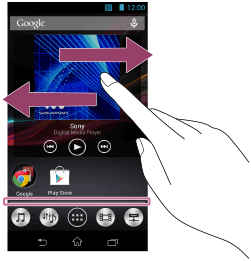
The Home screen will be switched.
Hint
- You can check which Home screen currently is displayed by the location of
 displayed at the bottom of the screen.
[26] How to UseBasic OperationsHome ScreenMain notification icons
The main notification icons that are displayed on the screen are as follows.
 New e-mail
 New e-mail (Gmail™)
 Receiving/downloading data
 Sending/uploading data
 Communicating data using Bluetooth function
 Installation complete (when an application is installed via Google Play™, etc.)
 System update notification
 Application update (when an update for an installed application is available)
 Event scheduled on calendar
 Song playing back
 USB connection active
 Error message
 Login/sync error
 Notification not displayed by other icons
 Content being sent to another device for playback
 Updating the database
 Safe to remove microSD card
 NFC function enabled
Items displayed differ in some countries/regions.
The design of icons is subject to change without notice.
[27] How to UseBasic OperationsHome ScreenDisplaying the notification panel and shortcuts from the status bar
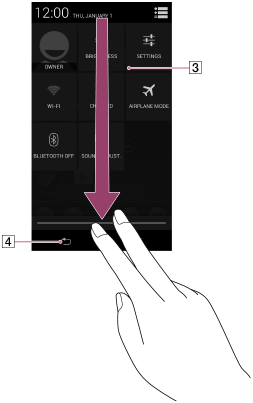
Swipe the status bar () with one finger to display the notification panel () on which you can check the details of notifications. You can also start the relevant application directly by tapping a notification on the
panel.
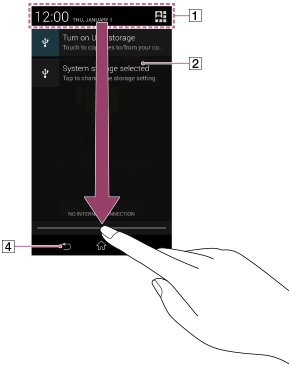
If you swipe the status bar down with two fingers, shortcuts to various settings () are displayed. Tap a shortcut to open the setting screen.
Hint
- Tap the icon (
 ) to close the notification panel.
[28] How to UseBasic OperationsMicrophoneUsing the microphone
The built-in microphone of your Walkman can be used to input sound.
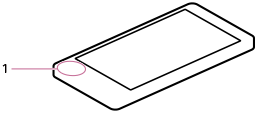
- Built-in microphone
Do not cover the microphone when using it for functions such as voice recognition.
[29] How to UseBasic OperationsGoogle™ AccountSetting up a Google account
Set up a Google account to use services provided by Google. Multiple accounts can be registered on your Walkman.
You can obtain a Google account for free. Having a Google account allows you to enjoy services as shown below.
- Installing applications from the Google Play store, etc.
- Using applications such as e-mail and calendar.
- Using services provided by Google on other devices besides your Walkman.
- Swipe the status bar down and tap - [SETTINGS].
- Tap [
 Add account] - [
 Google] and follow the on-screen instructions to set up an account.
Note
- Make sure your Walkman is connected to the Internet through a Wi-Fi connection when setting up or logging in to your Google account.
- You can also use your Walkman without setting up a Google account; however, in this case, services provided by Google are not available.
[30] How to UseBasic OperationsGoogle™ AccountDeleting a Google account
You can delete accounts by following the procedures below.
- Swipe the status bar down and tap - [SETTINGS].
- Tap [ Google].
- Tap the account to delete from the list.
- Tap
 and then [Remove account] - [Remove account].
[31] How to UseBasic OperationsLocation Information What is location information?
The location information function finds your current position using GPS (*1) or a wireless network (Wi-Fi).
Using GPS allows you to find your position accurately, but the process may take some time. Using a wireless network allows you to find your position quickly, but accuracy may vary.
Using GPS and a wireless network together allows you to make the most of the merits of both methods.
(*1) GPS stands for Global Positioning System. GPS satellites emit positioning signals toward the earth, and your Walkman uses those to display your current position.
[32] How to UseBasic OperationsLocation Information Enabling/disabling GPS
Set permission to use your current position information from the GPS function with applications that use location information (Google Maps, etc.).
- Swipe the status bar down and tap - [SETTINGS].
- To set the GPS function, tap [
 Location access] - [GPS satellites] to put or remove a checkmark in the checkbox.
Use of location information is enabled/disabled each time you tap the setting.
Location access] - [GPS satellites] to put or remove a checkmark in the checkbox.
Use of location information is enabled/disabled each time you tap the setting.
Hint
- You can reduce battery consumption by turning off the GPS function when not using that function.
Note
- If [Access to my location] is set to [OFF] in step 2 above, tap [Access to my location] to turn it [ON].
[33] How to UseBasic OperationsLocation Information Setting to search for your current position with a wireless network
Set to search for your current position with a wireless network (Wi-Fi).
- Swipe the status bar down and tap - [SETTINGS].
- Tap [ Location access] - [Wi-Fi & mobile network location] to put a checkmark in the checkbox.
- Read the cautions about location information and agree to them.
Note
- Location information is collected without identifying the individual user. Also, location information may be collected even if the application is not running.
[34] How to UseBasic OperationsLocation Information Notes on the GPS function
- Move your Walkman as little as possible in an area where there are no tall buildings and trees around until the current location is displayed by the GPS function. The current location can be displayed more quickly when stationary than while moving. If the current location is not displayed or if the wrong location is displayed, check the following notes.
- When other electronic devices are near your Walkman, electromagnetic waves or magnetic interference from these may prevent the Walkman from providing accurate location information. Keep other electronic devices away from the Walkman.
- When in an area with poor reception of GPS signals, you may encounter positioning errors. To receive more accurate information, avoid using your Walkman in the following locations.
- Inside buildings or in vehicles such as cars and trains
- In tunnels or underground
- Under elevated tracks
- Between tall buildings
- In dense trees
- In valleys
- If the wrong location is displayed, turn off the wireless network temporarily. See if the location information improves before turning on the wireless network again.
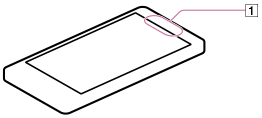
- The GPS antenna () is built in to your Walkman. If you cover the antenna () with your hands or other objects while using the GPS function, the positioning accuracy may decrease.
[35] How to UseBasic OperationsConnecting Your Walkman to Your ComputerConnecting to a computer
Connect your Walkman to a computer via USB to charge the Walkman or transfer data.
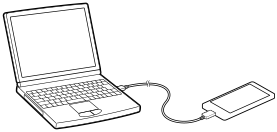
- Connect your Walkman to a running computer via USB.
The [USB storage in use] screen is displayed and your Walkman is connected automatically as a mass storage device.
Your Walkman can then be accessed by clicking “Computer” or “This PC.”
Hint
- If [USB connected] is displayed on the screen, tap [Turn on USB storage] to complete the connection.
- If you are prompted to make a Windows operation, click “Cancel” or “×.”
- When you exchange data between your Walkman and a computer, select the storage to use ([System storage] or [SD card]) on the Walkman.
[36] How to UseBasic OperationsConnecting Your Walkman to Your ComputerSetting to automatically connect as USB storage
When you connect your Walkman to a USB device, the Walkman is connected automatically as a USB storage device. [USB auto connection] is set to on by default.
- Swipe the status bar down and tap - [SETTINGS].
- Tap [ Storage] - [USB storage settings] - [USB auto connection].
A checkmark will be added, and your Walkman will be connected automatically as a USB storage device when connected to a USB device using the WM-PORT jack.
[37] How to UseBasic OperationsConnecting Your Walkman to Your ComputerExchanging data with a computer connected using USB
You can exchange data between your Walkman and a computer connected using USB by drag-and-drop.
- Use the USB cable (supplied) to connect your Walkman to a computer.
Your Walkman will be recognized by the computer, and you will be able to drag-and-drop data.
Drag-and-drop music data to the “Music” folder, video data to the “Video,” “Movies” or “DCIM” folder, and photo data to the “Picture,” “Pictures” or “DCIM” folder.
Hint
- When exchanging data between your Walkman and a computer, select the storage to use ([System storage] or [SD card]) on the Walkman.
- Music, video and picture files in data hierarchy levels 1 to 8 can be played.
Note
- Content may not be played if you change the name of folders such as “Music,” “Video,” “Movies,” “Picture,” “Pictures” and “DCIM.”
[38] How to UseBasic OperationsConnecting Your Walkman to Your ComputerDisconnecting the USB cable
Follow the procedures below when disconnecting the USB cable to prevent damage to data.
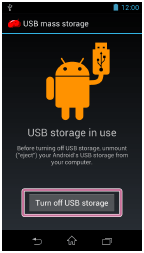
- Tap [Turn off USB storage] displayed on the screen of your Walkman.
If this message is not displayed on the screen, swipe the status bar down, and then tap [Turn off USB storage] on the notification panel.
[39] How to UseBasic OperationsConnecting Your Walkman to Your ComputerNotes on connecting your Walkman to a computer
-
Do not disconnect your Walkman from your computer when transferring data between the Walkman and the computer via USB. Doing so may result in loss of the data being transferred and data on the Walkman.
-
Do not turn on, restart, wake up from sleep mode, or shut down the computer with your Walkman connected to the computer via USB. Doing so may cause the Walkman to malfunction. Disconnect the Walkman from the computer before conducting those operations.
[40] How to UseBasic OperationsInitializing/UpdatingResetting your Walkman
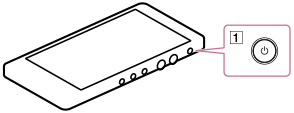
Try resetting your Walkman if operations become unstable. Before resetting the Walkman, disconnect the Walkman from your computer and check that no content such as music is being played. Otherwise, the data may be damaged.
-
Press and hold the button () for about 8 seconds to reset your Walkman.
You can reset your Walkman even if the display of the Walkman is turned off.
Note
- Resetting your Walkman will not delete any data or reset any settings.
[41] How to UseBasic OperationsInitializing/UpdatingFormatting the storage of your Walkman
Delete data such as Google account information and downloaded applications, and reset your Walkman to factory default. If you put a checkmark in the checkbox by tapping [Erase system storage], the following data will be erased: Music and photo data transferred to the Walkman, preinstalled content, the Help_Guide_Installer.exe or Help_Guide_Installer_for_mac file stored on [System storage] for installation on your computer. Be careful because the preinstalled content and the files in the “FOR_WINDOWS” and “FOR_MAC” folders will not be offered again. It is best to back up such data to a computer before initializing (formatting) the Walkman.
- Swipe the status bar down and tap - [SETTINGS].
- Tap [
 Backup & reset] - [Factory data reset] - [Reset device].
To delete music, photos, etc. transferred to [System storage], scroll down and then tap [Erase system storage] to put a checkmark in the checkbox before tapping [Reset device].
Backup & reset] - [Factory data reset] - [Reset device].
To delete music, photos, etc. transferred to [System storage], scroll down and then tap [Erase system storage] to put a checkmark in the checkbox before tapping [Reset device]. - Tap [Erase everything].
Your Walkman restarts automatically after being initialized (formatted).
[42] How to UseBasic OperationsInitializing/UpdatingUpdating your Walkman
Updating your Walkman to the latest version of the system software allows you to use the most recent functions in the optimal environment.
You will be notified of system updates by means such as the network.
Note
- It is best to back up data before updating your Walkman.
- You cannot update your Walkman if you have selected [SD card] as the storage to use. Change the storage setting to [System storage].
[43] How to UseBasic OperationsUsing the ContentsUsing the spacer
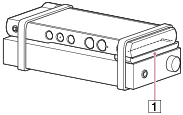
When using your Walkman with a portable headphone amplifier (not supplied), you can make the Walkman level using the spacer () (supplied) by placing it between the portable headphone amplifier and the Walkman as shown in the figure.
For details on how to attach the Walkman, refer to the portable headphone amplifier manual.
Note
- Bands are not supplied with your Walkman.
[44] How to UseTransferring ContentOperation Flow for Transferring Content to Your WalkmanPreparing content using a Windows computer
Installing Media Go (built into the system storage of your Walkman) enables you to import CDs, download and manage content from online music services, and transfer them to the Walkman.
- Install Media Go (built into the system storage of your Walkman) on your Windows computer.
- Import content to Media Go.
You can import music, photos or videos on media or your Windows computer to Media Go.
- Transfer the content to your Walkman.
Transfer the imported content from Media Go to your Walkman.
Hint
- You can also transfer content directly from Windows Explorer to your Walkman by drag-and-drop.
[45] How to UseTransferring ContentOperation Flow for Transferring Content to Your WalkmanPreparing content using a Mac computer
Installing Content Transfer (built into the system storage of your Walkman) enables you to transfer content to the Walkman.
- Install Content Transfer (built into the system storage of your Walkman) on your Mac computer.
- Drag-and-drop the content on your Mac computer to Content Transfer.
The content is transferred to your Walkman.
Hint
- You can also transfer content directly from iTunes or the Finder to your Walkman by drag-and-drop.
[46] How to UseTransferring ContentInstalling Media GoAbout Media Go
Media Go is software for your Windows computer that allows you to import various content such as music, photos or videos to your Windows computer and manage stored content on your Windows computer. You can transfer content that you have imported from CDs or downloaded from online music services to your Walkman. If you have already managed content such as music with iTunes, etc., you can use Media Go to transfer the content to the Walkman.
[47] How to UseTransferring ContentInstalling Media GoInstalling Media Go
Install Media Go to your Windows computer.
- Connect your Walkman to your Windows computer via USB.
-
Make sure that [USB storage in use] is displayed on the screen.
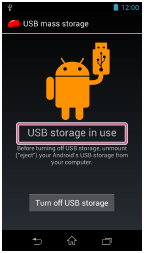
Hint
- If [USB connected] is displayed, tap [Turn on USB storage].
- Open the “WALKMAN” folder using the procedure below that corresponds to your computer.
-
Windows 7 or earlier:
Select “Start” – “Computer,” and open the “WALKMAN” folder. -
Windows 8:
Select “Desktop” from the “Start screen” to open “File Explorer.” In the “Computer” list, open the “WALKMAN” folder. -
Windows 8.1:
Select “Desktop” to open “File Explorer.” In the “This PC” list, open the “WALKMAN” folder.
-
- Double-click “FOR_WINDOWS.”
- Double-click “MediaGo_WM(.exe)” in the folder.
The setup file is extracted.
Depending on the version of Windows, a “User Account Control” screen may appear. In this case, click “Yes.”
- Follow the on-screen instructions to install Media Go.
When you click “Finish” after installation, Media Go automatically starts.
Hint
- During installation, you may be prompted to install additional software components that are necessary to run Media Go. If prompted, follow the on-screen instructions to download and install the components.
- When your Windows computer is connected to the Internet, the latest version of Media Go is automatically searched and downloaded. If a message to install the latest version of Media Go appears, click the message and follow the on-screen instructions to install the software.
- If [USB connected] is displayed on the screen, tap [Turn on USB storage] to complete the connection.
Note
- If the “WALKMAN” folder is not displayed, [SD card] is selected as the storage to be displayed on the computer. On your Walkman, select [System storage] as the storage to use.
- Depending on the environment, restarting your computer may be required. Follow the on-screen instructions.
[48] How to UseTransferring ContentInstalling Content TransferAbout Content Transfer
Content Transfer is software for your Mac computer that allows you to transfer content such as music, photos or videos managed with iTunes or the Finder to your Walkman easily. You can transfer files, folders, and playlists to the appropriate folder of the Walkman simply by drag-and-drop.
[49] How to UseTransferring ContentInstalling Content TransferInstalling Content Transfer
Install Content Transfer to your Mac computer.
- Connect your Walkman to your Mac computer via USB.
-
Make sure that [USB storage in use] is displayed on the screen.
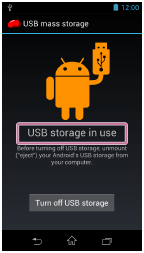
Hint
- If [USB connected] is displayed, tap [Turn on USB storage].
- Select “WALKMAN” in the sidebar of the Finder.
- Double-click the “FOR_MAC” folder.
- Double-click “ContentTransfer.pkg.”
The installer starts.
- Follow the on-screen instructions to install Content Transfer.
 is displayed in the Dock when the installation is completed. Click to start Content Transfer.
Hint
- If the “WALKMAN” folder is not displayed, [SD card] is selected as the storage to be displayed on the computer. On your Walkman, select [System storage] as the storage to use.
[50] How to UseTransferring ContentImporting Content to the SoftwareImporting and transferring content from media using Media Go
Use Media Go to import and transfer content such as music on your Windows computer. This section explains how to import and transfer music from CDs. Your computer must be connected to the Internet to obtain CD information such as song names and artist names automatically.

- On your Walkman, select the storage ([System storage] or [SD card]) as the destination for transferring content.
- Connect your Walkman to your Windows computer via USB.
- Start Media Go.
- Insert an audio CD into the CD drive of your Windows computer.
- Confirm the music content on the audio CD.
- Transfer the music content on the audio CD to your Walkman.
Drag-and-drop the cover art of the desired CD () to “WALKMAN (model name)” ().
Hint
- For details about how to use Media Go, refer to the help of Media Go.
- Songs transferred to your Walkman are imported to your computer at the same time.
- Recommended file formats for ripping CDs are FLAC for higher sound quality and AAC (.mp4) and MP3 (.mp3) for normal sound quality.
- Media Go obtains the CD information from a database on the Internet. Information on some CDs may not be available in the database. If information on your CD is missing, you can add it manually after importing the CD. For information about adding and editing CD information, refer to the help of Media Go.
Note
- Imported content is limited to private use only. Use of content for other purposes requires the permission of the copyright holders.
- Commercial DVDs and Blu-ray discs cannot be imported into Media Go.
[51] How to UseTransferring ContentImporting Content to the SoftwareImporting content on your Windows computer into Media Go
Import content such as music imported to your Windows computer into Media Go.
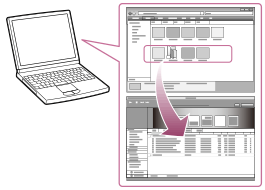
- Start Media Go.
- Select the type of content you want to import from “Library.”
- Drag-and-drop the content into the Content List area.
Hint
- You can also import data organized by programs such as iTunes by selecting “File” - “Add/Remove Media from Library” in Media Go. For details, refer to the help of Media Go.
Note
- Copy-protected videos cannot be imported into Media Go.
- Some video formats cannot be imported or played.
[52] How to UseTransferring ContentImporting Content to the SoftwareImporting podcasts into Media Go
Media Go has a wide range of podcast functions on Windows, and you can use Media Go to manage your podcast subscriptions. The podcast directory is also convenient for finding the latest content or content you are interested in.
For details on importing podcasts, refer to the help of Media Go.
[53] How to UseTransferring ContentTransferring Content to Your WalkmanTransferring content using Media Go
Transfer content such as music or playlists managed with Media Go on your computer to your Walkman. Content with copyright protection cannot be transferred.
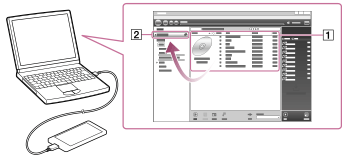
- On your Walkman, select the storage ([System storage] or [SD card]) as the destination for transferring content.
- Connect your Walkman to a running computer via USB, and then start Media Go.
- Select the desired content () on Music Library of Media Go, and drag-and-drop it to your “WALKMAN (model name)” ().
Media Go recognizes the type of data by the filename extension and sends it to the appropriate folder of your Walkman.
Note
- Media Go does not support content that uses Windows Media digital rights management technology (“WM-DRM”).
[54] How to UseTransferring ContentTransferring Content to Your WalkmanTransferring iTunes content using Media Go
Media Go supports transfer of data from iTunes to your Walkman. Transfer content such as music or playlists managed with iTunes on your computer to the Walkman. Content with copyright protection cannot be transferred.
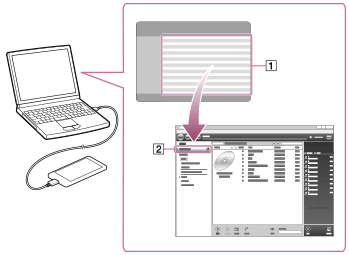
- On your Walkman, select the storage ([System storage] or [SD card]) as the destination for transferring content.
- Connect your Walkman to a running computer via USB, and then start Media Go.
- Start iTunes.
- Select the desired content from iTunes (), and drag-and-drop it to your “Walkman (model name)” ().
Media Go recognizes the type of data by the filename extension and sends it to the appropriate folder of your Walkman.
[55] How to UseTransferring ContentTransferring Content to Your WalkmanTransferring content using Content Transfer
Transfer content such as music or playlists on your Mac computer or managed with iTunes to your Walkman. Content with copyright protection cannot be transferred.

- On your Walkman, select the storage ([System storage] or [SD card]) as the destination for transferring content.
- Connect your Walkman to a running computer via USB, and then start Content Transfer.
- Display the desired content on the Finder or the desired content or playlists on iTunes.
- Drag-and-drop the content or playlists you want to transfer to Content Transfer.
Content is transferred to your Walkman.
[56] How to UseTransferring ContentTransferring Content to Your WalkmanTransferring content using Explorer
Content such as music can be directly transferred by drag-and-drop using Windows Explorer.
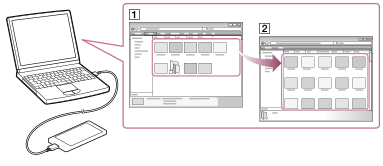
- On your Walkman, select the storage ([System storage] or [SD card]) as the destination for transferring content.
- Connect your Walkman to a running computer via USB.
- Open the “WALKMAN” folder using the procedure below that corresponds to your computer.
-
Windows 7 or earlier:
Select “Start” – “Computer,” and then open the “WALKMAN” folder. -
Windows 8:
Select “Desktop” from the “Start screen” to open “File Explorer.” In the “Computer” list, open the “WALKMAN” folder. - Windows 8.1:
Select “Desktop” to open “File Explorer.” In the “This PC” list, open the “WALKMAN” folder.
-
- Open the folder to which you want to transfer content.
To transfer music files or folders: “Music” folder
To transfer photo files or folders: “Picture,” “Pictures,” or “DCIM” folder
To transfer video files or folders: “Video,” “Movies” or “DCIM” folder
- Drag-and-drop the desired files or folders () to the applicable folder () in the “WALKMAN” folder.
Hint
- If you have selected [SD card] as the storage to use, the volume label of the microSD card (not supplied) is shown instead of "WALKMAN" in steps 3 and 5 above.
Note
- Do not change folder name or delete the “Music” folder.
- Some songs may not be played back on your Walkman due to copyright protection.
- Depending on the language setting of your Walkman, the information of the transferred content may not be displayed correctly.
[57] How to UseTransferring ContentTransferring Content to Your WalkmanTransferring content using the Finder
Content such as music can be directly transferred by drag-and-drop using the Finder.
- On your Walkman, select the storage ([System storage] or [SD card]) as the destination for transferring content.
- Connect your Walkman to a running computer via USB.
- Select “WALKMAN” in the sidebar of the Finder.
- Open the folder to which you want to transfer content.
To transfer music files or folders: “Music” folder
To transfer photo files or folders: “Picture,” “Pictures,” or “DCIM” folder
To transfer video files or folders: “Video,” “Movies” or “DCIM” folder
- Drag-and-drop the desired files or folders () to the applicable folder () in the “WALKMAN” folder.
Hint
- If you have selected [SD card] as the storage to use, the volume label of the microSD card (not supplied) is shown instead of "WALKMAN" in steps 3 and 5 above.
Note
- Do not change folder name or delete the “Music” folder.
- Some songs may not be played back on your Walkman due to copyright protection.
- Do not disconnect your Walkman while the data is transferred. Otherwise, data being transferred or stored on the Walkman may be damaged. If the Walkman is disconnected while files are being transferred, unnecessary files may be left in the Walkman. In this case, transfer usable files back to the computer and format the Walkman.
- Depending on the language setting of your Walkman, the information of the transferred content may not be displayed correctly.
[58] How to UseTransferring ContentTransferring Content to Your WalkmanNotes for transferring content such as music from your computer
Drag-and-drop content such as music or folders into the correct folder as shown in the following illustrations. Your Walkman can play back content stored in the 1st to 8th level of each folder.
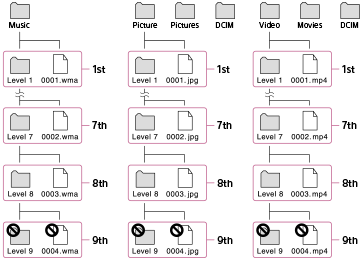
Note
- Do not rename the following default folders.
- Music
- Picture, Pictures and DCIM
- Video, Movies and DCIM
- Some songs may not be played back on your Walkman due to copyright protection.
[59] How to UseTransferring ContentDeleting Content from Your WalkmanDeleting content from your Walkman using Media Go
You can use Media Go to delete content stored on your Walkman.
- Connect your Walkman to a running computer via USB.
- Start Media Go.
- Double-click “WALKMAN (model name)” and select the type of content you want to delete.
The content list is displayed.
- Select the content you want to delete.
- Click “Edit” - “Delete.”
A window to confirm the deletion of the item is displayed.
- Click “Yes.”
[60] How to UseTransferring ContentDeleting Content from Your WalkmanDeleting content from your Walkman using Content Transfer
You can use Content Transfer to delete content stored on your Walkman.
- Connect your Walkman to a running computer via USB.
- Start Content Transfer.
- Click
 at the right bottom of the screen.
 - Click the icon of the folder (such as “Music”) that contains the content you want to delete.
The content list is displayed.
- Select the content you want to delete.
- Click “Delete.”
The selected content is deleted.
[61] How to UseTransferring ContentDeleting Content from Your WalkmanDeleting content from your Walkman using Explorer
Delete content stored on your Walkman using Windows Explorer.
- Connect your Walkman to a running computer via USB.
- Open the “WALKMAN” folder using the procedure below that corresponds to your computer.
-
Windows 7 or earlier:
Select “Start” - “Computer,” and open the “WALKMAN” folder. -
Windows 8:
Select “Desktop” from the “Start screen” to open “File Explorer.” In the “Computer” list, open the “WALKMAN” folder. -
Windows 8.1:
Select “Desktop” to open “File Explorer.” In the “This PC” list, open the “WALKMAN” folder.
-
- Open the folder containing the file(s) you want to delete.
To delete a music file or a folder that contains music: “Music” folder
To delete a photo file or a folder that contains photos: “Picture,” “Pictures” or “DCIM” folder
To delete a video file or a folder that contains videos: “Video,” “Movies” or “DCIM” folder
- Select the content you want to delete.
- Delete the content.
Note
- Do not change folder name or delete the “Music” folder.
[62] How to UseTransferring ContentDeleting Content from Your WalkmanDeleting content from your Walkman using the Finder
Delete content stored on your Walkman using the Mac Finder.
- Connect your Walkman to a running computer via USB.
- Open a folder under “WALKMAN” from the sidebar of the Finder.
- Open the folder containing the file(s) you want to delete.
To delete a music file or a folder that contains music: “Music” folder
To delete a photo file or a folder that contains photos: “Picture,” “Pictures” or “DCIM” folder
To delete a video file or a folder that contains videos: “Video,” “Movies” or “DCIM” folder
- Select the content you want to delete.
- Delete the content.
Note
- Do not change folder name or delete the “Music” folder.
[63] How to UseTransferring ContentOperating with Media GoPlaying live albums with no gaps in between songs
Songs that are recorded continuously on a live or concert album can be played with no gaps in between the songs on your Walkman. For gapless playback, import (rip) all songs on the album in the FLAC, AAC, or MP3 format at once into Media Go version 2.8 or later, and then transfer them to the Walkman.
[64] How to UseTransferring ContentOperating with Media GoDeleting content imported to Media Go
You can delete content imported to Media Go.
- Start Media Go.
- Select the type of content you want to delete from “Library.”
The content list is displayed.
- Select the content you want to delete.
- Click “Edit” - “Delete.”
A “Confirm Delete” window is displayed.
- Select a method to delete the content.
- Click “OK.”
[65] How to UseTransferring ContentOperating with Media GoInputting the lyrics information using Media Go
Use Media Go (version 2.8 or later) to input lyrics information to display lyrics when playing songs on your Walkman.
- Start Media Go.
- Select the song you want to add the lyrics information to and right-click on the song to select “Properties.”
- Input the lyrics information.
For details about how to input the lyrics, refer to the help of Media Go.
Hint
- For details about how to use Media Go, refer to the help of Media Go.
Note
- If lyrics information input using Media Go is not displayed on your Walkman, delete the song from the Walkman and transfer it again.
[66] How to UseBluetoothWhat Is the Bluetooth Function? What is the Bluetooth function?
The Bluetooth function enables wireless data transfer between devices that
support Bluetooth wireless technology. You can transfer data between these devices at a range of up to 10 meters in an open area.
You do not need to use a cable for connection, since the Bluetooth function uses wireless technology, nor is it necessary for the devices to face one another, as is the case with infrared technology. For example, you can use Bluetooth devices in a bag or pocket.
Bluetooth devices need to be “paired” with each other the first time a wireless connection is made.
Once paired, the Bluetooth device and your Walkman can subsequently be
connected with a simple operation.
[67] How to UseBluetoothConnecting with Bluetooth Audio DevicesMaking a Bluetooth connection using the NFC function
Simply touch your Walkman to a Bluetooth audio device that has the NFC function to automatically turn on the power of the Bluetooth audio device, pair the Walkman and the Bluetooth audio device, and make a Bluetooth connection.
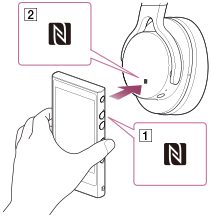
-
Swipe the status bar down, tap - [SETTINGS] - [More] and check that [NFC] is checked.
- If the Bluetooth audio device has an NFC switch, set the NFC switch to on.
- Touch your Walkman to the Bluetooth audio device.
Touch the mark of your Walkman () to the mark of the Bluetooth audio device (). Hold together until instructions appear on the screen of the Walkman.
- Follow the on-screen instructions to complete the connection.
Hint
- Touch the devices together again to disconnect.
- Take the following measures if the connection is poor.
- Slowly move your Walkman over the mark of the Bluetooth audio device ().
- If your Walkman is in a case, remove the case.
- Slowly move your Walkman over the mark of the Bluetooth audio device (
-
To turn off the NFC function, swipe the status bar down, tap - [SETTINGS] - [More] - [NFC] and remove the check mark.
[68] How to UseBluetoothMaking a Bluetooth Connection from the MenuTurning the Bluetooth function on/off
To connect Bluetooth audio devices with your Walkman, you first have to turn on the Bluetooth function.
Depending on the device, the procedure to establish connection may vary. Refer to the operating instructions of the Bluetooth audio device.
- Swipe the status bar down and tap -
 [BLUETOOTH] or
  [BLUETOOTH OFF].
 - Tap to switch [ON]/[OFF].
Hint
- To reduce battery consumption, turn off the Bluetooth function when not in use.
Note
- The Bluetooth communications antenna () is built in to your Walkman. If you
cover the antenna () with your hands or other objects while using Bluetooth communications, the communication quality may be affected.
[69] How to UseBluetoothMaking a Bluetooth Connection from the MenuMaking your Walkman detectable by Bluetooth audio devices
You can allow other Bluetooth audio devices to discover your Walkman. Depending on the device, the procedure to establish a connection may vary. Refer to the operating instructions of the Bluetooth audio device for details.
- Swipe the status bar down and tap - [BLUETOOTH].
Make sure the Bluetooth function is on. If not, turn on the Bluetooth function.
- Tap the name of your Walkman.
Your Walkman will be detectable by other Bluetooth audio devices for 120 seconds.
[70] How to UseBluetoothMaking a Bluetooth Connection from the MenuPairing a Bluetooth audio device
To connect with a new Bluetooth audio device, you need to pair with it while the Bluetooth function of your Walkman is on. You only need to do this once between the Walkman and the new Bluetooth audio device. Just turn on the device the next time.
- Put the Bluetooth audio device you want to connect with in discoverable mode.
Refer to the operating instructions supplied with the Bluetooth audio device for details on procedures for putting it in discoverable mode.
- Swipe the status bar down and tap - [BLUETOOTH].
Make sure the Bluetooth function is on. If not, turn on the Bluetooth function.
- Tap the device you want to pair with from the list.
If the device you want to connect with is not displayed in the [AVAILABLE DEVICES] list, check that the Bluetooth audio device you want to connect with is in discoverable mode and tap [SEARCH FOR DEVICES] on the screen of your Walkman. If a number is displayed on the screen of the Walkman, make sure the same number is displayed on that device.
The pairing and connection status will be displayed under the Bluetooth audio device name.
With some devices, a connection is established after pairing.
Hint
- If the Bluetooth audio device you want to connect with has an NFC function, pairing and connection can be made with one touch.
Note
- A passkey (*1) input screen is displayed for some devices. Check the
passkey of the other device, and input the passkey.
(*1) “Passkey” is also called “Pass code,” “PIN code,” “PIN number,” or “Password.” For the passkey of the other device, refer to the manual of that device.
[71] How to UseBluetoothMaking a Bluetooth Connection from the MenuConnecting to a Bluetooth audio device
Connect a paired Bluetooth audio device with your Walkman while the Bluetooth function is on.
- Swipe the status bar down and tap - [BLUETOOTH].
Make sure the Bluetooth function is on. If not, turn on the Bluetooth function.
- Tap the name of the device you want to connect with in the [PAIRED DEVICES] list.
[Connected] will be displayed under the name of the device while the device is connected.
If the [PAIRED DEVICES] list is not displayed, or the device you want to connect with is not displayed in the [PAIRED DEVICES] list, pair the devices first.
Hint
- If the Bluetooth audio device you want to connect with has an NFC function, pairing and connection can be made with one touch.
- To reduce battery consumption, turn off the Bluetooth function when not in use.
[72] How to UseBluetoothMaking a Bluetooth Connection from the MenuDisconnecting a Bluetooth audio device
When the Bluetooth function is on, you can disconnect a connected Bluetooth audio device. However, pairing is not deleted even if the device is disconnected.
- Swipe the status bar down and tap - [BLUETOOTH].
- Tap the name of the device you want to disconnect in the list - [OK].
Hint
- If the Bluetooth audio device you want to disconnect with has the NFC function, disconnection is completed with one touch.
[73] How to UseBluetoothMaking a Bluetooth Connection from the MenuDeleting a paired Bluetooth audio device
When the Bluetooth function is on, you can delete the pairing information of a Bluetooth audio device.
- Swipe the status bar down and tap - [BLUETOOTH].
is displayed on the right of the name of the device you want to unpair in the list.
- Tap - [Unpair].
Pairing ends.
[74] How to UseBluetoothBluetooth SettingsSetting wireless playback mode
You can switch the wireless playback mode between [Use LDAC if possible] and [Always use SBC].
- Swipe the status bar down and tap - [BLUETOOTH].
- Tap - [Wireless playback mode] - desired playback quality.
[Use LDAC if possible]
The Bluetooth connection is made using LDAC if the Bluetooth device you want to connect with has an LDAC function.
[Always use SBC]
The Bluetooth connection is made using SBC even if the Bluetooth device you want to connect with has an LDAC function.
Note
- The [Wireless playback mode] setting cannot be changed while your Walkman is connected to a Bluetooth audio device. Disconnect the Bluetooth audio device when changing the setting and then reconnect it.
[75] How to UseBluetoothBluetooth SettingsSetting wireless playback quality
You can set whether to prioritize the sound quality or the stability of the connection.
-
Swipe the status bar down and tap - [BLUETOOTH].
-
Tap - [Wireless playback quality] - desired playback quality.
[Prioritize sound quality]
Sound is transmitted in high quality, but the connection may become unstable.
[Standard]
Stabilizes both connection and sound quality.
[Prioritize connection]
The sound quality may not be as good as in other modes, but the connection status will most likely be stable.
This setting is recommended if the connection is unstable.
Hint
- If the sound is interrupted, select [Prioritize connection].
Note
- Changing the wireless playback quality setting of your Walkman may not have any effect depending on the settings of the Bluetooth audio device.
[76] How to UseBluetoothNotes on the Bluetooth FunctionNotes on the Bluetooth function
- Bluetooth wireless technology allows connection at a distance of up to about 10 meters. However, the effective range may vary depending on obstructions (people, metals, walls, etc.) or signal status.
- The Bluetooth antenna (aerial) is built into your Walkman. You can improve the sensitivity of Bluetooth communications by turning the built-in Bluetooth antenna (aerial) in the direction of the connected Bluetooth device. The communication distance shortens if there are obstructions between the connected device and the Walkman.
-
The following conditions may cause noise, breakup of sound, or changes in playback speed.
- When using inside a metal bag.
- When using inside a backpack or shoulder bag.
- When using in an area with a wireless LAN, in an area where devices such as microwave ovens, mobile phones and mobile gaming devices with a communication function are in use nearby, or in other areas where electromagnetic waves are being emitted.
- When the antenna (aerial) built into your Walkman is covered by your hand or blocked by people in situations such as riding in a crowded train.
- Because Bluetooth and wireless LAN (IEEE802.11b/g) devices use the same frequency (2.4 GHz), signal interference may occur, resulting in communication speed decrease, noise, or inability to connect, if Bluetooth communications are used near a wireless LAN device. In such cases, take the following measures.
- Perform Bluetooth communications at least 10 meters away from the wireless LAN device when connecting your Walkman and a Bluetooth device.
- Place your Walkman and the Bluetooth device as close together as possible.
- Turn off the wireless LAN device when performing Bluetooth communications within about 10 meters of a wireless LAN device.
- Due to a characteristic of Bluetooth wireless technology, the sound played on the receiving Bluetooth device lags slightly behind the sound of the sending device.
- Radio waves emitted from a Bluetooth device may affect the operation of equipment such as electronic medical devices. Turn off your Walkman and other Bluetooth devices in the following locations as failure to do so may cause an accident.
- In hospitals, near priority seats on trains, in airplanes, in places such as gasoline stations where flammable gases are present, near automatic doors or fire alarms
- Your Walkman supports security functions that comply with the Bluetooth standard to provide a secure connection when Bluetooth technology is used, but security may not be sufficient depending on the settings. Be careful when connecting using Bluetooth technology.
- Sony bears no responsibility whatsoever for information leaks that occur as a result of using Bluetooth technology.
- Your Walkman is not guaranteed to connect with all Bluetooth devices.
- Bluetooth devices you connect to must conform to the Bluetooth standard specified by Bluetooth SIG and be certified.
- Even if the connected device conforms to the above-mentioned Bluetooth standard, some devices may not be connected or work correctly depending on the features or specifications of the device.
- Depending on the device to be connected, the Bluetooth connection may take some time to be established.
[77] How to UseNFCWhat Is the NFC Function?What is the NFC function?
This function is for close-range wireless communication between various devices, such as mobile phones and IC tags. You can perform easy data communication simply by touching the devices together in the marked spot.
[78] How to UseNFCConnecting with One Touch (NFC)Making a Bluetooth connection using the NFC function
Simply touch your Walkman to a Bluetooth audio device that has the NFC function to automatically turn on the power of the Bluetooth audio device, pair the Walkman and the Bluetooth audio device, and make a Bluetooth connection.
-
Swipe the status bar down, tap - [SETTINGS] - [More] and check that [NFC] is checked.
- If the Bluetooth audio device has an NFC switch, set the NFC switch to on.
- Touch your Walkman to the Bluetooth audio device.
Touch the mark of your Walkman () to the mark of the Bluetooth audio device (). Hold together until instructions appear on the screen of the Walkman.
- Follow the on-screen instructions to complete the connection.
Hint
- Touch the devices together again to disconnect.
- Take the following measures if the connection is poor.
- Slowly move your Walkman over the mark of the Bluetooth audio device ().
- If your Walkman is in a case, remove the case.
- Slowly move your Walkman over the mark of the Bluetooth audio device (
-
To turn off the NFC function, swipe the status bar down, tap - [SETTINGS] - [More] - [NFC] and remove the check mark.
[79] How to UseWi-Fi (Wireless LAN)What Is Wi-Fi Communications?What is Wi-Fi?
Wi-Fi (*1) communication is communications technology which allows you to connect wireless LAN devices displaying the Wi-Fi logo and use public wireless LAN service.
You can use Wi-Fi to browse the Internet on your Walkman or connect to other communications devices.
(*1) Wi-Fi indicates that the compatibility of the wireless LAN device is certified.
[80] How to UseWi-Fi (Wireless LAN)Connecting to a Wi-Fi NetworkTurning Wi-Fi on/off
You can use Wi-Fi to browse the Internet on your Walkman. To use Wi-Fi communications with the Walkman, first turn on the Wi-Fi function.
- Swipe the status bar down and tap -
 [WI-FI] or
  [WI-FI OFF].
 - Tap to switch [ON]/[OFF].
Hint
- To reduce battery consumption, turn off the Wi-Fi function when not in use.
- Wi-Fi (*1) communications is communications technology which allows you to connect wireless LAN devices displaying the Wi-Fi logo and use public wireless LAN service.
Note
- The Wi-Fi antenna () is built in to your Walkman. If you cover the antenna () with your hands or other objects while connecting to the Internet using the Wi-Fi function, the communications quality may deteriorate.
(*1) Wi-Fi indicates that the compatibility of the wireless LAN device is certified.
[81] How to UseWi-Fi (Wireless LAN)Connecting to a Wi-Fi NetworkConnecting to a Wi-Fi network
There are several ways of making a Wi-Fi connection, depending on what type of Wi-Fi router you use.
Follow the checklist below to find out how to set up a Wi-Fi connection with your Wi-Fi router.
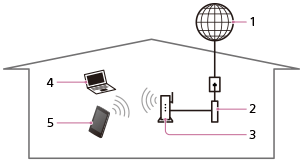
- Internet
- Modem
- Wi-Fi router
- Computer
- Walkman
Question: Does your Wi-Fi router have a WPS button?
Yes.  Go to “Connecting to a Wi-Fi network using the WPS button.”
No. Go to “Connecting to a Wi-Fi network from the settings screen.”
Note
- For information about your wireless LAN environment, please contact the manufacturer of your Wi-Fi device, the wireless LAN service provider that you subscribe to, or the person who set up your Wi-Fi device.
[82] How to UseWi-Fi (Wireless LAN)Connecting to a Wi-Fi NetworkConnecting to a Wi-Fi network from the settings screen
If your Wi-Fi router does not support WPS (Wi-Fi Protected Setup), turn on the Wi-Fi function, and then make a Wi-Fi connection by selecting a network from the list of available networks.
- Swipe the status bar down and tap - [WI-FI].
Make sure the Wi-Fi function is on. If not, turn on the Wi-Fi function.
- Tap the network you want to use from the list.
- Enter a password, if needed, and tap [Connect].
Hint
- If the network SSID of the access point that you want to use is not shown in the network list, add the network manually.
- If you are connecting to a Wi-Fi network for the first time, select a method for setting up a Wi-Fi connection.
- When you are in range and the Wi-Fi function is on, your Walkman will automatically reconnect to a network to which you have connected before.
- To check the MAC address of your Walkman or other Wi-Fi details, swipe the status bar down and tap - [WI-FI] - - [Advanced].
Note
- Please contact the manufacturer of your Wi-Fi device for information such as how to set the access point.
[83] How to UseWi-Fi (Wireless LAN)Connecting to a Wi-Fi NetworkConnecting to a Wi-Fi network using the WPS button
If your Wi-Fi router supports WPS (Wi-Fi Protected Setup), turn on the Wi-Fi function, and then make a Wi-Fi connection easily by pressing the button.
- Swipe the status bar down and tap - [WI-FI].
Make sure the Wi-Fi function is on. If not, turn on the Wi-Fi function.
- Tap
 .
A screen to prompt you to press the WPS button on the Wi-Fi router appears.
.
A screen to prompt you to press the WPS button on the Wi-Fi router appears. - Press the WPS button on the Wi-Fi router within 2 minutes.
When the connection is made successfully, the message to notify you that your Walkman is connected to a Wi-Fi network will be displayed.
- Tap [OK] to complete the setting.
Hint
- When you first connect to a Wi-Fi network, check how to set up a Wi-Fi connection.
- When you are in range and the Wi-Fi function is on, your Walkman will reconnect to available networks to which you have connected before.
Note
- Please contact the manufacturer of your Wi-Fi device for information such as how to set the access point.
[84] How to UseWi-Fi (Wireless LAN)Connecting to a Wi-Fi NetworkAdding a Wi-Fi network manually
You can add a Wi-Fi network manually if the Wi-Fi network you want to use is not detected automatically when Wi-Fi is on.
- Swipe the status bar down and tap - [WI-FI].Make sure the Wi-Fi function is on. If not, turn on the Wi-Fi function.
- Tap
 .
. - Enter the Network SSID (*1) of the network to use.
- Enter a password if needed, and tap [Save].
(*1) The names of items such as the access point or password differ depending on the manufacturer (encryption key, KEY, WEP key, security key, pass phrase, network key, etc.). Consult the manufacturer of the access point for details.
Hint
- To check the MAC address of your Walkman or other Wi-Fi details, swipe the status bar down and tap - [WI-FI] - - [Advanced].
[85] How to UseWi-Fi (Wireless LAN)Connecting to a Wi-Fi NetworkChecking the Wi-Fi network status
You can check the status of a Wi-Fi network by the icon shown in the status bar.
 : Connected to a Wi-Fi network.
 : An open network is detected (when Wi-Fi network notification is set to on).
Hint
- You can check the troubleshooting when your Walkman has problems with the Wi-Fi connection, using
 [Wi-Fi checker]. Tap - [Wi-Fi checker] on the Home screen to display.
[86] How to UseWi-Fi (Wireless LAN)Notes on Wi-Fi ConnectionNotes on Wi-Fi connection
- Use of Wi-Fi products may be restricted by local regulations in some countries or regions.
- Wi-Fi devices work on the 2.4 GHz and 5 GHz bands, which are used by a variety of devices. Wi-Fi devices use technology to minimize radio interference from other devices that use the same band. However, radio interference may still cause slower data transfer rates, reduce communication range, or cause communication failure.
- If both the Wi-Fi function and the Bluetooth function of your Walkman are enabled, interference may occur and cause slower data transfer rates or other problems.
- To communicate via Wi-Fi while traveling, you may need to contract with a Wi-Fi connection service provider.
- Data transfer rate and communications range may vary depending on the following conditions.
- Distance between devices
- Presence of obstructions between devices
- Device configuration
- Signal conditions
- Surrounding environment (wall material, etc.)
- Software in use
- Communications may be cut off depending on signal conditions.
- The data transfer rate is the theoretical maximum, and may not reflect the actual data transfer rate.
- Wi-Fi devices work on the 2.4 GHz and 5 GHz Wi-Fi frequency bands are not communicable with one another.
- If the data transfer rate is not as fast as expected, changing the wireless channel on the access point may increase the rate.
- The Wi-Fi antenna () is built in to your Walkman. If you cover the antenna () with your hands or other objects while using the Wi-Fi function, the Wi-Fi connection may deteriorate.
[87] How to UseSettingsSound SettingsEnjoying various sound quality
Enjoy music by either setting the optimum sound quality with a single touch of a button, or set the sound quality to your own preferences.
To set the sound quality easily with a single touch
Turn on the [ClearAudio+] function.
To set the sound quality yourself
Change the settings of various functions.
Hint
- [Sound Settings] is not applied if [ClearAudio+] is turned on.
[88] How to UseSettingsSound SettingsSetting the sound quality with a single touch
Turn on the ClearAudio+™ function to enjoy audio with digital signal processing technology effects.
- In the Home screen, tap
 .
. - Tap [ClearAudio+] to put a checkmark in the checkbox.
Note
- [Sound Settings] is not applied if [ClearAudio+] is turned on. Turn off [ClearAudio+] if you want to set [Sound Settings].
- The [DSEE HX] function and [Dynamic normalizer] function work effectively with the [ClearAudio+] function. However, the setting of the [DSEE HX] function and [Dynamic normalizer] function cannot be changed.
[89] How to UseSettingsSound SettingsCustomizing sound quality settings
You can use various functions to set the desired sound quality.
- In the Home screen, tap .
- Tap [Sound Settings] - desired tab - desired setting.
Equalizer function
You can set the sound quality according to the music genre. You can also preset your equalizer settings as a custom setting.
Surround sound function
You can set sound effects and enrich the sound reproduction quality of the audio playback. VPT, which stands for Virtualphones Technology, is a proprietary sound processing technology developed by Sony.
DSEE HX function
This function upscales the audio file to a High-Resolution Audio file (*1) and reproduces the clear high-range sound that is often lost. However, the available playback time of the fully charged battery may be reduced when this function is used.
Dynamic normalizer function
Moderates the volume between songs to minimize the differences in volume level.
(*1) The file is expanded to an equivalent of a maximum of 192 kHz/24 bits.
Note
- [Sound Settings] is not applied if [ClearAudio+] is turned on.
- The [DSEE HX] function and [Dynamic normalizer] function work effectively with the [ClearAudio+] function. However, the setting of the [DSEE HX] function and [Dynamic normalizer] function cannot be changed.
- The [DSEE HX] function does not work for High-Resolution Audio files.
- The [DSEE HX] function does not work effectively if the bit rate is too low to be properly supplemented.
[90] How to UseSettingsSound SettingsPresetting your equalizer settings
You can preset the values of CLEAR BASS and the 5 band equalizer as custom settings. Increasing the CLEAR BASS setting value allows your Walkman to reproduce dynamic deep bass without distortion, even at a high volume.
-
In the Home screen, tap .
- Tap [Sound Settings].
-
On the [Equalizer] tab, select [Custom], [User-defined 1] or [User-defined 2], and then tap [OK].
-
Drag the sliders to adjust the frequency range and the CLEAR BASS setting.
Presetting is complete.
Note
- To change the equalizer setting, set the [ClearAudio+] function to off.
[91] How to UseSettingsSound SettingsAdjusting the volume
You can control the volume of content playback, notifications, and alarms separately. The [Master] volume controls the volume for all of these sounds together, without changing the relative balance among them.
- Swipe the status bar down and tap - [SETTINGS].
- Tap [ Sound] - [Volumes].
- Drag the slider to adjust the individual volumes, and then tap [OK].
Note
- If the sound of music, a video, or a game cannot be heard, turn up the volume by dragging the [Music, video, games, & other media] slider.
- If you set the volume level of [Music, video, games, & other media], [Notifications], or [Alarms] to zero (silent), the sound will remain silent even if you increase the [Master] volume.
[92] How to UseSettingsSound SettingsLimiting the volume
You can use AVLS (Automatic Volume Limiter System) to limit the maximum volume. This prevents the volume from getting too high and disturbing others, causing discomfort to your ears, or preventing you from hearing sounds around you, and it allows you to listen at a more comfortable volume.
-
Swipe the status bar down and tap - [SETTINGS].
-
Tap [ Sound] - [AVLS (Volume Limit)].
[93] How to UseSettingsBluetooth SettingsSetting wireless playback mode
You can switch the wireless playback mode between [Use LDAC if possible] and [Always use SBC].
- Swipe the status bar down and tap - [BLUETOOTH].
- Tap - [Wireless playback mode] - desired playback quality.
[Use LDAC if possible]
The Bluetooth connection is made using LDAC if the Bluetooth device you want to connect with has an LDAC function.
[Always use SBC]
The Bluetooth connection is made using SBC even if the Bluetooth device you want to connect with has an LDAC function.
Note
- The [Wireless playback mode] setting cannot be changed while your Walkman is connected to a Bluetooth audio device. Disconnect the Bluetooth audio device when changing the setting and then reconnect it.
[94] How to UseSettingsBluetooth SettingsSetting wireless playback quality
You can set whether to prioritize the sound quality or the stability of the connection.
-
Swipe the status bar down and tap - [BLUETOOTH].
-
Tap - [Wireless playback quality] - desired playback quality.
[Prioritize sound quality]
Sound is transmitted in high quality, but the connection may become unstable.
[Standard]
Stabilizes both connection and sound quality.
[Prioritize connection]
The sound quality may not be as good as in other modes, but the connection status will most likely be stable.
This setting is recommended if the connection is unstable.
Hint
- If the sound is interrupted, select [Prioritize connection].
Note
- Changing the wireless playback quality setting of your Walkman may not have any effect depending on the settings of the Bluetooth audio device.
[95] How to UseSettingsCommon SettingsChanging the settings
You can configure various settings from the Settings menu to use your Walkman.
- Swipe the status bar down and tap - [SETTINGS].
- Tap the desired item.
[96] How to UseSettingsCommon SettingsChanging the language
You can change the language used for screen displays etc. on your Walkman.
- Swipe the status bar down and tap - [SETTINGS].
- Tap [
 Language & input] - [Language] - the desired language.
[97] How to UseSettingsCommon SettingsSetting the screen lock
If you activate the screen lock function, the screen is locked automatically when the screen is turned off. You can choose how to lock the screen of your Walkman from [Slide], [Pattern], and [Passwords]. If you forget the pattern, password etc., it will be considered a repair item not covered by warranty and you will be liable for the cost of repairs.
- Swipe the status bar down and tap - [SETTINGS].
- Tap [
 Security] - [Screen lock] - the desired setting.
Follow the instructions displayed on the screen to complete the settings.
Security] - [Screen lock] - the desired setting.
Follow the instructions displayed on the screen to complete the settings.
Hint
- If [Attention] is displayed, read the warning given about the screen lock feature and tap [I agree] - [OK].
- If you select [None], the screen will not be locked.
Note
- It is highly recommended that you make a note of the unlocking code that you have specified and keep it as a reminder for yourself. If you forget the pattern, password etc., it will be considered a repair item not covered by warranty and you will be liable for the cost of repairs.
- If you have set [Pattern] for the screen lock, set a security question and answer in case you have forgotten the pattern.
[98] How to UseAnnouncementPrecautionsNotes on handling your Walkman
Warning
- Be sure not to short-circuit the terminals of your Walkman with metallic objects.
- Do not spill water on your Walkman or allow any foreign object to enter it. This may cause fire or electric shock. If this occurs, turn off the Walkman immediately, disconnect the Walkman from your computer, and consult your nearest Sony dealer or Sony Service Center.
- Do not place your Walkman in fire.
- Do not take apart or modify your Walkman. Doing so can result in electric shock. Consult your nearest Sony dealer or Sony Service Center for exchange of rechargeable batteries, internal checks, or repair.
-
Do not put any heavy object on top of your Walkman or apply a strong shock to it.
This may cause malfunction or damage.
The following descriptions are important for using your Walkman. Be sure to follow the instructions below.
- Charging time differs depending on battery usage conditions.
- If the battery life is reduced to about half of its normal life even if sufficiently charged, it has probably worn out. Please contact your nearest Sony dealer.
-
Do not touch the rechargeable battery with bare hands if it is leaking. Consult your nearest Sony dealer if the battery has leaked as battery liquid may remain in your Walkman. If the liquid gets into your eyes, do not rub your eyes as this may lead to blindness. Wash out your eyes with clean water and consult a doctor.
If the liquid gets onto your body or clothes, wash it off immediately. Failure to do so may cause burns or injury. Consult a doctor if you are burned or injured by the liquid from the battery.
- Heat may build up in your Walkman while charging if it is used for an extended period of time.
- Note that condensation may form temporarily in cases such as when your Walkman is moved quickly from a low-temperature environment to a high-temperature environment, or used in a room where a heater has just been turned on. Condensation is a phenomenon where moisture in the air adheres to surfaces such as metal panels and then changes to liquid. If condensation forms in the Walkman, leave it turned off until the condensation disappears. If you use the Walkman with condensation present, a malfunction may result.
- If you use your Walkman in a cold location, images may appear with black bands around them. This is not a malfunction of the Walkman.
- If your Walkman causes interference to radio or television reception, turn the Walkman off and move it away from the radio or television.
-
Mild tingling may be felt on your ears in particularly dry air conditions. This is a result of static electricity accumulated in the body, and it is not a malfunction of your Walkman.
This effect can be minimized by wearing clothes made from natural materials.
-
When using a strap (not supplied), be careful to avoid catching it on objects you pass by.
Also, be careful not to swing your Walkman by the strap to avoid bumping people.
- Refrain from using your Walkman as is requested by in-flight announcements during takeoff or landing in an aircraft.
- If you see lightning or hear thunder, take off the headphones immediately and refrain from using your Walkman.
- Never use your Walkman where it will be subjected to extreme light, temperatures, humidity or vibration. For example, never leave the Walkman in a car parked in the sun or in direct sunlight. It may become discolored, distorted or damaged.

- Do not leave your Walkman in a place subject to excessive dust.
- Do not leave your Walkman on an unstable surface or in an inclined position.
- When unplugging the headphones from your Walkman, make sure to hold the headphone plug. Pulling by the headphone cord itself may damage it.
- Do not apply strong force to the surface of the display. This may cause a distortion in colors or brightness, or it may cause a malfunction of the display.
- Be sure to follow the precautions below when using your Walkman. Failure to do so may warp the casing or cause the Walkman to malfunction.
- Do not sit down with your Walkman in your back pocket.

-
Do not put your Walkman in a bag with the headphones/earphones cord wrapped around it and subject the bag to strong impact.

- Do not sit down with your Walkman in your back pocket.
-
Do not expose your Walkman to water. The Walkman is not waterproof. Be sure to follow the precautions below.
- Be careful not to drop your Walkman into a sink or other container filled with water.
- Do not use your Walkman in humid locations or wet weather such as rain or snow.
-
Do not get your Walkman wet.
If you touch your Walkman with wet hands or put the Walkman in a damp article of clothing, the Walkman may get wet, which may cause a malfunction.

- Sample data is pre-installed on your Walkman.
- Sample data is not installed in some countries/regions.
- If you delete the sample data, you cannot restore it, and we will not supply any replacement data.
- Sony is not responsible for incomplete recording/downloading or damaged data due to problems with your Walkman or computer.
Notes on storing lithium-ion rechargeable batteries
A lithium-ion rechargeable battery is built into your Walkman. When you store it for a long period of time, be sure to follow the storage instructions below.
- Leaving a charged battery unused for a long period of time causes deterioration of the battery and results in a decrease of battery capacity. The deterioration is more severe when the battery is stored with a full charge, and is accelerated by prolonged exposure to heat such as when leaving your Walkman in a car while connected to the power port. Store the Walkman at temperatures below 35 °C (95 ºF). Charging or discharging the battery to approximately 50 % of capacity before storing is also recommended.
- The battery deteriorates when left in a depleted condition. Charge the battery to approximately 50 % of capacity at least once every six to twelve months to prevent deterioration.

[99] How to UseAnnouncementPrecautionsNotes on headphones
Road safety
Avoid listening with your headphones in situations where hearing must not be impaired.
Preventing hearing damage
Avoid using the headphones at a high volume. Hearing experts advise against continuous, loud, and extended play. If you experience a ringing in your ears, reduce the volume or discontinue use.
Do not turn the volume up high all at once, especially when using headphones. Turn up the volume gradually to avoid excessive levels hurting your ears.
Consideration for others
Keep the volume at a moderate level. This will allow you to hear outside sounds and to be considerate to the people around you.
[100] How to UseAnnouncementPrecautionsNotes on the software
- Copyright laws prohibit reproducing the software or the manual accompanying it, in whole or in part, or renting the software without the permission of the copyright holder.
- In no event will Sony be liable for any financial damage or loss of profits, including claims made by third parties, arising out of the use of the supplied software.
- The supplied software cannot be used with equipment other than that to which it is designated.
- Please note that, due to continued efforts to improve quality, the software specifications may be changed without notice.
- Operation of your Walkman with software other than that supplied is not covered by the warranty.
- The explanations in this manual assume that you are familiar with the basic operations of your computer.
For details on the use of your computer and operating system, please refer to the respective manuals.
[101] How to UseAnnouncementPrecautionsMaintenance of your Walkman
- Clean your Walkman with a soft cloth, such as a cleaning cloth for eyeglasses.
- If the headphone plug is dirty, it may cause noise or sound skipping. To enjoy listening with good sound, wipe the headphone plug occasionally with a soft dry cloth.
- Should your Walkman become excessively dirty, clean it with a soft cloth slightly moistened with water or mild detergent solution, being careful not to allow water to get inside the Walkman and headphones.
- Do not use any type of abrasive pad, scouring powder, or solvent such as alcohol or benzene as doing so may damage the surface of your Walkman.
[102] How to UseAnnouncementCustomer Support WebsiteCustomer support website
If you have any questions or issues with your Walkman, or would like information on compatible items with the Walkman, visit one of the following websites.
For customers in the USA:
For customers in Latin America:
For customers in Europe:
For customers in Asia/Oceania/Middle East/Africa:
English
http://www.sony-asia.com/support
Korean
https://scs.sony.co.kr/scs/handler/ProductSupport
Simplified Chinese
http://service.sony.com.cn/KB/
Traditional Chinese
For customers who purchased the overseas models:
[103] How to UseSpecificationsSpecificationsSpecifications
Platform
Android™ 4.2
Display
Size/resolution
4.0-inch (10.2 cm)/FWVGA (854 × 480 Pixels)
Panel type
TFT color display
Interface
USB
Hi-Speed USB (USB 2.0 compliant)
Headphone
Stereo mini-jack
WM-PORT
WM-PORT (multiple connecting terminal): 22 pins
External memory
microSD (up to 2 GB)
microSDHC (up to 32 GB)
microSDXC (64 GB and more)
Wireless LAN
IEEE 802.11a/b/g/n
Bluetooth
Communication system: Bluetooth specification version 3.0
Sensor
GPS receiver
Accelerometer
Microphone
Monaural
Output (headphones)
Frequency response
20 Hz to 40,000 Hz
Sound Effects
- ClearAudio+ (On/Off)
- Equalizer
- Clear Bass
- Surround sound
- DSEE HX (On/Off)
- Dynamic normalizer (On/Off)
Power Source
Built-in Rechargeable lithium-ion Battery
USB power (from a computer via a USB connector of the player)
Charging Time
USB-based charging
Approx. 4.5 hours
Operating temperature
5 °C to 35 °C (41 ºF to 95 ºF)
Dimensions
w/h/d, projecting parts not included
64.7 mm × 130.4 mm × 16.2 mm (The thinnest part: 14.0 mm)
(2 5/8 inches x 5 1/4 inches x 21/32 inches (The thinnest part: 9/16 inches))
w/h/d
65.1 mm × 131.2 mm × 18.5 mm
(2 5/8 inches x 5 1/4 inches x 3/4 inches)
Mass
235 g (8.3 oz)
Capacity (User available capacity) (*1)
128 GB
Actual available memory for other contents (*1)
approx. 113 GB
121,269,354,496 bytes
Actual available memory for application software (*2)
approx. 1.97 GB
2,147,483,648 bytes
(*1) Available capacity may vary. A portion of the memory is used for data management functions.
(*2) Actual available memory for application software includes the memory space which is used for factory-preinstalled applications.
[104] How to UseSpecificationsSpecificationsBattery life
The time below may differ depending on ambient temperature or the status of use.
Battery Life (continuous playback)
Actual battery life may vary depending on settings. The estimated battery usage hours shown below are based on typical usage conditions with “Settings for battery life measurement” as shown below.
Music
MP3 128 kbps
Approx. 60 Hrs
Linear PCM 1,411 kbps
Approx. 61 Hrs
FLAC 96 kHz/24 bit
Approx. 43 Hrs
FLAC 192 kHz/24 bit
Approx. 33 Hrs
DSD 2.8224 MHz/1 bit
Approx. 22 Hrs
DSD 5.6448 MHz/1 bit
Approx. 16 Hrs
Video
MPEG-4 384 kbps
Approx. 9 Hrs
Note
- Even if the player is turned off for an extended period, a small amount of battery power is still consumed.
- Battery life may vary depending on volume setting, conditions of use and ambient temperature.
Settings for battery life measurement
Display
Brightness (*1): Default
Sound adjustment
ClearAudio+ (*2): OFF (default setting: OFF)
Equalizer (*3): OFF (default setting: OFF)
Surround sound (*3): OFF (default setting: OFF)
DSEE HX (*3)(*4): OFF (default setting: OFF)
Dynamic normalizer (*3): OFF (default setting: OFF)
Bluetooth (*5)
OFF (default setting: OFF)
(*1) The maximum brightness setting shortens the battery life for continuous video playback by about 19% compared with the default setting.
(*2) The [On] setting shortens the battery life about 37% compared with the [Off] setting.
(*3) Setting [Equalizer] to other than [Off], [Surround sound] to other than [Off], [DSEE HX] to [On] and [Dynamic normalizer] to [On] shortens the battery life for continuous music playback by about 70%.
(*4) The [On] setting shortens the battery life about 52% compared with the [Off] setting.
(*5) When listening to music wirelessly with [Bluetooth] set to [ON], the battery life is about 40% to 65% shorter than when [Bluetooth] is set to [OFF]. The battery life also differs depending on the selected codec.
[105] How to UseSpecificationsSpecificationsMaximum recordable number of songs and time (Approx.)
The approximate times are based on the case in which you transfer or record only 4 minute songs.
Number
MP3 128 kbps: Approx. 20,000 songs
Linear PCM 1,411 kbps: Approx. 2,700 songs
FLAC 96 kHz/24 bit: Approx. 800 songs
FLAC 192 kHz/24 bit: Approx. 400 songs
DSD 2.8224 MHz/1 bit: Approx. 600 songs
DSD 5.6448 MHz/1 bit: Approx. 300 songs
Time
MP3 128 kbps: Approx. 1,333 hr. 20 min.
Linear PCM 1,411 kbps: Approx. 180 hr. 00 min.
FLAC 96 kHz/24 bit: Approx. 53 hr. 20 min.
FLAC 192 kHz/24 bit: Approx. 26 hr. 40 min.
DSD 2.8224 MHz/1 bit: Approx. 40 hr. 00 min.
DSD 5.6448 MHz/1 bit: Approx. 20 hr. 00 min.
[106] How to UseSpecificationsSpecificationsMaximum recordable time of videos (Approx.)
The approximate times are estimated in the case where only videos are transferred. The time may differ, depending on the conditions under which the player is used.
Video: 384 kbps/Music: 128 kbps
Approx. 462 hr. 20 min.
[107] How to UseSpecificationsSpecificationsSupported formats
Music (Music player)
Audio Formats
MP3
Media File format: MP3 (MPEG-1 Layer3) file format
File extension: .mp3
Bit rate: 32 kbps to 320 kbps (Supports variable bit rate (VBR))
Sampling frequency (*1): 32, 44.1, 48 kHz
WMA (*2)(*6)
Media File format: ASF file format
File extension: .wma
Bit rate: 5 kbps to 384 kbps (Supports variable bit rate (VBR))
Sampling frequency (*1): 8 kHz to 48 kHz
FLAC
Media File format: FLAC file format
File extension: .flac
Bit depth : 16 bit, 24 bit
Sampling frequency (*1): 8, 11.025, 12, 16, 22.05, 24, 32, 44.1, 48, 88.2, 96, 176.4, 192 kHz
Linear PCM
Media File format: Wave-Riff file format
File extension: .wav
Bit depth : 16 bit, 24 bit
Sampling frequency (*1): 8, 11.025, 12, 16, 22.05, 24, 32, 44.1, 48, 88.2, 96, 176.4, 192 kHz
AAC (*2)(*3)(*6)
Media File format: MP4 file format
File extension: .mp4, .m4a, .3gp
Bit rate: 16 kbps to 320 kbps (Supports variable bit rate (VBR)) (*4)
Sampling frequency (*1): 8, 11.025, 12, 16, 22.05, 24, 32, 44.1, 48 kHz
HE-AAC (*3)(*6)
Media File format: MP4 file format
File extension: .mp4, .m4a, .3gp
Bit rate: 32 kbps to 144 kbps (Supports variable bit rate (VBR)) (*4)
Sampling frequency (*1): 8, 11.025, 12, 16, 22.05, 24, 32, 44.1, 48 kHz
Apple Lossless (*6)
Media File format: MP4 file format
File extension: .m4a, .mp4
Bit depth: 16 bit, 24 bit
Sampling frequency (*1): 8, 11.025, 12, 16, 22.05, 24, 32, 44.1, 48, 88.2, 96, 176.4, 192 kHz
AIFF
Media File format: AIFF file format
File extension: .aif, .aiff, .afc, .aifc
Bit depth: 16 bit, 24 bit
Sampling frequency (*1): 8, 11.025, 12, 16, 22.05, 24, 32, 44.1, 48, 88.2, 96, 176.4, 192 kHz
DSD (*5)
Media File format: DSF, DSDIFF
File extension: .dsf, .dff
Bit depth: 1 bit
Sampling frequency (*1): 2.8224 MHz, 5.6448 MHz
Video
Video Formats (*6)
AVC (H.264/AVC)
Media File format: MP4 file format, “Memory Stick” video format
File extension: .mp4, .m4v
Profile: Baseline Profile/Main Profile/High Profile
Level: 4
Bitrate: Max. 20 Mbps
Frame rate: Max. 30 fps
Resolution: Max. 1,920 × 1,080 (*7)
MPEG-4
Media File format: MP4 file format, “Memory Stick” video format
File extension: .mp4, .m4v
Profile: Simple Profile/Advanced Simple Profile
Bitrate: Max. 20 Mbps
Frame rate: Max. 30 fps
Resolution: Max. 1,920 × 1,080 (*7)
Windows Media Video 9
Media File format: ASF file format
File extension: .wmv
Bitrate: Max. 20 Mbps
Frame rate: Max. 30 fps
Resolution: Max. 1,920 × 1,080 (*7)
Audio Formats
AAC-LC (for AVC, MPEG-4)
Bit rate: 32 kbps to 144 kbps (Supports variable bit rate (VBR)) (*4)
Sampling frequency (*1): 8, 11.025, 12, 16, 22.05, 24, 32, 44.1, 48 kHz
WMA (for Windows Media Video 9)
Bit rate: 5 kbps to 384 kbps (Supports variable bit rate (VBR))
Sampling frequency (*1): 8 kHz to 48 kHz
Photo (*8) (Photo Viewer)
Photo Formats
JPEG
Media File format: Compatible with DCF 2.0/Exif 2.21 file format
File extension: .jpg, .jpeg
Profile: Baseline Profile
Number of pixels: Max. 6,048 × 4,032 pixels (24,385,536 pixels)
PNG
File extension: .png
Number of pixels: Max. 2,048 × 2,048 pixels (4,194,304 pixels)
(*1) Sampling frequency may not correspond to all encoders.
(*2) Copyright protected files cannot be played back.
(*3) Files with copyright protection cannot be transferred to a microSD card.
(*4) Non-standard bit rates or non-guaranteed bit rates are included depending on the sampling frequency.
(*5) Audio that is converted to Linear PCM is output.
(*6) Files that are 4 GB or larger cannot be played back.
(*7) These numbers indicate the maximum resolution of playable video, and do not indicate the player’s display resolution.
(*8) Some photo files cannot be played back, depending on their file formats.
[108] How to UseSpecificationsSpecificationsSystem requirements
- Computer
- Windows Vista® Home Basic (Service Pack 2 or later)
- Windows Vista® Home Premium (Service Pack 2 or later)
- Windows Vista® Business (Service Pack 2 or later)
- Windows Vista® Ultimate (Service Pack 2 or later)
- Windows® 7 Starter (Service Pack 1 or later)
- Windows® 7 Home Basic (Service Pack 1 or later)
- Windows® 7 Home Premium (Service Pack 1 or later)
- Windows® 7 Professional (Service Pack 1 or later)
- Windows® 7 Ultimate (Service Pack 1 or later)
- Windows® 8
- Windows® 8 Pro
- Windows® 8.1
- Windows® 8.1 Pro
- Mac OS® X v10.6 or later
Pre-installed OS only supported.
“Compatibility mode” for Windows XP (included with Windows Vista and Windows 7) is not supported.
- CPU: 1 GHz processor (2.6 GHz recommended for video playback on PC)
- RAM: 1 GB or more (2 GB RAM required for Windows 8 64-bit)
- Hard Disk Drive/Solid State Drive: 600 MB or more of available space
- Web browser: Internet Explorer 7 or later
- Internet connection (for Gracenote® MusicID® service, podcast features, Store access, or online help)
Not supported by the following environments:
- Personally constructed computers or operating systems
- An environment that is an upgrade of the original manufacturer-installed operating system
- Multi-boot environment
We do not guarantee operation for all computers even if they meet the above System Requirements.
[109] How to UseSpecificationsSpecificationsContents
List of accessories and manuals supplied with your Walkman.
- Walkman (1)
- USB cable (1)
- Leather Carrying Case (1)
- Spacer (1)
- Quick Start Guide
About the genuine leather carrying case
- This product is made of genuine leather. Unlike artificial leather, genuine leather may have scratches, wrinkles, or vein marks on the surface. Every case has a unique appearance and color.
- Wrapping the headphone cord around the leather carrying case when storing may leave headphone cord marks as the leather is soft.
- When using cleaner, read the instructions carefully and try it on an inconspicuous part first.
- Do not use any type of solvents such as alcohol or thinner for cleaning. Doing so will cause color fading, deformation or degradation which may damage the leather carrying case.
- Moisture such as rain or sweat, or friction may cause discoloration or color migration to your clothes, etc.
- Do not use or store the leather carrying case in a location exposed to direct sunlight (such as in a car), extremely high/low temperatures, high humidity or dust.
- Be careful that your Walkman does not come in contact with the snap button of the leather carrying case when you put the Walkman in or remove it from the case. Otherwise, the Walkman may become scratched.
[110] How to UseSpecificationsSpecificationsPreinstalled applications
The following apps are preinstalled on your Walkman. You can start individual applications by tapping on their icons. The types of preinstalled applications vary depending on the country/region.
A Wi-Fi connection is required to use applications marked with (*1).
For details on applications provided by Google, refer to the websites of the applications.
 Music player
Play back music files transferred by Media Go or drag-and-drop.
 Video player
Play back video files by intuitive operations.
 Photo viewer
View photos and slide shows.
 Original apps
Display a list of applications provided by Sony.
 Wi-Fi checker (*1)
Check the Wi-Fi connection status of your Walkman when problems occur with the Wi-Fi connection.
 DLNA (*1)
Connect your Walkman to the home network to play back content from another DLNA compatible device (server) on the Walkman.
[111] TroubleshootingTroubleshootingWhat Can I Do to Solve a Problem?What can I do to solve a problem?
If your Walkman does not function as expected, try the following steps to resolve the issue.
Before resetting your Walkman, disconnect the Walkman from your computer and check that no content such as music is being played back. Otherwise, the data may be damaged. You can then reset the Walkman safely.
- Check the topic on the issue in “Q&A.”
- Connect your Walkman to your computer to charge the battery.
You may be able to resolve some issues by charging the battery.
-
Press and hold the button () for about 8 seconds to reset your Walkman.
- Check information on the issue in the help of the software having problems.
- Look up information on the issue on one of the customer support websites.
- If the approaches listed above fail to resolve the issue, consult your nearest Sony dealer.
Note
- Data will not be deleted, nor will any settings be changed by resetting.
[112] TroubleshootingTroubleshootingWhat Can I Do to Solve a Problem?Customer support website
If you have any questions or issues with your Walkman, or would like information on compatible items with the Walkman, visit one of the following websites.
For customers in the USA:
For customers in Latin America:
For customers in Europe:
For customers in Asia/Oceania/Middle East/Africa:
English
http://www.sony-asia.com/support
Korean
https://scs.sony.co.kr/scs/handler/ProductSupport
Simplified Chinese
http://service.sony.com.cn/KB/
Traditional Chinese
For customers who purchased the overseas models:
[113] TroubleshootingQ&AOperationYour Walkman does not operate or the power does not turn on.
- If you transfer a lot of content such as music to your Walkman at once, it will take time to build the database on the Walkman.
-
Make sure that the power is on. If not, press the button.
- If your Walkman contains moisture condensation, wait a few hours to let the Walkman dry out.
- If the remaining battery power is low or insufficient, charge the battery.
-
If your Walkman still does not operate after charging the battery, press and hold the button for about 8 seconds to reset the Walkman.
[114] TroubleshootingQ&AOperationYour Walkman does not work properly.
-
Your Walkman may not work properly if the USB device (e.g. computer) to which it is connected is turned on or off without disconnecting the Walkman.
Press and hold the
button for about 8 seconds to reset your Walkman.
[115] TroubleshootingQ&AOperationYour Walkman power turns off or on automatically.
- If a malfunction occurs, your Walkman turns off and then on again automatically.
[116] TroubleshootingQ&AOperationYou cannot unlock the screen.
- If you have set a pattern but enter the incorrect pattern 5 times successively, a message is displayed. You can re-enter the pattern 30 seconds later after tapping [OK]. You can also unlock the screen by tapping [OK] - [Forgot Pattern] and answering the security question that you set when you created the pattern.
- If you have set up a Google account, you can unlock the screen by tapping [OK] - [Forgot Pattern] and either tapping [Security question] to answer the security question or tapping [Enter Google account details] to enter your Google account and password. You need a wireless LAN connection to unlock the screen using your Google account.
- If you have set a password, you cannot unlock the screen if you forget the password. If you forget the password, it will be considered a repair item not covered by warranty.
[117] TroubleshootingQ&AOperationYou want your Walkman screen to stay on longer before it turns off automatically.
-
You can set a longer time in [Sleep]. Swipe the status bar down, tap - [SETTINGS] - [
 Display] - [Sleep] and select the desired time.
[118] TroubleshootingQ&AOperationThe date and time have been reset.
- If you leave your Walkman for a while with the battery used up, the date and time may be reset. This is not a malfunction. Charge the battery, and then set the date and time again.
[119] TroubleshootingQ&AOperationThe touch screen does not operate properly.
- Fingers other than those performing operations may be touching the screen. Operations may not be recognized properly if other fingers touch the screen while performing operations. Make sure other fingers do not touch the screen while performing operations.
[120] TroubleshootingQ&AOperationA drink (water, coffee, etc.) was spilled on your Walkman, or the Walkman was washed in the washing machine.
-
If you spill a drink on your Walkman or wash it in a washing machine, liquid may get inside the Walkman. Stop using the Walkman immediately and consult your nearest Sony dealer.
[121] TroubleshootingQ&AOperationYou want to back up the content such as music stored on your Walkman.
- Connect to a computer and copy the files onto the computer.
- If you have already deleted content transferred to your Walkman from Media Go, transfer the content from the Walkman to Media Go again.
[122] TroubleshootingQ&AOperationYou cannot get your current position using the GPS.
- Swipe the status bar down, tap - [SETTINGS] - [ Location access] and check that [Access to my location] is [ON]. If not, tap [OFF] to turn it [ON].
- Check whether the Wi-Fi position function is disabled, and whether the current positioning information measured using GPS can be displayed. Swipe the status bar down, tap - [SETTINGS] - [ Location access] - [Wi-Fi & mobile network location] and remove the checkmark.
- If the current position information cannot be displayed in GPS, go outdoors to a location where the sky can be seen without obstruction, hold the unit still in the upright position and check whether the current position information can be displayed. It may take up to 20 minutes to receive GPS positioning information.
- Please note that in the following situations, positioning information cannot be obtained.
- When your Walkman power is turned off
- When you are travelling in a train or car, etc.
- When you are inside a building
- When there is an electrical appliance next to your Walkman
[123] TroubleshootingQ&AOperationAn application does not start.
- You cannot use some of the applications while your Walkman is connected to a computer as USB storage. Swipe the status bar down and then tap [Turn off USB storage] on the notification panel. Tap [Turn off USB storage] displayed on the screen of the Walkman.
- Music player, Video player, or Photo viewer may not start while a large amount
of data is being processed. Wait until in the status bar disappears.
[124] TroubleshootingQ&AOperationYou want to find the product name (model name) of your Walkman.
- The model name is the alphabetical name starting with NW that is printed on the back of your Walkman. If the Walkman is inside a case, you need to remove it from the case to find the name.
[125] TroubleshootingQ&AOperation An alarm (beep) is heard and the message [Check the volume level] is displayed.
- You can turn up the volume after canceling the alarm and warning.
- After the initial warning, the alarm and warning repeat every 20 cumulative hours that the volume is set to a level that is harmful for your ears. When this happens, the volume is turned down automatically.
[126] TroubleshootingQ&ASoundThere is no sound.
- Check that the [Master] volume is not set to zero.
- Check that the [Music, video, games, & other media] volume is not set to zero.
- Sound is not emitted from the headphones connected to the headphone jack when a Bluetooth audio device is connected via a Bluetooth connection.
- If there is no sound from a Bluetooth audio device, pairing or connection may not have been completed. Check the Bluetooth connection.
-
If the problem still persists after performing the remedies above, press and hold the button for about 8 seconds to reset your Walkman.
[127] TroubleshootingQ&ASoundContent such as music suddenly stops during playback.
- The remaining battery power is low or the battery has run out.
- The content may not be supported on your Walkman. Select and play other content.
- If a Bluetooth audio device is connected, check the connection status.
[128] TroubleshootingQ&ASoundNoise is generated.
- If using your Walkman near a device that emits radio waves such as a mobile phone, move the Walkman away from the device.
- The content such as music on your Walkman may be corrupted. Connect the Walkman to a Windows computer and use Media Go or Windows Explorer to delete the content in which the noise occurred from the Walkman. If you use a Mac computer, use the Finder to delete the corrupted content. After you have deleted the corrupted content, transfer the content from the computer to the Walkman again. Do not perform any other tasks on the computer while transferring content to the Walkman. Doing so may cause the content to be corrupted.
- If the plug is dirty, wipe it clean with a soft, dry cloth.
- If your Walkman is connected to a Bluetooth audio device, check the connection status.
[129] TroubleshootingQ&ASoundVolume cannot be turned up, or the volume remains low when the playback volume is turned up.
-
Swipe the status bar down, tap - [SETTINGS] - [ Sound] - [Volumes] and then slide [Music, video, games, & other media] to increase the volume.
- If the AVLS (Volume Limit) setting is activated, deactivate it.
- When listening on a Bluetooth audio device, turn up the volume control of the Bluetooth audio device.
- If the volume level cannot be adjusted directly on the Bluetooth audio device, increase the volume on your Walkman.
[130] TroubleshootingQ&ASound Sound can only be heard from one side of the headphones.
- Sound will not be output properly if the plug is not inserted correctly into the jack. Push the headphone plug all the way in.
- Wires inside the headphone cable may be broken due to unnecessary force, etc. being applied to the cable.
[131] TroubleshootingQ&ASoundSound is interrupted or skips.
-
The sound may be interrupted or skip depending on the environment where your Walkman is used or the settings of the Walkman.
Following the procedures below may reduce the amount of skipping or interruptions.- Close applications other than the music playback application.
- Set all sound quality settings to off.
- If you are listening to music using the Bluetooth function, see “Notes on the Bluetooth function.”
[132] TroubleshootingQ&APowerYou cannot charge your Walkman.
-
Charge the battery within the ambient temperature range of 5 °C to 35 °C (41 ºF to 95 ºF).
-
You need to turn the computer power on in order to charge your Walkman. Check whether the computer is in standby (sleep) or hibernation status.
-
Check that the USB connection to the computer is made properly.
-
There may be bad electrical contact in the connector. Disconnect your Walkman, and then reconnect it.
-
Use the supplied USB cable.
-
Your Walkman may not be able to connect properly to your computer when using a USB hub. Connect the Walkman directly to a USB connector on your computer.
-
Check whether the operating system and operating system version installed on the computer are compatible with your Walkman.
-
The battery may have deteriorated if you have not used your Walkman for more than a year. Contact your nearest Sony dealer.
-
If the remedies above do not solve the problem, press and hold the button for about 8 seconds to reset your Walkman, and then connect again using USB.
[133] TroubleshootingQ&APowerHow long is the life of the built-in rechargeable battery?
-
This will differ depending on the environment where your Walkman is used, but on average the built-in rechargeable battery can be charged approximately 500 times. The battery life becomes shorter and capacity is reduced as a result of the number of times it is recharged or used, and the environment in which it is used. When the usable battery life is half the usual time even when the battery is fully charged, the battery should be replaced.
-
Consult your nearest Sony dealer for more details on the life of the built-in battery.
[134] TroubleshootingQ&APowerThe rechargeable battery needs to be replaced.
-
To replace rechargeable batteries, your Walkman needs to be taken apart professionally. Do not take apart the Walkman by yourself.
-
Consult your nearest Sony dealer or Sony Service Center for replacement of rechargeable batteries.
[135] TroubleshootingQ&APowerThe battery life is short.
- If your Walkman is used in an environment where the temperature is below 5 °C (41 ºF), the battery life becomes shorter due to characteristics of the battery. This is not a malfunction.
- Charge the battery until it is full.
- More battery power is consumed when the Bluetooth function is used.
- More battery power is consumed when the Wi-Fi function is used.
- More battery power is consumed when the GPS function is used.
- You can preserve the battery life and get more use from each charge by changing your Walkman settings and managing the power appropriately.
- Depending on the environment in which your Walkman is used, the battery may deteriorate if it is not used for over a year. Contact your nearest Sony dealer.
- If the usable battery life is half that when new even after sufficiently charging the battery, your battery may have deteriorated. Contact your nearest Sony dealer.
[136] TroubleshootingQ&APowerHow long is the standard battery duration?
-
For details on the battery duration, see “Battery life.”
[137] TroubleshootingQ&APowerHow long does it take to charge the battery?
-
For details on the charging time, see “Specifications.”
[138] TroubleshootingQ&AConnection to a ComputerThe computer does not recognize your Walkman.
- If the remaining battery power is low, charge the battery.
- When you use your Walkman for the first time, or if you have not used the Walkman for a long time, it may take a few minutes to be recognized by the computer. Check that the computer recognizes the Walkman after you have connected it to the computer for about 10 minutes.
- Make sure that the USB connection to the computer is made properly and securely.
- Use the supplied USB cable.
- Your Walkman may not be recognized if connected via a USB hub. Connect the Walkman directly to the USB connector on your computer.
- Make sure that the USB connection is not turned off. Swipe the status bar down and then tap [Turn on USB storage] on the notification panel followed by [Turn on USB storage] then [OK].
-
If the approaches listed above fail to resolve the issue, press and hold the button for about 8 seconds to reset your Walkman, and then try the USB connection again.
[139] TroubleshootingQ&AConnection to a ComputerThe computer does not recognize a microSD card inserted in your Walkman.
- Change the setting to [SD card] as the storage to use.
- Make sure that no data is being transferred by checking your Walkman screen. Disconnect the USB cable from your computer, and then connect it again.
- Back up all of the data on the microSD card (not supplied) to your computer, and then initialize (format) the microSD card with your Walkman.
[140] TroubleshootingQ&AConnection to a ComputerYou cannot install software to your computer.
- Media Go can be also obtained by downloading it via the Internet. If you cannot find the “MediaGo_WM(.exe)” file or the installation does not start even though you double-clicked the file, download Media Go from the following website and install it by following the on-screen instructions. http://mediago.sony.com/enu/
- If other software is running, it may interfere with the installation. Be sure to quit all other software before installing this software. Particularly, be sure to disconnect from the Internet and quit security software as it can put a heavy load on the computer.
- There may not be enough free space on the hard drive. Check the amount of free hard drive space required to install the software, and then delete any unnecessary files.
- With a Windows computer, you may not be able to install the software if your account does not have administrator privileges or if you have not logged in as a computer administrator. Log in using an account with administrator privileges or as the computer's administrator. Furthermore, if two-byte characters are used in the user name, create a new account using only one-byte characters in the user name.
- With a Windows computer, a message dialog may be hidden by the install screen, making the install process seem stopped. Press and hold the “Alt” key while pressing the “Tab” key several times. When the dialog is displayed, follow the instructions in the dialog box.
[141] TroubleshootingQ&AConnection to a ComputerThe progress bar on the install screen does not proceed while installing the software.
- Wait until the installation is completed, because it is progressing properly. Installation may take 30 minutes or more depending on the computer used.
[142] TroubleshootingQ&AConnection to a ComputerYour Walkman is not recognized by Media Go.
- Your Walkman may not be recognized by the computer. Disconnect the Walkman from the computer, and then reconnect it.
-
The software may have failed to install correctly. Use the installer to re-install the software. The imported data will remain untouched.
- The USB connection may be off. Swipe the status bar down, tap [Turn on USB storage] in the notification panel and then tap [Turn on USB storage] - [OK].
- [USB storage settings] may be set to [SD card] and a microSD card (not supplied) may not be inserted. Insert a microSD card.
-
If the remedies above do not solve the problem, press and hold the button for about 8 seconds to reset your Walkman, and then connect again via USB.
[143] TroubleshootingQ&AConnection to a ComputerContent such as music cannot be transferred from the computer to your Walkman.
- Check that the USB connection to the computer is made properly.
- Use the supplied USB cable.
- You may not be able to transfer content when using a USB hub. Connect directly to the USB connector on your computer.
- The version of the installed software may be earlier than that of the supplied Media Go. Install the supplied Media Go or the latest version through the Internet.
- To transfer content to a microSD card (not supplied), set the destination for transferring content to the microSD card, and then reconnect your Walkman to your computer.
- There is not enough free space in your Walkman, or the number of files has exceeded the maximum number of transferable files. Delete any unnecessary content to increase free space. For details on the number of files recordable, see the following.
- “Maximum recordable number of songs and time (Approx.)”
- “Maximum recordable time of videos (Approx.)”
- Songs with a limited playing period or playing count may not be transferred due to restrictions set by copyright holders. For details on the settings of each audio file, contact the distributor.
- Some of the content on your Walkman may be damaged. Copy the content that you need onto the computer and initialize (format) the Walkman.
- If the software is not compatible with your Walkman, install compatible software and use the compatible software to transfer content.
- You may be attempting to transfer corrupted content. Delete the content that cannot be transferred from the computer, and import this content to the computer again. Do not perform any other tasks on the computer when transferring content to your computer. Doing so may cause the content to be corrupted.
- You may be attempting to transfer a file that is not in playable format. See “Supported formats.”
- Transferring may be stopped due to noise such as static electricity accumulated in the computer. This happens to protect data. Disconnect your Walkman, and then reconnect it.
[144] TroubleshootingQ&AConnection to a ComputerOnly a small amount of content such as music can be transferred to your Walkman.
- There is not enough free storage space on your Walkman. Delete any unnecessary content to increase free space.
- Set the destination for transferring content to the microSD card (not supplied) and transfer the content.
- If content that cannot be played on your Walkman is stored on the Walkman, less content can be transferred. Transfer content other than that which you want to play on the Walkman back to the computer in order to increase the available space.
[145] TroubleshootingQ&ABluetoothPairing cannot be done.
-
Pair the devices within the Bluetooth communications range.
- If the supported profiles are different, your Walkman and Bluetooth device cannot be paired. See "Specifications."
- Your Walkman cannot be paired if the number of paired devices exceeds the maximum number. If you want to pair another device, delete unnecessary paired devices in advance.
[146] TroubleshootingQ&ABluetoothYou cannot connect via the Bluetooth function.
- Turn on the Bluetooth device and set it up for a Bluetooth connection.
- Your Walkman cannot connect with devices that are not paired. Check that the Walkman has been paired with the Bluetooth device.
-
Place your Walkman and the Bluetooth device within 1 meter of each other and turn on the Bluetooth device. In the Home screen of the Walkman, swipe the status bar down, tap - [BLUETOOTH], and then select the name of the Bluetooth device you want to connect to from the list.
- The pairing information might have been deleted. Make the pairing operation again.
- If your Walkman and the Bluetooth device are too far from each other, a Bluetooth connection may not be established or may be interrupted. Place the Walkman and Bluetooth device closer.
[147] TroubleshootingQ&ABluetoothThe screen to enter the passkey appears when pairing with a Bluetooth device.
-
A passkey may need to be entered when establishing a connection with certain Bluetooth devices. Enter the same passkey on your Walkman and the Bluetooth device. The passkey on the Walkman is “0000.” Refer to the manual for your Bluetooth device for instructions on how to enter the passkey on the Bluetooth device.
[148] TroubleshootingQ&ABluetoothYou cannot hear sound from the Bluetooth audio device.
-
Check the volume on the connected Bluetooth audio device.
-
It may not be possible to adjust the volume of certain Bluetooth audio devices. Turn up the volume of your Walkman.
-
Make sure your Walkman starts playback.
-
Turn on the connected Bluetooth audio device and make sure the Bluetooth function is activated.
-
Make sure the Bluetooth connection is not disconnected.
-
If your Walkman does not recognize playback operations on the Bluetooth audio device, the profile of the connected Bluetooth audio device may not support AVRCP. Perform the operations on the Walkman.
[149] TroubleshootingQ&ABluetoothYou cannot operate your Walkman from a Bluetooth audio device.
-
Depending on the Bluetooth audio device, you might not be able to operate your Walkman from the Bluetooth audio device. In this case, operate the Walkman itself.
[150] TroubleshootingQ&ABluetoothSound skips or noise is generated during a Bluetooth connection.
-
Devices using the 2.4 GHz frequency, such as a wireless LAN device, cordless telephone, or microwave oven, may disturb the Bluetooth connection. Use your Walkman and the connected Bluetooth audio device away from these electronic devices.
-
The Bluetooth connection is impeded by obstructions such as metal, walls or people. Remove any obstructions or change the location to enable proper communication.
- The Bluetooth connection status becomes unstable depending on the combination of the bit rate settings of transmission to the connected Bluetooth audio device and the usage environment.
The Bluetooth connection may be stabilized by performing the following measures.- Set [Wireless playback quality] to [Prioritize connection].
- Turn off the Wi-Fi function.
[151] TroubleshootingQ&ABluetoothVideo sound is delayed when listening to sound via a Bluetooth audio device.
- The sound of videos may lag slightly behind the picture with certain Bluetooth audio devices.
[152] TroubleshootingQ&ANFCYou cannot connect with one touch (NFC).
- When a dialog is displayed on the screen, follow the on-screen instructions to complete the connection. When you connect your Walkman and the Bluetooth audio device for the first time, you need not only to touch the marks together but also to pair the devices.
- If your Walkman does not recognize the Bluetooth audio device, slowly move the Walkman in all directions with the N-mark touching over the N-mark of the Bluetooth audio device.
- If a clip or case is attached to the device to connect with or to your Walkman, remove the clip or case.
- The NFC reception sensitivity of the device you use may be insufficient to make a one-touch connection (NFC). In this case, make the Bluetooth connection with pairing.
- Depending on the Bluetooth audio device, the NFC function or the power may need to be turned on. Refer to the operating instructions of the Bluetooth audio device for details.
-
Swipe the status bar down, tap - [SETTINGS] - [More] and check that [NFC] is checked.
[153] TroubleshootingQ&AWi-FiYou cannot connect to a Wi-Fi network.
- To connect to a Wi-Fi network, you need to subscribe to an Internet service provider and obtain access to the Internet via wireless LAN.
- For details on how to connect to a Wi-Fi network, see “Connecting to a Wi-Fi Network.”
- If you have configured the Wi-Fi settings correctly and still cannot connect to any Wi-Fi network, take the following measures.
- Check the connection using the [Wi-Fi checker].
- Restart the Wi-Fi function.
- Restart your Walkman.
- Restart the access point (router).
- Re-enter the encryption key for the Wi-Fi settings.
- Reset your Walkman.
- Initialize (Format) the data on your Walkman.
[154] TroubleshootingQ&AWi-FiYou want to turn the Wi-Fi function off at the same time the Walkman screen is turned off.
- Swipe the status bar down, tap - [WI-FI] - - [Advanced] - [Keep Wi-Fi on during sleep] - desired settings.
[155] TroubleshootingQ&A microSD Card Your Walkman does not recognize a microSD card that is inserted.
- The microSD card (not supplied) is not inserted correctly. Remove the microSD card and reinsert it.
- The contact pins of the microSD card are not clean. Clean the contact pins of the microSD card using a dry cloth or cotton bud and reinsert the microSD card.
- The microSD card has been formatted in an unsupported format. Copy all data on the microSD card onto your computer and format the microSD card again using your Walkman.
[156] TroubleshootingQ&A microSD Card The computer does not recognize a microSD card inserted in your Walkman.
- Change the setting to [SD card] as the storage to use.
- Make sure that no data is being transferred by checking your Walkman screen. Disconnect the USB cable from your computer, and then connect it again.
- Back up all of the data on the microSD card (not supplied) to your computer, and then initialize (format) the microSD card with your Walkman.
[157] TroubleshootingQ&AOtherYour Walkman gets warm.
-
Depending on the way you use your Walkman, the Walkman may become warm while the battery is being charged or the Walkman is performing intensive data processing. This is not a malfunction.
[158] TroubleshootingQ&AMessageMessage list
[Check the volume level] is displayed.
-
An alarm (beep) and a warning [Check the volume level] are used to protect your ears when you turn the volume up to a level that is harmful for your ears for the first time. You can cancel the alarm and warning by tapping the [OK] button on the alert dialog.
- You can turn up the volume after canceling the alarm and warning.
- After the initial warning, the alarm and warning repeat for every 20 cumulative hours that the volume is set to a level that is harmful for your ears. When this happens, the volume is turned down automatically.