

- Top Page >
- Parts Description >
- Terminals on the rear (centre)
Terminals on the rear (centre)
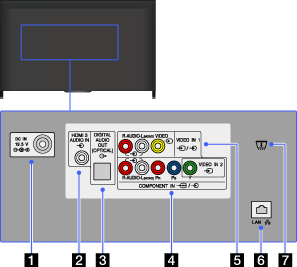
 DC IN 19.5 V
Connects the supplied mains adaptor.
Depending on the model of your TV, it may not be equipped with this jack. In this case, the mains adaptor will also not be supplied.
- HDMI 3 AUDIO IN
This input can be used as an HDMI 3 analogue audio input.
When connecting a device that has a DVI jack (socket), use its analogue audio out jacks (sockets).
- DIGITAL AUDIO OUT (OPTICAL)
You can listen to the TV’s sound on a connected home theatre system with digital audio input (optical).
 VIDEO IN 2,
  /
/ COMPONENT IN
This input can be used as a composite video input or as a component video input. When connecting a mono device, connect to the
L (MONO) audio jack (socket).For a composite connection, use
VIDEO IN 2 for video signals, and also connect to (L/R) of / COMPONENT IN for audio signals.For a component connection, use Y, PB, PR for video signals, and also connect to
(L/R) for audio signals.- The TV will automatically detect and switch between VIDEO IN 2 and / COMPONENT IN. To manually set the input type, press the HOME button, then select
 [Settings] →
  [External Inputs] → [Video 2/Component Input].
- The TV will automatically detect and switch between
- / VIDEO IN 1
Connect with a composite video cable. When connecting mono equipment, connect to the L (MONO) audio jack (socket).
 LAN
LAN
Connects to an existing network using an Ethernet cable.
 CAM (Conditional Access Module)
(This slot may not be equipped with the TV depending on your model/region/country.)
Provides access to pay TV services. For details, refer to the instruction manual supplied with your CAM.
- Do not insert the smart card directly into the TV CAM slot. It must be fitted into the Conditional Access Module provided by your authorised dealer.
- CAM is not supported in some countries/areas. Check with your authorised dealer.
- A CAM message may appear when you switch to a digital programme after using the Internet video.
