

- Top Page >
- Using Other Devices >
- HDMI connection
HDMI connection
Making a Connection
Connect an audio system (e.g. home theater system) with HDMI output to the TV, using an HDMI cable.
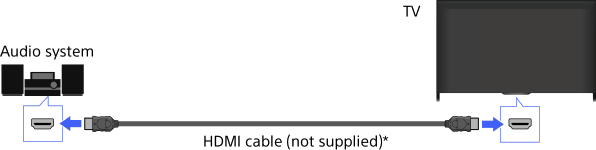
* Be sure to use an authorized HIGH SPEED HDMI cable bearing the HDMI logo.
Tips
- When connecting a BRAVIA Sync-compatible digital audio system with Audio Return Channel (ARC) technology, find the HDMI jack that carries the “ARC” mark (HDMI IN 1 or HDMI IN 2, depending on your model/region/country), then connect to that HDMI jack with an HDMI cable. However, if connecting a system that is not BRAVIA Sync-compatible or Audio Return Channel capable, an additional audio connection via DIGITAL AUDIO OUT (OPTICAL) is necessary.
Steps
After making a connection, press the HOME button, then select
 [Settings].
Select
 [Sound] → [Speakers] → [Audio System].
The connected audio system is turned on automatically. The volume can be controlled using the TV’s remote control.
Tips
- If you connect a BRAVIA Sync-compatible device, you can control it by simply using the TV’s remote control.
