

- Top Page >
- Parts Description >
- Terminals on the rear (right)
Terminals on the rear (right)
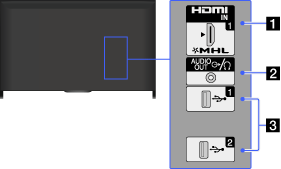
- HDMI IN 1/MHL
HDMI (High-Definition Multimedia Interface) provides an uncompressed, all-digital audio/video interface between this TV and an HDMI-equipped audio/video device. You can also connect your MHL (Mobile High-definition Link) device using an MHL cable. In addition, when you connect a BRAVIA Sync-compatible device, communication with the connected device is supported.
- Be sure to use an authorized HIGH SPEED HDMI cable bearing the HDMI logo.
- If connecting a digital audio system that is compatible with Audio Return Channel (ARC) technology, use HDMI IN 2 on the bottom of the TV. If not, an additional connection with DIGITAL AUDIO OUT (OPTICAL) is necessary.
 AUDIO OUT/
Connect your headphones or stereo system to listen to the TV’s sound through the connected equipment.
To listen to the TV’s sound through the connected equipment, press the HOME button, then select
 [Settings] →
  [Sound] → [Headphone/Audio Out] → [Headphone] or [Audio Out].
- When you set [Audio Out] in [Headphone/Audio Out], select [Fixed] or [Variable], press the HOME button, then select [Settings] → [Sound] → [Audio Out].
- When you set [Audio Out] in [Headphone/Audio Out], select [Fixed] or [Variable], press the HOME button, then select
 USB 1/2
You can enjoy photo, music and video files stored on a USB device.
