
 Operation Search
Playing movies and photos from the Event View screen
-
Open the LCD screen and press the
 button on the camcorder to enter the playback mode.
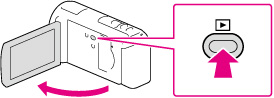
-
You can enter the playback mode by selecting
on the LCD screen. [Details]
-
Select
 /
/ to move the desired event to the center (
 ) and then select it (
 ).
).
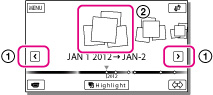
-
The camcorder displays recorded images as an event automatically, based on the date and time.
-
Select the image.
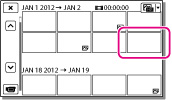
-
The camcorder plays from the selected image to the last image in the event.
Screen display on the Event View screen
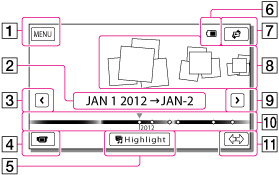
 : To the MENU screen
 : Event name
 : To the previous event
 : Change to the movie/photo recording mode
 : To play back short movies
 : Remaining battery
 : To the Map View screen*
 : Events
 : To the next event
 : Time-line bar
 : Change Event Scale button
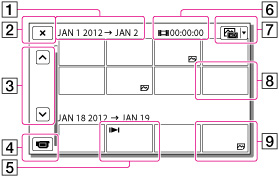 : Event title: To go back to the Event View screen: Previous/next: Change to the movie/photo recording mode: Last played image: Recorded time/number of photos: Switch image type button: Movie: Photo
-
Reduced-size images which enable you to view many images at the same time on an index screen are called “thumbnails.”
-
To prevent your image data from being lost, save all your recorded images on external media periodically.
-
In the default setting, a protected demonstration movie is pre-recorded. (HDR-CX260V/CX580V/PJ260/PJ260V/PJ580/PJ580V/PJ600/PJ600V/XR260V)
