
 Operation Search
Access point settings
You can register your access point manually.
-
Select

 [Setup] [
 Connection] [Access point settings].
-
Select the access point you want to register.
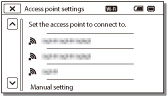
-
If you want to enter and register the WPS PIN code, select [Manual setting]
[WPS PIN]. Within 2 minutes, enter the PIN code displayed on the camcorder to the access point.
-
If the desired access point is not displayed, select [Manual setting]
[Manual regist.], enter the SSID name of the access point, and then select the encryption type.
-
Enter the password, and then select [Next]
[Register].

-
Access points without the
 icon do not require a password to be entered.
How to use the keyboard
A keyboard is displayed on the screen when text needs to be entered.

|
|
Screen names
|
Functions
|
 |
Switch character types
|
Each time you touch the key, the type of character to be input switches between letters, numerals and symbols.
|
 |
Keyboard
|
Each time you touch the key, the displayed character switches between the choices available.
For example: If you want to enter “abd”
Select
 , touching it once to display “a”
touch , touching it once to display “a”
touch
 to move the cursor (5) select , touching it twice to display “b” select to move the cursor (5) select , touching it twice to display “b” select  touching it once to display “d”.
 |
 |
Space
|
Enters a space.
|
 |
Input box
|
The characters you entered are displayed. If you try to input more characters than allowed,
 is displayed on the screen. is displayed on the screen. |
 |
Move cursor
|
Moves the cursor in the input box to the right or left.
|
 |
Delete
|
Deletes the character preceding the cursor.
|
 |
 |
Switches the next character to a capital or small letter.
|
 |
Fix
|
Finalizes the entry.
|
-
To cancel text entry, select
 .
.
Other setting items
Depending on the status or the setting method of your access point, there may be more setting items.
|
Setting items
|
Functions
|
|
WPS PIN
|
Displays the PIN to enter to the connected device.
|
|
IP address setting
|
Selects [Auto] or [Manual setting].
|
|
IP address
|
If you are entering the IP address manually, enter the fixed address.
|
|
Subnet mask/Default gateway
|
When you set [IP address setting] to [Manual setting], enter the IP address to match your network environment.
|
|
Priority Connection
|
Selects [On] or [Off].
|
Notes
-
To give the registered access point priority, set [Priority Connection] to [On].
