
 Getting started
Applications and the [Home] Screen
Press the  (Home) button to display the [Home] screen. The [Home] screen has the following applications.
(Home) button to display the [Home] screen. The [Home] screen has the following applications.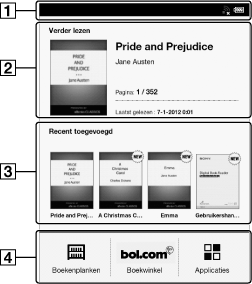
-
Status bar
-
Last read item
-
Recently added books
-
Applications
The [Applicaties] screen appears when you tap [Applicaties] on the [Home] screen.
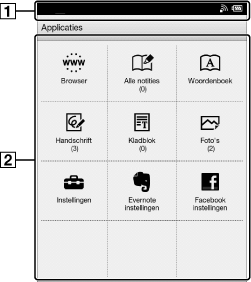
-
Status bar
-
Applications
Tip
-
The most recent item that you opened is shown under [Verder lezen] on the [Home] screen. Tap it to continue reading where you previously left off.
-
The four most recent books that have been added to the Reader are displayed under [Recent toegevoegd] on the [Home] screen. Tap one to start reading it.
|
Application
|
Description
|
|
[Boekenplanken]
|
Tap [Boekenplanken] to show the [Boeken] content list by factory default. Alternatively, tap the top-left corner of the screen or press
 (Menu) button (Menu) button  [Boekenplank kiezen] to show the following pop-up menu. [Boekenplank kiezen] to show the following pop-up menu.[Boeken]
[Collecties]
[Evernote]
|
|
[Boekwinkel]
|
Accesses bol.com. See Details.
|
|
[Applicaties]
|
Lists the applications.
|
|
[Browser]
|
Launches the Web browser. See Details.
|
|
[Alle notities]
|
Lists the bookmarks/annotations made on the books. See Details.
|
|
[Woordenboek]
|
Allows you to look up a word in the dictionary. See Details.
|
|
[Handschrift]
|
Allows you to use a drawing pad for drawing. See Details.
|
|
[Kladblok]
|
Allows you to use a notepad for typing memos. See Details.
|
|
[Foto’s]
|
Shows pictures in the Reader and, if inserted, the microSD card. See Details.
|
|
[Instellingen]
|
Displays the items for setting the Reader. See Details.
|
|
[Evernote instellingen]
|
Sign in to upload your highlights, pictures and handwritten notes to Evernote cloud. See Details.
|
|
[Facebook instellingen]
|
Log in or Log out to post book information, favourite passages and collections with your comments to Facebook. See Details.
|
Status bar
The status bar shows the current status of the Reader, such as Wi-Fi status, the battery level and the status of downloading files from bol.com.
The following items are displayed in the status bar.
|
Icon
|
Indication
|

|
Connected via the USB cable.
|
 |
Connecting to a network.
|
 |
A download is in progress. When multiple downloads are in progress, the number of downloads is displayed next to this icon.
This icon is also shown when downloading the firmware update.
|
 |
A download has completed.
If downloading fails, the
 (Fail) icon is displayed. (Fail) icon is displayed.The icon disappears when you open the notification window and tap [Wissen], or when you tap the downloaded items in the [Meldingen] list.
This icon is also shown when firmware download is complete.
|
 |
Evernote synchronizing in progress.
|
 |
Evernote synchronizing completed.
If synchronizing fails, the
 (Fail) icon will be displayed. The icon disappears when you open the notification window and tap [Wissen], or when you tap a synchronized item in the [Meldingen] list. (Fail) icon will be displayed. The icon disappears when you open the notification window and tap [Wissen], or when you tap a synchronized item in the [Meldingen] list. |
 |
The icon appears when Evernote synchronizing stops.
|
 |
Updating database.
|
 |
Wi-Fi network signal strength. See Details.
|
 |
Current battery level. See Details.
|
 |
The icon appears when new firmware is found.
|
Note
-
Depending on the situation, not all icons will be displayed at once.
Tip
-
When you press the
(Menu) button from the [Home] screen, the time is displayed at the left side of the status bar for approximately 5 seconds.
Notification window
Tapping on the status bar reveals the notification window, which contains network-related items and other current operations.
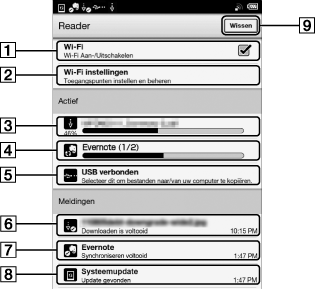
|
Item
|
Description
|
 |
Turn [Wi-Fi] on/off. See Details.
|
 |
Go to the [Wi-Fi instellingen] screen. See Details.
|
 |
Displays the status of items that are downloading from bol.com or the Web.
The progress bar indicates how long an item download will take from bol.com or the Web.
|
 |
Displayed when Evernote synchronizing is in progress.
|
 |
Enter data transfer mode. See Details.
|
 |
Item for which downloading has completed. Tap to open the item.
|
 |
Item with which Evernote synchronizing has completed. Tap to open.
|
 |
Displayed when new firmware is found.
|
 |
Displayed when notifications are displayed. Tap to clear the notification list. The
(Download complete) icon, (Evernote sync complete) icon, (Evernote sync failed) icon and (New firmware is found) icon also disappear from the status bar. |
Depending on the status of the Reader, other items may also appear in the notification window.
Press the (Menu) button to close the notification window.
(Menu) button to close the notification window.