
 Getting started
Browsing in Thumbnail View and List View
Content can be displayed as individual thumbnails or in a list.
The following instructions use the [Boeken] application as an example.
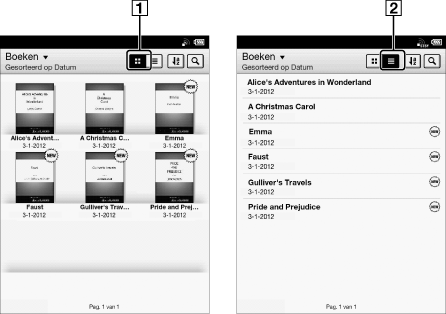
-
Thumbnail view icon
-
List view icon
-
Press the
 (Home) button
  tap [Boekenplanken] [Boeken].
-
Tap
 or
or  .*
.*
displays thumbnails of content. displays a list of content.* Some applications only allow list view.
Adjusting the title view
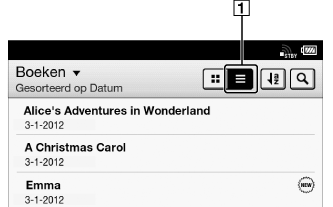
The titles of some books may be cut off if they are too long. To avoid this, you can set the Reader to display titles across two lines instead of one line.
-
List view
-
Press the
(Home) button tap [Boekenplanken] [Boeken]
(List view) press the  (Menu) button tap [Titel (weergave van 2 regels)].
Titles are displayed on two lines.
Tip
-
When you tap [Boekenplanken], any previously displayed content from [Boeken], [Collecties] and [Evernote] will be shown.
