Getting started
Appearance
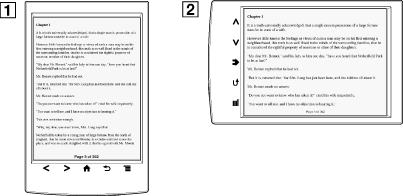
Changing the orientation
-
When viewing a book, press the
 (Menu) button
  tap [Meer] [Oriëntatie].
-
Portrait mode
-
Landscape mode
-
The orientation can be changed for the [Boeken], [Browser] and [Foto’s] applications. Changing the orientation in one application does not affect the orientation setting of the other applications.
Changing the font and font size
-
When viewing a book, press the
(Menu) button tap [Lettertype].
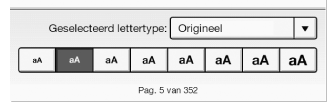
-
To change the font size, tap on one of the font size icons. The book will be updated to apply the specified font size.
 (Back) button when done.
-
To change the font, tap [Origineel] and select from one of the fonts in the list.
(Back) button when done.-
The font size and font of some content with embedded fonts may not change.
-
When you select other than the [Origineel] font, performance may be slightly lower when opening books or turning pages.
-
When you select other than the [Origineel] font, boldface/italics/italicized boldface may not be displayed correctly.
-
You can change the default font for all content in the [Boeken] application. See Details.
About PDF files

-
To display the original layout
-
If you modified the default font size with [Voorkeur lettertypegrootte] under [Instellingen], return it to its original layout to view PDF files normally.
-
To view the document in a different size, use the zoom in function.
-
When you view PDF files in other than their original layout, some functions such as highlighting or searching may not work correctly.
Changing the page mode
-
When viewing a book, press the
(Menu) button tap [Weergave personaliseren] [Pagina-modus].
-
Choose from one of the following options.
|
Option
|
Description
|
|
[Origineel]
|
Set to the default view.
|
|
[2-kolommen indeling]
|
Splits the page into two columns and two rows.
|
|
[3-kolommen indeling]
|
Splits the page into three columns and two rows.
|
|
[Op ligg. breedte toepass.]
|
Displays the page fit to landscape view.
|
-
In order to attach a handwritten note, the page mode needs to be restored to [Origineel].
Cropping a page
-
When viewing a book, press the
(Menu) button tap [Weergave personaliseren] [Pagina bijsnijden].
-
Choose from one of the following options.
|
Option
|
Description
|
|
[Bijsnijding verwijderen]
|
Disables cropping.
|
|
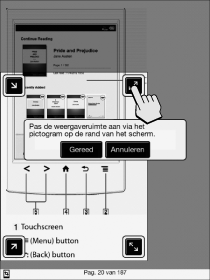
[Handmatig]
|
Allows you to adjust the crop area manually by dragging arrows at the corners. Tap [Gereed] to set the area, or tap [Annuleren] to cancel editing the crop area.
 |
|
[Auto]
|
Automatically crops the margins of a document.
|
Adjusting the brightness and contrast
-
When viewing a book, press the
(Menu) button tap [Weergave personaliseren] [Weergave aanpassen].
-
Choose from one of the following options.
|
Option
|
Description
|
|
[Origineel]
|
Displays the page in the original quality.
|
|
[Verzadigd]
|
Improves readability by emphasizing contrast.
|
|
[Details]
|
Backlight compensation; brings up details in a dark area.
|
|
[Helderder]
|
Increases the brightness.
|
|
[Donkerder]
|
Decreases the brightness.
|
|
[Op maat]
|
Create a custom setting. Tap
 (Settings) to adjust (Settings) to adjust  (Contrast) and (Contrast) and  (Brightness). (Brightness).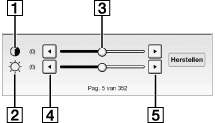
Tap
 (Lower) or (Lower) or  (Higher), or tap on the slider. (Higher), or tap on the slider.Tap [Herstellen] to revert to the previously saved custom settings.
|
-
Press the
(Back) button when done.
Zooming in
-
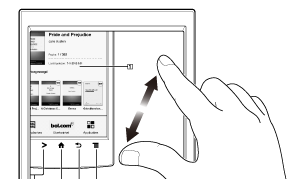
Pinch out to zoom in.
-
Pinch in to zoom out.
(Back) button.