
 Getting started
Annotations
Bookmarking a page
-
Tap the top right corner of the page.
-
To search, sort and view all annotations across all books, use the [Alle notities] application. See Details.
-
To search annotations for the currently open book, press the
 (Menu) button
  tap [Notities].
Adding text notes
-
Tap and hold the bookmark.
-
Tap [via Toetsenbord].
-
Type the notes using the on-screen keyboard.
-
Tap [Opslaan].
 icon appears on the bookmark, indicating that a note is attached.
Adding handwritten notes
-
Tap and hold the bookmark.
-
Tap [via Tekening].
-
Draw with the stylus or your finger on the drawing pad.
 (Erase), and then tap the line(s) you want to erase.
-
Tap [Opslaan].
icon appears on the bookmark, indicating that a note is attached.-
While writing, make sure that you are not touching another area on the touchscreen; this could affect the notes that you write with the stylus or your finger.
-
To ensure that your notes are correctly saved, do not handwrite notes too close to the edge of the touchscreen.
- If you experience difficulties when handwriting or drawing on the Reader:
-
avoid applying excessive pressure to the touchscreen.
-
try not to handwrite or draw too quickly.
-
this functionality is not designed for very detailed drawings or for writing small characters.
Editing notes
-
Tap and hold
on the bookmark.
-
Tap [Bewerken].
-
Edit the note.
-
Tap [Opslaan].
Removing a bookmark
-
Tap the bookmark.
-
This will remove the bookmark and any note attached to it. To delete only a note, tap and hold the
icon and tap [Verwijderen] [Ja].
-
To delete all bookmarks in the current book, press the
(Menu) button tap [Notities]. See Details.
-
To delete annotations across all books, use the [Alle notities] application. See Details.
Highlighting words on a page
-
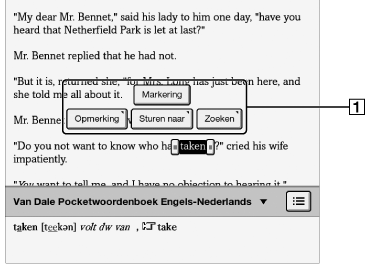
Tap and hold the first word and drag across to the last word of the section you would like to highlight.
-
Pop-up menu
-
Tap [Markering].
-
To search, sort and view all annotations across all books, use the [Alle notities] application. See Details.
-
To search annotations for the currently open book, press the
(Menu) button tap [Notities]. See Details.
Adding text notes or handwritten notes to a highlight
-
Tap and hold a highlighted word.
-
Select [Opmerking].
-
Select from [via Toetsenbord] and [via Tekening].
-
Tap [Opslaan].
icon appears at the beginning of the highlight, indicating that a note is attached.Editing notes on a highlight
-
Tap and hold
at the beginning of the highlight.
-
Tap [Opmerking]
[Bewerken].
-
Edit the note.
-
Tap [Opslaan].
Removing highlights
-
Tap and hold
at the beginning of the highlight.
-
Tap [Markering weghalen].
-
Tap [Ja] when prompted.
-
This will remove the highlight and any note attached to it. To delete only a note, tap and hold the
icon, tap [Opmerking] [Bewerken] [Verwijderen] [Ja].
-
To delete all annotations in the current book, press the
(Menu) button tap [Notities]. See Details.
-
To delete annotations across all books, use the [Alle notities] application. See Details.
Handwriting a note on a page
-
Press the
(Menu) button.
-
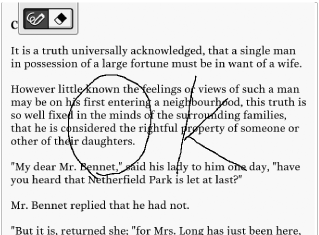
Tap [Handschrift] and use the stylus or your finger to draw a line.
-
While writing, make sure that you are not touching another area on the touchscreen; this could affect the notes that you write with the stylus or your finger.
-
To ensure that your notes are correctly saved, do not handwrite notes too close to the edge of the touchscreen.
-
If you experience difficulties when handwriting or drawing on the Reader:
-
avoid applying excessive pressure to the touchscreen.
-
try not to handwrite or draw too quickly.
-
this functionality is not designed for very detailed drawings or for writing small characters.
To delete a drawn line
(Erase) and drag across the drawn line. (Back) button when you are done to continue reading.
-
To delete all annotations in the current book, press the
(Menu) button tap [Notities]. See Details.
-
To delete annotations across all books, use the [Alle notities] application. See Details.
Hiding annotations
-
Press the
(Menu) button.
-
Tap [Meer].
-
Tap [Instellingen].
-
Tap [Notities tonen].
-
Check the checkbox to show annotations.
-
Uncheck it to hide annotations.
-
Press the
(Back) button when done.
Finding annotations within a book
-
Press the
(Menu) button tap [Notities].
(Back) button to return to the book.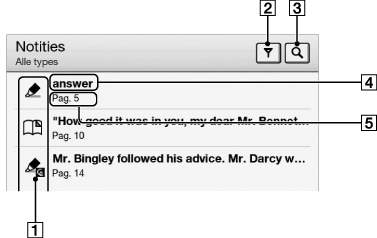
-
Note icons
-
Filter note type
-
Search icon
-
Headline (the highlighted text, the text note, the beginning text of the bookmarked page, or the beginning text of the page with the handwritten note)
-
Page number of the note
(Back) button to return to the book.-
Tap a note in the list.
Note icons
 |
Bookmark only
|
 |
Bookmark with text notes
|
 |
Bookmark with handwritten notes
|
 |
Handwritten note on a page
|
 |
Highlight only
|
 |
Highlight with text notes
|
 |
Highlight with handwritten notes
|
Filtering
-
Tap
 (Filter) tap one of the annotation types.
Searching for notes via keyword
|
Item type
|
Target
|
|
For [Bladwijzer] items
|
|
|
For [Handschrift] items
|
|
|
For [Markering] items
|
|
-
Tap
 (Search).
-
Type a search keyword using the on-screen keyboard.
-
Tap
(Search) next to the search box.
(Back) button to return to the [Notities] list.-
If you apply a filter before searching, the search will be performed only on the filtered items.
To delete annotations
-
Press the
(Menu) button tap [Notities verwijderen]. See Details.
To delete all annotations
-
Press the
(Menu) button tap [Notities verwijderen] press the (Menu) button tap [Alles selecteren] [Gereed] [Ja].
Using (Menu) Items
(Menu) button from the [Notities]/[Alle notities] list to select an option.|
Option
|
Description
|
|
[Notities verwijderen]
|
Deletes one or more notes from the Reader. See Details.
|
