
 Getting started
Protecting Multiple Items at Once
You can protect one or more items at once.
The following instructions use the [Boeken] application as an example; this feature is also available in other applications.
-
Press the
 (Home) button
  tap [Boekenplanken].
-
Press the
 (Menu) button tap [Boeken beveiligen].
Boxes appear next to the thumbnails or list entries.
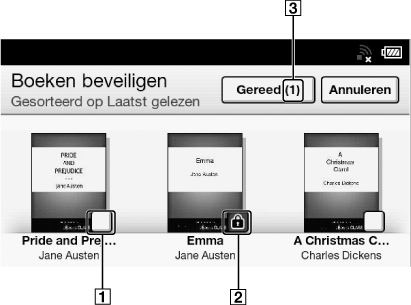
-
Box
-
Protect icon
-
Selected number of items
-
Tap the box of the item to be protected.
Selected items are indicated with a protect icon.
You can press the (Menu) button and tap [Alles selecteren] if you wish to protect all items.
(Menu) button and tap [Alles selecteren] if you wish to protect all items.-
Tap [Gereed].
The protect icon appears next to the protected items. You can remove protection in Step 3 above by tapping items with the protect icon.
Note
-
If [Boeken] is not shown, press the
(Menu) button tap [Boekenplank kiezen] to show [Boeken].
-
The protection feature works only on the Reader. Protected content may still be deleted via your computer.
