


- Top Page >
- Fun Features with Connected Equipment >
- Home Network
Home Network
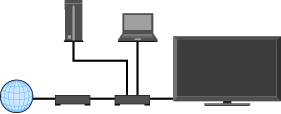
Connect a LAN cable or add your TV to a wireless LAN to enjoy “BRAVIA” home network features.
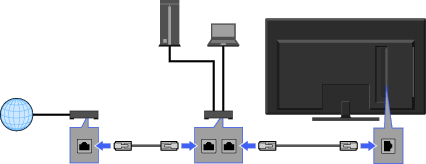
Enjoying Photo/Music/Video Files via the Network
Enjoy various content, such as photo/music/video files, stored in DLNA Certified media server on your home network. With the home network feature, you can enjoy network content on the TV even in other rooms. To enjoy your home network, DLNA Certified media server is required.
Press
 and select the listed media servers under the “Photo,” “Music” or “Video” category.
Select files or folders to play from the list on the selected media server.

- Files from a network device need to be compatible with the following file formats.
- - Still images: JPEG format
- - Music: MP3 format or linear PCM format
- - Video: AVCHD or MPEG2 format (not playable in some cases)
Renderer
You can play back photo, music and video files stored in network devices (e.g. digital still cameras, mobile phones) on the TV screen by directly operating the target device. The network device should also be renderer-compatible.
To set a renderer, press then select  > Network > Renderer > the desired settings.
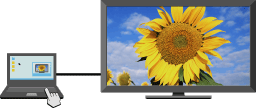
- Play back media files by using the network devices.
Adjusting Display Settings for Media Server
Select home network servers to be displayed in the Home Menu. Up to 10 servers can be displayed in the Home Menu automatically.
Press
, then select > Network > Show/Hide Media Servers.Select the server you want to display on the Home Menu and adjust the settings.
Media Server Troubleshooting
The TV detects if the server is being correctly recognized when you cannot connect it to your home network. If the diagnostic results indicate a failure, check possible causes, and network connections and settings.
Press
, then select > Network > Media Server Troubleshooting.The diagnostic result list appears when the detection is complete.
