


- Top Page >
- Watching TV >
- Wide Mode
Wide Mode
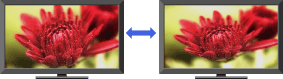
Selects a screen format from a range of screen types according to your preferences.
“Wide Mode” allows you to select a screen format to better fit content you are viewing. Based on the original signal source, a black frame or black bars may surround the picture.

Changing the Wide Mode from 4:3 Original Source
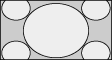
|
Wide Zoom | Enlarges the picture to fill a 16:9 screen, preserving the original picture as much as possible. |
|---|---|---|

|
Normal | Displays a 4:3 picture in its original size. Side bars are shown to fill the 16:9 screen. |
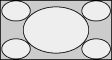
|
Full | Stretches the 4:3 picture horizontally, to fill the 16:9 screen. |
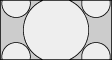
|
Zoom | Displays the cinemascopic (letter box format) picture in the correct proportion. |
Changing the Wide Mode from 16:9 Original Source
|
|  |
Wide Zoom | Enlarges the picture to fill a 16:9 screen, preserving the original picture as much as possible. |
|---|---|---|---|

| 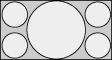 |
Full | Displays a 16:9 picture in its original size. |
|
| 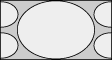 |
H Stretch* | Stretches the picture horizontally keeping the vertical size in its original. This is only available with 720p, 1080i, 1080p and 1080/24p sources. |
|
|  |
Zoom | Displays the cinemascopic (letter box format) picture in the correct proportion. |
* This Wide Mode is only available depending on your TV model/region/country.
Changing the Wide Screen Mode for PC Timing
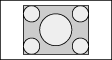
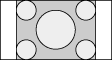
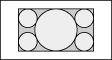
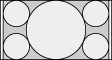
| 800 x 600 | Normal | Full 1 | Full 2 | |
|---|---|---|---|---|

|
 |  |  | |
| 1,280 x 768 | Normal | Full 1 | Full 2 | |

|
|  |  | |
