


- Top Page >
- Parts Description >
- Rear
Rear

 LAN
LAN- DIGITAL AUDIO OUT (OPTICAL)

 /
/ 1
1- 2,
 /
/ - HDMI IN 1/3/4
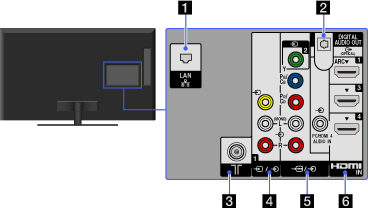
- LAN
Connects to an existing network using an Ethernet cable.
- DIGITAL AUDIO OUT (OPTICAL)
You can listen to TV sound on a connected home theatre system with digital input.
-
RF input that connects to your cable or antenna (aerial).
- / 1
Connect with a composite video cable. When connecting mono equipment, connect to the
L (MONO) jack (socket). - 2, /
This input can be used as a composite video input or as a component video input. When connecting mono equipment, connect to the
L (MONO) jack (socket).For composite use, connect to
2 for video, and to (L/R) of / for audio signals.For component connection, use Y, PB, PR for video signals and also connect to
(L/R) for audio signals.
- The TV will automatically detect and switch between 2 and /. To manually set the input type, press HOME, select
 → [External Inputs] → [Video 2/Component Input].
- The TV will automatically detect and switch between
- HDMI IN 1/3/4
HDMI (High-Definition Multimedia Interface) provides an uncompressed, all-digital audio/video interface between this TV and any HDMI-equipped audio/video equipment. In addition, when you connect equipment that is compatible with “Control for HDMI”, communication with the connected equipment is supported.
- Be sure to use only an authorised HDMI cable bearing the HDMI logo.
- If connecting a digital audio system that is compatible with Audio Return Channel (ARC) technology, use HDMI IN 1. If not, an additional connection with DIGITAL AUDIO OUT (OPTICAL) is necessary.
- If the equipment has a DVI jack (socket), connect it to HDMI IN 4 through a DVI - HDMI adaptor interface (not supplied), and connect the equipment’s audio out jacks (sockets) to PC/HDMI 4 AUDIO IN.
