C_Srvc_AEP_CH_CAMsetup 【AEP/eng】
| Level3 | EntryPoint | ||||||
|---|---|---|---|---|---|---|---|
| Srvc_AEP | |||||||
| Srvc_AEP_MHP | |||||||
| Srvc_AEP_MHP_nodivx | |||||||
| Srvc_AEP_nodivx | |||||||
C_Srvc_AEP_CH_CAMsetup | FullScreen: Page 1
- block_id: 37622 «C_Srvc_AEP_CH_CAMsetup»
- Overview
- block_id: 37623 «C_Srvc_AEP_CH_CAMsetup»
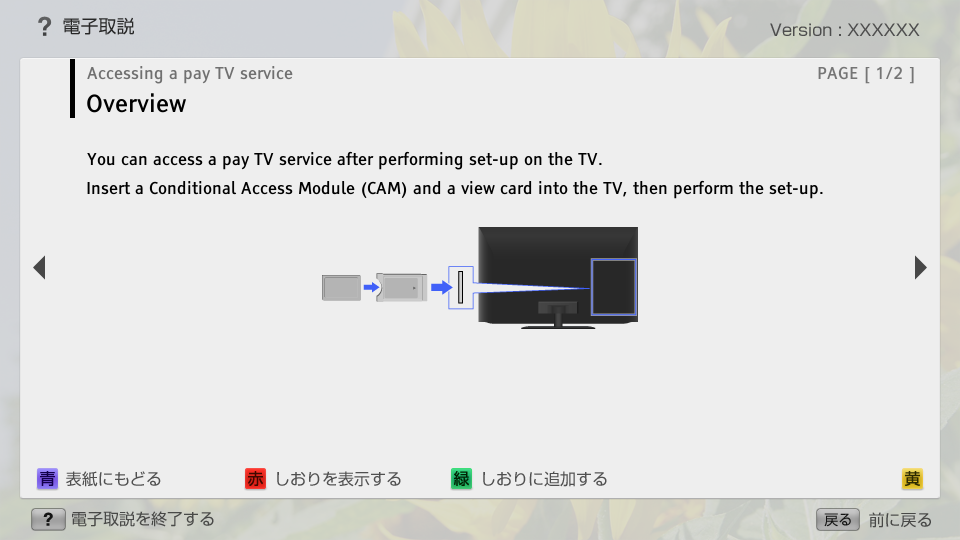
- You can access a pay TV service after performing set-up on the TV.
- block_id: 37624 «C_Srvc_AEP_CH_CAMsetup»
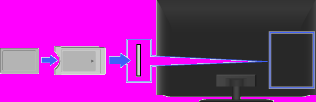
- Insert a Conditional Access Module (CAM) and a view card into the TV, then perform the set-up.
- block_id: 37625 «C_Srvc_AEP_CH_CAMsetup»
【img=i_cam_set_ov.full.png】
C_Srvc_AEP_CH_CAMsetup | FullScreen: Page 2
- block_id: 32659 «C_Srvc_AEP_CH_CAMsetup»
- Steps
- block_id: 32661 «C_Srvc_AEP_CH_CAMsetup»
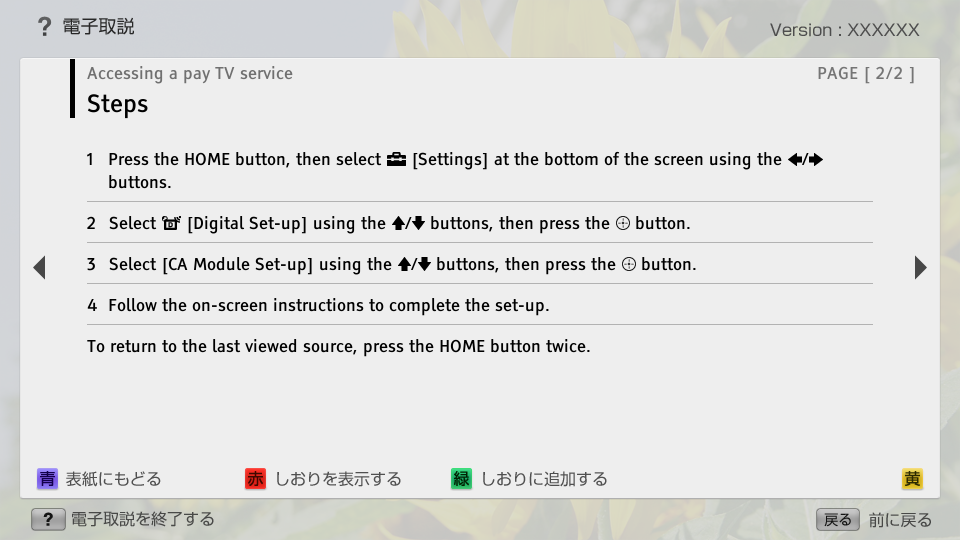
- 1. Press the HOME button, then select
 [Settings] at the bottom of the screen using the
  /
/ buttons.
 - block_id: 32662 «C_Srvc_AEP_CH_CAMsetup»
- 2. Select
 [Digital Set-up] using the
  /
/ buttons, then press the
  button.
 - block_id: 32663 «C_Srvc_AEP_CH_CAMsetup»
- 3. Select [CA Module Set-up] using the / buttons, then press the button.
- block_id: 32664 «C_Srvc_AEP_CH_CAMsetup»
- 4. Follow the on-screen instructions to complete the set-up.
- block_id: 32665 «C_Srvc_AEP_CH_CAMsetup»
- To return to the last viewed source, press the HOME button twice.