C_USBRec_AEP_Delete 【AEP/eng】
| Level3 | EntryPoint | ||||||
|---|---|---|---|---|---|---|---|
| USBRec_AEP | |||||||
| USBRec_AEP_FSH | |||||||
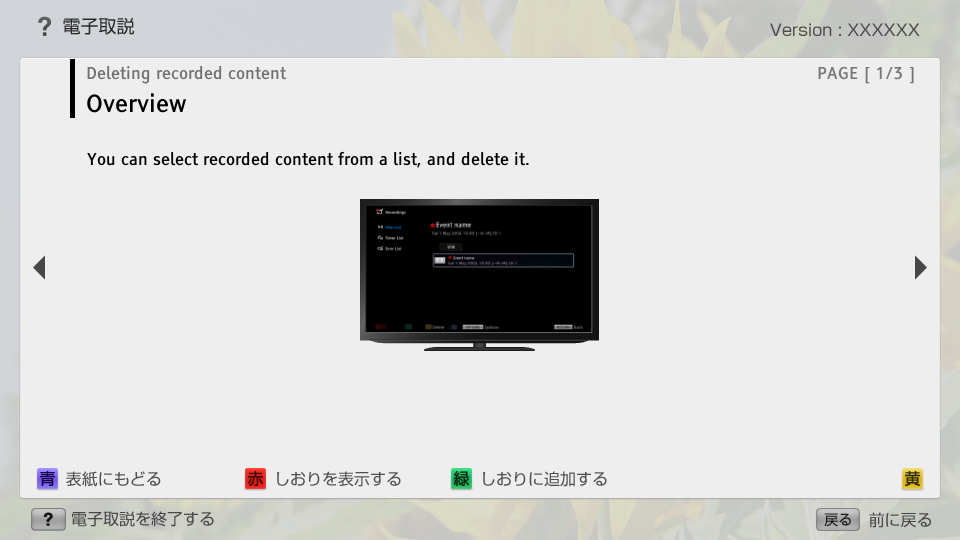
C_USBRec_AEP_Delete | FullScreen: Page 1
C_USBRec_AEP_Delete | FullScreen: Page 2
- block_id: 33974 «C_USBRec_AEP_Delete»
- Steps
- block_id: 33975 «C_USBRec_AEP_Delete»
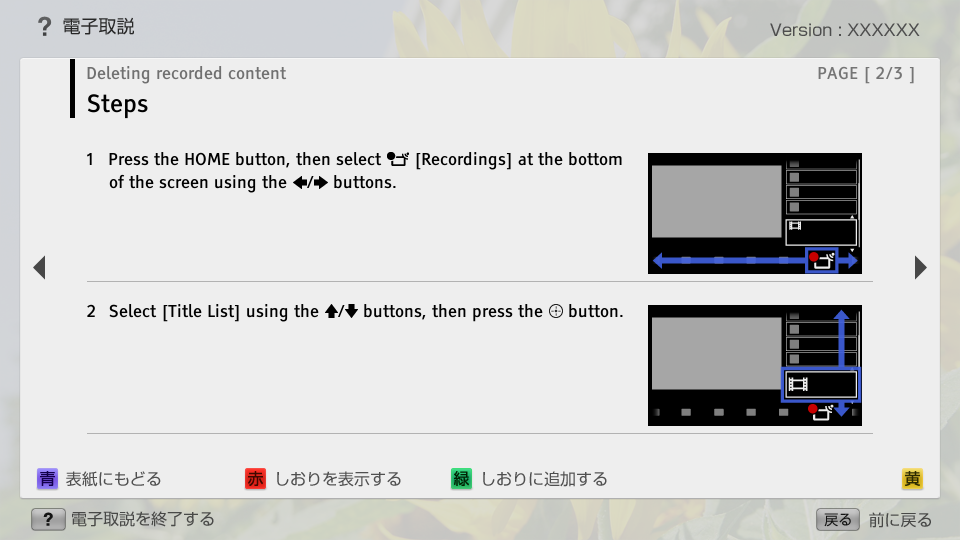
- 1. Press the HOME button, then select
 [Recordings] at the bottom of the screen using the
  /
/ buttons.
 - block_id: 37540 «C_USBRec_AEP_Delete»
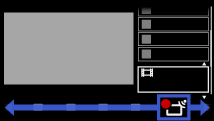
【img=i_NUX_recording.full.png】- block_id: 33976 «C_USBRec_AEP_Delete»
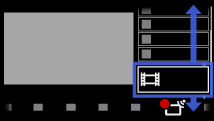
- 2. Select [Title List] using the
 /
/ buttons, then press the
  button.
 - block_id: 37541 «C_USBRec_AEP_Delete»
【img=i_NUX_recording_list.full.png】
C_USBRec_AEP_Delete | FullScreen: Page 3
- block_id: 33977 «C_USBRec_AEP_Delete»
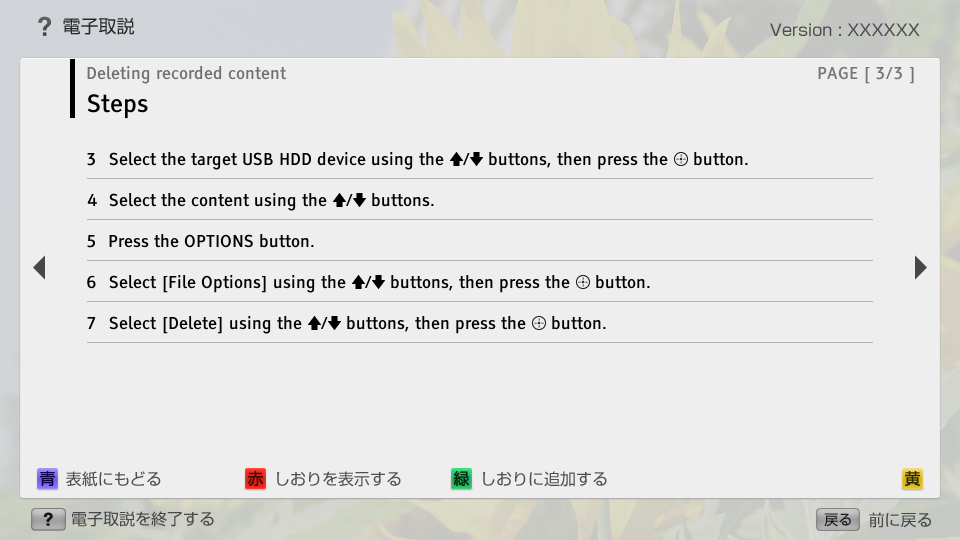
- 3. Select the target USB HDD device using the / buttons, then press the button.
- block_id: 33978 «C_USBRec_AEP_Delete»
- 4. Select the content using the / buttons.
- block_id: 33979 «C_USBRec_AEP_Delete»
- 5. Press the OPTIONS button.
- block_id: 33980 «C_USBRec_AEP_Delete»
- 6. Select [File Options] using the / buttons, then press the button.
- block_id: 33981 «C_USBRec_AEP_Delete»
- 7. Select [Delete] using the / buttons, then press the button.