C_skype_AEP_GA_Call 【AEP/eng】
C_skype_AEP_GA_Call | FullScreen: Page 1
- block_id: 30944 «C_skype_AEP_GA_Call»
- Overview
- block_id: 30945 «C_skype_AEP_GA_Call»
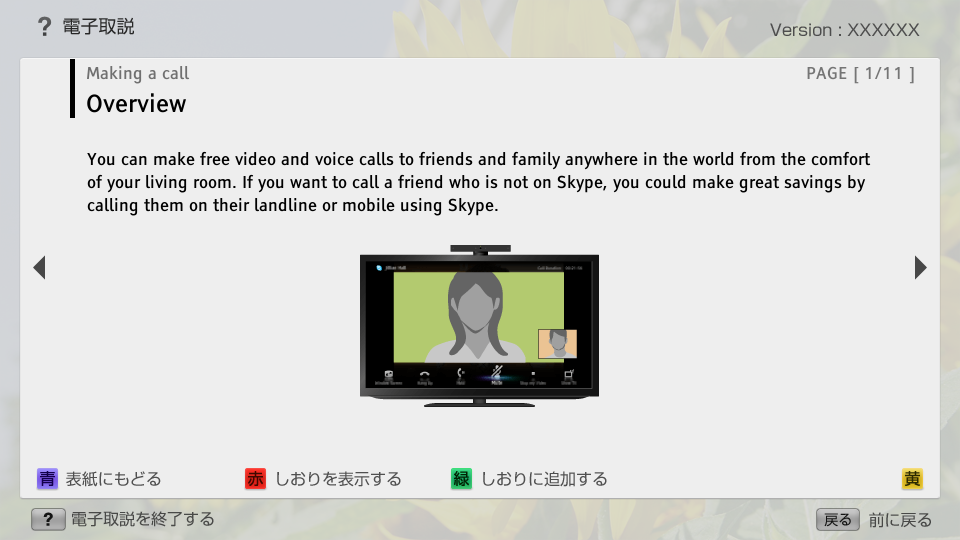
- You can make free video and voice calls to friends and family anywhere in the world from the comfort of your living room. If you want to call a friend who is not on Skype, you could make great savings by calling them on their landline or mobile using Skype.
- block_id: 30946 «C_skype_AEP_GA_Call»

【img=i_skype_pre.full.png】
C_skype_AEP_GA_Call | Page 2_1
- block_id: 30947 «C_skype_AEP_GA_Call»
- Steps
- block_id: 30948 «C_skype_AEP_GA_Call»
- 1. Make a broadband Internet connection.
- block_id: 30949 «C_skype_AEP_GA_Call»
- Press the
 button to jump to the title list. Then, press the button again to go to “Connecting to the Internet” for details.
- block_id: 30950 «C_skype_AEP_GA_Call» L3_Connecting_to_the_Internet
- Jump to the title list
- block_id: 30951 «C_skype_AEP_GA_Call»
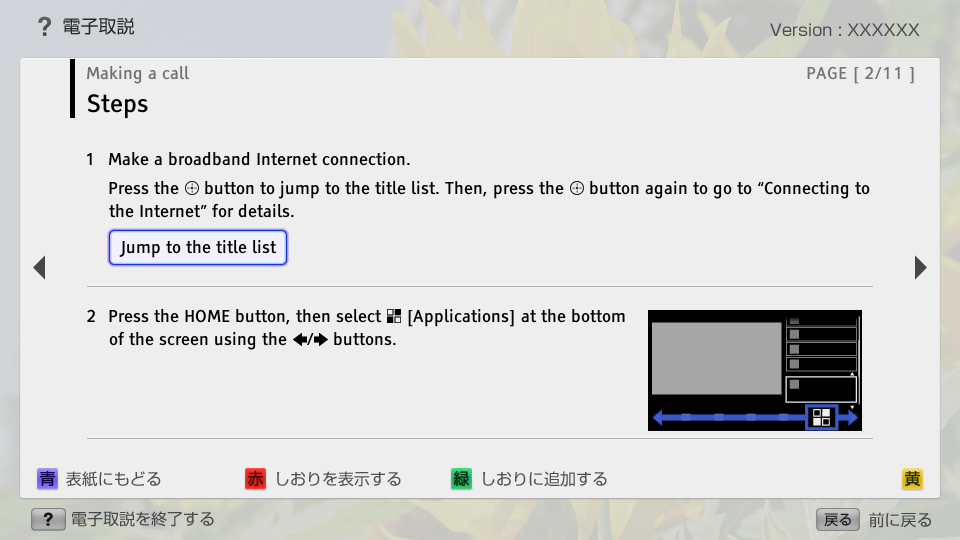
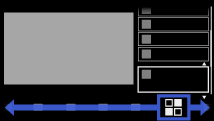
- 2. Press the HOME button, then select
 [Applications] at the bottom of the screen using the
  /
/ buttons.
- block_id: 30952 «C_skype_AEP_GA_Call»
【img=i_NUX_application.full.png】
C_skype_AEP_GA_Call | FullScreen: Page 3
- block_id: 30953 «C_skype_AEP_GA_Call»
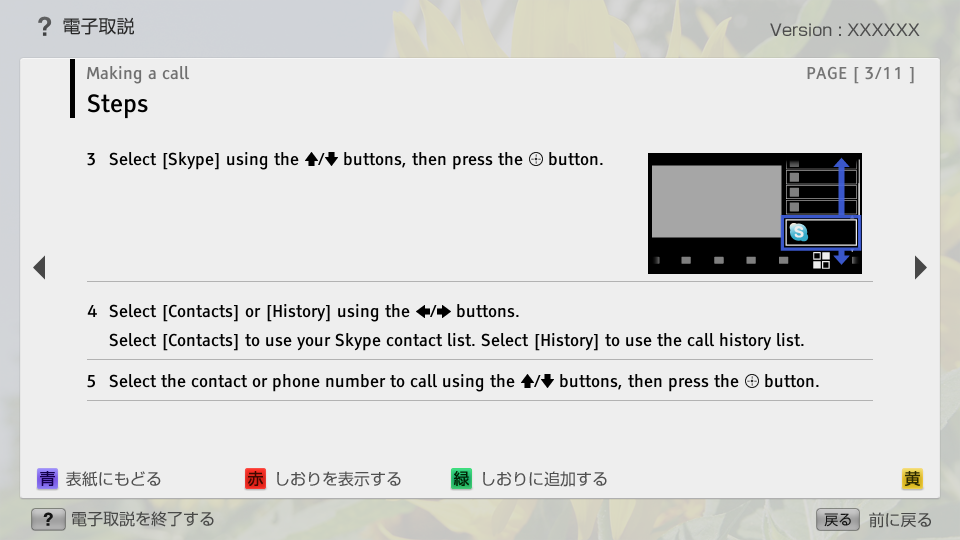
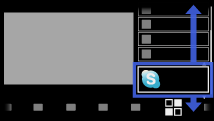
- 3. Select [Skype] using the
 /
/ buttons, then press the button.
- block_id: 30954 «C_skype_AEP_GA_Call»
【img=i_NUX_appli_skype.full.png】- block_id: 30955 «C_skype_AEP_GA_Call»
- 4. Select [Contacts] or [History] using the / buttons.
- block_id: 30956 «C_skype_AEP_GA_Call»
- Select [Contacts] to use your Skype contact list. Select [History] to use the call history list.
- block_id: 30957 «C_skype_AEP_GA_Call»
- 5. Select the contact or phone number to call using the / buttons, then press the button.
C_skype_AEP_GA_Call | FullScreen: Page 4
- block_id: 30958 «C_skype_AEP_GA_Call»
- 6. Select [Video Call] or [Voice Call] using the / buttons, then press the button.
- block_id: 30959 «C_skype_AEP_GA_Call»
- To return to the last viewed source, press the HOME button twice.
- block_id: 30960 «C_skype_AEP_GA_Call»
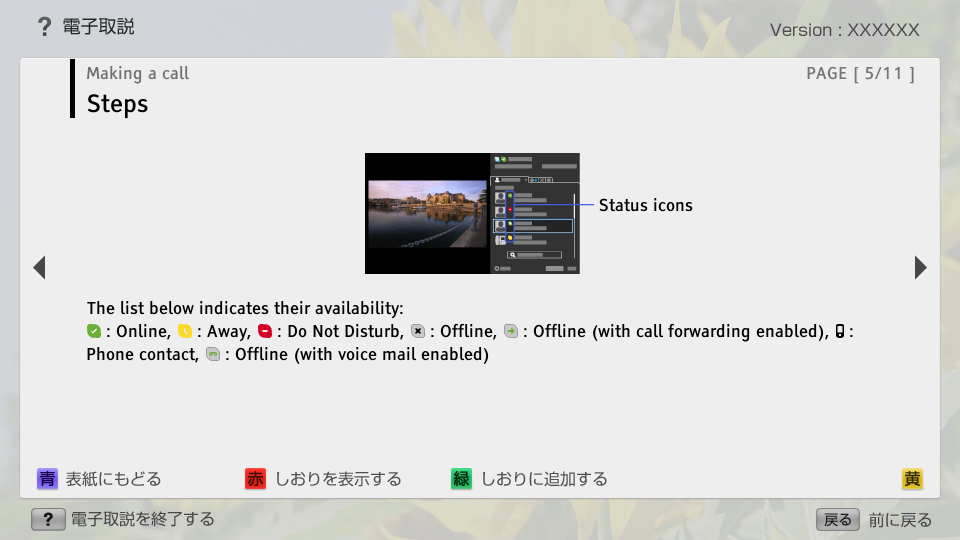
- About the status icons in the contact list
- block_id: 30961 «C_skype_AEP_GA_Call»
- A status icon is displayed next to your contacts, so you know if they are available to have a conversation.
C_skype_AEP_GA_Call | FullScreen: Page 5
- block_id: 33945 «C_skype_AEP_GA_Call»

【img=i_skype_OSD1.full.png】- block_id: 33946 «C_skype_AEP_GA_Call»
- Status icons
- block_id: 33947 «C_skype_AEP_GA_Call»
- The list below indicates their availability:
 : Online,
  : Away,
  : Do Not Disturb,
  : Offline,
  : Offline (with call forwarding enabled),
  : Phone contact,
  : Offline (with voice mail enabled)
C_skype_AEP_GA_Call | FullScreen: Page 6
- block_id: 30962 «C_skype_AEP_GA_Call»
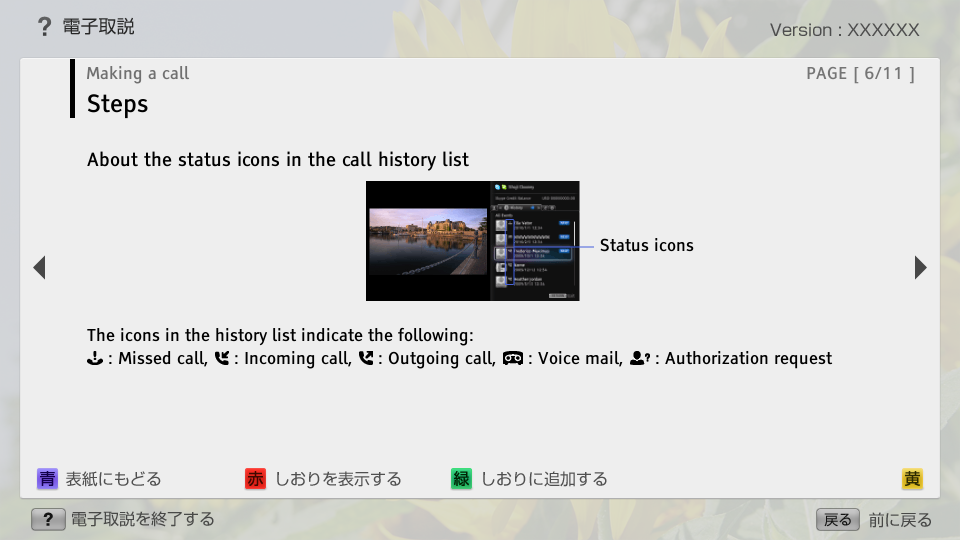
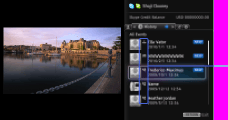
- About the status icons in the call history list
- block_id: 33948 «C_skype_AEP_GA_Call»
【img=i_skype_OSD7.full.png】- block_id: 33949 «C_skype_AEP_GA_Call»
- Status icons
- block_id: 30963 «C_skype_AEP_GA_Call»
- The icons in the history list indicate the following:
 : Missed call,
  : Incoming call,
  : Outgoing call,
  : Voice mail,
  : Authorization request
C_skype_AEP_GA_Call | FullScreen: Page 7
- block_id: 30964 «C_skype_AEP_GA_Call»
- To call by entering a phone number
- block_id: 30965 «C_skype_AEP_GA_Call»
- Press the HOME button, then select [Applications] → [Skype] → [Tools] → [Call Phone Number]. Enter a phone number, then select [Call].
- block_id: 30966 «C_skype_AEP_GA_Call»
- To search for new Skype friends and call
- block_id: 30967 «C_skype_AEP_GA_Call»
- Search the Skype directory by entering the Skype name, full name or e-mail address of the person to call.
- block_id: 30968 «C_skype_AEP_GA_Call»
- Press the HOME button, select [Applications] → [Skype] → [Tools] → [Find Contacts]. Enter a Skype name, full name or e-mail address, select [Search], the Skype name/full name to call, then [Video Call]/[Voice Call].
C_skype_AEP_GA_Call | FullScreen: Page 8
- block_id: 33950 «C_skype_AEP_GA_Call»
- To add contacts to the contact list
- block_id: 33951 «C_skype_AEP_GA_Call»
- You can add contacts in the following ways:
- block_id: 33952 «C_skype_AEP_GA_Call»
- ・ After finding a contact from the Skype directory, select [Add to Contacts].
- block_id: 33953 «C_skype_AEP_GA_Call»
- ・ From the call history list, select the contact or phone number, then [Add to Contacts].
- block_id: 33954 «C_skype_AEP_GA_Call»
- ・ After entering a phone number, select [Save], then the desired option.
C_skype_AEP_GA_Call | FullScreen: Page 9
- block_id: 30969 «C_skype_AEP_GA_Call»
- To receive a call
- block_id: 30970 «C_skype_AEP_GA_Call»
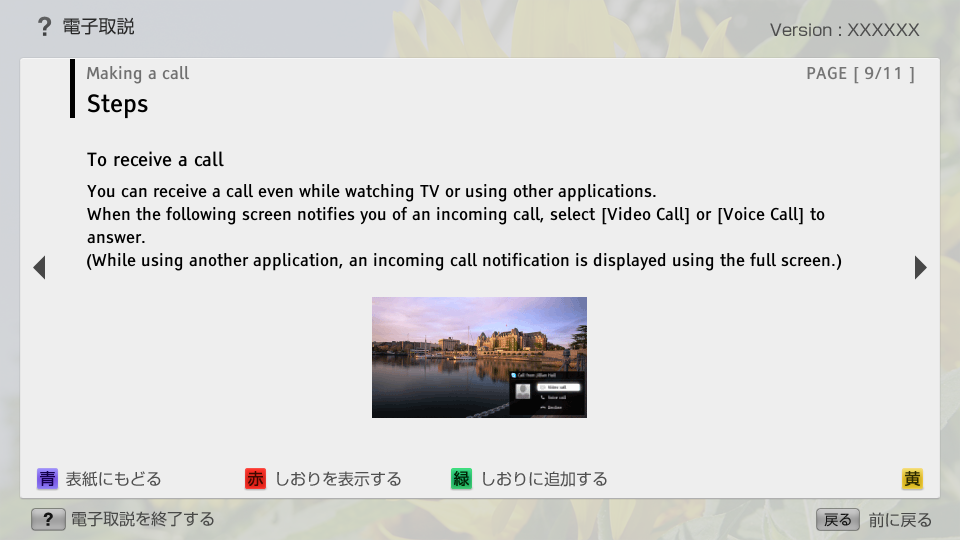
- You can receive a call even while watching TV or using other applications.
When the following screen notifies you of an incoming call, select [Video Call] or [Voice Call] to answer.
(While using another application, an incoming call notification is displayed using the full screen.)
- block_id: 33955 «C_skype_AEP_GA_Call»

【img=i_skype_OSD4.full.png】
C_skype_AEP_GA_Call | FullScreen: Page 10
- block_id: 30971 «C_skype_AEP_GA_Call»
- To use call options during a call
- block_id: 30972 «C_skype_AEP_GA_Call»
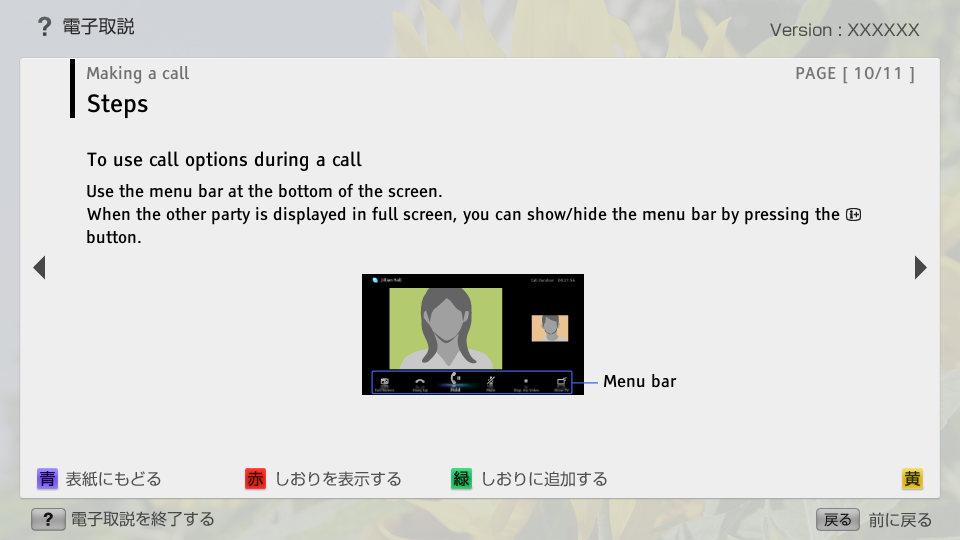
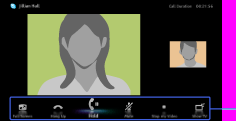
- Use the menu bar at the bottom of the screen.
When the other party is displayed in full screen, you can show/hide the menu bar by pressing the  button.
- block_id: 33956 «C_skype_AEP_GA_Call»
【img=i_skype_OSD5.full.png】- block_id: 33957 «C_skype_AEP_GA_Call»
- Menu bar
C_skype_AEP_GA_Call | FullScreen: Page 11
- block_id: 30973 «C_skype_AEP_GA_Call»
- Tips
- block_id: 30975 «C_skype_AEP_GA_Call»
- ・ For the best audio quality during a Skype call, use the speakers that are built into the TV instead of using an external audio system. To use the TV speakers, press the OPTIONS button, then select [Speakers] → [TV Speakers].