PhMap 【AEP/eng】
【topic_No. 320】 toctext:
|
area flag | ||||||
|---|---|---|---|---|---|---|---|
| JP | |||||||
| 0 | |||||||
| ATSC-UC | ATSC-LTN | ATSC-KR | |||||
| 1 | 1 | 1 | |||||
| ISDB-LTN_BRZ | ISDB-LTN_AR | ISDB-LTN_except_BRAR | ISDB-LTN_NoGinga | DVB-LTN | |||
| 1 | 1 | 1 | 1 | 1 | |||
| DTMB-CH | DTMB-HK | DVB-TW | |||||
| 1 | 1 | 1 | |||||
| DVB-GA_D-Full_AUS_SIN_SA | DVB-GA_D-Full_NZ | DVB-GA_D-Simple | DVB-GA_NoSkype | ||||
| 1 | 1 | 1 | 1 | ||||
| DVB-AEP | DVB-AEP_MHP | DVB-GA-T2_NoSkype | |||||
| 1 | 1 | 1 | |||||
| model flag | |||||||
| 3aG | 3a | P2A | 3a_wifi_Ready | P2S | 2b-1N | 3a-L | |
| 1 | 1 | 1 | 1 | 1 | 1 | 0 | |
| FSH | |||||||
| 0 | |||||||
PhMap | FullScreen: Page 1
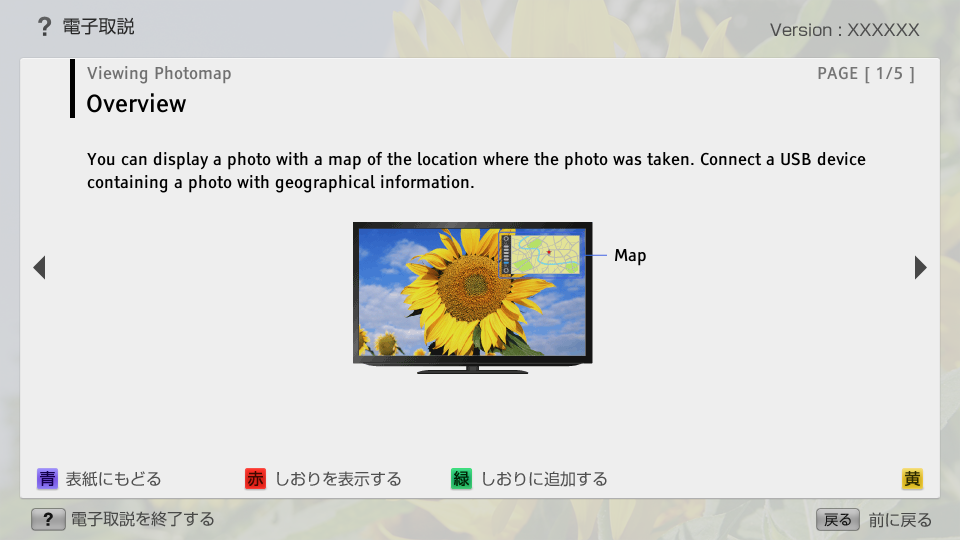
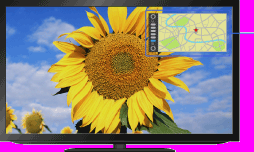
PhMap | Page 2_1
- block_id: 31059 «PhMap»
- Steps
- block_id: 31060 «PhMap»
- 1. Make a broadband Internet connection.
- block_id: 31061 «PhMap»
- Press the
 button to jump to the title list. Then, press the button again to go to “Connecting to the Internet” for details.
 - block_id: 31062 «PhMap» L3_Connecting_to_the_Internet
- Jump to the title list
- block_id: 31063 «PhMap»
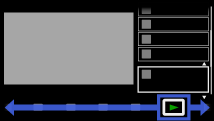
- 2. Press the HOME button, then select
 [Media] at the bottom of the screen using the
  /
/ buttons.
 - block_id: 31064 «PhMap»
【img=i_NUX_media.full.png】
PhMap | FullScreen: Page 3
- block_id: 31065 «PhMap»
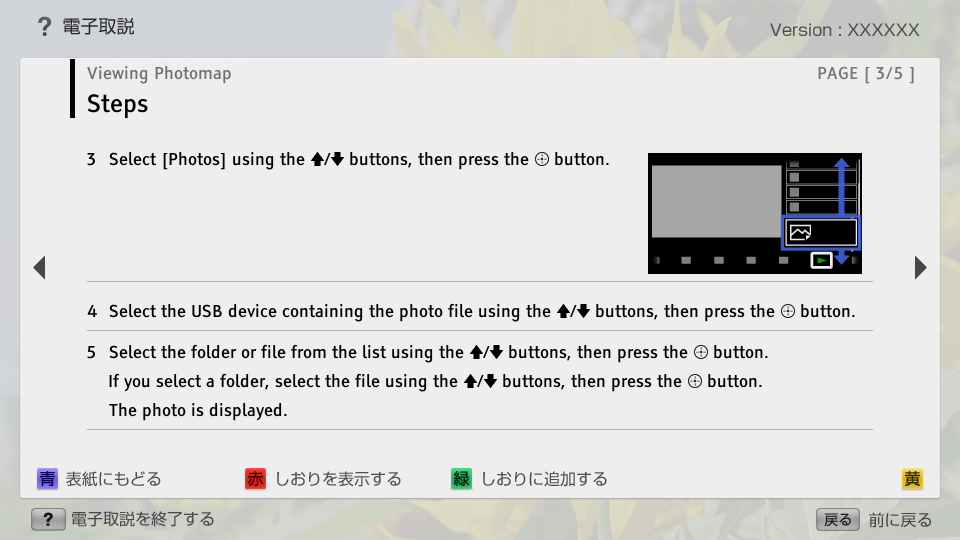
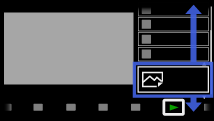
- 3. Select [Photos] using the
 /
/ buttons, then press the button.
 - block_id: 31066 «PhMap»
【img=i_NUX_media_photo.full.png】- block_id: 31067 «PhMap»
- 4. Select the USB device containing the photo file using the / buttons, then press the button.
- block_id: 31068 «PhMap»
- 5. Select the folder or file from the list using the / buttons, then press the button.
- block_id: 33959 «PhMap»
- If you select a folder, select the file using the / buttons, then press the button.
- block_id: 33960 «PhMap»
- The photo is displayed.
PhMap | FullScreen: Page 4
- block_id: 31069 «PhMap»
- To return to the last viewed source, press the HOME button twice.
- block_id: 31070 «PhMap»
- To zoom in/out the map
- block_id: 31071 «PhMap»
- Press the / buttons.
- block_id: 31072 «PhMap»
- To change the display position of the map
- block_id: 31073 «PhMap»
- Press the far left colour button repeatedly.
PhMap | FullScreen: Page 5
- block_id: 31074 «PhMap»
- Notes
- block_id: 31075 «PhMap»
- ・ Only a large-scale map that cannot be zoomed in or out is displayed if the TV is not connected to the Internet or the online map service is terminated.
- block_id: 31076 «PhMap»
- ・ The position indicated on the map may differ depending on the image capture device.
- block_id: 31077 «PhMap»
- ・ The Internet online map service is provided by a third party. For this reason, service may be changed or terminated without prior notification.