USB_AEP_GA_TW 【AEP/eng】
【topic_No. 221】 toctext:
|
area flag | ||||||
|---|---|---|---|---|---|---|---|
| JP | |||||||
| 0 | |||||||
| ATSC-UC | ATSC-LTN | ATSC-KR | |||||
| 0 | 0 | 0 | |||||
| ISDB-LTN_BRZ | ISDB-LTN_AR | ISDB-LTN_except_BRAR | ISDB-LTN_NoGinga | DVB-LTN | |||
| 0 | 0 | 0 | 0 | 0 | |||
| DTMB-CH | DTMB-HK | DVB-TW | |||||
| 0 | 1 | 1 | |||||
| DVB-GA_D-Full_AUS_SIN_SA | DVB-GA_D-Full_NZ | DVB-GA_D-Simple | DVB-GA_NoSkype | ||||
| 1 | 1 | 1 | 1 | ||||
| DVB-AEP | DVB-AEP_MHP | DVB-GA-T2_NoSkype | |||||
| 1 | 1 | 1 | |||||
| model flag | |||||||
| 3aG | 3a | P2A | 3a_wifi_Ready | P2S | 2b-1N | 3a-L | |
| 1 | 1 | 1 | 1 | 1 | 0 | 0 | |
| FSH | |||||||
| 0 | |||||||
USB_AEP_GA_TW | FullScreen: Page 1
- block_id: 30470 «USB_AEP_GA_TW»
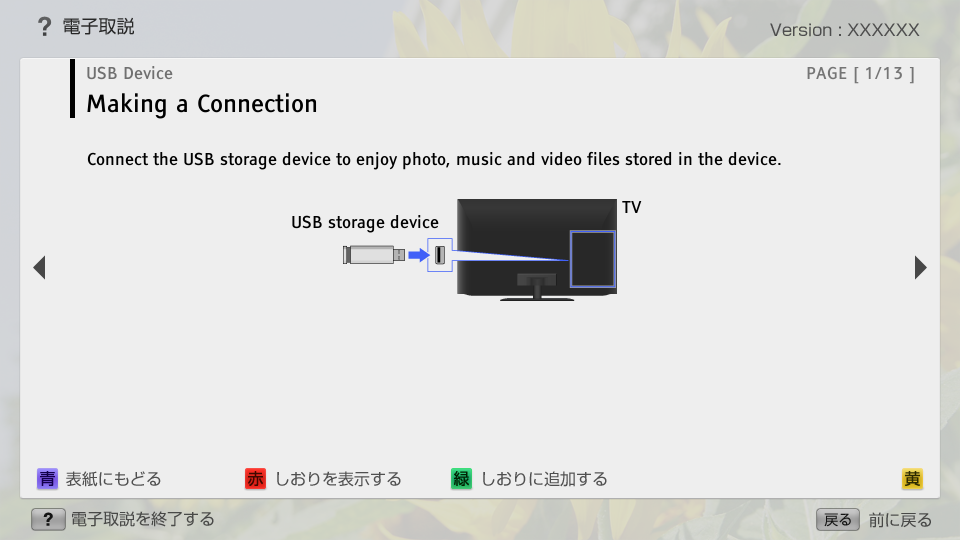
- Making a Connection
- block_id: 30471 «USB_AEP_GA_TW»
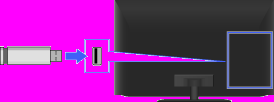
- Connect the USB storage device to enjoy photo, music and video files stored in the device.
- block_id: 30472 «USB_AEP_GA_TW»
【img=i_equ_usb_connect.full.png】- block_id: 30473 «USB_AEP_GA_TW»
- USB storage device
- block_id: 30474 «USB_AEP_GA_TW»
- TV
USB_AEP_GA_TW | FullScreen: Page 2
- block_id: 30476 «USB_AEP_GA_TW»
- Steps
- block_id: 30477 «USB_AEP_GA_TW»
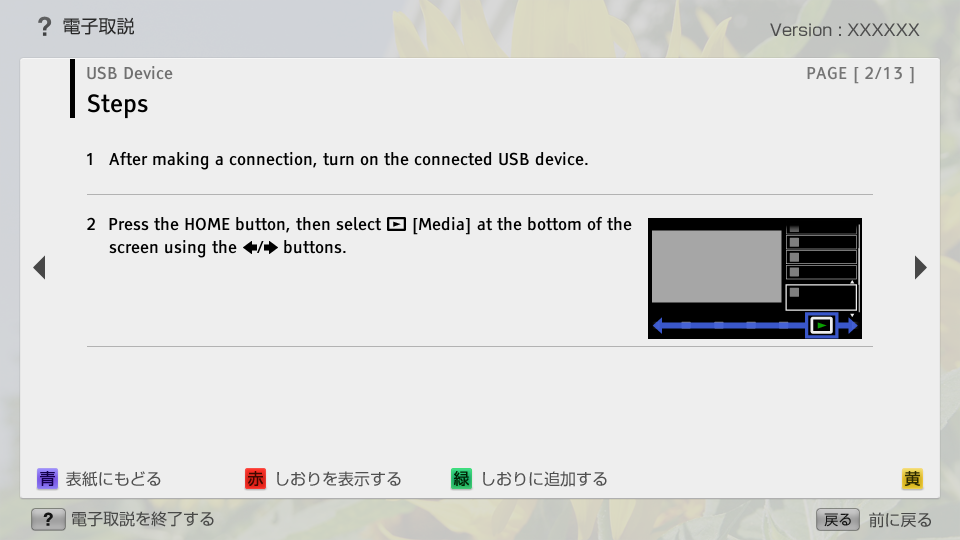
- 1. After making a connection, turn on the connected USB device.
- block_id: 30479 «USB_AEP_GA_TW»
- 2. Press the HOME button, then select
 [Media] at the bottom of the screen using the
  /
/ buttons.
 - block_id: 30480 «USB_AEP_GA_TW»

【img=i_NUX_media.full.png】
USB_AEP_GA_TW | FullScreen: Page 3
- block_id: 30481 «USB_AEP_GA_TW»
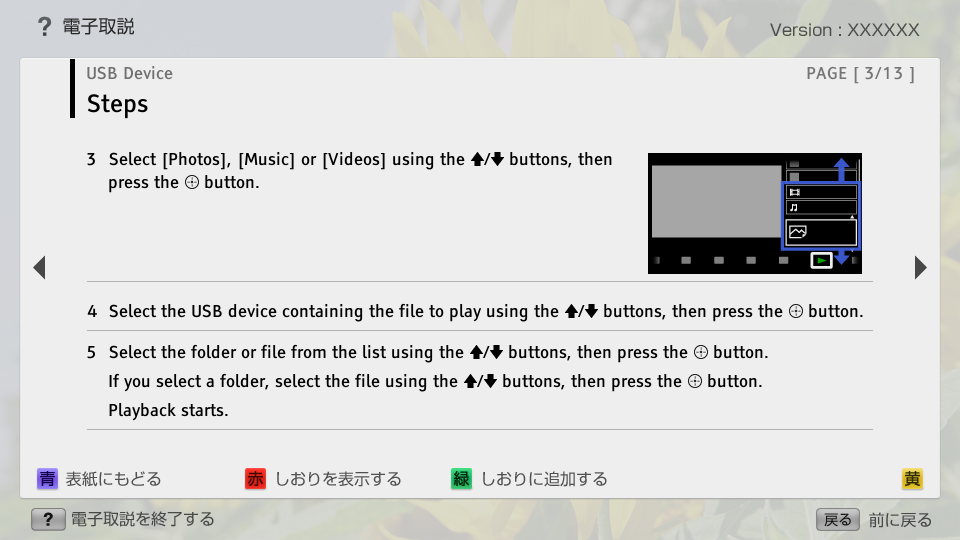
- 3. Select [Photos], [Music] or [Videos] using the
 /
/ buttons, then press the
  button.
 - block_id: 30482 «USB_AEP_GA_TW»
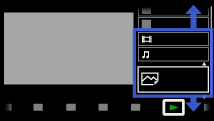
【img=i_NUX_media_phmuvi.full.png】- block_id: 30483 «USB_AEP_GA_TW»
- 4. Select the USB device containing the file to play using the / buttons, then press the button.
- block_id: 30484 «USB_AEP_GA_TW»
- 5. Select the folder or file from the list using the / buttons, then press the button.
- block_id: 33906 «USB_AEP_GA_TW»
- If you select a folder, select the file using the / buttons, then press the button.
- block_id: 33907 «USB_AEP_GA_TW»
- Playback starts.
USB_AEP_GA_TW | FullScreen: Page 4
- block_id: 30485 «USB_AEP_GA_TW»
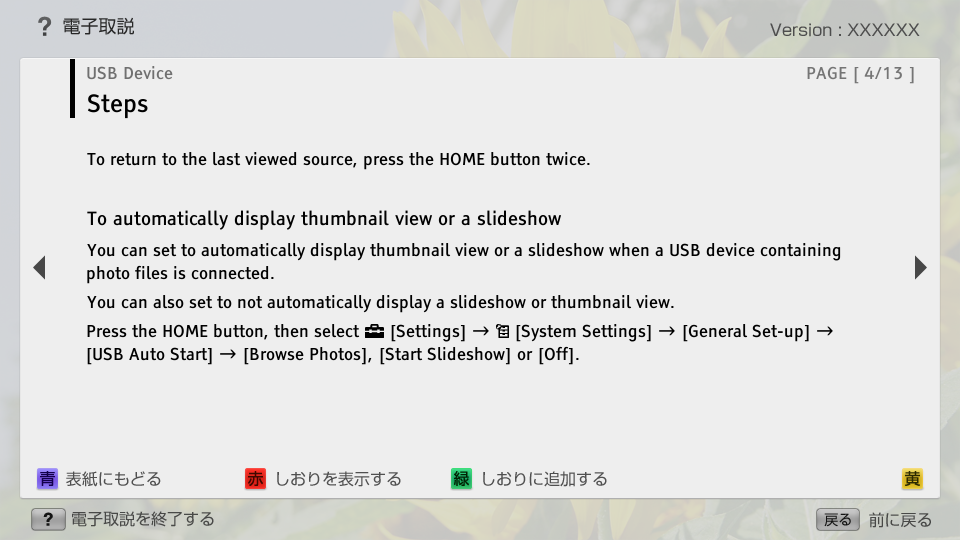
- To return to the last viewed source, press the HOME button twice.
- block_id: 30486 «USB_AEP_GA_TW»
- To automatically display thumbnail view or a slideshow
- block_id: 30487 «USB_AEP_GA_TW»
- You can set to automatically display thumbnail view or a slideshow when a USB device containing photo files is connected.
- block_id: 33908 «USB_AEP_GA_TW»
- You can also set to not automatically display a slideshow or thumbnail view.
- block_id: 30488 «USB_AEP_GA_TW»
- Press the HOME button, then select
 [Settings] →
  [System Settings] → [General Set-up] → [USB Auto Start] → [Browse Photos], [Start Slideshow] or [Off].
USB_AEP_GA_TW | FullScreen: Page 5
- block_id: 33909 «USB_AEP_GA_TW»
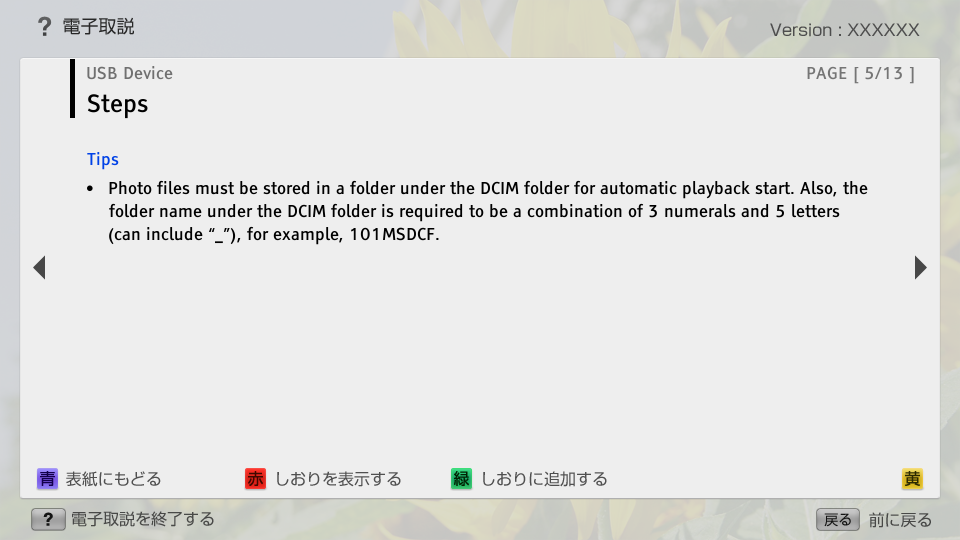
- Tips
- block_id: 30529 «USB_AEP_GA_TW»
- ・ Photo files must be stored in a folder under the DCIM folder for automatic playback start. Also, the folder name under the DCIM folder is required to be a combination of 3 numerals and 5 letters (can include “_”), for example, 101MSDCF.
USB_AEP_GA_TW | FullScreen: Page 6
- block_id: 30489 «USB_AEP_GA_TW»
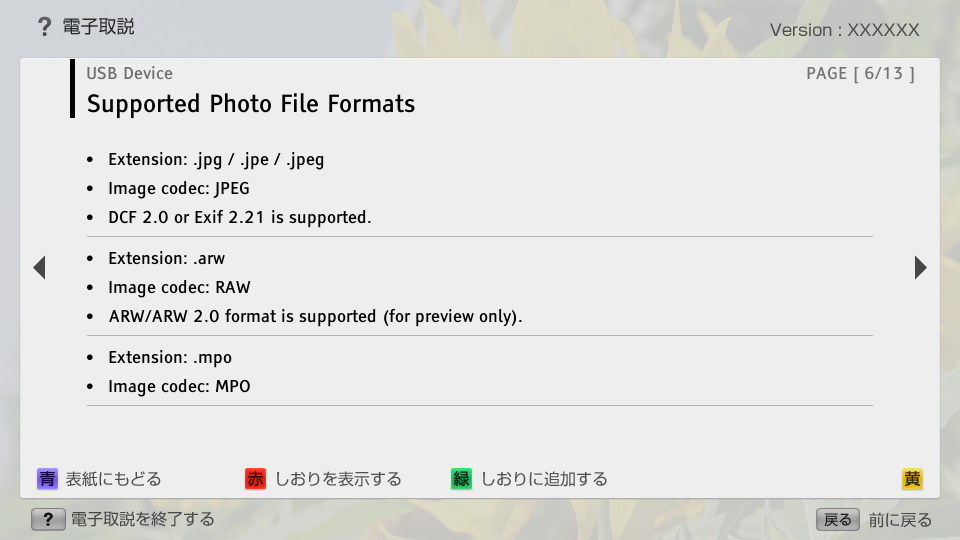
- Supported Photo File Formats
- block_id: 30490 «USB_AEP_GA_TW»
- ・ Extension: .jpg / .jpe / .jpeg
- block_id: 30491 «USB_AEP_GA_TW»
- ・ Image codec: JPEG
- block_id: 30492 «USB_AEP_GA_TW»
- ・ DCF 2.0 or Exif 2.21 is supported.
- block_id: 30493 «USB_AEP_GA_TW»
- ・ Extension: .arw
- block_id: 30494 «USB_AEP_GA_TW»
- ・ Image codec: RAW
- block_id: 30495 «USB_AEP_GA_TW»
- ・ ARW/ARW 2.0 format is supported (for preview only).
- block_id: 30496 «USB_AEP_GA_TW»
- ・ Extension: .mpo
- block_id: 30497 «USB_AEP_GA_TW»
- ・ Image codec: MPO
USB_AEP_GA_TW | FullScreen: Page 7
- block_id: 30498 «USB_AEP_GA_TW»
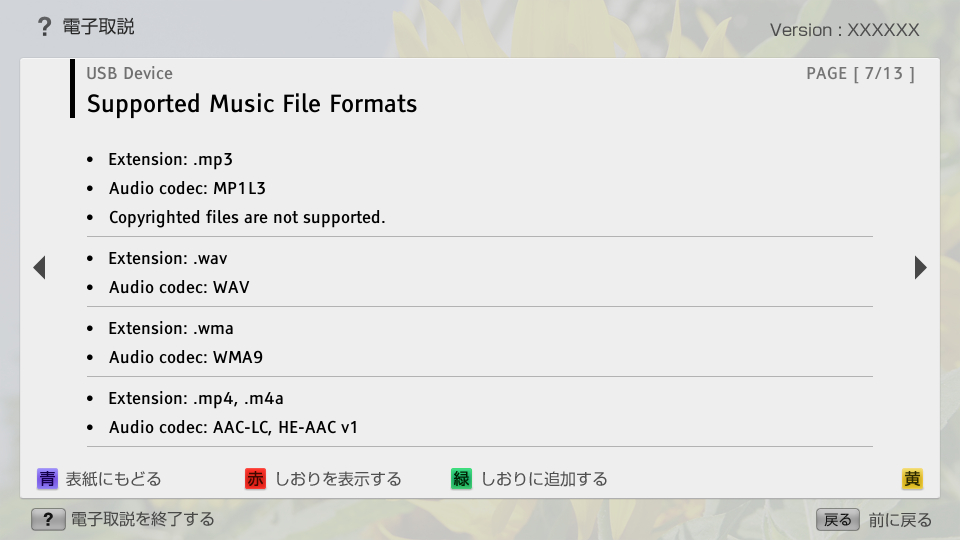
- Supported Music File Formats
- block_id: 30499 «USB_AEP_GA_TW»
- ・ Extension: .mp3
- block_id: 30500 «USB_AEP_GA_TW»
- ・ Audio codec: MP1L3
- block_id: 30501 «USB_AEP_GA_TW»
- ・ Copyrighted files are not supported.
- block_id: 30502 «USB_AEP_GA_TW»
- ・ Extension: .wav
- block_id: 30503 «USB_AEP_GA_TW»
- ・ Audio codec: WAV
- block_id: 30504 «USB_AEP_GA_TW»
- ・ Extension: .wma
- block_id: 30505 «USB_AEP_GA_TW»
- ・ Audio codec: WMA9
- block_id: 38010 «USB_AEP_GA_TW»
- ・ Extension: .mp4, .m4a
- block_id: 38011 «USB_AEP_GA_TW»
- ・ Audio codec: AAC-LC, HE-AAC v1
USB_AEP_GA_TW | FullScreen: Page 8
- block_id: 30506 «USB_AEP_GA_TW»
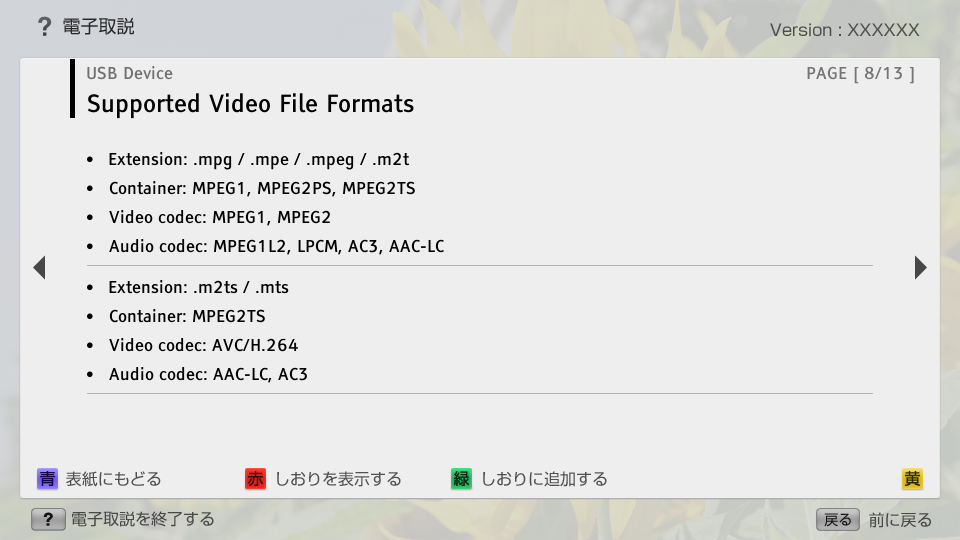
- Supported Video File Formats
- block_id: 30507 «USB_AEP_GA_TW»
- ・ Extension: .mpg / .mpe / .mpeg / .m2t
- block_id: 30508 «USB_AEP_GA_TW»
- ・ Container: MPEG1, MPEG2PS, MPEG2TS
- block_id: 30509 «USB_AEP_GA_TW»
- ・ Video codec: MPEG1, MPEG2
- block_id: 30510 «USB_AEP_GA_TW»
- ・ Audio codec: MPEG1L2, LPCM, AC3, AAC-LC
- block_id: 30511 «USB_AEP_GA_TW»
- ・ Extension: .m2ts / .mts
- block_id: 30512 «USB_AEP_GA_TW»
- ・ Container: MPEG2TS
- block_id: 30513 «USB_AEP_GA_TW»
- ・ Video codec: AVC/H.264
- block_id: 30514 «USB_AEP_GA_TW»
- ・ Audio codec: AAC-LC, AC3
USB_AEP_GA_TW | FullScreen: Page 9
- block_id: 30515 «USB_AEP_GA_TW»
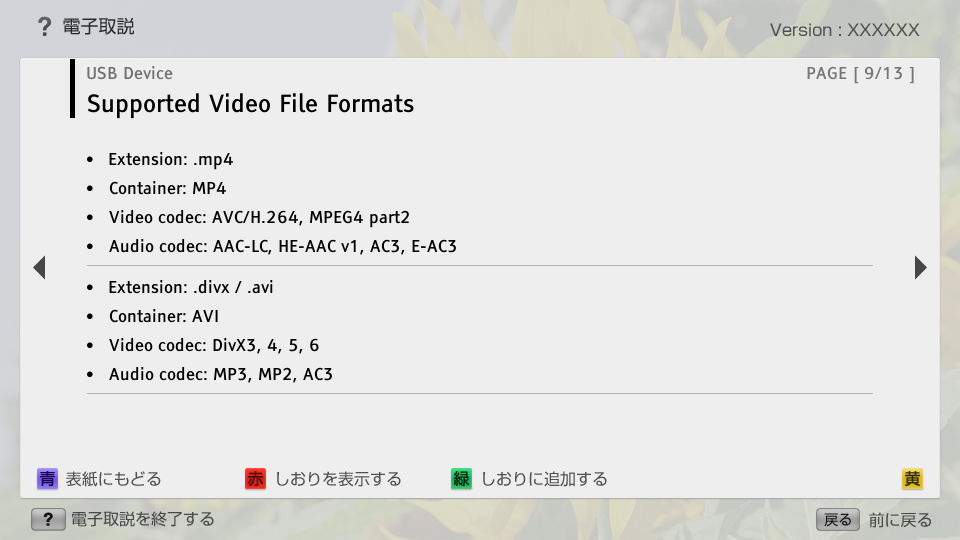
- ・ Extension: .mp4
- block_id: 30516 «USB_AEP_GA_TW»
- ・ Container: MP4
- block_id: 30517 «USB_AEP_GA_TW»
- ・ Video codec: AVC/H.264, MPEG4 part2
- block_id: 30518 «USB_AEP_GA_TW»
- ・ Audio codec: AAC-LC, HE-AAC v1, AC3, E-AC3
- block_id: 30519 «USB_AEP_GA_TW»
- ・ Extension: .divx / .avi
- block_id: 30520 «USB_AEP_GA_TW»
- ・ Container: AVI
- block_id: 30521 «USB_AEP_GA_TW»
- ・ Video codec: DivX3, 4, 5, 6
- block_id: 30522 «USB_AEP_GA_TW»
- ・ Audio codec: MP3, MP2, AC3
USB_AEP_GA_TW | FullScreen: Page 10
USB_AEP_GA_TW | FullScreen: Page 11
- block_id: 30527 «USB_AEP_GA_TW»
- Notes
- block_id: 30528 «USB_AEP_GA_TW»
- ・ USB viewer supports FAT16, FAT32 and exFAT file systems.
- block_id: 30530 «USB_AEP_GA_TW»
- ・ When connecting a Sony digital still camera to the TV with a USB cable, USB connection settings on your camera need to be set to [Auto] or [Mass Storage] mode.
- block_id: 30531 «USB_AEP_GA_TW»
- ・ Displaying a 3D Sweep Panorama photo is available only when [Slideshow Effect] is set to [Simple]. (This feature is available on 3D-compatible models only.) To confirm the setting, press the OPTIONS button, then select [Playback Options] → [Slideshow Effect].
USB_AEP_GA_TW | FullScreen: Page 12
- block_id: 30532 «USB_AEP_GA_TW»
- ・ Scrolling a panoramic photo is available only when [Slideshow Effect] is set to [Simple]/[Dissolve]. To confirm the setting, press the OPTIONS button, then select [Playback Options] → [Slideshow Effect].
- block_id: 30533 «USB_AEP_GA_TW»
- ・ Only the panoramic JPEG files in the following horizontal/vertical sizes can be scrolled. (If the JPEG file is edited on a PC, etc., scroll may not be possible.)
- block_id: 30534 «USB_AEP_GA_TW»
- - For horizontal scroll: 4912/1080, 7152/1080, 3424/1920, 4912/1920, 12416/1856, 8192/1856, 5536/2160, 3872/2160, 10480/4096, 11520/1080
- block_id: 30535 «USB_AEP_GA_TW»
- - For vertical scroll: 1080/4912, 1080/7152, 1920/3424, 1920/4912, 1856/12416, 1856/8192, 2160/5536, 2160/3872, 4096/10480, 1080/11520
USB_AEP_GA_TW | FullScreen: Page 13
- block_id: 30536 «USB_AEP_GA_TW»
- ・ Video files are located in the following folder structure (hierarchal position):
/AVCHD/BDMV/STREAM/00000.MTS
/PRIVATE/AVCHD/BDMV/STREAM/00000.MTS
/MP_ROOT/100ANV01/MAHA0001.MP4 - block_id: 30537 «USB_AEP_GA_TW»
- ・ Avoid losing your files by backing up all your media files stored on a USB device. Sony cannot accept responsibility for lost or damaged data stored on a USB device.
- block_id: 30538 «USB_AEP_GA_TW»
- ・ Depending on the file, playback may not be possible even when using the supported formats.