

- Top Page >
- Watching TV >
- Watching in 3D
Watching in 3D
Overview
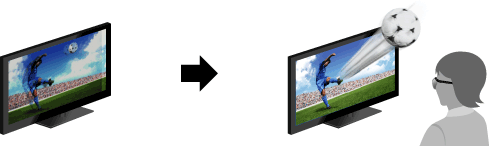
You can experience powerful 3D entertainment, such as stereoscopic 3D games and Blu-ray 3D Discs. You can also watch regular 2D content with 3D effect.
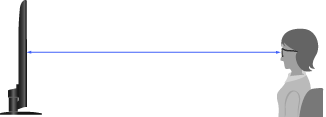
Recommended viewing distance range for a 3D image
If the viewing distance range is not appropriate, the image may appear doubled. It is recommended to view the TV front on.
Steps
Display the content to watch in 3D on the TV screen.
Put the 3D Glasses on.
If no 3D effect is achieved, perform the following steps.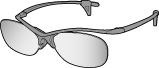
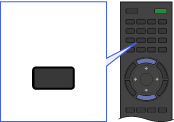
Press the 3D button to display the [3D Display] screen.
 3D
3DPress the 3D button repeatedly to select the [3D Display] mode to suit the displayed content.
[Side-by-Side]: Displays side-by-side pictures in 3D.
[Over-Under]: Displays over-under pictures in 3D.
[Simulated 3D]: Displays regular 2D pictures in simulated 3D.Depending on the input signal or format, [Side-by-side]/[Over-Under] may not be selectable.
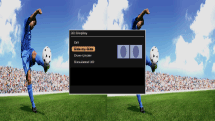
To exit the 3D Menu, press the RETURN button.
Tips
- This TV is compatible with SimulView™. When you are watching a SimulView™ image use the recommended 3D Glasses.
To deactivate the 3D effect
Press the 3D button repeatedly to select [Off] in [3D Display].
To adjust the 3D settings
You can adjust the following 3D settings.
Press the HOME button, select  [Settings] →
  [Display] → [3D Settings], then the desired option.
- [3D Display]
- Opens [3D Display] to switch the display modes.
- [3D Depth Adjustment]
- Adjusts the depth of 3D pictures on the screen (available only for content with 3D signals). Selecting [0] is recommended for normal use. 3D effect may be less pronounced depending on the settings.
- [Simulated 3D Effect]
- Heightens/lessens the 3D effect when you display 2D pictures in simulated 3D.
- [Auto 3D]
- Automatically switches to 3D display mode when a 3D signal is detected. Select [Off] to prevent 3D display mode from being automatically selected when a 3D signal is detected.
Depending on the input signal or format, 3D display mode may not switch automatically.
In such a case, press the 3D button to select 3D display mode manually. - [3D Signal Notification]
- Notifies when a 3D signal is detected.
Notes
- 3D effect is available only when pictures are displayed in full screen.
- Recommended viewing distance may vary depending on the TV’s location and room conditions.
- Simulated 3D effect may be less pronounced with some picture sources.
- Perceived simulated 3D effect may vary from person to person.
- 4K 3D signal is not detected.
