
[1] Parts and ControlsReceiverFront panel (upper section)
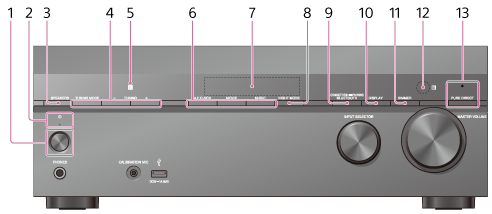
-
 (power)
 - Power indicator
- SPEAKERS
- TUNING MODE, TUNING +/–
Press to operate the FM tuner.
Press TUNING +/– to scan a station. - NFC sensor
- 2CH/MULTI , MOVIE, MUSIC
- Display panel
- NIGHT MODE
Activates the Night Mode function which allows you to retain a theater-like environment at low volume levels. - CONNECTION
 PAIRING BLUETOOTH
Operates the BLUETOOTH function. - DISPLAY
Displays information on the display panel. - DIMMER
Adjusts the brightness of the display panel in 3 levels. - Remote control sensor
Receives signals from remote control. - PURE DIRECT
The indicator above the button lights up when the Pure Direct function is activated.
[2] Parts and ControlsReceiverFront panel (lower section)
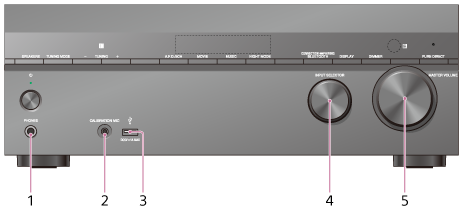
- PHONES jack
Connect headphones here. - CALIBRATION MIC jack
-
 (USB) port
 - INPUT SELECTOR
- MASTER VOLUME
[3] Parts and ControlsReceiverPower indicator
- Green: The receiver is turned on.
- Amber: The receiver is in standby mode, and you have set one of the following:
- [CTRL HDMI] is set to [CTRL ON].
- [STBY THRU] is set to [ON] or [AUTO].
- [BT STANDBY] is set to [STBY ON]. (*)
Indicator turns off when the receiver is in standby mode and:
- [CTRL HDMI] is set to [CTRL OFF].
- [STBY THRU] is set to [OFF].
- [BT STANDBY] is set to [STBY OFF].
* When [BT STANDBY] is activated, the indicator only lights in amber when a device has been paired with the receiver. If there are no devices paired with the receiver, the indicator turns off.
[4] Parts and ControlsReceiverIndicators on the display panel

- USB
Lights up when a USB device is detected.
- Input indicator
Lights up to indicate the current input.
ARC
TV input is selected and Audio Return Channel (ARC) signals are detected.
OPT
Digital signals are input through the OPTICAL jack.
COAX
Digital signals are input through the COAXIAL jack.
HDMI
Digital signals are input through the selected HDMI IN jack.
- MEM
Lights up when FM memory function is activated.
- D.R.C.
Lights up when dynamic range compression is activated.
 TrueHD (*)
Lights up when the receiver is decoding the Dolby TrueHD format signals.
- PL
Lights up when the receiver performs Dolby Pro Logic processing. This matrix surround decoding technology can enhance input signals.
- EQ
Lights up when the equalizer is activated.
- DTS-HD (*)
Lights up when the receiver is decoding the DTS-HD format signals.
- ST
Lights up when the receiver tunes to a FM stereo broadcast.
- D.C.A.C.
Lights up when the measurement results of the Auto Calibration function are applied.
- SLEEP
Lights up when the sleep timer is activated.
- BT
Lights up when a BLUETOOTH device is connected. Flashes while pairing and connecting.
- Speaker system indicator
* When playing a Dolby Digital or DTS format disc, make sure that you have completed the digital connections and [<INPUT>] - [INPUT MODE] is not set to [ANALOG] on the display panel.
Note
- [PL] (6) may not light up depending on the speaker pattern setting.
[5] Parts and ControlsReceiverRear panel
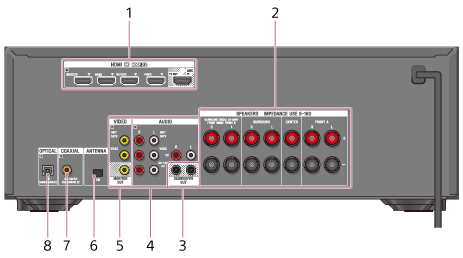
- HDMI IN/OUT jacks (*1) (*2)
- SPEAKERS terminals
- SUBWOOFER OUT jacks
- AUDIO IN jacks
- VIDEO IN/MONITOR OUT jacks (*1)
- FM ANTENNA terminal
- COAXIAL IN jack
- OPTICAL IN jack
*1 Connect a TV to the corresponding output jacks to watch video input from these jacks. For details, see “Connecting a TV.”
| Input jack | Output jack |
|---|---|
| HDMI IN | HDMI TV OUT |
| VIDEO IN | MONITOR OUT |
*2 HDCP 2.2 is newly enhanced copyright protection technology that is used to protect content such as 4K movies.
[6] Parts and ControlsRemote control Remote control (upper section)
Use the supplied remote control to operate this receiver.
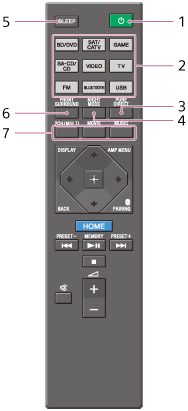
- (power)
Turns the receiver on or sets it to the standby mode.Saving power in standby mode
Save power by setting:- [CTRL HDMI] to [CTRL OFF] in the [<HDMI>] menu.
- [STBY THRU] to [OFF] in the [<HDMI>] menu.
- [BT STBY] to [STBY OFF] in the [<BT>] menu.
- Input buttons
Select the device you want to use.
When you press any of the input buttons, the receiver turns on. The input buttons are pre-assigned to automatically control Sony devices when you select them. - PURE DIRECT
Activates the Pure Direct function which allows you to enjoy higher-fidelity sound from all inputs. - NIGHT MODE
Activates the Night Mode function which allows you to retain a theater-like environment at low volume levels. - SLEEP
Sets the receiver to turn off automatically after a specified period of time. - FRONT SURROUND
Activates the Front Surround function which allows you to enjoy theater-like surround sound only with two front speakers. - 2CH/MULTI, MOVIE, MUSIC
Select a sound field.
Note
- The above explanations are intended to serve as examples.
- Depending on the model of your connected device, some functions explained in this section may not work with the supplied remote control.
[7] Parts and ControlsRemote control Remote control (lower section)
Use the supplied remote control to operate this receiver.
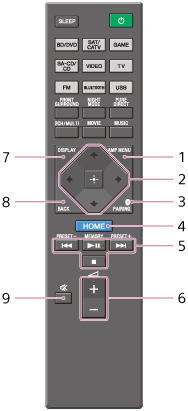
- AMP MENU
Displays the menu on the display panel to operate the receiver. -
 ,
,  /
/ /
/ /
/
Press/// to select the menu items.
Then press to enter the selection. -
 PAIRING
Sets the receiver to the BLUETOOTH pairing mode. - HOME
Displays the home menu on the TV screen. -
 /
/ ,
,  (*),
(*), 
Skip, play, pause, stop operation.When [FM] is selected as the input, press and hold
/ to scan stations automatically. Press to change to the direct tuning mode.PRESET+/–
Select preset stations or channels.MEMORY (*)
Stores a station during tuner operation. -
 + (*)/–
Adjust the volume level of all speakers at the same time. - DISPLAY
Displays information on the display panel. - BACK
Returns to the previous menu or exits a menu or on-screen guide that is displayed on the TV screen. -

Turns off the sound temporarily. Press the button again to restore the sound.
* The /MEMORY and + buttons have tactile dots. Use the tactile dots as a reference when operating the receiver.
Note
- The above explanations are intended to serve as examples.
- Depending on the model of your connected device, some functions explained in this section may not work with the supplied remote control.
[8] Preparation1. Installing speakersNames and functions of speakers
Location of each speaker

| Abbreviations used in illustrations | Speaker name | Functions |
|---|---|---|
| FL | Front left speaker | Produces stereo sounds from front left/right channels. |
| FR | Front right speaker | |
| CNT | Center speaker | Produces vocal sounds from center channel. |
| SL | Surround left speaker | Produces sounds from surround left/right channels. |
| SR | Surround right speaker | |
| SBL | Surround back left speaker | Produces sounds from surround back left/right channels. |
| SBR | Surround back right speaker | |
| SB | Surround back speaker | Produces sounds from surround back channel. |
| SW | Subwoofer | Produces LFE (low frequency effect) channel sounds and reinforces bass parts of other channels. |
| LH | Left front high speaker | Produces vertical sound effects from front high left/right channels. |
| RH | Right front high speaker |
[9] Preparation1. Installing speakersInstalling 5.1-channel speaker system
To fully enjoy theater-like multi-channel surround sound, you need five speakers (two front speakers, a center speaker, and two surround speakers) and a subwoofer.
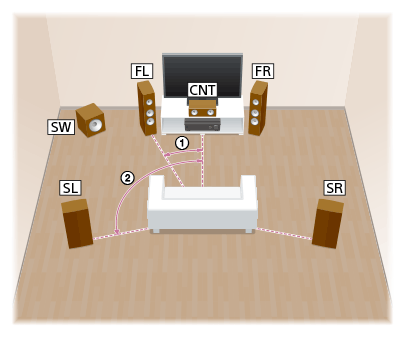
 30°
30°
 100° - 120°
Hint
- As the subwoofer does not emit highly directional signals, you can place it wherever you want.
[10] Preparation1. Installing speakersInstalling 7.1-channel speaker system using surround back speakers
You can enjoy high-fidelity reproduction of recorded sound from DVD or Blu-ray Disc software in 6.1-channel or 7.1-channel format.
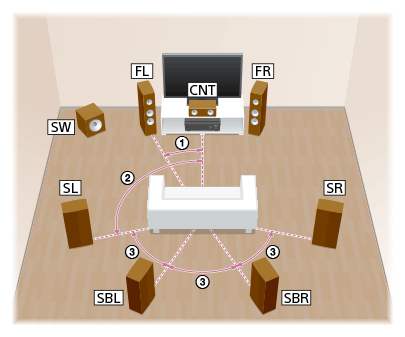
30°
100° - 120°
 Same angle
Note
- When you use a 6.1-channel connection, place a surround back speaker directly behind the listening position.
Hint
- As the subwoofer does not emit highly directional signals, you can place it wherever you want.
[11] Preparation1. Installing speakersInstalling 7.1-channel speaker system using front high speakers
You can enjoy vertical sound effects by connecting additional two front high speakers.
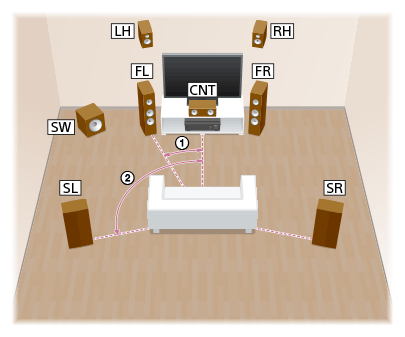
30°
100° - 120°
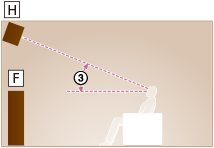
30° - 45°
H: Left front high speaker or right front high speaker
F: Front left speaker or front right speaker
Hint
- As the subwoofer does not emit highly directional signals, you can place it wherever you want.
[12] Preparation1. Installing speakersInstalling 5.1-channel speaker system with bi-amplifier connection
You can enhance the sound quality of the front speakers by connecting a different amplifier to both a tweeter and a woofer, using bi-amplifier connection.
30°
100° - 120°
Hint
- As the subwoofer does not emit highly directional signals, you can place it wherever you want.
[13] Preparation1. Installing speakersInstalling 5.1-channel speaker system with front B speaker connection
If you have an additional front speaker system, connect it to SPEAKERS SURROUND BACK/BI-AMP/FRONT HIGH/FRONT B terminals.
You can output sound from either front A speakers or front B speakers, or both front A speakers and front B speakers.

30°
100° - 120°
Hint
- As the subwoofer does not emit highly directional signals, you can place it wherever you want.
[14] Preparation1. Installing speakersSpeaker configuration and speaker pattern settings
Select the speaker pattern from the [<SPEAKER>] menu on the display panel according to the speaker configuration which you are using.
| Speaker configuration | [SB ASSIGN] setting on the display panel (*) | Speaker pattern to be selected in the [<SPEAKER>] menu |
|---|---|---|
| 5.1-channel | [OFF] | [3/2.1] |
| 7.1-channel using surround back speakers | - | [3/4.1] |
| 7.1-channel using front high speakers | - | [5/2.1] |
| 5.1-channel with bi-amplifier connections | [BI-AMP] | [3/2.1] |
| 5.1-channel with front B speaker connection | [SPK B] | [3/2.1] |
* You can only set [SB ASSIGN] if the speaker pattern is set to a setting that does not have surround back and front high speakers.
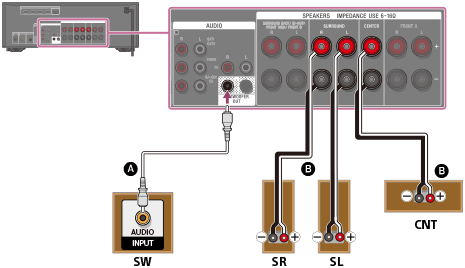
[15] Preparation2. Connecting speakersConnecting 5.1-channel speaker system
Connect each speaker as illustrated below.
Before connecting cables, be sure to disconnect the AC power cord (mains lead).
For details on how to connect speaker cables to the receiver, see “How to connect speaker cables.”
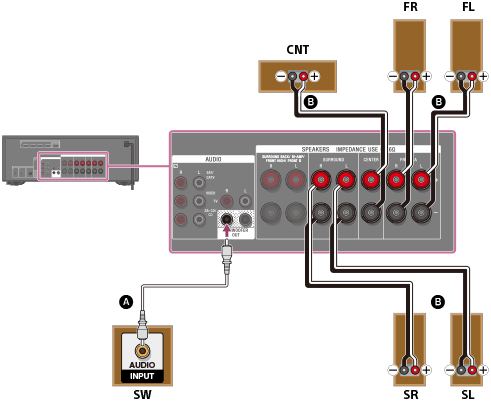
 Monaural audio cable (not supplied)
 Speaker cable (not supplied)
After you have made the connections, set [Speaker Setting] - [Surround Back Speakers Assign] to [None Speaker] from the home menu.
Hint
- You can also set the assignment for the surround back speaker terminals on the display panel. Set [SB ASSIGN] to [OFF] in the [<SPEAKER>] menu.
- You can only set [SB ASSIGN] if the speaker pattern is set to a setting that does not have surround back and front high speakers.
[16] Preparation2. Connecting speakersConnecting 7.1-channel speaker system using surround back speakers
Connect each speaker as illustrated below.
Before connecting cables, be sure to disconnect the AC power cord (mains lead).
For details on how to connect speaker cables to the receiver, see “How to connect speaker cables.”

Monaural audio cable (not supplied)
Speaker cable (not supplied)
After you have connected the surround back speakers, set [Speaker Setting] - [Surround Back Speakers Assign] to [Surround Back Speakers] from the home menu.
[17] Preparation2. Connecting speakersConnecting 7.1-channel speaker system using front high speakers
Connect each speaker as illustrated below.
Before connecting cables, be sure to disconnect the AC power cord (mains lead).
For details on how to connect speaker cables to the receiver, see “How to connect speaker cables.”
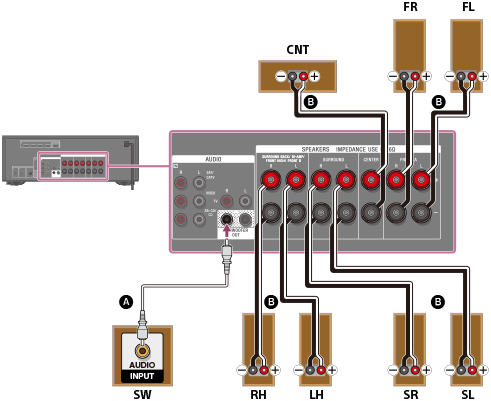
Monaural audio cable (not supplied)
Speaker cable (not supplied)
After you have connected the front high speakers, set [Speaker Setting] - [Surround Back Speakers Assign] to [Front High Speakers] from the home menu.
[18] Preparation2. Connecting speakersConnecting 5.1-channel speaker system with bi-amplifier connection
You can enhance the sound quality of the front speakers by connecting different amplifiers to both a tweeter and a woofer, using bi-amplifier connection.
If you are not using surround back speakers or front high speakers, you can connect the front speakers to the SPEAKERS SURROUND BACK/BI-AMP/FRONT HIGH/FRONT B terminals using a bi-amplifier connection. Connect each speaker as illustrated below.
Before connecting cables, be sure to disconnect the AC power cord (mains lead).
For details on how to connect speaker cables to the receiver, see “How to connect speaker cables.”
Connecting front speakers with bi-amplifier connection
Connect the jacks on the Lo (or Hi) side of the front speakers to the SPEAKERS FRONT A terminals, and connect the jacks on the Hi (or Lo) side of the front speakers to the SPEAKERS SURROUND BACK/BI-AMP/FRONT HIGH/FRONT B terminals.
Make sure that metal fittings of Hi/Lo attached to the speakers have been removed from the speakers to avoid receiver malfunction.
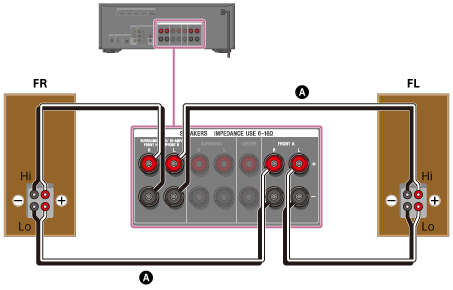
Speaker cable (not supplied)
Connecting speakers other than front speakers
Monaural audio cable (not supplied)
Speaker cable (not supplied)
After you have made the bi-amplifier connection, set [Speaker Setting] - [Surround Back Speakers Assign] to [Bi-Amplifier Speakers] from the home menu.
Hint
- You can also set the assignment for the surround back speaker terminals on the display panel. Set [SB ASSIGN] to [BI-AMP] in the [<SPEAKER>] menu.
- You can only set [SB ASSIGN] if the speaker pattern is set to a setting that does not have surround back and front high speakers.
[19] Preparation2. Connecting speakersConnecting 5.1-channel speaker system with front B speaker connection
If you are not using surround back speakers or front high speakers, you can connect additional front B speakers to the SPEAKERS SURROUND BACK/BI-AMP/FRONT HIGH/FRONT B terminals.
Connect each speaker as illustrated below.
Before connecting cables, be sure to disconnect the AC power cord (mains lead).
For details on how to connect speaker cables to the receiver, see “How to connect speaker cables.”
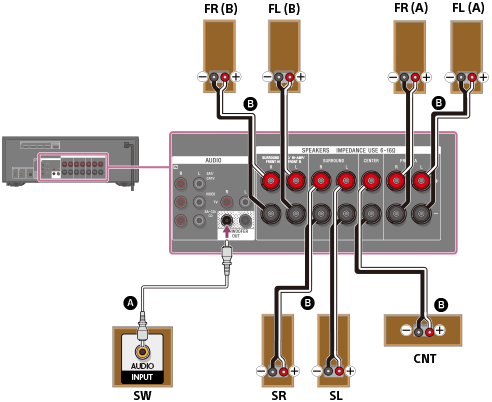
Monaural audio cable (not supplied)
Speaker cable (not supplied)
After you have made the front B speaker connection, set [Speaker Setting] - [Surround Back Speakers Assign] to [Front B Speakers] from the home menu.
You can select the front speaker system you want to use by pressing SPEAKERS on the receiver.
Hint
- You can also set the assignment for the surround back speaker terminals on the display panel. Set [SB ASSIGN] to [SPK B] in the [<SPEAKER>] menu.
- You can only set [SB ASSIGN] if the speaker pattern is set to a setting that does not have surround back and front high speakers.
[20] Preparation3. Connecting a TVConnecting a TV
Connect a TV to the HDMI TV OUT or MONITOR OUT jack. You can operate this receiver using the menu on the TV screen when you connect the TV to the HDMI TV OUT jack.
Before connecting cables, be sure to disconnect the AC power cord (mains lead).
Connecting a TV incompatible with the Audio Return Channel (ARC) function via an HDMI connection
Solid lines show recommended connections and the dashed lines show alternative connections for audio signals. It is not necessary to connect all the cables. HDMI connection for audio/video signals is required.

Optical digital cable (not supplied)
Audio cable (not supplied)
 HDMI cable (not supplied)
Note
- Sony recommends that you use an HDMI-authorized cable or HDMI cable made by Sony. Be sure to use a High Speed HDMI Cable with Ethernet. Premium High Speed HDMI Cable with Ethernet is required for 4K/60p 4:4:4, 4:2:2, and 4K/60p 4:2:0 10 bit, etc.
Connecting a TV compatible with the Audio Return Channel (ARC) function via an HDMI connection
With just one HDMI cable connection, you can listen to the TV audio from the speakers connected to the receiver while the receiver sends audio and video to the TV.
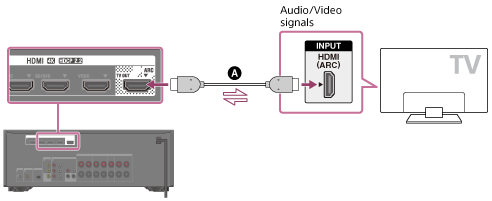
HDMI cable (not supplied)
Note
- Sony recommends that you use an HDMI-authorized cable or HDMI cable made by Sony. Be sure to use a High Speed HDMI Cable with Ethernet. Premium High Speed HDMI Cable with Ethernet is required for 4K/60p 4:4:4, 4:2:2, and 4K/60p 4:2:0 10 bit, etc.
- For this connection, you need to turn the Control for HDMI function on. Press AMP MENU, then set [<HDMI>] - [CTRL HDMI] to [CTRL ON] on the display panel.
Hint
- If the HDMI jack of the TV (labeled “ARC”) is already connected to another device, disconnect the device and connect the receiver.
Connecting a TV without HDMI jacks
Solid lines show recommended connections and the dashed lines show alternative connections for audio signals. It is not necessary to connect all the cables. Connections for video signals are required.
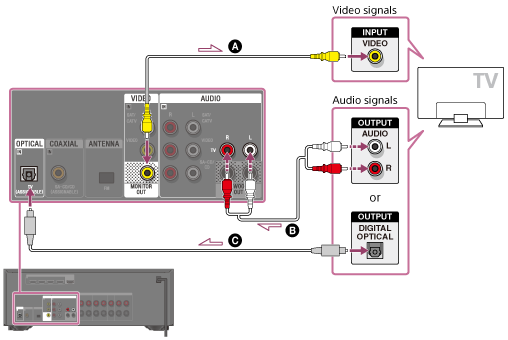
Video cable (not supplied)
Audio cable (not supplied)
Optical digital cable (not supplied)
Note
- Connect a TV monitor or a projector to the HDMI TV OUT or MONITOR OUT jack on the receiver.
- Depending on the status of the connection between the TV and the antenna (aerial), the image on the TV screen may be distorted. If this is the case, place the antenna (aerial) farther away from the receiver.
Hint
- When connecting a TV to the receiver via the TV IN jacks of the receiver, set the sound output jack of the TV to “Fixed” if it can be switched between “Fixed” or “Variable.”
[21] Preparation3. Connecting a TVConnecting a 4K TV
All HDMI jacks on the receiver support 4K resolution and HDCP 2.2 (High-bandwidth Digital Content Protection System Revision 2.2).
HDCP 2.2 is newly enhanced copyright protection technology that is used to protect content such as 4K movies.
To watch HDCP 2.2 protected content such as 4K content, connect the HDMI jacks to jacks that support HDCP 2.2 on the TV and AV device. For details on whether the TV and AV device are equipped with HDCP 2.2-compatible HDMI jack, refer to the operating instructions of the connected device.
When you use high bandwidth video formats such as 4K/60p 4:4:4, 4:2:2, and 4K/60p 4:2:0 10 bit, etc., be sure to set the HDMI signal format. For details, see “Setting HDMI signal format (SIGNAL FMT.).”
When an HDCP 2.2-compatible HDMI jack on the TV is labeled “ARC” (*)
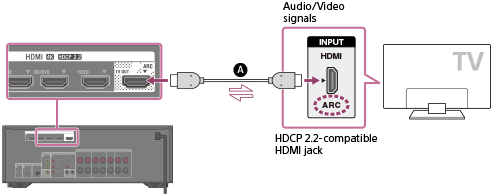
HDMI cable (not supplied)
* The ARC (Audio Return Channel) function sends digital sound from a TV to the receiver using only an HDMI cable.
Note
- Sony recommends that you use an HDMI-authorized cable or HDMI cable made by Sony. Be sure to use a High Speed HDMI Cable with Ethernet. Premium High Speed HDMI Cable with Ethernet is required for 4K/60p 4:4:4, 4:2:2, and 4K/60p 4:2:0 10 bit, etc.
When you want to watch HDCP 2.2 protected content and the non-HDCP 2.2-compatible HDMI jack on the TV is labeled “ARC”
If the HDMI jack on the TV is labeled ARC and is not HDCP 2.2-compatible, connect the receiver to the HDCP 2.2-compatible HDMI jack on the TV using a High Speed HDMI Cable with Ethernet. Then, connect an optical digital cable to the optical output jack of the TV to listen to digital sound.

Optical digital cable (not supplied)
HDMI cable (not supplied)
Note
- Sony recommends that you use an HDMI-authorized cable or HDMI cable made by Sony. Be sure to use a High Speed HDMI Cable with Ethernet. Premium High Speed HDMI Cable with Ethernet is required for 4K/60p 4:4:4, 4:2:2, and 4K/60p 4:2:0 10 bit, etc.
[22] Preparation3. Connecting a TVNotes on connecting cables
- Before connecting cables, be sure to disconnect the AC power cord (mains lead).
- It is not necessary to connect all of the cables. Connect cables according to the availability of jacks on the connected device.
- Sony recommends that you use an HDMI-authorized cable or HDMI cable made by Sony. Be sure to use a High Speed HDMI Cable with Ethernet. Premium High Speed HDMI Cable with Ethernet is required for 4K/60p 4:4:4, 4:2:2, and 4K/60p 4:2:0 10 bit, etc. For details about the high bandwidth video format, refer to “Supported video formats” in “About HDMI connections.”
- We do not recommend using an HDMI-DVI conversion cable. If you connect an HDMI-DVI conversion cable to a DVI-D device, the sound and/or image may be lost. Connect separate audio cables or digital connecting cables, then reassign the input jacks if the sound is not output correctly.
- When connecting optical digital cables, insert the plugs straight until they click into place.
- Do not bend or tie optical digital cables.
- When you use high bandwidth video formats such as 4K/60p 4:4:4, 4:2:2 and 4K/60p 4:2:0 10 bit, be sure to set the HDMI signal format. For details, see “Setting HDMI signal format (SIGNAL FMT.).”
Hint
- All of the digital audio jacks are compatible with 32 kHz, 44.1 kHz, 48 kHz and 96 kHz sampling frequencies.
If you want to connect several digital devices, but cannot find an unused input
In this case, reassign the input jacks.
[23] Preparation3. Connecting a TVAbout HDMI connections
High-Definition Multimedia Interface (HDMI) is an interface that transmits video and audio signals in digital format. Connecting Sony “BRAVIA” Sync-compatible devices using HDMI cables simplifies operations.
HDMI features
- Digital audio signals transmitted by HDMI can be output from the speakers connected to the receiver. This signal supports Dolby Digital, DTS, DSD, and Linear PCM.
- The receiver can receive Multi Channel Linear PCM (up to 8 channels) with a sampling frequency of 192 kHz or less via an HDMI connection.
- This receiver supports High Bitrate Audio (DTS-HD Master Audio, Dolby TrueHD), Deep Color (Deep Colour), and 4K or 3D transmission.
- To enjoy 3D content, connect a 3D-compatible TV and video device (Blu-ray Disc player, Blu-ray Disc recorder, PlayStation 4, etc.) to the receiver using High Speed HDMI Cables with Ethernet, put on 3D glasses, and then play 3D-compatible content.
- To enjoy 4K content, connect a 4K-compatible TV or video device (Blu-ray Disc player, etc.) to the receiver using Premium High Speed HDMI Cables with Ethernet, and then play 4K-compatible content.
- Premium High Speed HDMI Cable with Ethernet is required for 4K/60p 4:4:4, 4:2:2, and 4K/60p 4:2:0 10 bit, etc.
- All HDMI jacks on the receiver support High-bandwidth Digital Content Protection System Revision 2.2 (HDCP 2.2). Connect these HDMI jacks to jacks that support HDCP 2.2 on the TV and AV device. Refer to the operating instructions of the connected device for details.
- All HDMI jacks on the receiver support bandwidth up to 18 Gbps, HDCP 2.2, ITU-R BT.2020 wide color spaces, 3D, Deep Color (Deep Colour), Audio Return Channel (ARC), and HDR (High Dynamic Range) contents pass-through.
- HDCP 2.2 is newly enhanced copyright protection technology that is used to protect content such as 4K movies.
- BT.2020 color space is new wider color standard that is defined for ultra-high definition television systems.
- HDR is an emerging video format that can display a wider range of brightness levels.
Supported video formats
| Format | 2D | 3D | ||
|---|---|---|---|---|
| Frame packing | Side-by-Side (Half) | Over-Under (Top-and-Bottom) | ||
| 4096 × 2160p @ 59.94/60 Hz | ○ (*1) | - | - | - |
| 4096 × 2160p @ 50 Hz | ○ (*1) | - | - | - |
| 4096 × 2160p @ 29.97/30 Hz | ○ (*2) | - | - | - |
| 4096 × 2160p @ 25 Hz | ○ (*2) | - | - | - |
| 4096 × 2160p @ 23.98/24 Hz | ○ (*2) | - | - | - |
| 3840 × 2160p @ 59.94/60 Hz | ○ (*1) | - | - | - |
| 3840 × 2160p @ 50 Hz | ○ (*1) | - | - | - |
| 3840 × 2160p @ 29.97/30 Hz | ○ (*2) | - | - | - |
| 3840 × 2160p @ 25 Hz | ○ (*2) | - | - | - |
| 3840 × 2160p @ 23.98/24 Hz | ○ (*2) | - | - | - |
| 1920 × 1080p @ 59.94/60 Hz | ○ | - | ○ | ○ |
| 1920 × 1080p @ 50 Hz | ○ | - | ○ | ○ |
| 1920 × 1080p @ 29.97/30 Hz | ○ | ○ | ○ | ○ |
| 1920 × 1080p @ 25 Hz | ○ | ○ | ○ | ○ |
| 1920 × 1080p @ 23.98/24 Hz | ○ | ○ | ○ | ○ |
| 1920 × 1080i @ 59.94/60 Hz | ○ | ○ | ○ | ○ |
| 1920 × 1080i @ 50 Hz | ○ | ○ | ○ | ○ |
| 1280 × 720p @ 59.94/60 Hz | ○ | ○ | ○ | ○ |
| 1280 × 720p @ 50 Hz | ○ | ○ | ○ | ○ |
| 1280 × 720p @ 29.97/30 Hz | ○ | ○ | ○ | ○ |
| 1280 × 720p @ 23.98/24 Hz | ○ | ○ | ○ | ○ |
| 720 × 480p @ 59.94/60 Hz | ○ | - | - | - |
| 720 × 576p @ 50 Hz | ○ | - | - | - |
| 640 × 480p @ 59.94/60 Hz | ○ | - | - | - |
*1 If you use YCbCr 4:4:4/YCbCr 4:2:2/RGB 4:4:4 or YCbCr 4:2:0 Deep Color (Deep Colour) (10 bit or 12 bit) of these video formats, we recommend you to use Premium High Speed HDMI Cables with Ethernet, which can support bandwidth up to 18 Gbps, and be sure to set the HDMI signal format to [ENHANCED] in the [<HDMI>] menu. For details, see “Setting HDMI signal format (SIGNAL FMT.).”
*2 If you use Deep Color (Deep Colour) (10 bit or 12 bit) of these video formats, we recommend you to use Premium High Speed HDMI Cables with Ethernet, which can support bandwidth up to 18 Gbps, and be sure to set the HDMI signal format to [ENHANCED] in the [<HDMI>] menu. For details, see “Setting HDMI signal format (SIGNAL FMT.).”
Note
- Depending on the TV or video device, 4K or 3D content may not be displayed. Check the HDMI video formats supported by the receiver.
- Refer to the operating instructions of each connected device for details.
[24] Preparation4. Connecting audio-visual devices and the antennas (aerials)Connecting devices with HDMI jacks
Connect devices to the receiver as illustrated below.
Before connecting cables, be sure to disconnect the AC power cord (mains lead).
All HDMI jacks on the receiver support HDCP 2.2 (High-bandwidth Digital Content Protection System Revision 2.2). To watch content protected by HDCP 2.2, such as 4K content, connect these HDMI jacks to jacks that support HDCP 2.2 on the TV and AV device. Refer to the operating instructions of the connected device for details.
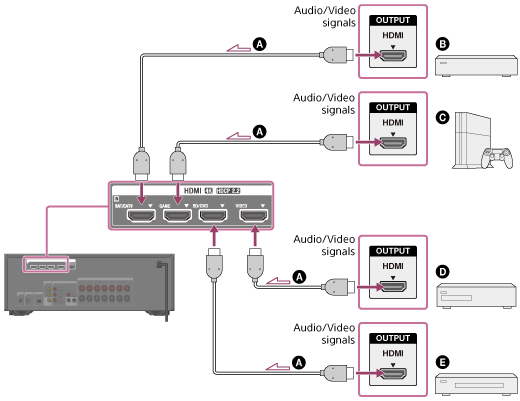
HDMI cable (not supplied)
Cable box or satellite box
Game console such as PlayStation 4
 Blu-ray Disc player, DVD player
 DVD recorder
Note
- Sony recommends that you use an HDMI-authorized cable or HDMI cable made by Sony. Be sure to use a High Speed HDMI Cable with Ethernet. Premium High Speed HDMI Cable with Ethernet is required for 4K/60p 4:4:4, 4:2:2, and 4K/60p 4:2:0 10 bit, etc.
Hint
- This HDMI connection is an example. You can connect each HDMI device to any HDMI input.
- The image quality depends on the connecting jack. We recommend that you connect your devices via an HDMI connection if they have HDMI jacks.
[25] Preparation4. Connecting audio-visual devices and the antennas (aerials)Connecting devices with jacks other than HDMI jacks
Connect devices to the receiver as illustrated below.
Solid lines show recommended connections and the dashed lines show alternative connections. It is not necessary to connect all the cables.
Before connecting cables, be sure to disconnect the AC power cord (mains lead).
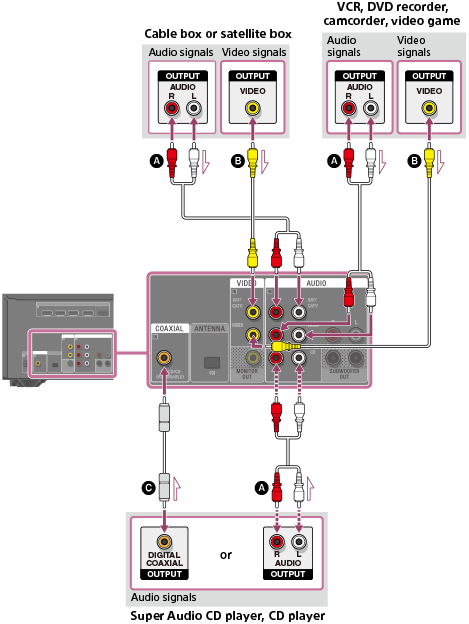
Audio cable (not supplied)
Video cable (not supplied)
Coaxial digital cable (not supplied)
Hint
- You can rename each input so that the name can be displayed on the display panel of the receiver. For details, see “Changing the name for each input (NAME IN).”
- The image quality depends on the connecting jack. We recommend that you connect your devices via an HDMI connection if they have HDMI jacks.
[26] Preparation4. Connecting audio-visual devices and the antennas (aerials)Connecting a USB device
Connect a USB device as illustrated below.
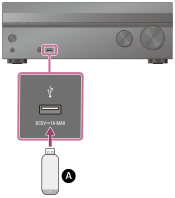
USB device
Note
- iPhone/iPod playback via (USB) port is not possible.
[27] Preparation4. Connecting audio-visual devices and the antennas (aerials)Connecting the antenna (aerial)
Connect the supplied FM wire antenna (aerial) to the receiver as illustrated below.
Before connecting antenna (aerial), be sure to disconnect the AC power cord (mains lead).
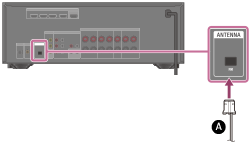
FM wire antenna (aerial) (supplied)
Note
- Be sure to fully extend the FM wire antenna (aerial).
- After connecting the FM wire antenna (aerial), keep it as horizontal as possible.
[28] Preparation4. Connecting audio-visual devices and the antennas (aerials)Digital audio formats supported by the receiver
The digital audio formats that this receiver can decode depend on the digital audio output jacks of the connected device. This receiver supports the following audio formats. The words in brackets are those indicated on the display panel.
| Digital audio format | Maximum number of channels | Connection with the receiver |
|---|---|---|
| Dolby Digital [DOLBY D] | 5.1 | COAXIAL/OPTICAL, HDMI |
| Dolby Digital EX [DOLBY D EX] | 6.1 | COAXIAL/OPTICAL, HDMI |
| Dolby Digital Plus [DOLBY D +] (*1) | 7.1 | HDMI |
| Dolby TrueHD [DOLBY HD] (*1) | 7.1 | HDMI |
| DTS [DTS] | 5.1 | COAXIAL/OPTICAL, HDMI |
| DTS-ES Discrete [DTS-ES DSC] | 6.1 | COAXIAL/OPTICAL, HDMI |
| DTS-ES Matrix [DTS-ES MTX] | 6.1 | COAXIAL/OPTICAL, HDMI |
| DTS 96/24 [DTS 96/24] | 5.1 | COAXIAL/OPTICAL, HDMI |
| DTS-HD High Resolution Audio [DTS-HD HR] (*1) | 7.1 | HDMI |
| DTS-HD Master Audio [DTS-HD MA] (*1)(*2) | 7.1 | HDMI |
| DSD [DSD] (*1) | 5.1 | HDMI |
| Multi Channel Linear PCM [PCM] (*1) | 7.1 | HDMI |
*1 Audio signals are output in another format if the playback device does not correspond to the actual format. For details, refer to the operating instructions of the playback device.
*2 Signals with a sampling frequency of more than 96 kHz are played at 96 kHz or 88.2 kHz.
[29] Preparation4. Connecting audio-visual devices and the antennas (aerials)Notes on connecting cables
- Before connecting cables, be sure to disconnect the AC power cord (mains lead).
- It is not necessary to connect all of the cables. Connect cables according to the availability of jacks on the connected device.
- Sony recommends that you use an HDMI-authorized cable or HDMI cable made by Sony. Be sure to use a High Speed HDMI Cable with Ethernet. Premium High Speed HDMI Cable with Ethernet is required for 4K/60p 4:4:4, 4:2:2, and 4K/60p 4:2:0 10 bit, etc. For details about the high bandwidth video format, refer to “Supported video formats” in “About HDMI connections.”
- We do not recommend using an HDMI-DVI conversion cable. If you connect an HDMI-DVI conversion cable to a DVI-D device, the sound and/or image may be lost. Connect separate audio cables or digital connecting cables, then reassign the input jacks if the sound is not output correctly.
- When connecting optical digital cables, insert the plugs straight until they click into place.
- Do not bend or tie optical digital cables.
- When you use high bandwidth video formats such as 4K/60p 4:4:4, 4:2:2 and 4K/60p 4:2:0 10 bit, be sure to set the HDMI signal format. For details, see “Setting HDMI signal format (SIGNAL FMT.).”
Hint
- All of the digital audio jacks are compatible with 32 kHz, 44.1 kHz, 48 kHz and 96 kHz sampling frequencies.
If you want to connect several digital devices, but cannot find an unused input
In this case, reassign the input jacks.
[30] Preparation4. Connecting audio-visual devices and the antennas (aerials)About HDMI connections
High-Definition Multimedia Interface (HDMI) is an interface that transmits video and audio signals in digital format. Connecting Sony “BRAVIA” Sync-compatible devices using HDMI cables simplifies operations.
HDMI features
- Digital audio signals transmitted by HDMI can be output from the speakers connected to the receiver. This signal supports Dolby Digital, DTS, DSD, and Linear PCM.
- The receiver can receive Multi Channel Linear PCM (up to 8 channels) with a sampling frequency of 192 kHz or less via an HDMI connection.
- This receiver supports High Bitrate Audio (DTS-HD Master Audio, Dolby TrueHD), Deep Color (Deep Colour), and 4K or 3D transmission.
- To enjoy 3D content, connect a 3D-compatible TV and video device (Blu-ray Disc player, Blu-ray Disc recorder, PlayStation 4, etc.) to the receiver using High Speed HDMI Cables with Ethernet, put on 3D glasses, and then play 3D-compatible content.
- To enjoy 4K content, connect a 4K-compatible TV or video device (Blu-ray Disc player, etc.) to the receiver using Premium High Speed HDMI Cables with Ethernet, and then play 4K-compatible content.
- Premium High Speed HDMI Cable with Ethernet is required for 4K/60p 4:4:4, 4:2:2, and 4K/60p 4:2:0 10 bit, etc.
- All HDMI jacks on the receiver support High-bandwidth Digital Content Protection System Revision 2.2 (HDCP 2.2). Connect these HDMI jacks to jacks that support HDCP 2.2 on the TV and AV device. Refer to the operating instructions of the connected device for details.
- All HDMI jacks on the receiver support bandwidth up to 18 Gbps, HDCP 2.2, ITU-R BT.2020 wide color spaces, 3D, Deep Color (Deep Colour), Audio Return Channel (ARC), and HDR (High Dynamic Range) contents pass-through.
- HDCP 2.2 is newly enhanced copyright protection technology that is used to protect content such as 4K movies.
- BT.2020 color space is new wider color standard that is defined for ultra-high definition television systems.
- HDR is an emerging video format that can display a wider range of brightness levels.
Supported video formats
| Format | 2D | 3D | ||
|---|---|---|---|---|
| Frame packing | Side-by-Side (Half) | Over-Under (Top-and-Bottom) | ||
| 4096 × 2160p @ 59.94/60 Hz | ○ (*1) | - | - | - |
| 4096 × 2160p @ 50 Hz | ○ (*1) | - | - | - |
| 4096 × 2160p @ 29.97/30 Hz | ○ (*2) | - | - | - |
| 4096 × 2160p @ 25 Hz | ○ (*2) | - | - | - |
| 4096 × 2160p @ 23.98/24 Hz | ○ (*2) | - | - | - |
| 3840 × 2160p @ 59.94/60 Hz | ○ (*1) | - | - | - |
| 3840 × 2160p @ 50 Hz | ○ (*1) | - | - | - |
| 3840 × 2160p @ 29.97/30 Hz | ○ (*2) | - | - | - |
| 3840 × 2160p @ 25 Hz | ○ (*2) | - | - | - |
| 3840 × 2160p @ 23.98/24 Hz | ○ (*2) | - | - | - |
| 1920 × 1080p @ 59.94/60 Hz | ○ | - | ○ | ○ |
| 1920 × 1080p @ 50 Hz | ○ | - | ○ | ○ |
| 1920 × 1080p @ 29.97/30 Hz | ○ | ○ | ○ | ○ |
| 1920 × 1080p @ 25 Hz | ○ | ○ | ○ | ○ |
| 1920 × 1080p @ 23.98/24 Hz | ○ | ○ | ○ | ○ |
| 1920 × 1080i @ 59.94/60 Hz | ○ | ○ | ○ | ○ |
| 1920 × 1080i @ 50 Hz | ○ | ○ | ○ | ○ |
| 1280 × 720p @ 59.94/60 Hz | ○ | ○ | ○ | ○ |
| 1280 × 720p @ 50 Hz | ○ | ○ | ○ | ○ |
| 1280 × 720p @ 29.97/30 Hz | ○ | ○ | ○ | ○ |
| 1280 × 720p @ 23.98/24 Hz | ○ | ○ | ○ | ○ |
| 720 × 480p @ 59.94/60 Hz | ○ | - | - | - |
| 720 × 576p @ 50 Hz | ○ | - | - | - |
| 640 × 480p @ 59.94/60 Hz | ○ | - | - | - |
*1 If you use YCbCr 4:4:4/YCbCr 4:2:2/RGB 4:4:4 or YCbCr 4:2:0 Deep Color (Deep Colour) (10 bit or 12 bit) of these video formats, we recommend you to use Premium High Speed HDMI Cables with Ethernet, which can support bandwidth up to 18 Gbps, and be sure to set the HDMI signal format to [ENHANCED] in the [<HDMI>] menu. For details, see “Setting HDMI signal format (SIGNAL FMT.).”
*2 If you use Deep Color (Deep Colour) (10 bit or 12 bit) of these video formats, we recommend you to use Premium High Speed HDMI Cables with Ethernet, which can support bandwidth up to 18 Gbps, and be sure to set the HDMI signal format to [ENHANCED] in the [<HDMI>] menu. For details, see “Setting HDMI signal format (SIGNAL FMT.).”
Note
- Depending on the TV or video device, 4K or 3D content may not be displayed. Check the HDMI video formats supported by the receiver.
- Refer to the operating instructions of each connected device for details.
[31] Preparation5. Turning on the receiver/preparing the remote controlInserting batteries into the remote control
Insert two R03 (size AAA) batteries (supplied) into the remote control. Make sure that the + and – ends are in the correct position when installing batteries.
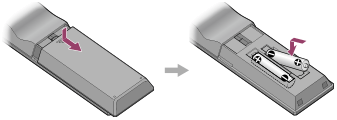
Note
- Do not leave the remote control in an extremely hot or humid place.
- Do not use a new battery with an old one.
- Do not mix manganese batteries with other kinds of batteries.
- Do not expose the remote control sensor to direct sunlight or lights. Doing so may cause a malfunction.
- If you do not intend to use the remote control for an extended period of time, remove the batteries to avoid possible damage from battery leakage and corrosion.
- When the receiver no longer responds to the remote control, replace both of the batteries with new ones.
[32] Preparation5. Turning on the receiver/preparing the remote controlTurning on the receiver
Before connecting the AC power cord (mains lead), be sure to make connections with speakers and the other devices.
-
Connect the AC power cord (mains lead) to a wall outlet.
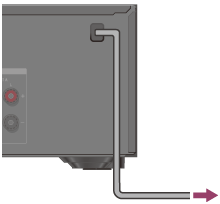
-
Press (power) to turn on the receiver.
You can also turn on the receiver using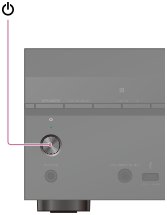 (power) on the remote control. To turn off the receiver, press (power) again.
Note
- After you turn off the receiver, [STANDBY] flashes on the display panel. Do not disconnect the AC power cord (mains lead) while [STANDBY] is flashing. This may cause a malfunction.
[33] Preparation6. Setting up the receiver using Easy SetupSetting up the receiver using Easy Setup
When you turn on the receiver for the first time or after the receiver is initialized, the Easy Setup screen appears on the TV screen. You can set up the following settings for the receiver by following the instructions on the Easy Setup screen.
- Language
Select the language of messages on the screen.
- Surround Back Speakers Assign
You can set the assignment for the SPEAKERS SURROUND BACK/BI-AMP/FRONT HIGH/FRONT B terminals.
- Auto Calibration
The Auto Calibration function checks and measures the speakers and the environment to adjust various settings for optimum listening condition.
Note
- Switch the input of the TV to the input to which the receiver is connected to use this function.
If the Easy Setup screen does not appear or you want to display the Easy Setup screen manually, you can display it by pressing HOME to display the home menu, then selecting [Easy Setup].
[34] Preparation6. Setting up the receiver using Easy SetupSelecting the language
You can select the language of messages on the screen.
- Select [Easy Setup] from the home menu.
- Select the language you want.
Note
- When the Control for HDMI function on both the receiver and the TV (BRAVIA TV) is turned on, the on-screen display language of the receiver is changed simultaneously when you change the language for the on-screen display of the TV.
[35] Preparation6. Setting up the receiver using Easy SetupAssigning the surround back speaker terminals (Surround Back Speakers Assign)
You can set the assignment for the SPEAKERS SURROUND BACK/BI-AMP/FRONT HIGH/FRONT B terminals.
- Select [Speaker Setting] from the home menu.
- Select [Surround Back Speakers Assign].
- Set the assignment for the SPEAKERS SURROUND BACK/BI-AMP/FRONT HIGH/FRONT B terminals.
- Surround Back Speakers: When using the surround back speaker connection.
- Bi-Amplifier Speakers: When using the bi-amplifier speaker connection.
- Front B Speakers: When using the front B speaker connection.
- Front High Speakers: When using the front high speaker connection.
- None Speaker: When none of the connections above is used.
Note
- You can only set [Surround Back Speakers Assign] when headphones are not connected.
Hint
- You can also set the assignment for the surround back speaker terminals from [SB ASSIGN] in the [<SPEAKER>] menu on the display panel.
[36] PreparationPerforming Auto Calibration1. About Auto Calibration
Auto Calibration allows you to perform automatic calibration as follows.
- Check the connection between each speaker and the receiver.
- Adjust the speaker level.
- Measure the distance of each speaker from your seating position. (*)
- Measure the speaker size. (*)
- Measure the frequency characteristics (EQ). (*)
* The measurement result is not utilized when [DIRECT] is being used and an analog input is selected.
Note
- The D.C.A.C. is designed to achieve proper sound balance for your room. However, you can adjust the speaker levels manually according to your preference using [<LEVEL>] - [TEST TONE] in the [Speaker Settings] menu.
[37] PreparationPerforming Auto Calibration2. Before you perform Auto Calibration
Before you perform Auto Calibration, check the following items:
- Set up and connect the speakers.
- Do not connect any microphones other than the supplied calibration microphone to the CALIBRATION MIC jack.
- If using a bi-amplifier connection or a front B speaker connection, set the assignment for the SPEAKERS SURROUND BACK/BI-AMP/FRONT HIGH/FRONT B terminals properly.
- Set the speaker output to a setting other than [SPK OFF].
- Disconnect the headphones.
- Remove any obstructions between the calibration microphone and the speakers.
- For accurate measurement, make sure the environment is quiet and free from noise.
Note
- The speakers emit very loud sound during the calibration and the volume cannot be adjusted. Be considerate of your neighbors and any children who are present.
- If the muting function has been activated before you perform Auto Calibration, the muting function will shut off automatically.
- It may not be possible to take the correct measurements or to perform Auto Calibration at all if special speakers such as dipole speakers are used.
[38] PreparationPerforming Auto Calibration3. Connecting the calibration microphone
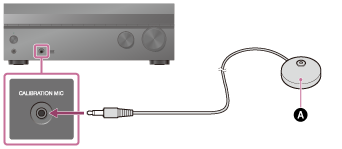
Calibration microphone (supplied)
- Connect the supplied calibration microphone to the CALIBRATION MIC jack.
- Set up the calibration microphone.
Place the calibration microphone at your listening position and set it at the same height as your ears.
[39] PreparationPerforming Auto Calibration4. Selecting the front speakers
You can select the front speakers you want to operate.
Be sure to use the buttons on the receiver to perform this operation.
- Press SPEAKERS on the receiver repeatedly to select the front speaker system you want to operate.

The indicators on the display panel shows which set of terminals are selected.
- SP A:
Speakers connected to the SPEAKERS FRONT A terminals. - SP B (*):
Speakers connected to the SPEAKERS SURROUND BACK/BI-AMP/FRONT HIGH/FRONT B terminals. - SP A B (*):
Speakers connected to both the SPEAKERS FRONT A and SPEAKERS SURROUND BACK/BI-AMP/FRONT HIGH/FRONT B terminals (parallel connection). - (None):
[SPK OFF] appears on the display panel. No audio signals are output from any speaker terminals.
* To select [SP B] or [SP A B], set the assignment for the SPEAKERS SURROUND BACK/BI-AMP/FRONT HIGH/FRONT B terminals to [Front B Speakers] by using [Speaker Setting] - [Surround Back Speakers Assign].
Note
- This setting is not available when headphones are connected.
[40] PreparationPerforming Auto Calibration5. Performing Auto Calibration
You can perform automatic calibration from your listening position.
- Select [Easy Setup] from the home menu.
- Follow the instructions on the TV screen, then select [Start].
The measurement starts in a few seconds.
The measurement process will take approximately 30 seconds with a test tone.
When the measurement ends, a beep sounds and the screen switches. - Select the item you want.
- Retry: Performs the Auto Calibration again.
- Save&Exit: Saves the measurement results and exits the setting process.
- Exit: Exits the setting process without saving the measurement results.
- Save the measurement results.
Select [Save&Exit] in step 3.
Note
- If an error code or warning message appears on the screen in step 2, see “List of messages after Auto Calibration measurements.”
- This setting is not available when headphones are connected.
Hint
- The Auto Calibration function will be canceled if you perform the following during the measurement process:
- Press .
- Press the input buttons on the remote control or turn the INPUT SELECTOR on the receiver.
- Press HOME, AMP MENU or on the remote control.
- Press SPEAKERS on the receiver.
- Change the volume level.
- Connect headphones.
- Press
[41] PreparationPerforming Auto Calibration6. Checking Auto Calibration results
To check error codes or warning messages received in Auto Calibration, proceed with the following steps:
If an error code appears
Check the error and perform Auto Calibration again.
- Select [Retry].
- Follow the instructions on the TV screen and then press to select [Start].
The measurement starts in a few seconds.
The measurement process will take approximately 30 seconds with a test tone.
When the measurement ends, a beep sounds and the screen switches. - Select the item you want.
- Retry: Performs the Auto Calibration again.
- Save&Exit: Saves the measurement results and exits the setting process.
- Exit: Exits the setting process without saving the measurement results.
- Save the measurement results.
Select [Save&Exit] in step 3.
If a warning message appears
Check the warning message and select [OK]. For details on the warning messages, see “List of messages after Auto Calibration measurements.”
Hint
- The measurement results may vary depending on the position of the subwoofer. However, continuing to use the receiver with that value does not cause problems.
[42] Enjoying Video and SoundPlaying AV devicesEnjoying video and sound
This topic explains the operations you can use to enjoy movies and music with this receiver.
For example, you can use multiple devices with this receiver as shown below.
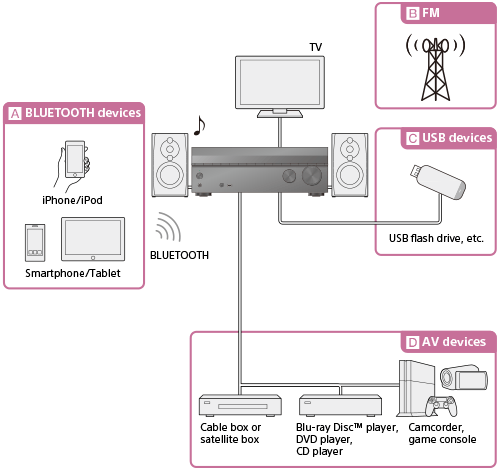
 BLUETOOTH devices
Enjoying audio content from an iPhone/iPod or other smartphone
You can transmit audio from an iPhone/iPod or other smartphone to the receiver via BLUETOOTH.
Enjoying audio content using the BLUETOOTH function (Pairing operation)
 FM
FM
Listening to FM radio
You can listen to FM broadcasts in high-quality sound through the built-in tuner.
Preset function enables you to store up to 30 of your favorite FM stations as presets.
 USB devices
Enjoying content from a USB device
You can enjoy music from a USB device such as an external hard disk, USB flash drive or Walkman® by connecting it to the (USB) port on the front panel of the receiver and listening through speakers or headphones connected to the receiver.
 AV devices
Enjoying movies or audio from an AV device such as a Blu-ray Disc player, CD player, satellite box or game console
You can connect AV devices to the receiver to enjoy a wide range of content such as movies and audio.
As the receiver is equipped with HDCP 2.2-compatible HDMI jacks, you can also enjoy 4K content via streaming services, satellite broadcasts, etc.
[43] Enjoying Video and SoundPlaying AV devicesUsing the menu on the TV screen
You can display the menu of the receiver on the TV screen.
- Switch the input of the TV to the input to which the receiver is connected.
- Press HOME to display the home menu on the TV screen.
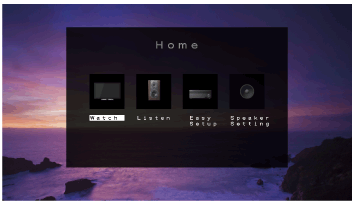
- Press/ repeatedly to select the menu you want, then press to enter the menu.
Home menu items
Watch: Select to display video from the connected device.
Listen: Select to listen to sound from the connected device.
Easy Setup: Select to perform Easy Setup.
Speaker Setting: Select to adjust the speaker settings.
Hint
- To return to the previous screen, press BACK.
- To exit the menu, press HOME to display the home menu, then press HOME again.
[44] Enjoying Video and SoundPlaying AV devicesEnjoying video/sound from the connected device
- Switch the input of the TV to the input to which the receiver is connected.
- Press HOME.
The home menu is displayed on the TV screen.
Depending on the TV, the home menu may take some time to appear on the TV screen. - Select [Watch] or [Listen] from the home menu.
The menu item list appears on the TV screen.
- Select the device you want to play.
- Turn on the device and start playback.
- Press+/– to adjust the volume.
You can also use MASTER VOLUME on the receiver.
Note
- Before you turn off the receiver, be sure to turn down the volume level to avoid damaging your speakers.
Hint
- You can turn INPUT SELECTOR on the receiver or press the input buttons on the remote control to select the device you want.
- You can adjust the volume differently using the MASTER VOLUME knob on the receiver or the +/– buttons on the remote control.
To turn the volume up or down quickly- Turn the knob quickly.
- Press and hold one of the buttons.
- Turn the knob slowly.
- Press one of the buttons and release it immediately.
[45] Enjoying Video and SoundPlaying AV devicesEnjoying sound of an ARC (Audio Return Channel) compatible TV
If the receiver is connected to a TV's HDMI input jack compatible with Audio Return Channel (ARC), you can listen to TV sound from the speakers connected to the receiver without connecting an optical digital cable or an audio cable. Set the receiver by the following procedure to output the sound of the TV from the speakers connected to the receiver.
This operation is only available using the display panel on the front of the receiver.
- Press AMP MENU.
- Select [<HDMI>] - [CTRL HDMI] on the display panel.
- Select [CTRL ON].
If you connect to a TV that is not compatible with the Audio Return Channel (ARC) function or you want to select an audio signal using a cable other than an HDMI cable (e.g. via an optical digital cable or an audio cable)
Switch the audio input mode. For details, “Switching between digital and analog audio (INPUT MODE).”
Note
- ARC function may work on other devices than those manufactured by Sony. However, operation is not guaranteed.
- Be sure to turn off the volume of the TV or activate the muting function of the TV.
- If your TV does not support the System Audio Control function, press AMP MENU, then set [<HDMI>] - [AUDIO OUT] to [TV+AMP] on the display panel to output the sound of the TV from the TV speaker and the speakers connected to the receiver.
[46] Enjoying Video and SoundPlaying AV devicesWatching HDCP 2.2 copyright-protected content
To watch HDCP 2.2 copyright-protected content such as 4K content, connect the receiver and TV via an HDCP 2.2-compatible HDMI jack. You can only view copyright-protected 4K content through the HDCP 2.2-compatible HDMI jack connection. For details on whether the TV and 4K devices are equipped with an HDCP 2.2-compatible HDMI jack, refer to the operating instructions of the TV and 4K devices.
[47] Enjoying Video and SoundPlaying content from an iPhone/iPodEnjoying audio content using the BLUETOOTH function (Pairing operation)
Pairing is an operation where BLUETOOTH devices are registered to each other before connection. Once a pairing operation is performed, it does not need to be performed again.
- Place the BLUETOOTH device within 1 meter (3.3 feet) of the receiver.
- Press BLUETOOTH on the remote control to select the BLUETOOTH function.
- Press PAIRING to activate the pairing mode of the receiver.
[PAIRING] appears and [BT] flashes quickly on the display panel. Perform step 4 within five minutes, otherwise pairing will be canceled. In this case, repeat this step.
- Perform pairing on the BLUETOOTH device to detect this receiver.
For details, refer to the operating instructions of your BLUETOOTH device.
A list of detected devices may appear on the BLUETOOTH device display depending on the type of BLUETOOTH device. This receiver is displayed as [STR-DH770]. - Select [STR-DH770] on the BLUETOOTH device display.
If [STR-DH770] is not displayed, repeat this process from step 1.
- Check that the connection is completed and [BT] lights up on the display panel.
- Start playback on the BLUETOOTH device.
- Adjust the volume.
Adjust the volume of the BLUETOOTH device first. If the volume level is still too low, adjust the volume level of the receiver.
Canceling pairing operation
Press and hold CONNECTIONPAIRING BLUETOOTH on the receiver after step 3.
Note
- You can also use INPUT SELECTOR on the receiver to select the BLUETOOTH function in step 2.
- If the BLUETOOTH device does not support the AVRCP profile, you cannot perform playback or other operations on the receiver.
- If a passkey is required on the display of the BLUETOOTH device in step 6, enter [0000]. The passkey may be called “Passcode,” “PIN code,” “PIN number” or “Password.”
- You can pair up to 9 BLUETOOTH devices. If a 10th BLUETOOTH device is paired, the least recently connected device will be replaced by the new one.
Hint
- You can also activate the pairing mode of the receiver by pressing and holding CONNECTIONPAIRING BLUETOOTH on the receiver.
- On some types of BLUETOOTH devices, you can adjust the volume using the controls of the BLUETOOTH device.
[48] Enjoying Video and SoundPlaying content from an iPhone/iPodCompatible iPhone/iPod models
You can use the following iPhone/iPod models on this receiver. Update your iPhone/iPod with the latest software before using it.
BLUETOOTH technology works with
- iPhone:
iPhone 6s Plus/iPhone 6s/iPhone 6 Plus/iPhone 6/iPhone 5s/iPhone 5c/iPhone 5
- iPod touch:
iPod touch (5th and 6th generation)
[49] Enjoying Video and SoundPlaying content from a USB deviceEnjoying audio content stored on a USB device
You can enjoy music from a USB device by connecting it to the (USB) port on the receiver.
- Select [Listen] - [USB] from the home menu.When the USB device is connected, [USB] lights up on the display panel. You can operate the USB device using the remote control of the receiver.
- Select the content you want using/. The selected content starts playing and the track number appears on the display panel.
Operating the USB device using the remote control
Press USB before you use the following buttons:
- : Starts or pauses playback.
- : Stops playback.
- /: Moves to the start of the previous/current or next track.
Note
- To listen to music files stored on your Walkman, you need to drag and drop the files in formats supported by the receiver (such as MP3) from your computer to the Walkman. However, music files transferred to the Walkman using Media Go can be played back on the receiver because the files are stored in the [Music] folder.
- Audio content with DRM (Digital Rights Management) copyright protection cannot be played on this receiver.
[50] Enjoying Video and SoundPlaying content from a USB deviceUSB specifications and compatible USB devices
USB specifications
Supported formats (*)
The music file formats that can be played back by this receiver are as follows:
- MP3 (MPEG 1 Audio Layer-3):
- .mp3
- WMA:
- .wma
- AAC:
- .m4a, .mp4, .3gp
- WAV:
- .wav
* Compatibility with all encoding/writing software, recording devices and recording media cannot be guaranteed.
Note
- Some files may not play depending on the file format, the file encoding or the recording condition.
- Some files that have been edited on a PC may not play.
- Fast forward or fast reverse functions may not be available for some files.
- The receiver does not play coded files such as DRM.
- The receiver can recognize the following files or folders in USB devices:
- folder paths up to 128 characters long
- 200 folders (including the root folder)
- 150 audio files in each folder
- Some USB devices may not work with this receiver.
- The receiver can recognize Mass Storage Class (MSC) devices (such as flash memory or an HDD).
Compatible USB device
Mass Storage Class
Maximum current
1 A
Verified Sony USB devices
You can use the following Sony USB devices on this receiver:
- Walkman:
- NW-A16/A17/A25/A26/A27
- NW-W274S
- NW-WH505
- NW-WS615
- NWZ-A15/A17
- NWZ-B162/B162F/B163F/B172/B172F/B173/B173F/B183F
- NWZ-E053/E363/E364/E365/E373/E374/E375/E383/E384/E385
/E454/E463/E464/E465/E573/E574/E575/E583/E584/E585 - NWZ-F805N
- NWZ-F885/F800 series
- NWZ-M504
- NWZ-S773/S774/S775
- NWZ-W252/W273/W274S
- NWZ-WH303/WH505
- NWZ-WS613/WS615
- NWZ-Z1050
- MICROVAULT:
- USM4GP/8GV/32GP
- USM8GT/64GT
- USM64GU
- Digital Voice Recorder:
- ICD-FX88
- ICD-PX232/PX240/PX440
- ICD-SX733/SX734/SX813/SX1000
- ICD-TX650
- ICD-UX533/UX533F/UX534F/UX543/UX543F/UX544F
- ICZ-R51/R100
- PCM-D100
Note
- The receiver is unable to read data in NTFS format.
- The receiver is unable to read data other than that saved in the first partition of a hard disk drive.
- Operation of models not listed here is not guaranteed.
- Operation may not always be guaranteed even when using these USB devices.
- Some of these USB devices may not be available for purchase in certain areas.
- When formatting the above models, be sure to format using the model itself or the dedicated formatting software for that model.
- When connecting a USB device to the receiver, be sure to connect after the display “Creating Library” or “Creating Database” on the USB device has disappeared.
[51] Enjoying Video and SoundPlaying content from a USB deviceNotes on USB devices
- Do not remove a USB device during operation. To avoid data corruption and damage to the USB device, turn the receiver off when connecting or removing a USB device.
- Do not connect a USB device to the receiver through a USB hub.
- When a USB device is connected, [READING] appears.
- It may take about 10 seconds before [READING] appears depending on the type of USB device connected.
- When a USB device is connected, the receiver reads all of the files on the USB device. If there are many folders or files on the USB device, it may take a long time to finish reading the USB device.
- The receiver can recognize the following files or folders in USB devices:
- folder paths up to 128 characters long
- 200 folders (including the root folder)
- 150 audio files in each folder
- Compatibility with all encoding/writing softwares, recording devices, and recording media cannot be guaranteed. Incompatible USB devices may produce noise or interrupted audio or may not play at all.
- Some time may be needed to start playback when:
- the folder structure is complex.
- the memory capacity is excessive.
- This receiver does not necessarily support all of the functions provided in a connected USB device.
- The playback order for the receiver may differ from the playback order of the connected USB device.
- If a USB device that has no audio files is connected, [NO TRACK] appears on the display panel.
- When playing a very long track, some operations may cause playback delay.
[52] Enjoying Video and SoundListening to the radioListening to FM radio
You can listen to FM broadcasts through the built-in tuner. Scan the radio frequencies by the following procedure to tune in to a station automatically. Be sure that the FM wire antenna (aerial) is connected to the receiver before performing this operation.
- Select [Listen] - [FM] from the home menu.
The FM screen appears.
- Press and hold or until the frequency digits begin to change on the FM screen.
The receiver automatically scans the radio frequencies and stops scanning whenever a station is received.
FM screen
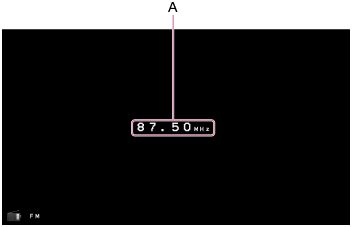
- A: Frequency indication
-
Shows the frequency of the station which the tuner is receiving.
Hint
- You can also use / on the remote control or TUNING +/– on the receiver for tuning.
[53] Enjoying Video and SoundListening to the radioPresetting FM radio stations
You can store up to 30 FM stations as your favorite stations.
- Select [Listen] - [FM] from the home menu.
The FM screen appears.
- Tune to the station that you want to preset.
- Press MEMORY.
- Press PRESET +/– to select a preset number.
- Press MEMORY again.
The station is stored as the selected preset number.
- Repeat steps 1 to 4 to store another station.
You can store stations as follows:
- FM band: FM 1 to FM 30
FM screen
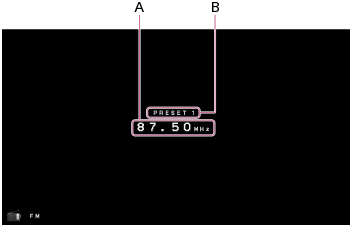
- A: Frequency indication
-
Shows the frequency of the station which the tuner is receiving.
- B: Preset station number
-
Shows the preset number which you are selecting.
[54] Enjoying Video and SoundListening to the radioNaming preset stations (NAME IN)
You can enter a name up to 8 characters for a preset station.
This operation is only available using the display panel on the front of the receiver.
- Select the preset number to which you want to assign a name.
- Press AMP MENU.
- Select [<TUNER>] - [NAME IN] on the display panel.
- Press/ repeatedly to select a character, then press .
You can move the input position backward and forward by pressing
/. - Repeat step 4 to input characters one by one, then press.
The name you entered is registered.
Canceling naming input
Press BACK.
[55] Enjoying Video and SoundListening to the radioTuning to a station directly
You can enter the frequency of a station directly.
- Select [Listen] - [FM] from the home menu.
The FM screen appears.
- Press.
- Enter the frequency.
- Press / to change the digit on the display panel.
- Press to move to the next digit.
You can move the input position backward and forward by pressing
/.
- Press
- Repeat step 3 until the desired frequency is displayed.
Note
- If the tuned frequency is invalid or out of range, [---.-- MHz] appears and then the screen returns to the current frequency.
Make sure you have entered the right frequency. If not, repeat steps 3 and 4. If you still cannot tune to a station, the frequency may not be in use in your area.
Hint
- The tuning scale for direct tuning is shown below:
- USA and Canadian models
100 kHz
- Other models
50 kHz
- USA and Canadian models
[56] Enjoying Video and SoundListening to the radioReceiving RDS broadcasts (for European and Asia-Pacific models only)
This receiver allows you to use Radio Data System (RDS), which enables FM radio stations (*) to send additional information along with the regular programming signal. This receiver offers convenient RDS features, such as Program Service name display.
* Not all FM stations provide RDS service, nor do they provide the same type of services. If you are not familiar with the RDS services in your area, check with your local radio stations for details.
- Select [Listen] - [FM] from the home menu.
- Select a station.
When you tune to a station that provides RDS services, the Program Service name appears on the display panel.
Note
- RDS may not work properly if the station you tuned to does not transmit the RDS signal or if the signal strength is weak.
- Some letters that can be displayed on the TV screen cannot be displayed on the display panel.
Hint
- You can check the frequency while a Program Service name is displayed by pressing DISPLAY repeatedly.
[57] Enjoying Video and SoundEnjoying sound effectsSelecting a sound field
You can select from a variety of sound field modes according to speaker connections or input sources.
- Press FRONT SURROUND, 2CH/MULTI, MOVIE, or MUSIC to select a sound field you want.
You can also use 2CH/MULTI, MOVIE, or MUSIC on the receiver.
Note
- When listening with headphones, only the sound field for headphones appear.
- The sound fields for movie and music may not work, depending on the input or the speaker pattern you select, or with audio formats.
- The receiver may play signals at a lower sampling frequency than the actual sampling frequency of the input signals, depending on the audio format.
- [PLIIX MV] or [PLIIX MS] may not appear, depending on the speaker pattern you select.
- Some speakers or the subwoofer may not output sound, depending on the sound field setting.
[58] Enjoying Video and SoundEnjoying sound effectsRelations between sound fields and speaker outputs
The list below shows which speaker outputs sound when a certain sound field is selected.
Note
- When no sound is heard, check that all the speakers are securely connected to the correct speaker terminals, and the correct speaker pattern is selected.
2-channel content
| Sound field | Display panel | Front speakers | Center speaker | Surround speakers | Surround back speakers | Subwoofer | Front high speakers | |
|---|---|---|---|---|---|---|---|---|
| 2CH/MULTI | 2ch Stereo | 2CH STEREO | ◎ | - | - | - | - | - |
| Multi Channel Stereo | MULTI ST. | ◎ | ○ | ○ | ○ | ○ | ○ | |
| Direct (Analog input) | DIRECT | ◎ | - | - | - | - | - | |
| Direct (Others) | DIRECT | ◎ | - | - | - | ○ (*1) | - | |
| MOVIE | HD-D.C.S. (Dynamic/Theater/Studio) | HD-D.C.S. | ◎ | ○ | ○ | ○ | ○ | ○ |
| PLII Movie | PLII MV | ◎ | ○ | ○ | - | ○ | - | |
| PLIIx Movie | PLIIX MV | ◎ | ○ | ○ | ○ | ○ | - | |
| Neo:6 Cinema | NEO6.CINEMA | ◎ | ○ | ○ | ○ | ○ (*2) | - | |
| Front Surround | FRONT SUR. | ◎ | - | - | - | ○ (*2) | - | |
| MUSIC | Audio Enhancer | A. ENHANCER | ◎ | - | - | - | ○ | - |
| Concert Hall | HALL | ◎ | ○ | ○ | ○ | ○ (*2) | ○ | |
| Jazz Club | JAZZ | ◎ | ○ | ○ | ○ | ○ (*2) | ○ | |
| Live Concert | CONCERT | ◎ | ○ | ○ | ○ | ○ (*2) | ○ | |
| Stadium | STADIUM | ◎ | ○ | ○ | ○ | ○ (*2) | ○ | |
| Sports | SPORTS | ◎ | ○ | ○ | ○ | ○ (*2) | ○ | |
| PLII Music | PLII MS | ◎ | ○ | ○ | - | ○ | - | |
| PLIIx Music | PLIIX MS | ◎ | ○ | ○ | ○ | ○ | - | |
| Neo:6 Music | NEO6.MUSIC | ◎ | ○ | ○ | ○ | ○ (*2) | - | |
-: No sound is output.
◎: Outputs sound.
○: Outputs sound depending on the speaker pattern setting.
*1 USA and Canadian models: outputs sound.
Other models: output sound depending on the speaker pattern setting only when [Speaker Setting] - [Size] is set to [Small].
*2 Outputs sound depending on the speaker pattern setting only when [Speaker Setting] - [Size] is set to [Small].
Multi-channel content
| Sound field | Display panel | Front speakers | Center speaker | Surround speakers | Surround back speakers | Subwoofer | Front high speakers | |
|---|---|---|---|---|---|---|---|---|
| 2CH/MULTI | 2ch Stereo | 2CH STEREO | ◎ | - | - | - | - | - |
| Multi Channel Stereo | MULTI ST. | ◎ | ○ | ○ | ○ | ○ | ○ | |
| Direct | DIRECT | ◎ | ○ | ○ | ○ | ○ | ○ | |
| MOVIE | HD-D.C.S. (Dynamic/Theater/Studio) | HD-D.C.S. | ◎ | ○ | ○ | ○ | ○ | ○ |
| PLII Movie | PLII MV | ◎ | ○ | ○ | ○ | ○ | ○ | |
| PLIIx Movie | PLIIX MV | ◎ | ○ | ○ | ○ | ○ | - | |
| Neo:6 Cinema | NEO6.CINEMA | ◎ | ○ | ○ | ○ | ○ | ○ | |
| Front Surround | FRONT SUR. | ◎ | - | - | - | ○ | - | |
| MUSIC | Audio Enhancer | A. ENHANCER | ◎ | ○ | ○ | ○ | ○ | ○ |
| Concert Hall | HALL | ◎ | ○ | ○ | ○ | ○ | ○ | |
| Jazz Club | JAZZ | ◎ | ○ | ○ | ○ | ○ | ○ | |
| Live Concert | CONCERT | ◎ | ○ | ○ | ○ | ○ | ○ | |
| Stadium | STADIUM | ◎ | ○ | ○ | ○ | ○ | ○ | |
| Sports | SPORTS | ◎ | ○ | ○ | ○ | ○ | ○ | |
| PLII Music | PLII MS | ◎ | ○ | ○ | ○ | ○ | ○ | |
| PLIIx Music | PLIIX MS | ◎ | ○ | ○ | ○ | ○ | - | |
| Neo:6 Music | NEO6.MUSIC | ◎ | ○ | ○ | ○ | ○ | ○ | |
-: No sound is output.
◎: Outputs sound.
○: Outputs sound depending on the speaker pattern setting and the channels included in the input source.
[59] Enjoying Video and SoundEnjoying sound effectsResetting sound fields to the default settings
Be sure to use the buttons on the receiver to perform this operation.
- Turn off the receiver.
- Hold down MUSIC and press (power) on the receiver.
[S.F. CLEAR] appears on the display panel and all sound fields are reset to their default setting.
[60] Enjoying Video and SoundEnjoying sound effectsEnjoying clear sound at a low volume level (NIGHT MODE)
This function allows you to retain a theater-like environment at low volume levels. When watching a movie late at night, you will be able to hear the dialog clearly even at a low volume level. This function can be used with other sound fields.
This operation is only available using the display panel on the front of the receiver.
- Press AMP MENU.
- Select [<AUDIO>] - [NIGHT MODE] on the display panel.
- Select [NIGHT ON] or [NIGHT OFF].
Note
- This function does not work when [DIRECT] is selected and an analog input is selected.
Hint
- You can also set the Night Mode function on and off by using NIGHT MODE on the receiver.
- While the Night Mode function is turned on, the bass, treble, and effect levels increase, and [D. RANGE] is automatically set to [COMP. ON].
[61] Enjoying Video and SoundEnjoying sound effectsAdjusting the equalizer (EQ)
You can use the following parameters to adjust the tonal quality (bass/treble level) of the front speakers.
This operation is only available using the display panel on the front of the receiver.
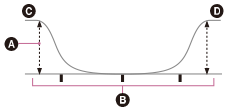
Level (dB)
Frequency (Hz)
Bass
Treble
- Press AMP MENU.
- Select [<EQ>] on the display panel.
- Select [BASS] or [TREBLE].
- Adjust the gain.
Note
- This function does not work in the following cases:
- [DIRECT] is selected and an analog input is selected.
- Pure Direct function is activated.
- Depending on the audio format, the receiver may play signals at a lower sampling frequency than the original sampling frequency of the input signals.
- Frequencies for [BASS] and [TREBLE] are fixed.
[62] Enjoying Video and SoundEnjoying sound effectsEnjoying high-fidelity sound (Pure Direct)
You can enjoy higher-fidelity sound from all inputs using the Pure Direct function. When the Pure Direct function is on, the display panel lights off to suppress noise that affects sound quality.
- Press PURE DIRECT.
Canceling the Pure Direct function
The Pure Direct function will be canceled when you perform the following:
- Press PURE DIRECT again.
- Change the sound field.
- Change the scene setting on the TV (Scene Select).
- Change the setting of [EQ], [NIGHT MODE], [AUTO VOL], or [D. RANGE].
Note
- [EQ], [NIGHT MODE], [AUTO VOL], or [D. RANGE] do not work when the Pure Direct function is selected.
[63] Using BLUETOOTH FeaturesAbout BLUETOOTH FeaturesWhat you can do with BLUETOOTH features
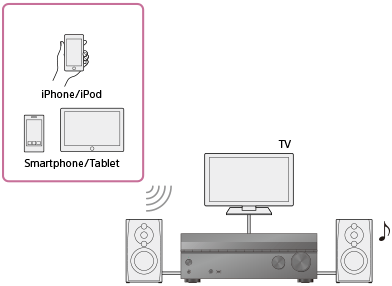
Listening to the audio content from a BLUETOOTH device on the receiver
You can receive audio from an iPhone/iPod, smartphone or tablet that has a BLUETOOTH function and listen to it via this receiver.
Devices that have the NFC function can be connected by a one-touch connection simply by bringing the device close to the receiver.
Enjoying audio content stored on a BLUETOOTH device with a one-touch connection (NFC)
Enjoying audio content using the BLUETOOTH function (Pairing operation)
See “Compatible BLUETOOTH version and profiles” for details on BLUETOOTH device versions and profiles that can be paired.
[64] Using BLUETOOTH FeaturesEnjoying audio content stored on a BLUETOOTH deviceTurning the BLUETOOTH function on/off (BT POWER)
You can turn the BLUETOOTH function on or off. The NFC function is also turned on/off in conjunction with this setting.
This operation is only available using the display panel on the front of the receiver.
- Press AMP MENU.
- Select [<BT>] - [BT POWER] on the display panel.
- Select [BT ON] or [BT OFF].
Note
- You cannot set this function when [BT] (BLUETOOTH device) is selected as the input. ([BT POWER] on the display panel will become dimmed.)
[65] Using BLUETOOTH FeaturesEnjoying audio content stored on a BLUETOOTH deviceEnjoying audio content stored on a BLUETOOTH device with a one-touch connection (NFC)
You can enjoy audio content on a BLUETOOTH device with a one-touch connection using the NFC function.
- If you are using an NFC-compatible BLUETOOTH device with Android OS 4.0 or earlier, download the “NFC Easy Connect” application to your device.

You do not need to install the “NFC Easy Connect” application if you are using an NFC-compatible BLUETOOTH device with Android OS 4.1 or later installed.
- Touch the
 mark on the receiver with your BLUETOOTH device.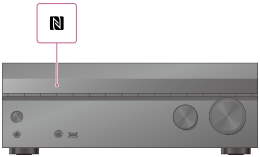
- Follow the on-screen instructions displayed on the BLUETOOTH device, and complete the procedure for BLUETOOTH connection.
- Check that the connection is completed and [BT] lights up on the display panel.
- Start playback on the BLUETOOTH device.
- Adjust the volume.
Adjust the volume of the BLUETOOTH device first. If the volume level is still too low, adjust the volume level of the receiver.
Compatible smartphones
Smartphones with the NFC function (compatible OS: Android 2.3.3 or later, excluding Android 3.x)
Hint
- If you want to connect a BLUETOOTH device when the receiver is in standby mode, press AMP MENU, then set [<BT>] - [BT STANDBY] to [STBY ON] on the display panel.
[66] Using BLUETOOTH FeaturesEnjoying audio content stored on a BLUETOOTH deviceEnjoying audio content using the BLUETOOTH function (Pairing operation)
Pairing is an operation where BLUETOOTH devices are registered to each other before connection. Once a pairing operation is performed, it does not need to be performed again.
- Place the BLUETOOTH device within 1 meter (3.3 feet) of the receiver.
- Press BLUETOOTH on the remote control to select the BLUETOOTH function.
- Press PAIRING to activate the pairing mode of the receiver.
[PAIRING] appears and [BT] flashes quickly on the display panel. Perform step 4 within five minutes, otherwise pairing will be canceled. In this case, repeat this step.
- Perform pairing on the BLUETOOTH device to detect this receiver.
For details, refer to the operating instructions of your BLUETOOTH device.
A list of detected devices may appear on the BLUETOOTH device display depending on the type of BLUETOOTH device. This receiver is displayed as [STR-DH770]. - Select [STR-DH770] on the BLUETOOTH device display.
If [STR-DH770] is not displayed, repeat this process from step 1.
- Check that the connection is completed and [BT] lights up on the display panel.
- Start playback on the BLUETOOTH device.
- Adjust the volume.
Adjust the volume of the BLUETOOTH device first. If the volume level is still too low, adjust the volume level of the receiver.
Canceling pairing operation
Press and hold CONNECTIONPAIRING BLUETOOTH on the receiver after step 3.
Note
- You can also use INPUT SELECTOR on the receiver to select the BLUETOOTH function in step 2.
- If the BLUETOOTH device does not support the AVRCP profile, you cannot perform playback or other operations on the receiver.
- If a passkey is required on the display of the BLUETOOTH device in step 6, enter [0000]. The passkey may be called “Passcode,” “PIN code,” “PIN number” or “Password.”
- You can pair up to 9 BLUETOOTH devices. If a 10th BLUETOOTH device is paired, the least recently connected device will be replaced by the new one.
Hint
- You can also activate the pairing mode of the receiver by pressing and holding CONNECTIONPAIRING BLUETOOTH on the receiver.
- On some types of BLUETOOTH devices, you can adjust the volume using the controls of the BLUETOOTH device.
[67] Using BLUETOOTH FeaturesEnjoying audio content stored on a BLUETOOTH deviceControlling a BLUETOOTH device using the remote control
You can operate a BLUETOOTH device using the following buttons on the remote control:
- (*): Starts or pauses playback.
- : Stops playback.
- /: Moves to the start of the previous/current or next track.
* If you
press when no BLUETOOTH device is connected, the receiver automatically connects to the last connected BLUETOOTH device.
Note
- These operations may not be available for certain BLUETOOTH devices. The actual operations may also differ depending on the connected BLUETOOTH device.
[68] Using BLUETOOTH FeaturesEnjoying audio content stored on a BLUETOOTH deviceCompatible BLUETOOTH version and profiles
“Profile” refers to a standard set of capabilities for various BLUETOOTH product capabilities. This receiver supports the following BLUETOOTH version and profiles:
- Compatible BLUETOOTH version: BLUETOOTH Specification Version 4.2
- Compatible BLUETOOTH profiles:
- A2DP 1.3 (Advanced Audio Distribution Profile): Receives high-quality audio content.
- AVRCP 1.5 (Audio Video Remote Control Profile): Controls audio/video devices (pausing, stopping, starting playback, volume control, etc.)
- SPP 1.2 (Serial Port Profile)
- DID (Device Identification Profile)
For the latest information about compatible BLUETOOTH devices, check the websites listed under “Customer support websites.”
Note
- The functions may differ depending on the specifications of the BLUETOOTH device.
- The audio playback on this receiver may be delayed from that on the BLUETOOTH device because of the characteristics of the BLUETOOTH wireless technology.
[69] Using BLUETOOTH FeaturesUsing SongPal to control the receiver from a smartphone or tablet deviceControlling the receiver using a smartphone or tablet device (SongPal)
SongPal is a dedicated app for operating SongPal-compatible audio devices manufactured by Sony using a smartphone or tablet device.
Search for SongPal on Google Play or the App Store and download to your smartphone or tablet device.
SongPal allows you to:
- change commonly used settings, selecting the input of the receiver and adjusting the volume.
- enjoy music content stored on a smartphone on the receiver.
- enjoy music visually with your smartphone display.
- Download the SongPal application to your mobile device.
- Connect the receiver and mobile device by BLUETOOTH connection.
- Launch SongPal and follow the on-screen instructions.
After the connection is completed, you can control the receiver using SongPal.
Note
- SongPal uses the BLUETOOTH functions of the receiver.
- SongPal does not support iPad.
- Specifications and design of SongPal may change without prior notice.
[70] Using Other FeaturesInterlocking with BRAVIA TV and other devices (“BRAVIA” Sync)What is “BRAVIA” Sync?
“BRAVIA” Sync is an extended function developed by Sony based on the Control for HDMI (*1) function. By connecting “BRAVIA” Sync-compatible devices, such as a TV or a Blu-ray Disc player, using an HDMI cable (*2) (not supplied) you can control the devices with the TV remote control. The following functions can be used with “BRAVIA” Sync.
- Turning off the receiver and connected devices simultaneously with the TV (System Power Off function) (STBY LINK)
- Enjoying TV sound from the speakers connected to the receiver (System Audio Control function)
- Enjoying sound of an ARC (Audio Return Channel) compatible TV
- Enjoying an input source from a connected device immediately (One-Touch Play function)
- Operating the receiver menu using the TV remote control (Remote Easy Control function)
- Enjoying content of a connected device without turning on the receiver (STBY THRU)
- Selecting the optimum picture quality and sound field automatically (Scene Select function)
- About Home Theatre Control function
- Echo Canceling function
- About Language Follow function
*1 Control for HDMI is a standard used by CEC (Consumer Electronics Control) specification that enables interoperability of connected devices for HDMI (High-Definition Multimedia Interface) connections.
*2 Sony recommends a Premium High Speed HDMI Cable with Ethernet.
Note
- Functions such as System Power Off, System Audio Control, One-Touch Play, and Remote Easy Control may be used with other devices than those manufactured by Sony that support the Control for HDMI function. However, compatibility with other devices than those manufactured by Sony is not guaranteed.
[71] Using Other FeaturesInterlocking with BRAVIA TV and other devices (“BRAVIA” Sync)Preparing to use the “BRAVIA” Sync function
Turn the Control for HDMI function on to use the "BRAVIA" Sync function. The Control for HDMI function needs to be turned on separately for the receiver and the connected device.
This operation is only available using the display panel on the front of the receiver.
- Press AMP MENU.
- Select [<HDMI>] - [CTRL HDMI] on the display panel.
- Select [CTRL ON].
The Control for HDMI function of the receiver is turned on.
- Press AMP MENU to exit the menu.
- Select the HDMI input of the TV to the input to which the receiver is connected using the TV remote control to display the settings menu of the TV.
- Turn on the Control for HDMI function of the TV.
For details on settings for the TV, refer to the operating instructions supplied with the TV.
- Turn on the Control for HDMI function of the connected devices.
For details on setting the connected device, refer to the operating instructions of the respective devices.
Note
- Perform the steps above again if you unplug the HDMI cable or change the connection.
[72] Using Other FeaturesInterlocking with BRAVIA TV and other devices (“BRAVIA” Sync)Turning off the receiver and connected devices simultaneously with the TV (System Power Off function) (STBY LINK)
You can turn off the receiver and connected device automatically when you turn off the TV.
This operation is only available using the display panel on the front of the receiver.
- Press AMP MENU.
- Select [<HDMI>] - [STBY LINK] on the display panel.
- Select the setting you want.
- AUTO:When the input of the receiver is set to [TV], [BD/DVD], [GAME], [SAT/CATV], or [VIDEO], the receiver will turn off when the TV is turned off.
- ON:The receiver will turn off when the TV is turned off, regardless of the input of the receiver.
- OFF:The receiver does not turn off when the TV is turned off, regardless of the input of the receiver.
Note
- Depending on the status of the device, the connected device may not turn off.
- The System Power Off function may work with other devices than those manufactured by Sony, but operation is not guaranteed.
[73] Using Other FeaturesInterlocking with BRAVIA TV and other devices (“BRAVIA” Sync)Enjoying TV sound from the speakers connected to the receiver (System Audio Control function)
If you turn on the receiver while you are watching the TV, the TV sound will be output from the speakers connected to the receiver. The volume of the receiver can be adjusted using the TV remote control.
If the TV sound was output from the speakers connected to the receiver last time you watched the TV, the receiver will be turned on automatically when you turn on the TV again.
Operations can also be made using the TV menu. For details, refer to the operating instructions of the TV.
Note
- Depending on the TV, the number of the receiver volume level is displayed on the TV screen. The volume number displayed on the TV may differ from the number on the front panel display of the receiver.
- System Audio Control function may work with other devices than those manufactured by Sony, but operation is not guaranteed.
- Depending on the settings of the TV, the System Audio Control function may not be available. For details, refer to the operating instructions of the TV.
- When [<HDMI>] - [CTRL HDMI] is set to [CTRL ON], [<HDMI>] - [AUDIO OUT] will be set automatically according to the setting of the System Audio Control function.
[74] Using Other FeaturesInterlocking with BRAVIA TV and other devices (“BRAVIA” Sync)Enjoying an input source from a connected device immediately (One-Touch Play function)
When you play content on a device (Blu-ray Disc player, PlayStation®4, etc.) connected to the receiver, the receiver and the TV are turned on automatically, the input of the receiver is switched to the input of the device being played, and sound is output from the speakers connected to the receiver.
Note
- If [<HDMI>] - [STBY THRU] is set to [AUTO] or [ON], and the TV sound was output from the speakers of the TV last time you watched the TV, the receiver does not turn on and the sound and picture are output from the TV even if you play content on the device.
- Depending on the TV, the beginning part of content being played may not play correctly.
- One-Touch Play function may work with other devices than those manufactured by Sony, but operation is not guaranteed.
[75] Using Other FeaturesInterlocking with BRAVIA TV and other devices (“BRAVIA” Sync)Selecting the optimum picture quality and sound field automatically (Scene Select function)
The sound field are selected automatically according to the Scene Select or Sound Mode setting on your TV.
For details on this operation, refer to the operating instructions of the TV.
The Scene Select/Sound Mode setting and the sound field setting of the receiver will change as follows.
- Cinema: HD-D.C.S.
- Sports: SPORTS
- Music: CONCERT
- Animation: MULTI ST.
- Photo: MULTI ST.
- Game: MULTI ST.
- Graphics: MULTI ST.
Note
- The Scene Select function is a function developed by Sony, and cannot be used on other devices than those manufactured by Sony.
[76] Using Other FeaturesInterlocking with BRAVIA TV and other devices (“BRAVIA” Sync)About Home Theatre Control function
Setting the receiver, the sound field settings, input switching, etc., can be done by selecting the Home Theatre Control application on the TV.
This function can be used when the TV is compatible with the Home Theatre Control application and connected to the Internet. For details, refer to the operating instructions of the TV.
Note
- The Home Theatre Control application is a function developed by Sony, and cannot be used on other devices than those manufactured by Sony.
[77] Using Other FeaturesInterlocking with BRAVIA TV and other devices (“BRAVIA” Sync)Operating the receiver menu using the TV remote control (Remote Easy Control function)
You can select the receiver by the SYNC MENU of the TV and operate the receiver. This function can be used if the TV supports the SYNC MENU. For details, refer to the operating instructions of the TV.
Note
- The receiver is recognized as [Tuner] by the TV.
- Some of the operations may not be available depending on the type of TV.
- Remote Easy Control function may work with other devices than those manufactured by Sony, but operation is not guaranteed.
[78] Using Other FeaturesInterlocking with BRAVIA TV and other devices (“BRAVIA” Sync)Echo Canceling function
The Echo Canceling function reduces reverberation that may occur when using the Social Viewing functions such as Skype while watching TV programs. This function can be used if the TV supports the Social Viewing functions. For details, refer to the operating instructions of the TV.
Note
- The Echo Canceling function works when you select [TV] or an HDMI input jack to which the device is connected as the input on the receiver.
- When you use the Social Viewing function, the input of the receiver is switched automatically to the input to which the TV is connected, even if another HDMI input jack has been selected. The sound from the Social Viewing function and the TV will be output from the speakers connected to the receiver.
- This function cannot be used when the sound is output from the TV.
- The Echo Canceling function is a function developed by Sony, and cannot be used on other devices than those manufactured by Sony.
[79] Using Other FeaturesInterlocking with BRAVIA TV and other devices (“BRAVIA” Sync)About Language Follow function
The on-screen display language of the receiver may be changed simultaneously when you change the language for the on-screen display of the TV.
[80] Using Other FeaturesEnjoying video and sound with your desired way of useSwitching between digital and analog audio (INPUT MODE)
When you connect devices to both digital and analog audio input jacks on the receiver, you can fix the audio input mode to either device, or switch from one to the other, depending on the type of material you intend to watch.
This operation is only available using the display panel on the front of the receiver.
- Press the input buttons to select the input.
- Press AMP MENU.
- Select [<INPUT>] - [INPUT MODE] on the display panel.
- Select the setting you want.
- AUTO: Gives priority to digital audio signals. If there are more than one digital connection, HDMI audio signals have priority. If there is no digital audio signals, analog audio signals are selected. When TV input is selected, priority is given to Audio Return Channel (ARC) signals. If your TV is not compatible with the ARC function, digital optical audio signals are selected.
- OPT: Specifies input of digital audio signals to the OPTICAL IN jack.
- COAX: Specifies input of digital audio signals to the COAXIAL IN jack.
- ANALOG: Specifies input of analog audio signals to the AUDIO IN (L/R) jacks.
Note
- Depending on the input, [INPUT MODE] may be dimmed on the display panel and other modes cannot be selected.
Hint
- You can also use INPUT SELECTOR on the receiver to select the input in step 1.
[81] Using Other FeaturesEnjoying video and sound with your desired way of useUsing other audio input jacks (A. ASSIGN)
You can reassign the OPTICAL/COAXIAL digital audio input jacks to other input if the default settings of the jacks do not correspond to your connected equipment.
E.g. When connecting a DVD player to the OPTICAL TV IN jack, assign the OPTICAL TV IN jack to [BD/DVD].
This operation is only available using the display panel on the front of the receiver.
- Select the input name you want to assign.
- Press AMP MENU.
- Select [<INPUT>] - [A. ASSIGN].
- Select the jack you want to assign to the input.
Assignable audio input jacks
- OPT:
- BD/DVD, SAT/CATV, GAME, SA-CD/CD, VIDEO (*)
- COAX:
- BD/DVD, SAT/CATV, GAME, SA-CD/CD (*), VIDEO
- NONE:
- BD/DVD (*), SAT/CATV (*), GAME (*), SA-CD/CD, VIDEO (*)
* Default setting
Note
- When you assign the digital audio input, the Input Mode setting may change automatically.
- One reassignment is allowed for each input.
- If no sound is output from the jacks which you have assigned, also check the Input Mode settings.
[82] Using Other FeaturesUsing the sleep timerUsing the sleep timer
You can set the receiver to turn off automatically after a specified period of time.
- Press SLEEP.
Each time you press SLEEP, the display changes cyclically as follows:
0-30-00 - 1-00-00 - 1-30-00 - 2-00-00 - OFF[SLEEP] lights up on the display panel of the receiver when sleep timer is being used.
Hint
- To check the remaining time before the receiver turns off, press SLEEP. The remaining time appears on the display panel.
- The sleep timer will be canceled if you press (power).
[83] Using Other FeaturesChecking information on the receiverViewing information on the display panel
The display panel provides various information on the status of the receiver, such as the sound field.
- Select the input for which you want to check information.
- Press DISPLAY repeatedly.Each time you press DISPLAY, the display will change cyclically as follows:
Index name of the input (*1) - Input you selected - Sound field currently applied (*2) - Volume level - Stream information (*3)
When listening to FM radio
Preset station name (*1) - Frequency - Sound field currently applied (*2) - Volume level
When receiving RDS broadcasts (for European and Asia-Pacific models only)
Program service name or preset station name (*1) - Frequency, band and preset number - Sound field currently applied (*2) - Volume level
*1 Index name appears only when you have assigned one to the input or preset station. Index name does not appear if only blank spaces have been entered or it is same as the input name.
*2 [PURE.DIRECT] appears on the display panel when the Pure Direct function is activated.
*3 Stream information may not be displayed.
Note
- Characters or marks in some languages may not be displayed.
[84] Adjusting SettingsUsing the menu on the display panelOperating the receiver with the menu on the display panel
You can operate this receiver using the display panel even if the TV is not connected to the receiver.
- Press AMP MENU.The menu is displayed on the display panel of the receiver.
- Press/ repeatedly to select the menu you want, then press .
- Press/ repeatedly to select the parameter you want to adjust, then press .
- Press/ repeatedly to select the setting you want, then press .
To return to the previous display
Press or BACK.
To exit the menu
Press AMP MENU.
Note
- Some parameters and settings may appear dimmed on the display panel. This means that they are either unavailable or fixed and unchangeable.
[85] Adjusting SettingsUsing the menu on the display panelViewing information on the display panel
The display panel provides various information on the status of the receiver, such as the sound field.
- Select the input for which you want to check information.
- Press DISPLAY repeatedly.Each time you press DISPLAY, the display will change cyclically as follows:
Index name of the input (*1) - Input you selected - Sound field currently applied (*2) - Volume level - Stream information (*3)
When listening to FM radio
Preset station name (*1) - Frequency - Sound field currently applied (*2) - Volume level
When receiving RDS broadcasts (for European and Asia-Pacific models only)
Program service name or preset station name (*1) - Frequency, band and preset number - Sound field currently applied (*2) - Volume level
*1 Index name appears only when you have assigned one to the input or preset station. Index name does not appear if only blank spaces have been entered or it is same as the input name.
*2 [PURE.DIRECT] appears on the display panel when the Pure Direct function is activated.
*3 Stream information may not be displayed.
Note
- Characters or marks in some languages may not be displayed.
[86] Adjusting SettingsEasy SetupSetting up the receiver using Easy Setup
When you turn on the receiver for the first time or after the receiver is initialized, the Easy Setup screen appears on the TV screen. You can set up the following settings for the receiver by following the instructions on the Easy Setup screen.
- Language
Select the language of messages on the screen.
- Surround Back Speakers Assign
You can set the assignment for the SPEAKERS SURROUND BACK/BI-AMP/FRONT HIGH/FRONT B terminals.
- Auto Calibration
The Auto Calibration function checks and measures the speakers and the environment to adjust various settings for optimum listening condition.
Note
- Switch the input of the TV to the input to which the receiver is connected to use this function.
If the Easy Setup screen does not appear or you want to display the Easy Setup screen manually, you can display it by pressing HOME to display the home menu, then selecting [Easy Setup].
[87] Adjusting SettingsEasy SetupSelecting the language
You can select the language of messages on the screen.
- Select [Easy Setup] from the home menu.
- Select the language you want.
Note
- When the Control for HDMI function on both the receiver and the TV (BRAVIA TV) is turned on, the on-screen display language of the receiver is changed simultaneously when you change the language for the on-screen display of the TV.
[88] Adjusting SettingsEasy SetupAssigning the surround back speaker terminals (Surround Back Speakers Assign)
You can set the assignment for the SPEAKERS SURROUND BACK/BI-AMP/FRONT HIGH/FRONT B terminals.
- Select [Speaker Setting] from the home menu.
- Select [Surround Back Speakers Assign].
- Set the assignment for the SPEAKERS SURROUND BACK/BI-AMP/FRONT HIGH/FRONT B terminals.
- Surround Back Speakers: When using the surround back speaker connection.
- Bi-Amplifier Speakers: When using the bi-amplifier speaker connection.
- Front B Speakers: When using the front B speaker connection.
- Front High Speakers: When using the front high speaker connection.
- None Speaker: When none of the connections above is used.
Note
- You can only set [Surround Back Speakers Assign] when headphones are not connected.
Hint
- You can also set the assignment for the surround back speaker terminals from [SB ASSIGN] in the [<SPEAKER>] menu on the display panel.
[89] Adjusting SettingsPerforming Auto Calibration1. About Auto Calibration
Auto Calibration allows you to perform automatic calibration as follows.
- Check the connection between each speaker and the receiver.
- Adjust the speaker level.
- Measure the distance of each speaker from your seating position. (*)
- Measure the speaker size. (*)
- Measure the frequency characteristics (EQ). (*)
* The measurement result is not utilized when [DIRECT] is being used and an analog input is selected.
Note
- The D.C.A.C. is designed to achieve proper sound balance for your room. However, you can adjust the speaker levels manually according to your preference using [<LEVEL>] - [TEST TONE] in the [Speaker Settings] menu.
[90] Adjusting SettingsPerforming Auto Calibration2. Before you perform Auto Calibration
Before you perform Auto Calibration, check the following items:
- Set up and connect the speakers.
- Do not connect any microphones other than the supplied calibration microphone to the CALIBRATION MIC jack.
- If using a bi-amplifier connection or a front B speaker connection, set the assignment for the SPEAKERS SURROUND BACK/BI-AMP/FRONT HIGH/FRONT B terminals properly.
- Set the speaker output to a setting other than [SPK OFF].
- Disconnect the headphones.
- Remove any obstructions between the calibration microphone and the speakers.
- For accurate measurement, make sure the environment is quiet and free from noise.
Note
- The speakers emit very loud sound during the calibration and the volume cannot be adjusted. Be considerate of your neighbors and any children who are present.
- If the muting function has been activated before you perform Auto Calibration, the muting function will shut off automatically.
- It may not be possible to take the correct measurements or to perform Auto Calibration at all if special speakers such as dipole speakers are used.
[91] Adjusting SettingsPerforming Auto Calibration3. Connecting the calibration microphone
Calibration microphone (supplied)
- Connect the supplied calibration microphone to the CALIBRATION MIC jack.
- Set up the calibration microphone.
Place the calibration microphone at your listening position and set it at the same height as your ears.
[92] Adjusting SettingsPerforming Auto Calibration4. Selecting the front speakers
You can select the front speakers you want to operate.
Be sure to use the buttons on the receiver to perform this operation.
- Press SPEAKERS on the receiver repeatedly to select the front speaker system you want to operate.
The indicators on the display panel shows which set of terminals are selected.
- SP A:
Speakers connected to the SPEAKERS FRONT A terminals. - SP B (*):
Speakers connected to the SPEAKERS SURROUND BACK/BI-AMP/FRONT HIGH/FRONT B terminals. - SP A B (*):
Speakers connected to both the SPEAKERS FRONT A and SPEAKERS SURROUND BACK/BI-AMP/FRONT HIGH/FRONT B terminals (parallel connection). - (None):
[SPK OFF] appears on the display panel. No audio signals are output from any speaker terminals.
* To select [SP B] or [SP A B], set the assignment for the SPEAKERS SURROUND BACK/BI-AMP/FRONT HIGH/FRONT B terminals to [Front B Speakers] by using [Speaker Setting] - [Surround Back Speakers Assign].
Note
- This setting is not available when headphones are connected.
[93] Adjusting SettingsPerforming Auto Calibration5. Performing Auto Calibration
You can perform automatic calibration from your listening position.
- Select [Easy Setup] from the home menu.
- Follow the instructions on the TV screen, then select [Start].
The measurement starts in a few seconds.
The measurement process will take approximately 30 seconds with a test tone.
When the measurement ends, a beep sounds and the screen switches. - Select the item you want.
- Retry: Performs the Auto Calibration again.
- Save&Exit: Saves the measurement results and exits the setting process.
- Exit: Exits the setting process without saving the measurement results.
- Save the measurement results.
Select [Save&Exit] in step 3.
Note
- If an error code or warning message appears on the screen in step 2, see “List of messages after Auto Calibration measurements.”
- This setting is not available when headphones are connected.
Hint
- The Auto Calibration function will be canceled if you perform the following during the measurement process:
- Press .
- Press the input buttons on the remote control or turn the INPUT SELECTOR on the receiver.
- Press HOME, AMP MENU or on the remote control.
- Press SPEAKERS on the receiver.
- Change the volume level.
- Connect headphones.
- Press
[94] Adjusting SettingsPerforming Auto Calibration6. Checking Auto Calibration results
To check error codes or warning messages received in Auto Calibration, proceed with the following steps:
If an error code appears
Check the error and perform Auto Calibration again.
- Select [Retry].
- Follow the instructions on the TV screen and then press to select [Start].
The measurement starts in a few seconds.
The measurement process will take approximately 30 seconds with a test tone.
When the measurement ends, a beep sounds and the screen switches. - Select the item you want.
- Retry: Performs the Auto Calibration again.
- Save&Exit: Saves the measurement results and exits the setting process.
- Exit: Exits the setting process without saving the measurement results.
- Save the measurement results.
Select [Save&Exit] in step 3.
If a warning message appears
Check the warning message and select [OK]. For details on the warning messages, see “List of messages after Auto Calibration measurements.”
Hint
- The measurement results may vary depending on the position of the subwoofer. However, continuing to use the receiver with that value does not cause problems.
[95] Adjusting SettingsPerforming Auto CalibrationSelecting the Auto Calibration type (CAL TYPE)
You can select a calibration type after you have performed the Auto Calibration and saved the settings.
This operation is only available using the display panel on the front of the receiver.
- Press AMP MENU.
- Select [<AUTO CAL>] - [CAL TYPE] on the display panel.
- Select the setting you want.
- FULL FLAT: Makes the measurement of frequency from each speaker flat.
- ENGINEER: Sets to “the Sony listening room standard” frequency characteristics.
- FRONT REF: Adjusts the characteristics of all of the speakers to match the characteristics of the front speaker.
- OFF
Note
- This function does not work in the following cases:
- [DIRECT] is selected and an analog input is selected.
- Headphones are connected.
- The receiver may play signals at a lower sampling frequency than the actual sampling frequency of the input signals, depending on the audio format.
[96] Adjusting SettingsLevel SettingsOutputting a test tone from each speaker (TEST TONE)
You can output a test tone from each speaker in sequence.
This operation is only available using the display panel on the front of the receiver.
- Press AMP MENU.
- Select [<LEVEL>] - [TEST TONE] on the display panel.
- Select the setting you want.
- OFF
- AUTO XXX (*): The test tone is output from each speaker in sequence.
* XXX represents a speaker channel (FL, CNT, FR, SR, SBR, SB, SBL, SL, LH, RH, SW)
- Select the speaker on the screen for which you want to adjust the speaker level.
- Adjust the speaker level.
Hint
- To adjust the level of all speakers at the same time, press +/–. You can also use MASTER VOLUME on the receiver.
- The adjusted value is shown on the display panel during adjustment.
[97] Adjusting SettingsLevel SettingsAdjusting the speaker level (Level)
You can adjust the level of each speaker (front left/right, front high left/right, center, surround left/right, surround back left/right and subwoofer).
- Select [Speaker Setting] from the home menu.
- Select [Level].
- Select the speaker on the screen for which you want to adjust the speaker level.
- Adjust the level.
Note
- When one of the sound fields for music is selected, no sound is output from the subwoofer if [Size] for all of the speakers are set to [Large] in the [Speaker Setting] menu. However, sound will be output from the subwoofer if:
- the digital input signal contains LFE signals.
- [Size] for the front or surround speakers are set to [Small].
- [MULTI ST.], [PLII MV], [PLII MS], [PLIIX MV], [PLIIX MS], [HD-D.C.S.] or [A. ENHANCER] is selected.
- If headphones are connected, you can only set [Level] for [Front Left] and [Front Right].
Hint
- You can also adjust the level of each speaker from the [<LEVEL>] menu on the display panel.
[98] Adjusting SettingsSpeaker SettingsSelecting the speaker pattern (SP PATTERN)
You can select the speaker pattern according to the speaker system which you are using.
This operation is only available using the display panel on the front of the receiver.
- Press AMP MENU.
- Select [<SPEAKER>] - [SP PATTERN] on the display panel.
- Select the speaker pattern you want.
Select the speaker pattern according to the speaker configuration.
[99] Adjusting SettingsSpeaker SettingsAssigning the surround back speaker terminals (Surround Back Speakers Assign)
You can set the assignment for the SPEAKERS SURROUND BACK/BI-AMP/FRONT HIGH/FRONT B terminals.
- Select [Speaker Setting] from the home menu.
- Select [Surround Back Speakers Assign].
- Set the assignment for the SPEAKERS SURROUND BACK/BI-AMP/FRONT HIGH/FRONT B terminals.
- Surround Back Speakers: When using the surround back speaker connection.
- Bi-Amplifier Speakers: When using the bi-amplifier speaker connection.
- Front B Speakers: When using the front B speaker connection.
- Front High Speakers: When using the front high speaker connection.
- None Speaker: When none of the connections above is used.
Note
- You can only set [Surround Back Speakers Assign] when headphones are not connected.
Hint
- You can also set the assignment for the surround back speaker terminals from [SB ASSIGN] in the [<SPEAKER>] menu on the display panel.
[100] Adjusting SettingsSpeaker SettingsAdjusting the speaker size (Size)
You can adjust the size of each speaker (front left/right, front high left/right, center, surround left/right and surround back left/right).
- Select [Speaker Setting] from the home menu.
- Select [Size].
- Select the speaker on the screen for which you want to adjust the size.
- Select the size you want.
- Large: If you connect large speakers that will effectively reproduce bass frequencies, select [Large]. Select [Large] usually.
- Small: If the sound is distorted or you hear a lack of surround effects when using multi channel surround sound, select [Small]. You can activate the bass redirection circuitry and output the bass frequencies of each channel from the subwoofer or other [Large] speakers.
Note
- [Size] cannot be set when headphones are connected.
Hint
- The surround back speakers will be set to the same setting as that of the surround speakers.
- When the front speakers are set to [Small], the center, surround, and surround back/front high speakers are also automatically set to [Small].
- If you do not use the subwoofer, the front speakers are automatically set to [Large].
- You can also adjust the size of each speaker from the [<SPEAKER>] menu on the display panel.
[101] Adjusting SettingsSpeaker SettingsAdjusting the speaker distance (Distance)
You can adjust the distance from listening position to each speaker (front left/right, front high left/right, center, surround left/right, surround back left/right and subwoofer).
- Select [Speaker Setting] from the home menu.
- Select [Distance].
- Select the speaker on the screen for which you want to adjust the distance from your listening position.
- Adjust the distance.
Note
- Some parameters may not be available depending on the speaker pattern setting.
- [Distance] cannot be set when headphones are connected.
Hint
- You can also adjust the distance of each speaker from the [<SPEAKER>] menu on the display panel.
[102] Adjusting SettingsSpeaker SettingsSetting the crossover frequency of the speakers (Crossover Freq)
You can set the bass crossover frequency of speakers for which the speaker size has been set to [Small] in the [Speaker Setting] menu. A measured speaker crossover frequency is set for each speaker after the Auto Calibration is performed.
- Select [Speaker Setting] from the home menu.
- Select [Crossover Freq].
- Select the speaker on the screen for which you want to adjust the crossover frequency.
- Set the crossover frequency.
Note
- [Crossover Freq] cannot be set when headphones are connected.
- [Crossover Freq] for the particular speaker cannot be set if [Size] is set to [Large] in the [Speaker Setting] menu.
- The surround back speakers will be set to the same setting as that of the surround speakers.
Hint
- You can also set the crossover frequency of speakers from the [<SPEAKER>] menu on the display panel.
[103] Adjusting SettingsSpeaker SettingsSelecting the unit of measurement (DIST. UNIT)
You can select the unit of measurement for setting distances.
This operation is only available using the display panel on the front of the receiver.
- Press AMP MENU.
- Select [<SPEAKER>] - [DIST. UNIT] on the display panel.
- Select the setting you want.
- METER: The distance is displayed in meters.
- FEET: The distance is displayed in feet.
[104] Adjusting SettingsInput SettingsSwitching between digital and analog audio (INPUT MODE)
When you connect devices to both digital and analog audio input jacks on the receiver, you can fix the audio input mode to either device, or switch from one to the other, depending on the type of material you intend to watch.
This operation is only available using the display panel on the front of the receiver.
- Press the input buttons to select the input.
- Press AMP MENU.
- Select [<INPUT>] - [INPUT MODE] on the display panel.
- Select the setting you want.
- AUTO: Gives priority to digital audio signals. If there are more than one digital connection, HDMI audio signals have priority. If there is no digital audio signals, analog audio signals are selected. When TV input is selected, priority is given to Audio Return Channel (ARC) signals. If your TV is not compatible with the ARC function, digital optical audio signals are selected.
- OPT: Specifies input of digital audio signals to the OPTICAL IN jack.
- COAX: Specifies input of digital audio signals to the COAXIAL IN jack.
- ANALOG: Specifies input of analog audio signals to the AUDIO IN (L/R) jacks.
Note
- Depending on the input, [INPUT MODE] may be dimmed on the display panel and other modes cannot be selected.
Hint
- You can also use INPUT SELECTOR on the receiver to select the input in step 1.
[105] Adjusting SettingsInput SettingsChanging the name for each input (NAME IN)
You can enter up to 8 characters for each input name.
This operation is only available using the display panel on the front of the receiver.
- Select the input name you want to change.
- Press AMP MENU.
- Select [<INPUT>] - [NAME IN] on the display panel.
- Press/ repeatedly to select a character, then press .
You can move the input position backward and forward by pressing
/. - Repeat step 4 to input characters one by one, then press.
The name you entered is registered.
[106] Adjusting SettingsInput SettingsUsing other audio input jacks (A. ASSIGN)
You can reassign the OPTICAL/COAXIAL digital audio input jacks to other input if the default settings of the jacks do not correspond to your connected equipment.
E.g. When connecting a DVD player to the OPTICAL TV IN jack, assign the OPTICAL TV IN jack to [BD/DVD].
This operation is only available using the display panel on the front of the receiver.
- Select the input name you want to assign.
- Press AMP MENU.
- Select [<INPUT>] - [A. ASSIGN].
- Select the jack you want to assign to the input.
Assignable audio input jacks
- OPT:
- BD/DVD, SAT/CATV, GAME, SA-CD/CD, VIDEO (*)
- COAX:
- BD/DVD, SAT/CATV, GAME, SA-CD/CD (*), VIDEO
- NONE:
- BD/DVD (*), SAT/CATV (*), GAME (*), SA-CD/CD, VIDEO (*)
* Default setting
Note
- When you assign the digital audio input, the Input Mode setting may change automatically.
- One reassignment is allowed for each input.
- If no sound is output from the jacks which you have assigned, also check the Input Mode settings.
[107] Adjusting SettingsSurround SettingsSelecting the HD-D.C.S. effect type (HD-D.C.S. TYP)
Select the HD-D.C.S. effect type you want.
This operation is only available using the display panel on the front of the receiver.
- Press AMP MENU.
- Select [<SURROUND>] - [HD-D.C.S. TYP] on the display panel of the receiver.
- Select the setting you want.
- DYNAMIC
- THEATER
- STUDIO
Note
- This function works only when the sound field is set to [HD-D.C.S.].
- This function does not work when headphones are connected.
[108] Adjusting SettingsEqualizer SettingsAdjusting the equalizer (EQ)
You can use the following parameters to adjust the tonal quality (bass/treble level) of the front speakers.
This operation is only available using the display panel on the front of the receiver.
Level (dB)
Frequency (Hz)
Bass
Treble
- Press AMP MENU.
- Select [<EQ>] on the display panel.
- Select [BASS] or [TREBLE].
- Adjust the gain.
Note
- This function does not work in the following cases:
- [DIRECT] is selected and an analog input is selected.
- Pure Direct function is activated.
- Depending on the audio format, the receiver may play signals at a lower sampling frequency than the original sampling frequency of the input signals.
- Frequencies for [BASS] and [TREBLE] are fixed.
[109] Adjusting SettingsTuner SettingsSetting the FM station receiving mode (FM MODE)
You can set the FM station receiving mode to the stereo mode or mono mode.
This operation is only available using the display panel on the front of the receiver.
- Press AMP MENU.
- Select [<TUNER>] - [FM MODE] on the display panel of the receiver.
- Select the setting you want.
- STEREO: The FM station is received in stereo.
- MONO: The FM station is received in mono.
Note
- This function works only when [FM] is selected as the input.
[110] Adjusting SettingsTuner SettingsNaming preset stations (NAME IN)
You can enter a name up to 8 characters for a preset station.
This operation is only available using the display panel on the front of the receiver.
- Select the preset number to which you want to assign a name.
- Press AMP MENU.
- Select [<TUNER>] - [NAME IN] on the display panel.
- Press/ repeatedly to select a character, then press .
You can move the input position backward and forward by pressing
/. - Repeat step 4 to input characters one by one, then press.
The name you entered is registered.
Canceling naming input
Press BACK.
[111] Adjusting SettingsAudio SettingsEnjoying clear sound at a low volume level (NIGHT MODE)
This function allows you to retain a theater-like environment at low volume levels. When watching a movie late at night, you will be able to hear the dialog clearly even at a low volume level. This function can be used with other sound fields.
This operation is only available using the display panel on the front of the receiver.
- Press AMP MENU.
- Select [<AUDIO>] - [NIGHT MODE] on the display panel.
- Select [NIGHT ON] or [NIGHT OFF].
Note
- This function does not work when [DIRECT] is selected and an analog input is selected.
Hint
- You can also set the Night Mode function on and off by using NIGHT MODE on the receiver.
- While the Night Mode function is turned on, the bass, treble, and effect levels increase, and [D. RANGE] is automatically set to [COMP. ON].
[112] Adjusting SettingsAudio SettingsSynchronizing audio with video output (A/V SYNC)
You can delay the output of audio to minimize the time gap between audio output and a visual display.
This function is useful when using a large LCD or plasma monitor or a projector. You can set the function for each input independently.
This operation is only available using the display panel on the front of the receiver.
- Press AMP MENU.
- Select [<AUDIO>] - [A/V SYNC] on the display panel.
- Select the setting you want.
- SYNC ON (Delay time: 60ms): The audio output is delayed so that the time gap between the audio output and visual display is minimized.
- SYNC OFF (Delay time: 0ms): The audio output is not delayed.
Note
- The receiver may play signals at a lower sampling frequency than the actual sampling frequency of the input signals, depending on the audio format.
[113] Adjusting SettingsAudio SettingsAdjusting the volume automatically (AUTO VOL)
This receiver can adjust its volume automatically depending on the input signal or content from a connected device.
This function is useful, for example, when the sound of commercials is louder than a TV program.
This operation is only available using the display panel on the front of the receiver.
- Press AMP MENU.
- Select [<AUDIO>] - [AUTO VOL] on the display panel.
- Set to [A. VOL ON] or [A. VOL OFF].
Note
- Be sure to reduce the volume level before you turn this function on or off.
- The AUTO VOL function may not work, depending on the audio format.
- This function does not work when [DIRECT] is selected and an analog input is selected.
[114] Adjusting SettingsAudio SettingsSelecting the language of digital broadcasts (DUAL MONO)
You can select the language you want when listening to a digital broadcast with dual audio. This function only works for Dolby Digital sources.
This operation is only available using the display panel on the front of the receiver.
- Press AMP MENU.
- Select [<AUDIO>] - [DUAL MONO] on the display panel.
- Select the setting you want.
- MAIN/SUB: Sound in the main language will be output through the front left speaker and sound in the sub language will be output through the front right speaker simultaneously.
- MAIN: Sound in the main language will be output.
- SUB: Sound in the sub language will be output.
[115] Adjusting SettingsAudio SettingsCompressing the dynamic range (D. RANGE)
You can compress the dynamic range of the soundtrack. This may be useful when you want to watch movies at a low volume late at night, etc.
This function only works for Dolby Digital and Dolby TrueHD sources.
This operation is only available using the display panel on the front of the receiver.
- Press AMP MENU.
- Select [<AUDIO>] - [D. RANGE] on the display panel.
- Select the setting you want.
- COMP. ON: The dynamic range is compressed as intended by the recording engineer.
- COMP. AUTO: The dynamic range is compressed automatically when there is a flag in the sound source that recommends using the D. RANGE function.
- COMP. OFF
[116] Adjusting SettingsHDMI SettingsControlling HDMI devices (CTRL HDMI)
You can turn the Control for HDMI function on or off. For details, see“Preparing to use the “BRAVIA” Sync function.”
This operation is only available using the display panel on the front of the receiver.
- Press AMP MENU.
- Select [<HDMI>] - [CTRL HDMI] on the display panel.
- Set to [CTRL ON] or [CTRL OFF].
Note
- When you set [CTRL HDMI] to [CTRL ON], [AUDIO OUT] may be changed automatically.
- When the receiver is in standby mode, the (power) indicator on the front panel lights up in amber if [CTRL HDMI] is set to [CTRL ON].
[117] Adjusting SettingsHDMI SettingsTurning off the receiver and connected devices simultaneously with the TV (System Power Off function) (STBY LINK)
You can turn off the receiver and connected device automatically when you turn off the TV.
This operation is only available using the display panel on the front of the receiver.
- Press AMP MENU.
- Select [<HDMI>] - [STBY LINK] on the display panel.
- Select the setting you want.
- AUTO:When the input of the receiver is set to [TV], [BD/DVD], [GAME], [SAT/CATV], or [VIDEO], the receiver will turn off when the TV is turned off.
- ON:The receiver will turn off when the TV is turned off, regardless of the input of the receiver.
- OFF:The receiver does not turn off when the TV is turned off, regardless of the input of the receiver.
Note
- Depending on the status of the device, the connected device may not turn off.
- The System Power Off function may work with other devices than those manufactured by Sony, but operation is not guaranteed.
[118] Adjusting SettingsHDMI SettingsEnjoying content of a connected device without turning on the receiver (STBY THRU)
This function allows you to enjoy the sound and image of a connected device without turning on the receiver.
This operation is only available using the display panel on the front of the receiver.
- Press AMP MENU.
- Select [<HDMI>] - [STBY THRU] on the display panel.
- Select the setting you want.
- ON: The receiver continuously outputs HDMI signals from the HDMI TV OUT jack when in standby mode. Sony recommends this setting if you are using a TV that is not manufactured by Sony.
- AUTO: The receiver outputs HDMI signals to the TV from the HDMI TV OUT jack when the TV is turned on while the receiver is in the standby mode. This setting saves power in the standby mode compared to the [ON] setting.
- OFF: The receiver does not output HDMI signals from the HDMI TV OUT jack when in standby mode. Turn on the receiver if you want to enjoy content of the connected device on the TV.
This setting saves power in the standby mode compared to the [ON] setting.
Note
- Set [STBY THRU] to [ON] when no image from the connected device appears on the TV.
- When the receiver is in standby mode, the (power) indicator on the front panel lights up in amber if [STBY THRU] is set to [ON] or [AUTO].
- [AUTO] may work on other devices than those manufactured by Sony. However, operation is not guaranteed.
[119] Adjusting SettingsHDMI SettingsSetting the HDMI audio signal output of connected devices (AUDIO OUT)
You can set the HDMI audio signal output of playback devices connected to the receiver via an HDMI connection.
This operation is only available using the display panel on the front of the receiver.
- Press AMP MENU.
- Select [<HDMI>] - [AUDIO OUT] on the display panel.
- Select the setting you want.
- AMP: HDMI audio signals from playback devices are only output to the speakers connected to the receiver. Multi-channel sound can be played back as it is.
- TV+AMP: The sound is output from the speaker of the TV and the speakers connected to the receiver.
Note
- Audio signals are not output from the speaker of the TV when [AUDIO OUT] is set to [AMP].
- When [TV+AMP] is selected, the sound quality of the playback equipment depends on the TV’s sound quality, such as the number of channels, and the sampling frequency, etc. If the TV has stereo speakers, the sound output from the receiver is also in stereo as that of the TV, even if you play back multi channel source.
- When you connect the receiver to a video device (projector, etc.), sound may not be output from the receiver. In this case, select [AMP].
- When you select [TV+AMP], only sound from the HDMI IN jacks is output from the speaker of the TV.
[120] Adjusting SettingsHDMI SettingsSetting the level of the subwoofer (SW LEVEL)
You can set the level of the subwoofer to 0 dB or +10 dB when PCM signals are input via an HDMI connection. The level for each input to which an HDMI input jack is assigned can be set independently.
This operation is only available using the display panel on the front of the receiver.
- Press AMP MENU.
- Select [<HDMI>] - [SW LEVEL] on the display panel.
- Select the setting you want.
- SW AUTO: Automatically sets the level to 0 dB or +10 dB, depending on the audio stream.
- SW +10 dB
- SW 0 dB
Note
- This setting is invalid when [FM], [USB], [BT], [SA-CD/CD] or [TV] is selected.
[121] Adjusting SettingsHDMI SettingsSetting HDMI signal format (SIGNAL FMT.)
You can select the signal format so that the receiver can receive high resolution 4K signals.
This operation is only available using the display panel on the front of the receiver.
- Press AMP MENU.
- Select [<HDMI>] - [SIGNAL FMT.] on the display panel.
- Select the input name you want to apply the setting.
- Select the setting you want.
- STANDARD: If you do not receive high resolution 4K signals, select [STANDARD].
- ENHANCED: If you want to receive high resolution 4K signals, such as 4K/60p 4:4:4, 4:2:2, and 4K/60p 4:2:0 10 bit, etc., select [ENHANCED].
Note
- When [ENHANCED] is selected, we recommend using a Premium High Speed HDMI Cable with Ethernet, which can support bandwidth up to 18 Gbps.
- When [ENHANCED] is selected, some devices (cable box or satellite box, Blu-ray Disc player, and DVD player) does not work properly. In this case, select [STANDARD].
- If your TV has similar menu for high bandwidth video format, check the setting on the TV menu when you select [ENHANCED] on this receiver. For details on the setting of the TV menu, refer to the operating instructions of the TV.
- For details about the high bandwidth video format, refer to “Supported video formats” in “About HDMI connections.”
[122] Adjusting SettingsBluetooth SettingsSetting the Bluetooth Standby mode (BT STANDBY)
You can set the Bluetooth Standby mode so that the receiver can be controlled by a BLUETOOTH device even when the receiver is in standby mode.
This operation is only available using the display panel on the front of the receiver.
- Press AMP MENU.
- Select [<BT>] - [BT STANDBY] on the display panel.
- Select the setting you want.
- STBY ON: You can turn on the receiver from a BLUETOOTH device.
- STBY OFF
Note
- If a previously paired device is paired when the receiver is in standby mode, the (power) indicator on the front panel lights up in amber if [BT STANDBY] is set to [STBY ON].
- You can only select this parameter when a BLUETOOTH device is paired.
[123] Adjusting SettingsBluetooth SettingsSetting BLUETOOTH audio codecs (BT AAC)
You can enable and disable AAC (Advanced Audio Coding) audio.
This operation is only available using the display panel on the front of the receiver.
- Press AMP MENU.
- Select [<BT>] - [BT AAC] on the display panel.
- Select [AAC ON] or [AAC OFF].
- AAC ON: AAC audio is available if the BLUETOOTH device supports AAC.
- AAC OFF: AAC audio is not available.
Note
- When you change this setting, the setting is applied from the next time you connect the BLUETOOTH device.
Hint
- You can enjoy high-quality sound if AAC is enabled.
[124] Adjusting SettingsBluetooth SettingsTurning the BLUETOOTH function on/off (BT POWER)
You can turn the BLUETOOTH function on or off. The NFC function is also turned on/off in conjunction with this setting.
This operation is only available using the display panel on the front of the receiver.
- Press AMP MENU.
- Select [<BT>] - [BT POWER] on the display panel.
- Select [BT ON] or [BT OFF].
Note
- You cannot set this function when [BT] (BLUETOOTH device) is selected as the input. ([BT POWER] on the display panel will become dimmed.)
[125] Adjusting SettingsSystem SettingsSetting standby mode (AUTO STBY)
You can set the receiver to switch to standby mode automatically when you do not operate the receiver or when no signals are input to the receiver.
This operation is only available using the display panel on the front of the receiver.
- Press AMP MENU.
- Select [<SYSTEM>] - [AUTO STBY] on the display panel.
- Select the setting you want.
- STBY ON: The receiver switches to standby mode after approximately 20 minutes.
- STBY OFF
Note
- This function does not work when [FM] is selected as the input.
- If you use the AUTO STBY function and the sleep timer at the same time, the sleep timer has priority.
[126] Adjusting SettingsReverting to the factory default settingsReverting to the factory default settings
You can clear all memorized settings and restore the receiver to the factory default settings by the following procedure. This procedure can also be used to initialize the receiver before you use it for the first time.
Be sure to use the buttons on the receiver to perform this operation.
- Turn off the receiver.
- Hold down (power) on the receiver for 5 seconds.
[CLEARING] flashes on the display panel for a while, then changes to [CLEARED *].
Note
- It takes a few minutes for the memory to be cleared completely. Do not turn the receiver off until [CLEARED *] appears on the display panel.
[127] TroubleshootingError messagesPROTECTOR
The receiver will automatically turn off after a few seconds. Check the followings:
- There may be an electrical surge or power failure. Unplug the AC power cord (mains lead) and then plug in the cord again after 30 minutes.
- The receiver is covered and the ventilation holes are blocked. Remove the object covering the ventilation holes of the receiver.
- The impedance of the connected speakers is below the rated impedance range indicated on the back panel of the receiver. Reduce the volume level.
- Unplug the AC power cord (mains lead) and let the receiver cool down for 30 minutes while performing the following troubleshooting:
- Disconnect all of the speakers and subwoofer.
- Check that the speaker wires are tightly twisted on both ends.
- Connect the front speaker first, increase the volume level and operate the receiver for at least 30 minutes until it completely warms up. Then, connect each additional speaker one by one and test each additional speaker until you detect which speaker is causing the protection error.
[128] TroubleshootingError messagesList of messages after Auto Calibration measurements
- Error 30:
Headphones are connected to the PHONES jack on the front of the receiver. Remove the headphones and retry the Auto Calibration again. - Error 31:
Front speaker system is set to [SPK OFF]. Select the front speaker system you want to operate by pressing SPEAKERS on the receiver repeatedly, then retry the Auto Calibration. - Error 32:
The receiver cannot detect any speaker. Make sure that the calibration microphone is connected securely to the CALIBRATION MIC jack, then retry the Auto Calibration. - Error 33: The receiver cannot detect sound from front, surround, surround back, and front high speakers. Check the followings:
- The calibration microphone is not damaged and is connected to the CALIBRATION MIC jack.
- All speakers are connected properly.
- Warning 40:
The receiver has completed the Auto Calibration and detected a high noise level. Retry the Auto Calibration in a quiet environment for a better result. - Warning 41, Warning 42:
The receiver detects a high level signal from the calibration microphone. The distance between the microphone and speakers may be too short. Place the microphone at listening position apart from the speakers, then retry the Auto Calibration. - Warning 43:
The receiver cannot detect distance and position of subwoofer. This may be caused by noise. Retry the Auto Calibration in a quiet environment.
[129] TroubleshootingError messagesUSB message list
The following messages appear on the display panel.
- READING:
The receiver is recognizing and reading the information of the USB device.
- NO SUPPORT:
An incompatible USB device is connected, an unknown device is connected, the USB device is connected through a USB hub or the USB device could not be recognized.
- NO DEVICE:
No USB device is connected or the connected USB device is not recognized.
- NO TRACK:
No track was found.
[130] TroubleshootingGeneralThe receiver is turned off automatically.
- [<SYSTEM>] - [AUTO STBY] is set to [STBY ON] on the display panel.
- The sleep timer function was activated.
- [PROTECTOR] was activated.
[131] TroubleshootingGeneralCannot find an available input when connecting several digital devices.
You can reassign the COAXIAL/OPTICAL digital audio input jacks to other inputs.
[132] TroubleshootingGeneralThe receiver does not turn on even when the TV is turned on.
- Press AMP MENU, then set [<HDMI>] - [CTRL HDMI] to [CTRL ON] on the display panel. The TV must support the Control for HDMI function. For details, refer to the operating instructions of the TV.
- Check the speaker settings of the TV. The receiver power syncs with the speaker settings of the TV. For details, refer to the operating instructions of the TV.
- If sound was output from the speakers of the TV last time, the receiver does not turn on even when the TV is turned on.
[133] TroubleshootingGeneralThe receiver turns off when the TV is turned off.
- Press AMP MENU, then check [<HDMI>] - [STBY LINK] on the display panel. When the function is set to [ON], the receiver automatically turns off interlocked with the TV-power off operation, regardless of the input of the receiver.
[134] TroubleshootingGeneralThe receiver does not turn off even when the TV is turned off.
- Press AMP MENU, then check [<HDMI>] - [STBY LINK] on the display panel. If you want the receiver to turn off when the TV is turned off regardless of the input of the receiver, set [STBY LINK] to [ON]. The TV must support the Control for HDMI function. For details, refer to the operating instructions of the TV.
- Press AMP MENU, then set [<HDMI>] - [CTRL HDMI] to [CTRL ON] on the display panel. The TV must support the Control for HDMI function. For details, refer to the operating instructions of the TV.
[135] TroubleshootingImageNo image appears on the TV screen.
- Select the appropriate input using the input buttons.
- Set your TV to the appropriate input mode.
- Move your audio device away from the TV.
- Make sure that cables are correctly and securely connected to devices.
- Press AMP MENU, then set [<HDMI>] - [SIGNAL FMT.] of the selected input to [STANDARD] on the display panel.
- Some playback devices need to be set up. Refer to the operating instructions supplied with each device.
- Be sure to use a High Speed HDMI Cable with Ethernet when you view images or listen to sound, especially for 1080p, Deep Color (Deep Colour), 4K or 3D transmission. Premium High Speed HDMI Cable with Ethernet is required for 4K/60p 4:4:4, 4:2:2 and 4K/60p 4:2:0 10 bit etc.
- If you want to play HDCP 2.2 content, connect the receiver to an HDMI input jack of a TV that supports HDCP 2.2.
[136] TroubleshootingImageNo 3D content appears on the TV screen.
- Depending on the TV or the video device, 3D content may not be displayed. Check the HDMI video formats supported by the receiver.
- Be sure to use a High Speed HDMI Cable with Ethernet.
[137] TroubleshootingImageNo 4K content appears on the TV screen.
- Depending on the TV or the video device, 4K content may not be displayed. Check the video capability and settings of your TV and video device.
- Be sure to use a High Speed HDMI Cable with Ethernet.
- When you use high bandwidth video formats such as 4K/60p 4:4:4, 4:2:2 and 4K/60p 4:2:0 10 bit, we recommend you to use a Premium High Speed HDMI Cable with Ethernet.
- If your TV has similar menu for high bandwidth video format, check the setting on the TV menu when you set [SIGNAL FMT.] to [ENHANCED] on this receiver. For details on the setting of the TV menu, refer to the operating instructions of the TV.
- Be sure to connect the receiver to an HDMI input jack of a TV or video device that supports 4K. You have to connect an HDMI cable to an HDMI jack that supports HDCP 2.2 when you use a playback device for 4K resolution video content, etc.
[138] TroubleshootingImageNo image is output from the TV screen when the receiver is in standby mode.
- When the receiver enters standby mode, the image from the last HDMI device selected before you turned off the receiver is displayed. If you are enjoying content from another device, play the content on the device and perform the One-Touch Play operation, or turn on the receiver to select the HDMI device from which you want to enjoy content.
- Make sure [<HDMI>] - [STBY THRU] is set to [ON] or [AUTO] on the display panel.
[139] TroubleshootingImageThe home menu does not appear on the TV screen.
- The home menu can only be used when you connect the TV to the HDMI TV OUT jack.
- Press HOME to display the home menu.
- Check that the TV is connected correctly.
- The home menu may take some time to appear on the TV screen depending on the TV.
[140] TroubleshootingImageThe display panel is turned off.
- If the PURE DIRECT indicator on the front panel lights up, press PURE DIRECT to turn off this function.
- Press DIMMER on the receiver to adjust the brightness of the display panel.
[141] TroubleshootingImageImage does not appear on the TV screen when the receiver is not turned on.
- Press AMP MENU, then set [<HDMI>] - [CTRL HDMI] to [CTRL ON], and then set [<HDMI>] - [STBY THRU] to [AUTO] or [ON] on the display panel.
- Turn on the receiver, then select the input to which the playing device is connected.
- If connected to other devices than those manufactured by Sony that support the Control for HDMI function, press AMP MENU, then set [<HDMI>] - [CTRL HDMI] to [CTRL ON] on the display panel.
[142] TroubleshootingImageWhen the language for the on-screen display of the TV is changed, the on-screen display language of the receiver is changed simultaneously.
- Press AMP MENU, then check [<HDMI>] - [CTRL HDMI] on the display panel. If [CTRL HDMI] is set to [CTRL ON], the on-screen display language of the receiver may be changed simultaneously when you change the language for the on-screen display of the TV. Select the language on the receiver again to return to the previous setting.
[143] TroubleshootingSoundNo sound or only a very low level of sound is heard, no matter which device is selected.
- Check that all connecting cables are inserted to their input/output jacks on the receiver, speakers and the devices.
- Check that the receiver and all devices are turned on.
- Check that MASTER VOLUME on the receiver is not set to [VOL MIN].
- Check that SPEAKERS on the receiver is not set to [SPK OFF].
- Check that headphones are not connected to the receiver.
- Press to cancel the muting function.
- Try pressing the input button on the remote control or turning INPUT SELECTOR on the receiver to select the device of your choice.
- If you want to listen to sound from the TV speaker, press AMP MENU, then set [<HDMI>] - [AUDIO OUT] to [TV+AMP] on the display panel. If you cannot play multi-channel audio source, set to [AMP]. However, the sound will not be output through the TV speaker.
- Sound may be interrupted when the sampling frequency, number of channels or audio format of audio output signals from the playback device is switched.
[144] TroubleshootingSoundThere is severe humming or noise.
- Check that the speakers and device are connected securely.
- Check that the connecting cables are not near a transformer or motor, and are at least 3 meters (10 feet) away from a TV set or fluorescent light.
- Move your audio device away from the TV.
- The plugs and jacks are dirty. Wipe them with a cloth slightly moistened with alcohol.
[145] TroubleshootingSoundNo sound or only a very low level of sound is heard from specific speakers.
- Connect a pair of headphones to the PHONES jack to verify that sound is output from the headphones. If only one channel is output from the headphones, the device may not be connected to the receiver correctly. Check that all of the cables are fully inserted into the jacks on both the receiver and the device.
If both channels are output from the headphones, the front speaker may not be connected to the receiver correctly. Check the connection of the front speaker that is not outputting any sound. - Make sure you have connected to both the L and R jacks of an analog device, as analog devices require both L and R jack connections. Use an audio cable (not supplied).
- Adjust the speaker level.
- Check that the speaker settings are appropriate for the setup using Auto Calibration in [Easy Setup] from the home menu or [<SPEAKER>] - [SP PATTERN] on the display panel. Then check that sound is output from each speaker correctly using [<LEVEL>] - [TEST TONE].
- Some discs have no Dolby Digital Surround EX information. In this case, sound may not be output from some speakers.
- Check that the subwoofer is connected correctly and securely.
- Make sure you have turned on your subwoofer.
- Depending on the selected sound field, sound may not be available from the subwoofer.
- Depending on the source, there may be no sound from the subwoofer when all speakers are set to [LARGE] and [NEO6.CINEMA] or [NEO6.MUSIC] is selected.
[146] TroubleshootingSoundThere is no sound from a specific device.
- Check that the device is correctly connected to the corresponding audio input jacks.
- Check that the cable(s) used for the connection is (are) fully inserted into the jacks on both the receiver and the device.
- Press AMP MENU, then check [<INPUT>] - [INPUT MODE].
- Check that the device is correctly connected to the corresponding HDMI jack.
- The HDMI settings of some playback devices need to be configured. Refer to the operating instructions supplied with each device.
- Be sure to use a High Speed HDMI Cable with Ethernet when you view images or listen to sound, especially for 1080p, Deep Color (Deep Colour), 4K or 3D transmission. Premium High Speed HDMI Cable with Ethernet is required for 4K/60p 4:4:4, 4:2:2 and 4K/60p 4:2:0 10 bit etc.
- Sound may not be output from the receiver while the home menu is displayed on the TV screen. Press HOME to exit the home menu.
- Audio signals (format, sampling frequency, bit length, etc.) transmitted from an HDMI jack may be suppressed by the connected device. Check the setup of a device connected via an HDMI cable if the image is poor or the sound does not come out of the device.
- When a connected device does not support the copyright protection technology (HDCP), the image and/or the sound from the HDMI TV OUT jack may be distorted or may not be output. If this is the case, check the specifications of the connected device.
- Set the image resolution of the playback device to more than 720p/1080i to enjoy High Bitrate Audio (DTS-HD Master Audio, Dolby TrueHD).
- The image resolution of the playback device may need to be configured to certain settings before you can enjoy DSD and Multi Channel Linear PCM. Refer to the operating instructions of the playback device.
- Make sure the TV supports the System Audio Control function.
-
If the TV does not have a System Audio Control function, press AMP MENU, then set on the display panel [<HDMI>] - [AUDIO OUT] to:
- [TV+AMP] if you want to listen to the sound from the TV speaker and receiver.
- [AMP] if you want to listen to the sound from the receiver only.
- When you connect the receiver to a video device (projector, etc.), sound may not be output from the receiver. In this case, press AMP MENU, then set [<HDMI>] - [AUDIO OUT] to [AMP] on the display panel.
- You cannot listen to the sound of a device connected to the receiver while TV input is selected on the receiver.
- Be sure to change the input of the receiver to HDMI if you want to watch a program on a device connected via HDMI connection to the receiver.
- Change the TV channel if you want to watch a TV broadcast.
- Be sure to select the correct device or input when watching a program from a device connected to the TV. Refer to the section on this operation in the operating instructions of the TV.
- Sound is not output if you use [DIRECT] when an HDMI input or digital input (COAXIAL or OPTICAL) is selected. Use another sound field.
- When using the Control for HDMI function, you cannot control connected devices using the remote control of the TV.
- Some devices and TVs need to be set up. Refer to the operating instructions supplied with each device and TV.
- Change the input of the receiver to the HDMI input connected to the device.
- Check that the selected digital audio input jack is not assigned to another input.
[147] TroubleshootingSoundThere is no sound from the TV via the HDMI TV OUT (ARC) jack when using the Audio Return Channel function.
- Press AMP MENU, then set [<HDMI>] - [CTRL HDMI] to [CTRL ON] on the display panel.
- Make sure that your TV is compatible with the Audio Return Channel function.
- Make sure that the HDMI cable is connected to a jack on your TV that is compatible with the Audio Return Channel function.
[148] TroubleshootingSoundThe left and right sound is unbalanced or reversed.
- Check that the speakers and device are connected correctly and securely.
- Adjust the sound level parameters using [Speaker Setting] from the home menu.
[149] TroubleshootingSoundDolby Digital or DTS multi-channel sound is not reproduced.
- Check that the DVD, etc., you are playing is recorded in Dolby Digital or DTS format.
- When connecting the DVD player, etc., to the digital input jacks of this receiver, make sure the digital audio output setting of the connected device is available.
- Press AMP MENU, then set [<HDMI>] - [AUDIO OUT] to [AMP] on the display panel.
- You can only enjoy High Bitrate Audio (DTS-HD Master Audio, Dolby TrueHD), DSD and Multi Channel Linear PCM with an HDMI connection.
[150] TroubleshootingSoundThe surround effect cannot be obtained.
- Make sure you have selected a sound field for movies or music.
- [PLII MV], [PLII MS], [PLIIX MV], [PLIIX MS], [NEO6.CINEMA], and [NEO6.MUSIC] do not work when [<SPEAKER>] - [SP PATTERN] is set to [2/0] or [2/0.1].
[151] TroubleshootingSoundA test tone is not output from the speakers.
- The speaker cables may not be connected securely. Check that they are connected securely and cannot be disconnected by pulling on them slightly.
- The speaker cables may have short-circuited.
[152] TroubleshootingSoundA test tone is output from a different speaker than the speaker displayed on the display panel.
- The speaker pattern setting is incorrect. Make sure that the speaker connections and the speaker pattern match correctly.
[153] TroubleshootingSoundNo sound is output from the TV when the receiver is in standby mode.
- When the receiver enters standby mode, sound is output from the last HDMI device selected before you turned off the receiver. If you are enjoying content from another device, play the content on the device and perform the One-Touch Play operation, or turn on the receiver to select the HDMI device from which you want to enjoy content.
- Make sure [<HDMI>] - [STBY THRU] is set to [ON] or [AUTO] on the display panel.
[154] TroubleshootingSoundNo TV sound is output from the receiver.
- Check the type and connection of the HDMI cable, optical digital cable, or audio cable that is connected to the receiver and the TV (refer to the supplied Startup Guide).
- When the receiver is connected with a TV compatible with Audio Return Channel, make sure the receiver is connected to an ARC-compatible HDMI input jack of the TV (refer to the supplied Startup Guide). If sound is still not output or if sound is interrupted, connect the optical digital cable (not supplied). Then, press AMP MENU and set [<HDMI>] - [CTRL HDMI] to [CTRL OFF] on the display panel.
- If the TV is not compatible with Audio Return Channel (ARC), connect the receiver to the TV using an optical digital cable (not supplied) or audio cable (not supplied). There will be no TV sound from the connected speakers when the receiver is connected to an HDMI input jack of a TV that is not compatible with ARC.
- Switch input of the receiver to [TV].
- Increase the volume on the receiver or cancel muting.
- If the sound of a cable box or satellite box connected to the TV is not output, connect the device to an HDMI input jack of the receiver and switch the input of the receiver to the input for the connected device (refer to the supplied Startup Guide).
- Depending on the order in which you connect the TV and the receiver, the receiver may be muted and [Muting] is displayed on the front panel display of the receiver. If this happens, turn on the TV first, then the receiver.
- Set the speaker setting of the TV (BRAVIA) to “Audio System.” Refer to the operating instructions of your TV regarding how to set the TV.
[155] TroubleshootingSoundImage and sound are not output from the TV when the receiver is not turned on.
- Press AMP MENU, then set [<HDMI>] - [CTRL HDMI] to [CTRL ON], and then set [<HDMI>] - [STBY THRU] to [AUTO] or [ON] on the display panel.
- Turn on the receiver, then select the input to which the playing device is connected.
- If connected to other devices than those manufactured by Sony that support the Control for HDMI function, press AMP MENU, then set [<HDMI>] - [CTRL HDMI] to [CTRL ON] on the display panel.
[156] TroubleshootingSoundThe sound is output from both the receiver and the TV.
- Mute the sound of the receiver or the TV.
[157] TroubleshootingTunerThe FM reception is poor.
- Extend and adjust the position of the FM wire antenna (aerial) to a place where the reception conditions are good.
- Place the FM wire antenna (aerial) near a window.
[158] TroubleshootingTunerThe FM stereo reception is poor.
- Press AMP MENU, then set [<TUNER>] - [FM MODE] to [MONO] on the display panel.
[159] TroubleshootingTunerYou cannot tune to radio stations.
- Check that the antennas (aerials) are connected securely. Adjust the antennas (aerials) if necessary.
- The signal of the stations is too weak with automatic tuning. Use direct tuning.
- No stations have been preset or the preset stations have been cleared (when tuning by scanning preset stations is used). Preset the stations.
- Press DISPLAY repeatedly so that the frequency appears on the display panel.
[160] TroubleshootingTunerRDS does not work (for European and Asia-Pacific models only).
- Make sure that you are tuned to an FM RDS station.
- Select a stronger FM station.
- The station you tuned to is not transmitting the RDS signal or the signal is weak.
[161] TroubleshootingTunerThe RDS information that you want does not appear (for European and Asia-Pacific models only).
- The service may be temporarily out of order. Contact the radio station and find out whether they actually provide the service in question.
[162] TroubleshootingiPhone/iPodThe sound is distorted.
- Press - on the remote control repeatedly. You can also use MASTER VOLUME on the receiver.
[163] TroubleshootingUSB devicesAre you using a compatible USB device?
- If you connect an incompatible USB device, the following problems may occur.
- The USB device is not recognized.
- File or folder names are not displayed on this receiver.
- Playback is not possible.
- The sound skips.
- There is noise.
- Distorted sound is output.
[164] TroubleshootingUSB devicesThere is noise, skipping, or distorted sound.
- Turn off the receiver, reconnect the USB device, and then turn on the receiver.
- The music data itself contains noise, or the sound is distorted.
[165] TroubleshootingUSB devicesA USB device is not recognized.
- Turn off the receiver, then disconnect the USB device. Turn on the receiver again and reconnect the USB device.
- Connect a compatible USB device.
- The USB device does not work properly. Refer to the section on how to deal with this problem in the operating instructions of the USB device.
[166] TroubleshootingUSB devicesPlayback does not start.
- Turn off the receiver, reconnect the USB device, and then turn on the receiver.
- Connect a compatible USB device.
- Select [USB] and select a folder/track, then press to start playback.
[167] TroubleshootingUSB devicesA USB device cannot be connected to the USB port.
- The USB device is being connected upside down. Connect the USB device in the correct orientation.
[168] TroubleshootingUSB devicesErroneous display.
- The data stored in the USB device may have been corrupted.
- The character codes that can be displayed by this receiver are as follows:
- Upper case letters (A to Z)
- Numbers (0 to 9)
- Symbols (’ = < > * + , – . / @ [ \ ] _ `)
[169] TroubleshootingUSB devices[READING] is displayed for an extended time, or it takes a long time before playback starts.
- The reading process can take a long time in the following cases:
- There are many folders or files on the USB device.
- The file structure is extremely complex.
- The memory capacity is excessive.
- The internal memory is fragmented.
- Folder paths: up to 128 characters long
- Total files per folder: 150 or less.
[170] TroubleshootingUSB devicesAn audio file cannot be played.
- MP3 files in MP3 PRO format cannot be played.
- The audio file is a multiple track audio file.
- Some AAC files may not be played correctly.
- WMA files in Windows Media Audio Lossless and Professional formats cannot be played.
- USB devices formatted with file systems other than FAT16, FAT32 or NTFS are unsupported (*).
- Playback is possible up to 8 levels(including the root folder).
- Folder paths to the file are longer than 128 characters.
- There are more than 150 files.
- If you use a partitioned USB device, only audio files on the first partition can be played.
- Files that are encrypted, protected by passwords, etc., cannot be played.
* The receiver supports FAT16, FAT32 or NTFS, but some USB devices may not support these FAT systems.
For details, refer to the operating instructions of each USB device or contact the manufacturer.
[171] TroubleshootingBLUETOOTH devicePairing cannot be done.
- Move the BLUETOOTH device closer to the receiver.
- Pairing may not be possible if there are other BLUETOOTH devices near the receiver. In this case, turn off the other BLUETOOTH devices.
- Correctly enter the same passkey that was entered on the BLUETOOTH device.
[172] TroubleshootingBLUETOOTH deviceCannot make a BLUETOOTH connection.
- The BLUETOOTH device you attempted to connect does not support the A2DP profile, and cannot be connected with the receiver.
- Press BLUETOOTH on the receiver to connect to the last connected BLUETOOTH device.
- Turn on the BLUETOOTH function of the BLUETOOTH device.
- Establish a connection from the BLUETOOTH device.
- The pairing registration information has been erased. Perform the pairing operation again.
- While connected to a BLUETOOTH device, this receiver cannot be detected.
- Erase the pairing registration information of the BLUETOOTH device and perform the pairing operation again.
[173] TroubleshootingBLUETOOTH deviceThe sound skips or fluctuates, or the connection is lost.
- The receiver and the BLUETOOTH device are too far apart.
- If there are obstructions between the receiver and your BLUETOOTH device, remove these or move the receiver and/or device avoid them.
- If there is a device that generates electromagnetic radiation, such as a wireless LAN, other BLUETOOTH device, or a microwave oven nearby, move it away.
[174] TroubleshootingBLUETOOTH deviceThe sound of your BLUETOOTH device cannot be heard on the receiver.
- Turn up the volume on your BLUETOOTH device first, and then adjust the volume using + (or MASTER VOLUME on the receiver).
[175] TroubleshootingBLUETOOTH deviceSevere humming or noise.
- If there are obstructions between the receiver and your BLUETOOTH device, remove them or move the receiver and/or device avoid them.
- If there is a device that generates electromagnetic radiation, such as a wireless LAN, other BLUETOOTH device, or a microwave oven nearby, move it away.
- Turn down the volume of the connected BLUETOOTH device.
[176] TroubleshootingBLUETOOTH deviceSongPal application is closed.
- Disconnect the BLUETOOTH connection on your smartphone, then reconnect it to the receiver again.
[177] Troubleshooting“BRAVIA” Sync (Control for HDMI)The Control for HDMI function does not work properly.
- Check the HDMI connection with the receiver (refer to the supplied Startup Guide).
- Enable the Control for HDMI function on the TV. For details, refer to the operating instructions of the TV.
- Wait for a while, and then try again. If you unplug the receiver, it will take a while before the operation is completed. Wait for 15 seconds or longer, and then try again.
- If you unplug the HDMI cable or change the connection, repeat the procedures of “Preparing to use the “BRAVIA” Sync function.”
- Make sure your TV is connected to the HDMI TV OUT jack of the receiver.
- Press AMP MENU, then set [<HDMI>] - [CTRL HDMI] to [CTRL ON] on the display panel.
- When [<HDMI>] - [CTRL HDMI] is set to [CTRL OFF], “BRAVIA” Sync does not work properly, even if the device is connected to the HDMI IN jack.
- Make sure the connected device supports the Control for HDMI function.
- Enable the Control for HDMI function on the connected device. For details, refer to the operating instructions of the connected device.
- The types and number of devices that can be controlled by the “BRAVIA” Sync feature are restricted by the HDMI CEC standard as follows:
- Recording devices (Blu-ray Disc recorders, DVD recorders, etc.): up to 3 devices
- Playback devices (Blu-ray Disc players, DVD players, etc.): up to 3 devices
- Tuner-related devices: up to 4 devices
- Audio system (receiver/headphones): up to 1 device (used by this receiver)
[178] Troubleshooting“BRAVIA” Sync (Control for HDMI)TV sound cannot be heard from the speakers connected to the receiver.
- Make sure [<HDMI>] - [CTRL HDMI] is set to [CTRL ON] on the display panel.
- Make sure [<INPUT>] - [INPUT MODE] for the TV is set to [AUTO] on the display panel.
- Make sure your TV supports the ARC function. Make sure that the HDMI input of your TV is labeled “ARC.”
- If your TV has multiple HDMI input jacks, make sure the receiver is connected to the one supports the ARC function.
- Make sure your TV is connected to the HDMI TV OUT jack of the receiver.
[179] TroubleshootingRemote controlThe remote control does not function.
- Point the remote control at the remote control sensor on the receiver.
- Remove any obstructions between the remote control and the receiver.
- Replace both of the batteries in the remote control with new ones if they are weak.
[180] TroubleshootingIf the problem is not solvedReverting to the factory default settings
You can clear all memorized settings and restore the receiver to the factory default settings by the following procedure. This procedure can also be used to initialize the receiver before you use it for the first time.
Be sure to use the buttons on the receiver to perform this operation.
- Turn off the receiver.
- Hold down (power) on the receiver for 5 seconds.
[CLEARING] flashes on the display panel for a while, then changes to [CLEARED *].
Note
- It takes a few minutes for the memory to be cleared completely. Do not turn the receiver off until [CLEARED *] appears on the display panel.
[181] TroubleshootingIf the problem is not solvedResetting sound fields to the default settings
Be sure to use the buttons on the receiver to perform this operation.
- Turn off the receiver.
- Hold down MUSIC and press (power) on the receiver.
[S.F. CLEAR] appears on the display panel and all sound fields are reset to their default setting.
[182] TroubleshootingIf the problem is not solvedCustomer support websites
Refer to the following websites for the latest information on the receiver.
For customers in the USA:
For customers in Canada:
For customers in Europe:
For customers in Asia-Pacific countries and regions:
[183] Other InformationTrademarksTrademarks
- This receiver incorporates Dolby (*1) Digital and Pro Logic Surround and the DTS (*2) Digital Surround System.
*1 Manufactured under license from Dolby Laboratories. Dolby, Pro Logic, Surround EX, and the double-D symbol are trademarks of Dolby Laboratories.
*2 For DTS patents, see http://patents.dts.com. Manufactured under license from DTS Licensing Limited. DTS, DTS-HD, the Symbol, & DTS and the Symbol together are registered trademarks, and DTS-HD Master Audio is a trademark of DTS, Inc. © DTS, Inc. All Rights Reserved.
- This receiver incorporates High-Definition Multimedia Interface (HDMI™) technology. The terms HDMI and HDMI High-Definition Multimedia Interface, and the HDMI Logo are trademarks or registered trademarks of HDMI Licensing LLC in the United States and other countries.
-
Apple, the Apple logo, iPhone, iPod, iPod touch, and Retina are trademarks of Apple Inc., registered in the U.S. and other countries.
App Store is a service mark of Apple Inc. - “Made for iPod” and “Made for iPhone” mean that an electronic accessory has been designed to connect specifically to iPod or iPhone, respectively, and has been certified by the developer to meet Apple performance standards. Apple is not responsible for the operation of this device or its compliance with safety and regulatory standards. Please note that the use of this accessory with iPod or iPhone may affect wireless performance.
- Windows Media is either a registered trademark or trademark of Microsoft Corporation in the United States and/or other countries.
- This product is protected by certain intellectual property rights of Microsoft Corporation. Use or distribution of such technology outside of this product is prohibited without a license from Microsoft or an authorized Microsoft subsidiary.
- MPEG Layer-3 audio coding technology and patents licensed from Fraunhofer IIS and Thomson.
- “BRAVIA” is a trademark of Sony Corporation.
- “PlayStation” is a registered trademark of Sony Computer Entertainment Inc.
- “WALKMAN” and “WALKMAN” logo are registered trademarks of Sony Corporation.
- MICROVAULT is a trademark of Sony Corporation.
- The BLUETOOTH® word mark and logos are registered trademarks owned by Bluetooth SIG, Inc. and any use of such marks by Sony Corporation is under license. Other trademarks and trade names are those of their respective owners.
- The N-Mark is a trademark or registered trademark of NFC Forum, Inc. in the United States and in other countries.
- Android™ is a trademark of Google Inc.
- Google Play™ is a trademark of Google Inc.
- All other trademarks and registered trademarks are of their respective holders. In this manual, ™ and ® marks are not specified.
How to connect speaker cables
Connect speaker cables as illustrated below.
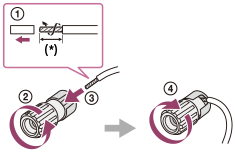
* Strip the jacket to 10 mm (13/32 in) at each end of the speaker cables.
Confirming active subwoofer setup
- When a subwoofer is connected, turn on the subwoofer and turn up the volume prior to activating the subwoofer. Turn the LEVEL to just before the mid-point.

- If you connect a subwoofer with a crossover frequency function, set the value to maximum.

- If you connect a subwoofer with an auto standby function, set it to off (deactivated). For details, refer to the operating instructions of the subwoofer.
Note
- Depending on the characteristics of the subwoofer you are using, the setup distance value may be different from the actual position.
2-channel sound mode/Multi channel stereo mode (2CH/MULTI)
- Direct (DIRECT):
- Presets the sound as it was recorded/encoded without adding any surround effects.
However, for USA and Canada models, this receiver will generate a low-frequency signal for output to the subwoofer when there is no LFE signals.
- Multi Channel Stereo (MULTI ST.):
- Outputs 2-channel left/right or monaural signals from all speakers. However, sound may not be output from certain speakers depending on the speaker settings.
- 2ch Stereo (2CH STEREO):
- The receiver outputs the sound from the front left/right speakers only. There is no sound from the subwoofer.
Standard 2-channel stereo sources completely bypass the sound field processing and multi-channel surround formats are downmixed to 2-channels.
Note
- [MULTI ST.] does not work when multi-channel audio signals are being received.
- Depending on the audio format, if you select [DIRECT] and play a 5.1ch source when surround speakers and two surround back speakers are connected, the same audio as that from surround speakers will be output from surround back speakers, similar to that of a 7.1ch surround system. The sound level of surround and surround back speakers are adjusted automatically for optimum balance.
Movie mode (MOVIE)
You can take advantage of surround sound simply by selecting one of the receiver’s pre-programmed sound fields. These bring the exciting and powerful sound of movie theaters into your home.
- HD-D.C.S.:
- HD Digital Cinema Sound (HD-D.C.S.) is Sony’s new innovative home theater technology using the latest acoustic and digital signal processing technologies. It is based on the precise response measurement data of a mastering studio.
With this mode, you can enjoy Blu-ray and DVD movies at home with not only a high-quality of sound but also the best sound ambience, just as the movie’s sound engineer intended in the mastering process.- Dynamic (DYNAMIC): This setting is suitable for an environment which is reverberant but lacks a spacious feel (where sound absorption is not sufficient). It emphasizes the reflection of sound and reproduces the sound of a large, classic movie theater. This emphasizes the spacious feel of a dubbing theater and creates a unique acoustic field.
- Theater (THEATER): This setting is suitable for a general living room. It reproduces the reverberation of sound just like in a movie theater (dubbing theater). It is most appropriate for watching content recorded on a Blu-ray Disc when you want the atmosphere of a movie theater.
- Studio (STUDIO): This setting is suitable for a living room with the appropriate sound devices. It reproduces the reverberation of sound provided when a theatrical sound source is remixed for a Blu-ray Disc to a volume level suitable for home use. The level of reflection and reverberation of sound is kept to a minimum, while dialogues and surround effects are reproduced vividly.
- PLll Movie (PLII MV):
- Performs Dolby Pro Logic II Movie mode decoding. This setting is ideal for movies encoded in Dolby Surround. In addition, this mode can reproduce sound in 5.1-channel format when watching videos of overdubbed or old movies.
- PLllx Movie (PLIIX MV):
- Performs Dolby Pro Logic IIx Movie mode decoding. This setting expands Dolby Pro Logic II Movie or Dolby Digital 5.1 to 7.1 discrete movie channels.
- Neo:6 Cinema (NEO6.CINEMA):
- Performs DTS Neo:6 Cinema mode decoding. Sources recorded in 2-channel format are enhanced up to 7 channels.
- Front Surround (FRONT SUR.):
- Generates virtual surround sound with only two front speakers.
Music mode (MUSIC)
You can take advantage of surround sound simply by selecting one of the receiver’s pre-programmed sound fields. These bring the exciting and powerful sound of concert halls into your home.
- Audio Enhancer (A. ENHANCER):
- Reproduces a clear enhanced sound from your portable audio device. This mode is ideal for MP3 and other compressed audio formats.
- Concert Hall (HALL):
- Reproduces the acoustics of a concert hall.
- Jazz Club (JAZZ):
- Reproduces the acoustics of a jazz club.
- Live Concert (CONCERT):
- Reproduces the acoustics of a 300-seat live house.
- Stadium (STADIUM):
- Reproduces the feel of a large open-air stadium.
- Sports (SPORTS):
- Reproduces the feel of sports broadcasting.
- PLll Music (PLII MS):
- Performs Dolby Pro Logic II Music mode decoding. This setting is ideal for normal stereo sources such as CDs.
- PLllx Music (PLIIX MS):
- Performs Dolby Pro Logic IIx Music mode decoding. This setting is ideal for normal stereo sources such as CDs.
- Neo:6 Music (NEO6.MUSIC):
- Performs DTS Neo:6 Music mode decoding. Sources recorded in 2-channel format are enhanced up to 7 channels. This setting is ideal for normal stereo sources such as CDs.
When listening with headphones
These sound fields are available if headphones are connected to the receiver.
- Headphone(2ch) (HP 2CH):
- This mode is selected automatically if you use headphones. Standard 2-channel stereo sources completely bypass the sound field processing and multi-channel surround formats are downmixed to 2 channels except LFE signals.
Checking the information of a connected BLUETOOTH device
You can check the BLUETOOTH device information by pressing DISPLAY repeatedly.
Each time you press DISPLAY, the display will change cyclically as follows:
BLUETOOTH device name - Sound field currently applied - Volume level - Input you are selecting
Menu list (on the display panel)
The following options are available in each menu.
Auto Calibration settings [<AUTO CAL>]
- Auto Calibration start [A.CAL START]
- Auto Calibration type [CAL TYPE] (*1)
FULL FLAT, ENGINEER, FRONT REF, OFF
Level settings [<LEVEL>]
- Test Tone [TEST TONE] (*2) OFF, AUTO XXX (*3)
- Front left speaker level [FL LEVEL ] (*2)
FL -10.0 dB to FL +10.0 dB (0.5 dB interval) - Front right speaker level [FR LEVEL] (*2)
FR -10.0 dB to FR +10.0 dB (0.5 dB interval) - Center speaker level [CNT LEVEL] (*2)
CNT -10.0 dB to CNT +10.0 dB (0.5 dB interval) - Surround left speaker level [SL LEVEL] (*2)
SL -10.0 dB to SL +10.0 dB (0.5 dB interval) - Surround right speaker level [SR LEVEL] (*2)
SR -10.0 dB to SR +10.0 dB (0.5 dB interval) - Surround back speaker level [SB LEVEL] (*2)
SB -10.0 dB to SB +10.0 dB (0.5 dB interval) - Surround back left speaker level [SBL LEVEL] (*2)
SBL -10.0 dB to SBL +10.0 dB (0.5 dB interval) - Surround back right speaker level [SBR LEVEL] (*2)
SBR -10.0 dB to SBR +10.0 dB (0.5 dB interval) - Front left high speaker level [LH LEVEL] (*2)
LH -10.0 dB to LH +10.0 dB (0.5 dB interval) - Front right high speaker level [RH LEVEL] (*2)
RH -10.0 dB to RH +10.0 dB (0.5 dB interval) - Subwoofer Level [SW LEVEL] (*2)
SW -10.0 dB to SW +10.0 dB (0.5 dB interval)
Speaker settings [<SPEAKER>]
- Speaker Pattern [SP PATTERN]
5/2.1 to 2/0 (20 patterns)
- Front speakers size [FRT SIZE] (*2)
LARGE, SMALL - Center speaker size [CNT SIZE] (*2)
LARGE, SMALL - Surround speakers size [SUR SIZE] (*2)
LARGE, SMALL - Front high speakers size [FH SIZE] (*2)
LARGE, SMALL - Surround back speakers assign [SB ASSIGN] (*4)
SPK B, BI-AMP, OFF - Front left speaker distance [FL DIST.] (*2)
FL 1.00 M to FL 10.00 M (FL 3’3” to FL 32’9”) (0.01 m (1 inch) interval) - Front right speaker distance [FR DIST.] (*2)
FR 1.00 M to FR 10.00 M (FR 3’3” to FR 32’9”) (0.01 m (1 inch) interval) - Center speaker distance [CNT DIST.] (*2)
CNT 1.00 M to CNT 10.00 M (CNT 3’3” to CNT 32’9”) (0.01 m (1 inch) interval) - Surround left speaker distance [SL DIST.] (*2)
SL 1.00 M to SL 10.00 M (SL 3’3” to SL 32’9”) (0.01 m (1 inch) interval) - Surround right speaker distance [SR DIST.] (*2)
SR 1.00 M to SR 10.00 M (SR 3’3” to SR 32’9”) (0.01 m (1 inch) interval) - Surround back speaker distance [SB DIST.] (*2)
SB 1.00 M to SB 10.00 M (SB 3’3” to SB 32’9”) (0.01 m (1 inch) interval) - Surround back left speaker distance [SBL DIST.] (*2)
SBL 1.00 M to SBL 10.00 M (SBL 3’3” to SBL 32’9”) (0.01 m (1 inch) interval) - Surround back right speaker distance [SBR DIST.] (*2)
SBR 1.00 M to SBR 10.00 M (SBR 3’3” to SBR 32’9”) (0.01 m (1 inch) interval) - Front left high speaker distance [LH DIST.] (*2)
LH 1.00 M to LH 10.00 M (LH 3’3” to LH 32’9”) (0.01 m (1 inch) interval) - Front right high speaker distance [RH DIST.] (*2)
RH 1.00 M to RH 10.00 M (RH 3’3” to RH 32’9”) (0.01 m (1 inch) interval) - Subwoofer distance [SW DIST.] (*2)
SW 1.00 M to SW 10.00 M (SW 3’3” to SW 32’9”) (0.01 m (1 inch) interval) - Distance unit [DIST. UNIT]
FEET, METER - Front speakers crossover
frequency [FRT CROSS] (*5)
CROSS 40 Hz to CROSS 200 Hz (10 Hz interval) - Center speaker crossover frequency [CNT CROSS] (*5)
CROSS 40 Hz to CROSS 200 Hz (10 Hz interval) - Surround speakers crossover frequency [SUR CROSS] (*5)
CROSS 40 Hz to CROSS 200 Hz (10 Hz interval) - Front high speakers crossover frequency [FH CROSS] (*5)
CROSS 40 Hz to CROSS 200 Hz (10 Hz interval)
Input settings [<INPUT>]
- Input Mode [INPUT MODE]
AUTO, OPT, COAX, ANALOG - Naming inputs [NAME IN]
For details, see “Changing the name for each input (NAME IN).” in Input Settings menu. - Digital audio input assignment [A. ASSIGN]
OPT, COAX, NONE
Surround settings [<SURROUND>]
- HD-D.C.S. effect type [HD-D.C.S. TYP] (*6)
DYNAMIC, THEATER, STUDIO
EQ settings [<EQ>]
- Front speakers bass level [BASS]
BASS -10 dB to BASS +10 dB (1 dB interval) - Front speakers treble level [TREBLE]
TREBLE -10 dB to TREBLE +10 dB (1 dB interval)
Tuner settings [<TUNER>]
- FM station receiving mode [FM MODE]
STEREO, MONO - Naming preset stations [NAME IN]
For details, see “Naming preset stations (NAME IN).”
Audio settings [<AUDIO>]
- Night Mode [NIGHT MODE]
NIGHT ON, NIGHT OFF - Synchronizes audio with video
output [A/V SYNC]
SYNC ON, SYNC OFF - Auto Volume [AUTO VOL]
A. VOL ON, A. VOL OFF - Digital broadcast language selection [DUAL MONO]
MAIN/SUB, MAIN, SUB - Dynamic range compressor [D. RANGE]
COMP. ON, COMP. AUTO, COMP. OFF
HDMI settings [<HDMI>]
- Control for HDMI [CTRL HDMI]
CTRL ON, CTRL OFF - Standby Link to TV [STBY LINK]
ON, AUTO, OFF - Standby Through [STBY THRU]
ON, AUTO, OFF - HDMI Audio Out [AUDIO OUT]
AMP, TV+AMP - HDMI Subwoofer Level [SW LEVEL]
SW AUTO, SW +10 dB, SW 0 dB - Signal Format [SIGNAL FMT.]
STANDARD, ENHANCED
BLUETOOTH settings [<BT>]
- BLUETOOTH Standby mode [BT STANDBY] (*7)
STBY ON, STBY OFF - BLUETOOTH AAC [BT AAC]
AAC ON, AAC OFF - BLUETOOTH Power [BT POWER]
BT ON, BT OFF
System settings [<SYSTEM>]
- Auto standby mode [AUTO STBY]
STBY ON, STBY OFF - Version display [VER. X.XXX] (*8)
*1 You can select this setting only when you have performed Auto Calibration and saved the settings.
*2 Some parameters or settings may not be available depending on the speaker pattern setting.
*3 XXX represents a speaker channel (FL, FR, CNT, SL, SR, SB, SBL, SBR, LH, RH, SW).
*4 You can only select this parameter if [SP PATTERN] is not set to a pattern with surround back and front high speakers.
*5 You can only select this parameter if the speaker is set to [SMALL].
*6 You can only select this parameter if you select [HD-D.C.S.] as the sound field.
*7 You can only select this parameter when a BLUETOOTH device is paired.
*8 X.XXX represents the version number.
