
You can organize multiple images in an album.
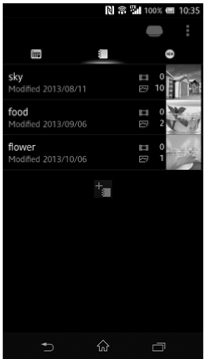
Android
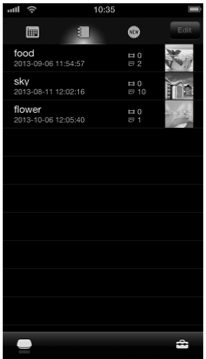
iOS
You can create an album in either way (A) or (B).
(A) Select images and organize them in an album
See Adding images to a newly created album (Android)/Adding images to a newly created album (iOS).
(B) Create an empty album and add images to it
-
Android
Tap
 (Album view) on the List screen.
iOS
Tap the [Edit] on the List screen, then tap [Add to Album].
The Album View is displayed.
- Enter an album name to [New Album] under the album list, then tap [OK].
The new album name is added to the album list.
- Add an image to the album.
After this, proceed to Adding images to an existing album (Android) / Adding images to an existing album (iOS).
Note
- The information about created albums will not be backed up.
- This function cannot be used when you have signed in to PCS in "Read-Only Access" mode.