
Getting Started
- How to use the remote control
- Connecting terminal
- How the LEDs light up
- Home menu
- Selecting inputs
- Performing acoustic auto calibration
- Accessibility features
How to use the remote control
Remote control buttons
The supplied remote control, button layout, button names and available features vary depending on your model/country/region.
Click a button on the image of the remote control to display a description.
 (Power)
- Turns on or switches to standby/networked standby mode.
- 电视
- Switch to a TV channel or input and display the TV menu. For details, refer to Using the TV menu page.
 (MIC)
(MIC)- Speak into here to use the microphone in the remote control. There is an LED above the microphone.
 (Quick Settings)
- Display Quick Settings. For details, refer to Using the Quick Settings page.
Hint
- You can use the convenient [Find remote] feature to find the remote control by pressing the power button on the TV. For details, refer to Finding the remote control (only models supplied with a buzzer built-in remote control).
 (Input select)
- Display and select the input source, etc. For details, refer to the Selecting inputs page.
- 选项
- Access functions from the onscreen menu.
 (Up) /
  (Down) /
  (Left) /
  (Right) /
  (Enter) (Navigation D-Pad)
- On screen menu navigation and selection.
 (BACK)
- Return to the previous screen.
 (HOME)
- Display the TV Home Menu. For details, refer to the Home menu page.
 +/- (Volume)
- Adjust the volume.
 (Microphone)
- Use voice search. (e.g. Search various content by voice.)
The microphone is at the top of the remote control.
For details, refer to the Using the remote control microphone page.  (Application's menu)
- Display the menu depending on the application.
 (Mute)
- Mute the sound. Press again to restore the sound.
Hint
- The accessibility shortcut service can be turned on or off by pressing and holding (Mute) for 3 seconds.
- The accessibility shortcut service can be turned on or off by pressing and holding
Select within the text to jump to the related settings screen.
How to mute the remote control operation sound
- Press the (Quick Settings) button on the remote control, and select the following in order to disable them.
[Settings] — [System] — [System sounds]
How to disable the remote control backlight. (only remote control that feature backlight)
You can turn off the remote control backlight.
- Press and hold the (Volume) - button and then (HOME) button on the remote control for 2 seconds.
Release when the MIC LED on the remote control lights up twice.
To enable the remote control backlight again, perform the procedure above.
About replacing the remote control battery
- Open the remote control cover as shown below.
- Remove the remote control cover and replace the batteries with new ones.
- Check that the orientation of each battery matches the positive (+) and negative (-) symbols in the battery compartment.
- Sliding type
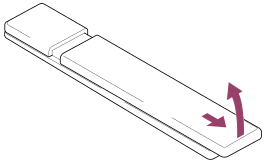
- Sliding type
Connecting terminal
Select within the text to jump to the related settings screen.
The types and shapes of connectors available vary depending on your TV.
For the location of the connectors, refer to the Setup Guide (printed manual).
The Setup Guide can also be downloaded from the Support Site.
| Terminal | Description |
|---|---|
 |
|
 |
|
 |
|
 |
|
 or   |
|
 |
|
 |
|

How the LEDs light up
Select within the text to jump to the related settings screen.
You can check the status of the TV by looking at how the LEDs light up.

- Operational response LED
Operational response LED
Turns “on” or “blinks” in white when the TV is turning on, when receiving signals from the remote control, or when updating the software using a USB storage device, or when the TV is off and the built-in MIC is used. The lighting pattern of this LED depends on the voice response status.
When [Built-in MIC] is enabled, it turns “on” in amber. (only TVs with a built-in MIC*)
* The built-in MIC may not be available depending on your region/model/language.
To disable the LED
Change the following settings.
Press the (Quick Settings) button on the remote control, then select [Settings] — [System] — [LED indicator], disable [Operational response].
Press the (Quick Settings) button on the remote control, then select [Settings] — [System] — [LED indicator], disable [Built-in MIC LED].
Home menu
The screen displayed when you press the (HOME) button on the remote control is called the Home Menu. From the Home Menu, you can search for content and select recommended content, apps, and settings.

Using Kids mode
Changing to Kids mode allows you set viewing restrictions for children.
Select 少儿 at the upper left of the screen to change to Kids mode.
Setting Parental controls
When children use the TV, parents can restrict the use of features as needed.
The following features are available, for example.
- Visual low fatigue
- Screen time
- Apps
Change to Kids mode from 少儿 the upper left of the screen, and open 家长中心 to configure settings. Follow the on-screen instructions.
Two or more users can be registered and configured individually.
Using Elder mode
Changing to Elder mode makes the screen display simpler for easy viewing.
Select 长辈 at the upper left of the screen to change to Elder mode.
Hint
- To view frequently used apps or “Help”, select “我的” or the profile icon.
- Screens and specifications may be subject to change without notice.
Selecting inputs
To use devices (such as a Blu-ray/DVD player or USB flash drive) connected to the TV, or to watch TV after such use, you will need to switch the input.
If you edit the items and add apps, you will be able to switch to those apps in the input selection screen.
- Press the (Input select) button repeatedly to select the connected device.
Alternatively, press the(Input select) button, use the (Left) / (Right) buttons to select a connected device, and then press the (Enter) button.
Note
- If there are no devices connected to an HDMI input, the HDMI input may not be displayed in the [Inputs].
To edit the input items
- Press the (Input select) button.
- Press the (Right) button and select
 (Edit).
 - Select the app/input/device you want to show or hide.
- Select [Close].
Hint
- To change the order or hide a displayed item, press the (Up) button on the remote control with that item highlighted, and [Move] and [Hide] will be displayed. If you select [Move], use (Left) / (Right) on the remote control to move the item to the desired position, and then press the (Enter) button on the remote control.
- You can switch to TV broadcasting by simply pressing the 电视 button on the remote control.
Performing acoustic auto calibration
Select within the text to jump to the related settings screen.
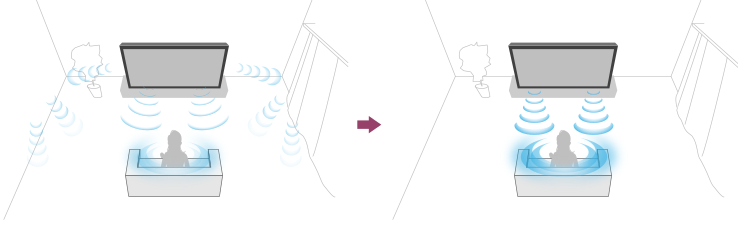
You can correct the audio to the best acoustics for your viewing environment by using the remote control microphone to measure a test sound from the TV. (This setting may not be available depending on the model.)
Models that support acoustic auto calibration have the following setting.
[Settings] — [Display & Sound] — [Ambient Optimisation Pro] — [Acoustic auto calibration]
Note
- Calibration effects will vary depending on your watching environment.
- A loud test sound will be played from the TV during measurement.
- Do not block the microphone opening at the end of the remote control during measurement.
- Do not move the remote control during measurement. Doing so may result in incorrect measurement.
- Perform the calibration when your surroundings are quiet. Noise may result in incorrect measurement.
- Acoustic auto calibration cannot be performed if you are using a sound bar. Change the following setting.
[Settings] — [Display & Sound] — [Audio output] — [Speakers] — [TV speakers]
- Press the (Quick Settings) button on the remote control, then select the following settings.
[Settings] — [Display & Sound] — [Ambient Optimisation Pro] — [Acoustic auto calibration] — [Calibration setup] - Measure by following the on-screen instructions.
The acoustics will be corrected automatically based on the measurement results of your watching environment.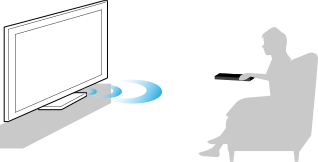
Hint
Acoustic auto calibration may fail in the following cases.
- If the remote control is moved during measurement
- If there are sounds other than the test sound (such as noise) during measurement
Accessibility features
Select within the text to jump to the related settings screen.
This TV has accessibility features in [Accessibility] such as a text-to-speech function for on-screen text, zooming to make text easier to read, and subtitles.
Note
- Some features do not apply depending on your model/region/country.
Press the (Quick Settings) button on the remote control, then select [Settings] — [System] — [Accessibility] to configure the user assistive features.
[Accessibility] has a shortcut function so you can turn it on or off by pressing and holding the (Mute) button on the remote control for 3 seconds.
Hint
- To change the shortcut function, select [Accessibility shortcut] in [Accessibility], enable [Enable accessibility shortcut], and change the function in [Shortcut service].
- To use text-to-speech with the Help Guide, view the Help Guide from the Sony support website using a computer or smartphone.
- For more information about accessibility, please visit the Sony support website.
http://service.sony.com.cn/TV/index.htm

http://service.sony.com.cn/TV/index.htm
Useful features
- Searching for content/operating the TV with your voice
- Selecting the Content type based on the current content
- Game Menu
- Finding the remote control (only models supplied with a buzzer built-in remote control)
- Using the Camera and Microphone Unit
Searching for content/operating the TV with your voice
- Using the remote control microphone This feature is available for TVs in which the included remote control has a MIC button.
- Using the built-in MIC on the TV (only TVs with a built-in MIC)
Using the remote control microphone
Remote controls that support voice control have a MIC button, and a built-in microphone. By speaking into the microphone, you can search for various content.
- Press and hold the MIC button on your remote control.
The microphone on the remote control will be activated while the button is pressed, and the LED on the remote control will light up.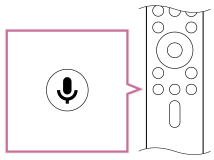
- Speak into the microphone while pressing and holding the MIC button.
Speech examples may be displayed depending on your model.
Search results are displayed when you speak into the microphone.
Hint
- If you press the MIC button on the remote control and say “你能干什么” or “语音说明”, information about how to speak and available voice commands will be displayed.
Note
- An Internet connection is required to use voice search.
- The type of remote control supplied with the TV, and the availability of a remote control with a built-in microphone varies depending on your model/region/country. An optional remote control is available in some models/regions/countries.
To use the built-in MIC, you may need to update the TV's software.
Using the built-in MIC on the TV (only TVs with a built-in MIC)
The built-in MIC on the TV may not be available depending on your region/country/language.
To use the built-in MIC, you may need to update the TV's software.
Select within the text to jump to the related settings screen.
Do more on your TV using only your voice. Just start with “小微小微” to:
- Control your TV and smart home devices
- Enjoy music and entertainment
- Get answers
- Plan your day and manage tasks
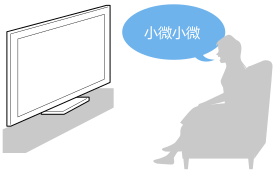
Face the TV and say, “小微小微”.
When the LED blinks , start speaking.
- The LED located at the bottom centre of the TV lights up amber when hands-free operation is available.
To use the built-in MIC, enable the following setting.
- Press the (Quick Settings) button, select [Settings] — [System] — [Voice Assistant] — [Built-in MIC].
Note
- An Internet connection is required to use the TV's built-in MIC.
- Power consumption will increase when the built-in MIC is enabled as it is always listening.
Hint
- When the built-in MIC switch on the TV is enabled, the Operational response LED lights up in amber even when the TV is turned off (you can also set it so it does not light up).
- With the TV's built-in MIC enabled, you can say “小微小微, Where is the remote control?” to the TV to play a buzzer from the remote control. This is useful when you cannot find the remote control. For details, refer to Finding the remote control (only models supplied with a buzzer built-in remote control).
- While facing the TV, say “小微小微”, and then say the following words. Information about how to speak and available voice commands will be displayed.
- 你能干什么
- 语音说明
Selecting the Content type based on the current content
Select within the text to jump to the related settings screen.
By selecting the Content type based on what you are watching, you can enjoy richer picture and sound quality.
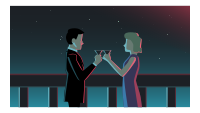 Video | 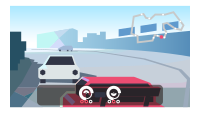 Game |  PC |
- Press the (Quick Settings) button on the remote control, and then select the following in order.
[Settings] — [Display & Sound] — [Picture & Sound] — [Content type]
You can change the following settings.
- Video/Images
- Applies picture and sound quality suitable for watching video and still images.
- Game
- Applies picture and sound quality suitable for video games, PC games, and app game images.
- PC
- Applies picture and sound quality suitable for video input from a PC.
Note
- This is setting may not be available depending on the input.
Game Menu
If you press the 选项 button after connecting a game console or computer, or after starting a game app, the game-specific menu is displayed at the bottom of the screen.
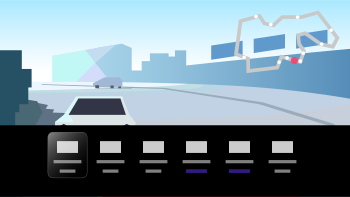
Hint
- Depending on the game console or computer you connect, or the game app you launch, the [Content type] may automatically change to [Game]. If [Game] is not selected automatically, set it manually.
Note
- The available options may vary.
- Unsupported options are greyed out (not available).
Finding the remote control (only models supplied with a buzzer built-in remote control)
The remote control supplied with the TV has a feature that allows you to find the remote control by playing a sound from a built-in buzzer when you cannot find it, such as when you do not remember where you left it (for example, under a cushion or hidden under a newspaper), or when you are watching a movie in a dark room.
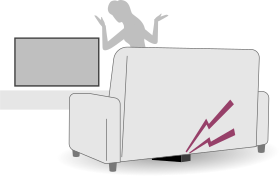
Use the following procedures to find the remote control.
Using the power button on the TV
- Press the power button on the TV.
A menu is displayed on the TV screen. - Follow the on-screen instructions and select [Find remote] on the displayed menu.
A buzzer plays from the remote control.
Using the built-in MIC on the TV (only TV's with a built-in MIC)
To use the built-in MIC, you may need to update the TV's software.
- With the TV's built-in MIC enabled, say “小微小微, Where is the remote control?” to the TV.
A buzzer plays from the remote control.
Note
- The [Find remote] option, which is displayed by pressing the power button on the TV, is only displayed when a remote control with a built-in buzzer is paired with the TV.
- To find a remote control using the TV's built-in MIC, the TV must be on.
- There is a limit to the distance you can search for the remote control from your TV. The buzzer cannot be played by the remote control in places where the signals do not reach.
Using the Camera and Microphone Unit
Select within the text to jump to the related settings screen.
You can connect the Camera and Microphone Unit (CMU-BC1M) that comes with the TV (included model only) or Camera and Microphone Unit (CMU-BC1) sold separately to the TV to enjoy video chat or set the optimum image and sound quality for the user's viewing position.
For details on how to attach Camera and Microphone Unit (CMU-BC1) sold separately, refer to the Setup Guide or Instruction Manual included with Camera and Microphone Unit (CMU-BC1).
Attaching and removing the Camera and Microphone Unit (CMU-BC1M) (included model only)
Attaching
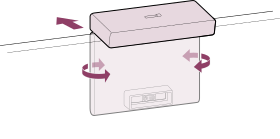
Attach the supplied Camera and Microphone Unit to the Camera port on the back of the TV. You can adjust the angle and vertical position of the Camera and Microphone Unit.

Removing
To easily remove the supplied Camera and Microphone Unit, twist it slightly as shown in the figure below.
Note
- You may need to update the TV software to use the features of the Camera and Microphone Unit. Please update if a software update notification is displayed.
Setting the Camera sensing functions
Note
- Some settings cannot be set depending on the model.
Configure settings related to the sensor of the Camera and Microphone Unit.
- Press the (Quick Settings) button on the remote control, and select in the following order.
[Settings] — [Remotes and accessories] — [BRAVIA CAM] — the desired item
Available settings
- [Auto adjust picture and sound with camera] (only the applicable models)
- Optimises the picture and sound of the TV speaker according to the viewing position and environment detected by the camera.
- Adjust according to viewing position
- [Brightness]
- Automatically adjusts the brightness according to the viewing distance to make colours more visible.
- [Voice emphasis]
- Automatically adjusts the volume according to the viewing distance. If you are far from the TV, the sound is made more audible.
- [Sound balance]
- Adjusts the balance so it sounds as if you are viewing from the front of the TV even if you are actually not.
- [Auto adjust picture and sound according to viewing position] (only the applicable models)
- [Brightness]
- Automatically adjusts the brightness according to the viewing distance to make colours more visible.
- [Voice emphasis]
- Automatically adjusts the volume according to the viewing distance. If you are far from the TV, the sound is made more audible.
- [Sound balance]
- Adjusts the balance so it sounds as if you are viewing from the front of the TV even if you are actually not.
- [Gesture Control]
- Allows use of gestures in front of the TV to turn the TV off, adjust the volume, change the channel, or play back content.
- [Proximity Alert]
- Notifies you if the TV viewing distance is too close.
You must input your PIN to enable this feature. When enabled, it will be set at 1 m (3 ft.) (default). You can select [Set distance] to set any distance. - [Auto power saving mode]
- Automatically switches to power saving, such as reduced brightness, when a user is not detected in front of the TV for a certain period of time.
Hint
[BRAVIA CAM] in the Camera and Microphone Unit has features available in addition to Camera sensing functions. Configure them as necessary.
- With Camera sensing functions, camera images are not sent to the network, you can erase the data collected by the Camera and Microphone Unit and reset Camera sensing functions.
[Settings] — [Remotes and accessories] — [BRAVIA CAM] — [Clear data] - To turn off the Camera and Microphone Unit LED, disable the following setting.
[Settings] — [Remotes and accessories] — [BRAVIA CAM] — [Camera activity LED]
The LED will always turn on during video chat or while updating the Camera and Microphone Unit. - Updating the software of the Camera and Microphone Unit may be required. To check for software updates, select the following in order.
[Settings] — [Remotes and accessories] — [BRAVIA CAM] — [Software update]
Watching TV
- Watching TV programmes
- Useful features when watching TV
- Adjusting the picture/screen/sound quality to your preferences
Watching TV programmes
- Understanding the information banner icons
- Using the programme guide
- Using the TV menu
Understanding the information banner icons
When changing the channel, an information banner appears briefly. The following icons may appear in the banner.
 :
:- Data service (Broadcast application)
 :
:- Radio service
 :
:- Scrambled/Subscription service
 :
:- Multilingual audio available
 :
:- Subtitles available
 :
:- Subtitles and/or audio available for the hearing impaired
 :
:- Recommended minimum age for current programme (from 3 to 18 years)
 :
:- Audio available for the visually impaired
 :
:- Spoken subtitle audio available
 :
:- Multi-channel audio available
Using the programme guide
You can quickly find your preferred programmes.
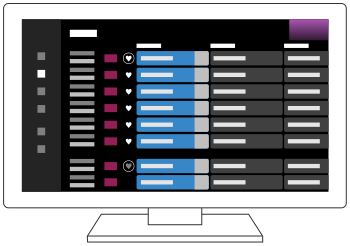
The functions available depend on your region/country/settings.
- Press the 电视 button while watching a TV broadcast.
The TV menu is displayed at the bottom of the screen. - Press the (Up) button on the remote control, and select
 (Programme Guide).
Programme guide is displayed. - Select a programme to watch.
Using the [Favourites] feature
To add a channel to [Favourites], select  (Favourites) in the programme guide. If you select (Favourites) in the [Guide] column that is displayed by repeatedly pressing the (Left) button on the remote control, the channels registered in [Favourites] and your [Most watched] will be displayed in the programme guide.
Filtering the channels displayed in the programme guide
You can set conditions to filter the channels displayed in the programme guide. While the programme guide is displayed, repeatedly press the (Left) button on the remote control to display the filter and set the conditions.
(This function is available only in limited region/country/settings.)
Hint
- (TV box control compatible models only) If you perform the [TV box control setup] setting in [TV box setup] under [External inputs], you can display the programme guide of the TV box.
- You can change the channels listed in the programme guide by using [Guide], which is displayed by pressing the (Left) button on the remote control several times.
- With [Duration], you can change the time axis displayed in the programme guide from two hours to four hours. You can set [Duration] from [Settings] in the [Guide] column on the left side of the programme guide.
Using the TV menu
Select within the text to jump to the related settings screen.
Press the 电视 button while watching a TV broadcast to display the [TV menu]. A channel list is displayed in [TV menu] and you can easily select programmes on other channels while watching TV.

Note
- The displayed screen and menus may vary depending on what you are watching and your model/country/region.
- Press the 电视 button while watching a TV broadcast.
The TV menu is displayed at the bottom of the screen. - Move the focus left or right and select the programme you want to watch.
Hint
- You can use the following features if you press (Up) on the remote control while [TV menu] is displayed.
- (Guide): Display the programme guide
- Change the displayed channel list
- If you configured a TV box in the initial setup, you can press the 电视 button to display the channel list of the TV box.
TV box control compatible models have [TV box setup] in [Settings] — [Channels & Inputs] — [External inputs].
Useful features when watching TV
- Timers
- Use a timer to turn the TV on and off.
For details, refer to Timers & Clock. - Picture quality/sound quality adjustment
- Adjust the picture quality and sound quality according to your preferences.
For details, refer to Display & Sound.
Adjusting the picture/screen/sound quality to your preferences
- Adjusting the picture quality
- Adjusting the screen
- Adjusting the sound quality
- Advanced auto volume
- Balance
- Adjusting the picture/sound quality automatically
Adjusting the picture quality
Select within the text to jump to the related settings screen.
You can configure various settings related to the TV display such as colour and brightness for picture quality, or screen size.
Note
- The actual display may vary or some settings may not be available depending on your model/country/region and the content you are watching.
 |  |  |
Press the (Quick Settings) button on the remote control, then select [Settings] — [Display & Sound] — [Picture & Sound] — the desired option.
You can change the following settings.
You can set the picture quality according to the [Content type].
For details, refer to Selecting the Content type based on the current content.
Picture
Adjust the picture settings such as Brightness, Colour, and Hue.
- Basic
- You can set the following.
- Picture mode
- Change the picture quality according to the content you are watching such as movies.
- Reset picture settings for ***
- Reset the picture settings for the current picture mode to the factory default.
- *** calibrated mode
- Adjusts the picture to a quality close to that intended by the content creator when watching supported video streaming content and supported apps.
- Brightness
- Adjust the backlight to display the brightest whites and deepest blacks.
- Colour
- Adjust the colour saturation level and Hue.
- Advanced colour adjustment (***)
- You can set the following.
- Adv. colour temperature: Basic
- Finely adjust the colour temperature for each colour.
- Adv. colour temperature: Multi point (***p)
- Professional calibrator settings. When adjusting, we recommend using a colour analyser.
- Per colour adjustment
- Adjust Hue, Saturation, and Lightness for each colour.
- Clarity
- Adjust the picture clarity and reduce roughness.
- Motion
- You can set the following.
- Motionflow
- Refines moving images. Increases the number of image frames to display videos smoothly. If you select [Custom], you can adjust [Smoothness (Camera)], [Smoothness (Film)] and [Clearness].
- Film mode
- Optimises picture quality based on video content, such as movies and computer graphics. Smoothly reproduces the motion of filmed images (images recorded at 24 frames per second) such as movies.
- Motion blur reduction
- Adjustment is similar to that of [Clearness] in [Motionflow].
Note
- When [Content type] is set to [Game], [Motion blur reduction] is enabled, and [Motionflow] and [Film mode] are disabled.
- Video signal
- You can set the following.
- Colour space
- Change the colour reproduction range.
- HDR mode
- Picture that is suitable for a High Dynamic Range signal.
Hint
- Detailed information on input signals for broadcasts and external inputs can be displayed.
Press the 选项 button on the remote control while a broadcast or external input video is displayed, and select [Detailed signal info] from the menu that is displayed at the bottom of the screen.
Detailed information on the input signal (such as resolution, scanning method, and frequency) is displayed. The detailed information that is displayed depends on the input signal.
To close the display, press the(BACK) button on the remote control.
Note
- Detailed information is only available for broadcasts and external inputs.
- Detailed information may not be displayed based on the settings.
Adjusting the screen
You can adjust the horizontal to vertical ratio of the screen and the display area.
- While a broadcast or HDMI input image is displayed, press the 选项 button on the remote control.
- Set from the menu displayed at the bottom of the screen.
You can change the following main settings.
- Wide mode
- You can change the screen size to fit the video.
You can watch in the optimal screen mode. - Display area
- You can change the display area.
Hint
- When 4096 × 2160p is input and [Wide mode] is set to [Vertical fit], the resolution is displayed as 3840 × 2160p. To display 4096 × 2160p, set [Wide mode] setting to [Horizontal fit], [Auto] or [Full].
Adjusting the sound quality
Select within the text to jump to the related settings screen.
You can configure various settings related to the TV’s sound such as sound quality and sound mode.
Note
- The actual display may vary or some settings may not be available depending on your model/country/region, TV settings, and the connected device.
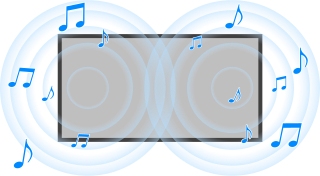
Press the (Quick Settings) button on the remote control, then select [Settings] — [Display & Sound] — [Picture & Sound] — the desired option.
You can change the following settings.
Sound (***)
Adjust audio from the TV speakers, audio output to an audio system connected via HDMI or optical audio output, or audio output to wired headphones or Bluetooth-connected devices.
- Sound settings
- You can change the following settings.
- Surround
- Virtually reproduce realistic surround sound.
- Surround effect
- Adjust the surround sound effect.
- Voice Zoom
- Emphasise voice.
Displayed when [Post-processing] is set to [Standard]. - Dialogue enhancer
- Enhance voices when [Post-processing] is set to [Dolby Audio processing].
- Equaliser
- Adjust sound based on different frequencies.
- Reset
- Return all sound settings to factory default.
- 3D surround (***)
- Enables or disables 3D surround (stereophonic sound).
- Volume settings
- You can change the following settings.
- Balance
- Adjust the speaker balance.
For details, refer to Balance. - Beam tweeter volume
- Adjusts the volume of sound reflected from the ceiling.
- Advanced auto volume
- Keeps the volume level consistent for all programmes and inputs.
For details, refer to Advanced auto volume. - Dolby AC-4 Dialogue level
- Adjusts dynamic range of Dolby AC 4 signal.
- Dynamic range settings
- You can change the following settings.
- Dynamic range
- Compensates for audio level difference between input sources (for Dolby Digital audio and HE AAC audio).
Displayed only when [Inputs] is HDMI or during [Media Player] playback. - DTS Dynamic range
- Adjusts dynamic range of DTS signal.
- General
- You can change the following settings.
- Post-processing
- Select [Standard] (Sony) or audio processed by Dolby technology.
Adjust only for ***
When [On], the picture and sound quality is adjusted for the currently selected video input or app. When [Off], the picture and sound quality is adjusted for all inputs and apps.
Prioritise HDMI signal information
Automatically sets the content type based on the Content Type information in the HDMI signal. If it does not set automatically, set this to [Off].
Audio output
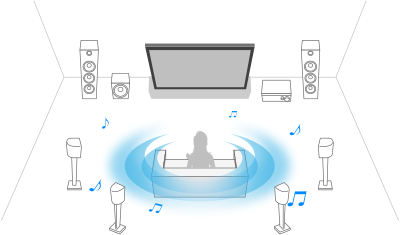
Configure to output sound from headphones or an audio system instead of the TV speakers.
Press the (Quick Settings) button on the remote control, then select the following settings.
[Settings] — [Display & Sound] — [Audio output] the desired setting.
You can configure settings such as those below.
- Speakers
- Select TV or external speakers.
- Bluetooth device
- Select Bluetooth device connected to the TV to output audio.
- Audio system settings
- Sets output to devices connected via HDMI.
- Acoustic Center Sync
- Use the TV speakers as the centre speaker of the home theatre system.
For details, refer to Using the TV as a centre speaker. - Audio system prioritisation
- When enabled, this automatically switches the audio output to a BRAVIA Sync-compatible audio system when the TV is turned on.
- A/V sync
- Adjusts output timing to reduce delay between video and audio when using certain audio systems connected via HDMI.
- Digital audio output
- Configure the output method when outputting digital audio. This setting is available only when [Speakers] is set to [Audio system].
Hint
- There is less deterioration and noise from signal transmission, and the sound quality is superior compared to analogue connections.
- eARC setting
- If [Auto] is selected, high quality audio is output when an eARC supported device is connected to an HDMI port labelled “eARC/ARC”.
eARC is an enhanced version of ARC and stands for Enhanced Audio Return Channel. By connecting an eARC supported device, you can enjoy uncompressed, high-quality audio formats and newer surround audio formats in addition to the audio formats supported by ARC. For supported audio formats, refer to Audio formats.
To connect the TV and an eARC supported device, use an eARC-supporting HDMI cable*. To connect an eARC supported device, refer to Connecting an audio system.
* An authorised Premium High Speed HDMI™ Cable(s) is recommended. - Bluetooth device settings
- Settings for devices connected via Bluetooth.
- A/V sync
- When using a Bluetooth audio device (A2DP supported), the output timing is adjusted to minimise the delay between video and audio.
- Bluetooth settings
- Enables/disables Bluetooth.
For details, refer to Remotes and accessories. - 3D surround device settings
- Virtually reproduce realistic surround sound.
For details, refer to Remotes and accessories. - Optical digital audio output settings
- Enables optical digital audio output, and configures the output.
- Optical digital audio output
- Outputs the audio signal to the device connected to the optical digital audio output terminal.
- Digital audio output
- Configure the output method when outputting digital audio. This setting is available only when [Speakers] is set to [Audio system].
Hint
- There is less deterioration and noise from signal transmission, and the sound quality is superior compared to analogue connections.
- Optical digital audio output volume
- Adjusts the digital audio output level. Only valid for the PCM sound source. The volume levels between the PCM sound source and the compressed sound source will differ.
Advanced auto volume
Select within the text to jump to the related settings screen.
If [Speakers] is set to [TV speakers], the volume can be automatically adjusted to a certain level according to changes in the volume level of broadcasts and input signals.
Reducing the volume difference that occurs when switching channels or inputs allows you to watch at a constant volume level. To enable this feature, press the (Quick Settings) button on the remote control, then select the following settings.
[Settings] — [Display & Sound] — [Picture & Sound] — [Sound (***)] — [Advanced auto volume]
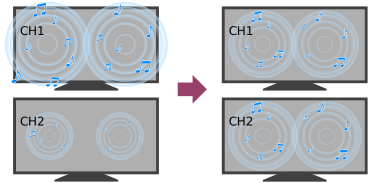
Note
- The effect varies depending on your model/country/region, settings, broadcast, and input signal.
Balance
Select within the text to jump to the related settings screen.
If [Speakers] is set to [TV speakers], the balance of the left and right sound can be adjusted.
Due to the distance to walls and windows and the reflection of sound, you may hear the left and right sound become unbalanced. To adjust the sound balance, press the (Quick Settings) button on the remote control, then select the following settings.
[Settings] — [Display & Sound] — [Picture & Sound] — [Sound (***)] — [Balance]
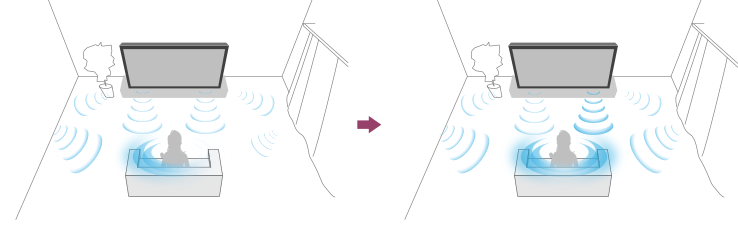
Note
- The effect varies depending on your model/country/region, settings, and installation environment.
Adjusting the picture/sound quality automatically
Select within the text to jump to the related settings screen.
The picture and sound quality can be automatically adjusted according to the TV's installation environment.
Note
- Depending on the model, what you are watching, the TV settings, and connected devices, the actual screen may differ or some settings may not be available.
| | |
| ||
Press the (Quick Settings) button on the remote control, then select the following settings.
[Settings] — [Display & Sound] — [Ambient Optimisation Pro]
You can change the following settings.
Auto adjust according to sensors
You can set the following.
- Auto adjust according to ambient light
- Optimises picture brightness or colour* automatically by sensing the luminance of ambient light.
* The color adjustment is only available for compatible models. - Auto adjust according to viewing position (only the applicable models)
- Optimises picture and sound according to the viewing position detected by the camera.
Auto adjust according to installation environment
You can set the following.
- Acoustic auto calibration
- Adjust audio output based on your viewing environment.
For details, refer to Performing acoustic auto calibration.
Using the TV with Other Devices
- USB devices
- TV box, Blu-ray and DVD players
- Computers, cameras, and camcorders
- Audio system (such as an AV receiver or sound bar)
- Video game consoles
- Experiencing 3D surround with a neckband speaker or headphones
- Bluetooth devices
- Adjusting the AV sync setting
- BRAVIA Sync-compatible devices
- Viewing pictures in 4K from compatible devices
- BRAVIA Connectivity Guide
- Supported files and formats
USB devices
- Playing content stored on a USB device
- Information about USB devices used for storing photos and music
Playing content stored on a USB device
Connecting a USB device
Connect a USB storage device to the USB port of the TV to enjoy photo, music, and video files stored on the device.
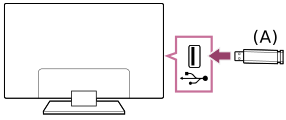
- USB storage device
Enjoy photos/music/movies stored on a USB device
You can enjoy photos/music/movies stored on a USB device on the TV screen.
- If the USB device connected to the TV has a power switch, turn it on.
- Press the (HOME) button, and select 我的 from the Home menu, then select [Media Player].
- Select the USB device name.
- Select the folder, and select the file to play.
To check the supported file formats
- Supported files and formats
Note
- Some photo images or folders take time to display depending on the image dimension, file size, and number of files in a folder.
- Displaying the USB device may take some time because the TV accesses the USB device every time the USB device is connected.
- All USB ports on the TV support Hi-Speed USB. The blue USB port supports SuperSpeed (USB 3.2 Gen 1, USB 3.1 Gen 1 or USB 3.0). USB hubs are not supported.
- While accessing the USB device, do not turn off the TV or USB device, do not disconnect the USB cable, and do not remove or insert recording media. Otherwise, data stored on the USB device may be corrupted.
- Depending on the file, playback may not be possible, even when using the supported formats.
- To enjoy photos, you may need to update the TV's software.
Hint
- For other information, see “Frequently Asked Questions” on the Sony Support Site.
Frequently Asked Questions for Troubleshooting
Information about USB devices used for storing photos and music
- The USB ports on the TV support FAT16, FAT32, exFAT, and NTFS file systems.
- When connecting a Sony digital still camera to the TV with a USB cable, USB connection settings on your camera need to be set to “Auto” or “Mass Storage” mode.
- If your digital still camera does not work with your TV, try the following:
- Set the USB connection settings on your camera to “Mass Storage”.
- Copy the files from the camera to a USB flash drive, then connect the drive to the TV.
- Some photos and movies may be magnified, resulting in low picture quality. Depending on the size and aspect ratio, images may not be displayed in full screen.
- It may take a while to display a photo, depending on the file and/or settings.
- In no event shall Sony be liable for recording failure or any damage or loss of recorded contents caused or associated with the TV’s malfunction, the USB device’s malfunction, or any other problem.
TV box, Blu-ray and DVD players
- Connecting a TV box, Blu-ray or DVD player
- Watching Blu-ray and DVD discs
- How to control the TV box using the TV remote control
Connecting a TV box, Blu-ray or DVD player
Connect a TV box, Blu-ray/DVD player to the TV.
Use a connection method below based on the terminals available on your TV.
Note
- The available terminals depend your model/region/country.
HDMI connection
For optimum picture quality, we recommend connecting your player to the TV using an HDMI cable. If your Blu-ray/DVD player has an HDMI jack (socket), connect it using an HDMI cable.
To connect an audio system or sound bar at the same time, refer to HDMI connection (eARC supported) in Connecting an audio system.
To adjust the video and audio output timing, refer to Adjusting the AV sync setting.
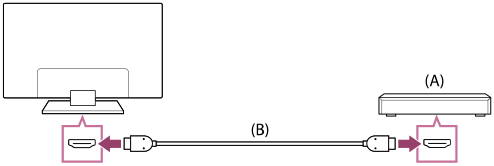
- Blu-ray/DVD player (same as connecting a TV box)
- HDMI cable (not supplied)*
* Be sure to use an authorised Premium High Speed HDMI™ Cable(s) bearing the HDMI logo.
Watching Blu-ray and DVD discs
You can watch content from Blu-ray/DVD discs or other content supported by your player on the TV.
- Turn on the connected Blu-ray/DVD player.
- Press the (Input select) button repeatedly to select the connected Blu-ray/DVD player.
- Start playback on the connected Blu-ray/DVD player.
Hint
- If you connect a BRAVIA Sync-compatible device with an HDMI connection, you can operate it by simply using the TV’s remote control. Also, if you press 选项 on the remote control while watching content from the HDMI input, select [*** controls], you can operate the BRAVIA Sync-connected device from the TV screen.
How to control the TV box using the TV remote control
Select within the text to jump to the related settings screen.
TV box control compatible models have [TV box setup] in [Settings] — [Channels & Inputs] — [External inputs].
Performing [TV box control setup] in [TV box setup] allows you to control a TV box using the TV’s remote control.
- Press the (Quick Settings) button on the remote control, then select [Settings] — [Channels & Inputs] — [External inputs] — [TV box setup] — [TV box control setup].
- Follow the on-screen instructions.
Note
- When operating the TV’s remote control, point it at the TV box.
- Depending on the external devices, some buttons may not respond.
- If you press and hold a button on the remote control, the operation may not work. Instead, try pressing the button repeatedly.
- The availability of this function depends on your model/region/country.
Computers, cameras, and camcorders
- Connecting a computer and viewing stored content
- Connecting a camera or camcorder and viewing stored content
Connecting a computer and viewing stored content
To connect a computer
Use an HDMI cable to connect your computer to the TV.
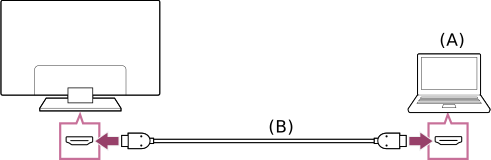
- Computer
- HDMI cable (not supplied)*
* Be sure to use an authorised Premium High Speed HDMI™ Cable(s) bearing the HDMI logo. We recommend an authorised Ultra High Speed HDMI™ Cable when connecting to a computer that supports 4K 120Hz.
To view content stored on a computer
After connecting the computer, press the (Input select) button, then select the input the computer is connected to.
To check the supported file formats
- Supported files and formats
Note
- For optimum picture quality, we recommend that you set your computer to output video signals according to one of the timings listed in “Computer video signal specifications”.
- Depending on the connection status, the image may be blurred or smeared. In this case, change the computer’s settings and select another input signal from the “Computer video signal specifications” list.
Hint
- For supported PC input signals, refer to Support Site.
Connecting a camera or camcorder and viewing stored content
To connect a camera or camcorder
Connect your Sony digital still camera or camcorder using an HDMI cable. Use a cable that has an HDMI mini jack (socket) for the digital still camera/camcorder end, and a standard HDMI jack (socket) for the TV end.
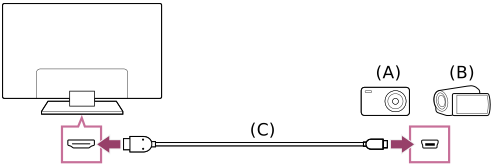
- Digital still camera
- Camcorder
- HDMI cable (not supplied)*
* Be sure to use an authorised Premium High Speed HDMI™ Cable(s) bearing the HDMI logo.
To view content stored on a digital still camera/camcorder
- After connecting the digital still camera/camcorder, turn it on.
- Press the (Input select) button repeatedly to select the connected digital still camera/camcorder.
- Start playback on the connected digital still camera/camcorder.
To check the supported file formats
- Supported files and formats
Hint
- If you connect a BRAVIA Sync-compatible device, you can operate it by simply using the TV’s remote control. Make sure that the device is BRAVIA Sync-compatible. Some devices may not be compatible with BRAVIA Sync even though they have an HDMI jack (socket).
Audio system (such as an AV receiver or sound bar)
- Outputting audio from an audio system
- Connecting an audio system
- Adjusting an audio system
- Using the TV as a centre speaker
- Audio formats
- Accessing audio system settings
Outputting audio from an audio system
You can connect audio systems such as AV receivers or sound bars to the TV. Select a connection method below according to the specifications of the audio system you want to connect.
- Connecting with an HDMI cable (For details, carefully read “Connection using an HDMI cable” below.)
- Connecting with a digital optical cable
For connection methods, refer to the Connecting an audio system page.
Note
- Refer to the instruction manual of the device to be connected.
Connection using an HDMI cable
This TV supports Audio Return Channel (ARC) or Enhanced Audio Return Channel (eARC). You can use an HDMI cable to output audio from audio systems that support ARC and eARC.
On TVs that support eARC, you can output (pass-through) audio signals from external input devices connected to the TV to eARC supported audio systems by using the HDMI terminal bearing the text “eARC/ARC”.
For connection methods, refer to the Connecting an audio system page.
Note
- The location of the HDMI terminal that supports eARC/ARC varies depending on the model. Refer to the included Setup Guide.
Connecting an audio system
Select within the text to jump to the related settings screen.
See the illustrations below to connect an audio system such as an AV receiver or sound bar.
Note
- The available terminals depend your model/region/country.
Sound bar connection
We recommend connecting the TV's HDMI input terminal (eARC or ARC) to the sound bar's HDMI output terminal (eARC or ARC) with an HDMI cable.
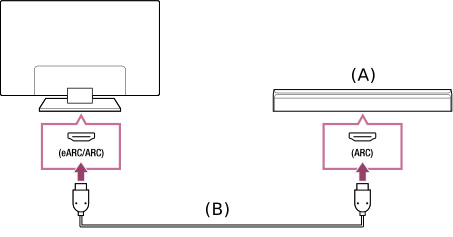
- Sound bar
- HDMI cable (not supplied)*
* We recommend an authorised Premium High Speed HDMI™ Cable(s).
To connect a sound bar via HDMI, see “HDMI connection”.
If you connect the TV to a sound bar via HDMI, you can use the following features.
- Link the power state of the sound bar and TV
- Display and configure the sound bar settings on the TV
Note
- The available functions depend on the sound bar.
- Depending on the sound bar, “eARC” or “ARC” may not be indicated on the HDMI terminal. For details on how to connect, refer to the sound bar manual.
Hint
There may be three tactile dots, next to the HDMI input terminal depending on your model. Use them as a guide during installation.
Audio amp connection
We recommend connecting the TV's HDMI input terminal (eARC or ARC) to the sound bar's HDMI output terminal (eARC or ARC) via HDMI. Depending on your audio system, you can also connect with a digital optical cable.

- Audio amp
- HDMI cable (not supplied)*
- Digital optical cable (not supplied)
- Digital audio connector adapter (only supplied with compatible models)
* We recommend an authorised Premium High Speed HDMI™ Cable(s).
To connect an audio amp via HDMI, see “HDMI connection”. To connect an audio amp with a digital optical cable, see “Digital optical cable connection”.
Note
- ALWAYS keep small accessories out of the reach of children, so that they are not mistakenly swallowed.
HDMI connection (eARC supported)
- Connect the external input device and TV with an HDMI cable. Connect the TV and audio system with another HDMI cable.
Connect the audio system to the TV’s HDMI input terminal bearing the text “ARC” or “eARC/ARC”.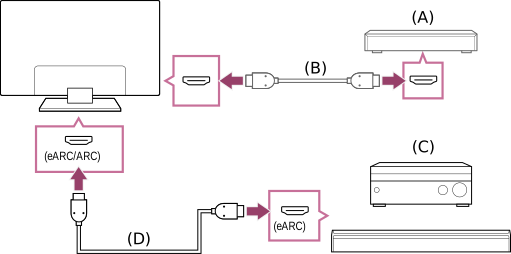
- External input device (such as a Blu-ray/DVD recorder)
- HDMI cable (not supplied)
- AV receiver or sound bar
- HDMI cable with Ethernet (not supplied)*
* We recommend authorised Premium High Speed HDMI™ Cable(s) bearing the HDMI logo.
- Press the (Quick Settings) button on the remote control, then select [Settings] — [Display & Sound] — [Audio output] — [Audio system settings] — [eARC setting] — [Auto].
- Select [Audio output] — [Speakers] — [Audio system].
- Enable the audio system’s eARC feature.
Refer to the instruction manual of the device. - Adjusting an audio system
Note
- You cannot select [eARC setting] if the text-to-speech function for on-screen text within the TV’s accessibility features is enabled.
- If audio is being output from an eARC supported device while you are watching HDMI input, the TV operates as follows:
- audio from system sounds and audio responses is not output, and
- the voice recognition performance of the built-in MIC may degrade (only TVs with a built-in MIC).
Hint
There may be three tactile dots next to the HDMI input terminal depending on your model. Use them as a guide during installation.
HDMI connection (ARC supported)
- Connect the TV and audio system with an HDMI cable.
Connect to the TV’s HDMI input terminal bearing the text “ARC” or “eARC/ARC”.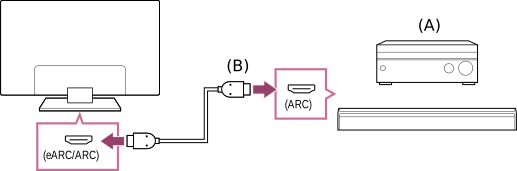
- AV receiver or sound bar
- HDMI cable (not supplied)*
* We recommend authorised Premium High Speed HDMI™ Cable(s) bearing the HDMI logo.
- Adjusting an audio system
Digital optical cable connection
- Connect the TV and audio system with a digital optical cable.
Connect to the audio system’s digital optical input terminal.
- AV receiver or Sound bar
- Optical audio cable (not supplied)
- Digital audio connector adapter (only supplied with compatible models)
- To enable [Optical digital audio output], press the (Quick Settings) button on the remote control, then select [Settings] — [Display & Sound] — [Audio output] — [Optical digital audio output settings] — [Optical digital audio output].
- Adjusting an audio system
Hint
HDMI connection centred on an audio system (eARC supported)
You can make connections centred on an audio system as follows.
For TV settings, refer to HDMI connection (eARC supported). For the audio system settings, refer to your device manual.
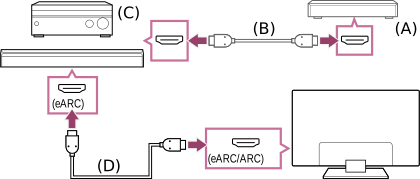
- External input device (such as a Blu-ray/DVD recorder)
- HDMI cable (not supplied)
- AV receiver or sound bar
- HDMI cable with Ethernet (not supplied)*
* We recommend authorised Premium High Speed HDMI™ Cable(s) bearing the HDMI logo.
Note
- ALWAYS keep small accessories out of the reach of children, so that they are not mistakenly swallowed.
Adjusting an audio system
Select within the text to jump to the related settings screen.
After connecting an audio system to the TV, adjust the TV’s audio output from the audio system.
Adjusting an audio system connected with an HDMI cable or digital optical cable
- After connecting the TV to your audio system, press the (Quick Settings) button on the remote control, then select [Settings] — [Display & Sound] — [Audio output] — [Speakers] — [Audio system].
- Turn on the connected audio system, then adjust the volume.
If you connect a BRAVIA Sync-compatible device with an HDMI connection, you can operate it by simply using the TV’s remote control.
Note
- You need to configure the [Digital audio output] settings according to your audio system. Press the (Quick Settings) button on the remote control, then select [Settings] — [Display & Sound] — [Audio output] — [Audio system settings] (with the HDMI cable connected) or [Optical digital audio output settings] (with the optical digital cable connected) — [Digital audio output].
- [PCM]
- Set this option if your audio system does not support Dolby Digital or DTS.
- The [Digital audio output] settings are disabled when using audio signals that are passed through from the HDMI input and using eARC.
Hint
- If a specific audio system is connected with an HDMI cable, you can adjust the output timing of the picture and sound.
- Adjusting the AV sync setting
Using the TV as a centre speaker
Select within the text to jump to the related settings screen.
You can use the TV as a centre speaker by connecting a device such as a sound bar with an S-CENTER OUT terminal to the TV's S-中置扬声器输入 terminal. Conversations sound natural because you can hear them coming from the screen and its vicinity.
Hint
- For Acoustic Center Sync supported audio systems with an S-CENTER OUT terminal, refer to the following.
https://www.sony.net/hav_faqhttps://www.sony.net/hav_faq

- Models with a 中置扬声器输入 terminal can also be used as a centre speaker by connecting the audio system with a speaker cable.
- Connect the TV and Acoustic Center Sync supported audio system with the TV centre speaker mode cable that was supplied with the supported device.

- TV centre speaker mode cable (supplied with devices such as sound bars that have S-CENTER OUT terminals)
Note
- Even when connecting an audio system with an S-CENTER OUT terminal, it must be connected to the TV with an HDMI cable like a normal sound bar.
- Also refer to the instruction manual of the audio system with an S-CENTER OUT terminal.
- S-中置扬声器输入 and 数字音频输出(光纤) share the same terminal. Optical audio output is not available when using S-中置扬声器输入.
- Press the (Quick Settings) button on the remote control, then select [Settings] — [Display & Sound] — [Audio output] — [Speakers] — [Audio system].
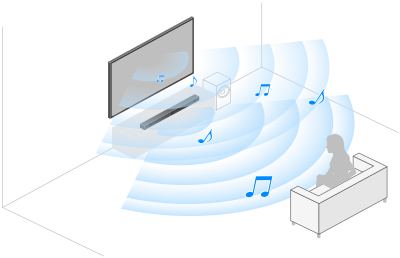
Note
- If centre audio is not output from the TV, enable [Settings] — [Display & Sound] — [Audio output] — [Audio system settings] — [Acoustic Center Sync].
Connecting an AV receiver with a speaker cable (only models with a 中置扬声器输入 terminal)
Connect the TV and AV receiver with a speaker cable.
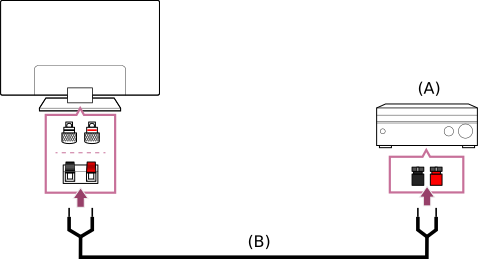
- AV receiver
- Speaker cable (not supplied)
Use a speaker cable (not supplied) to connect the AV receiver to the 中置扬声器输入 terminal of the TV.
When connecting, make sure to twist the ends of the speaker cable and insert them into the connection terminals of the TV and AV receiver.
The 中置扬声器输入 terminal varies depending on the model. Refer to the figures below when connecting the speaker cable.
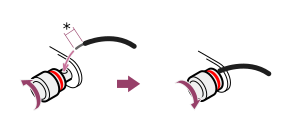
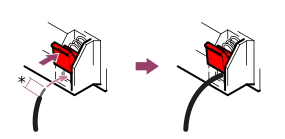
*Strip about 10 mm (13/32 inches) of insulation from the speaker cable at each end.
Note
- To prevent the wires of the speaker cable from touching each other, make sure not to strip too much of the speaker cable.
- Connect the speaker cable properly so that the polarities (+/-) between the TV and AV receiver match.
Audio formats
HDMI IN 1/2/3/4
In eARC (Enhanced Audio Return Channel) mode
- 7.1 channel linear PCM: 32/44.1/48/88.2/96/176.4/192 kHz
- Dolby Audio
- Dolby Atmos
- DTS
- DTS Express
- DTS-HD Master Audio
- DTS-HD High Resolution Audio
- DTS:X
Except eARC mode
- 7.1 channel linear PCM: 32/44.1/48/88.2/96/176.4/192kHz
- Dolby Audio
- Dolby Atmos
- DTS
- DTS Express
- DTS-HD Master Audio
- DTS-HD High Resolution Audio
- DTS:X
eARC/ARC (Enhanced Audio Return Channel/Audio Return Channel) (HDMI IN 3 only)
In eARC mode
- 7.1 channel linear PCM: 32/44.1/48/88.2/96/176.4/192 kHz
- Dolby Audio
- Dolby Atmos
- DTS
- DTS-HD Master Audio
- DTS-HD High Resolution Audio
- DTS:X
In ARC mode
- Two channel linear PCM: 48kHz 16bits
- Dolby Audio
- Dolby Atmos
- DTS
Accessing audio system settings
You can access the audio system (such as an AV amplifier or sound bar) settings such as audio quality from the TV’s Quick Settings.

- Connect the audio system via the HDMI (eARC/ARC) terminal.
- Press the (Quick Settings) button on the remote control, and select an audio system setting.
For details about audio system settings, please refer to your audio system's manual.
Note
- Audio system settings are displayed only for supported models.
For information about supported models, refer to the support site.
https://www.sony.net/hav_faq https://www.sony.net/hav_faq
 - The settings that are displayed depend on the audio system model.
Hint
- For settings that are not displayed by default, select settings to add from (Edit).
Video game consoles
Select within the text to jump to the related settings screen.
Connecting
Connect an HDMI-supported video game console to your TV with an HDMI cable.
To connect an audio amp or sound bar at the same time, refer to HDMI connection (eARC supported) in Connecting an audio system.
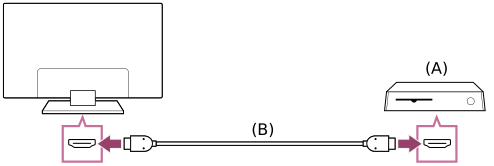
- Video game console
- HDMI cable (sold separately)
Hint
- A Premium High Speed HDMI™ Cable(s) is fine for general purposes, but if you want to connect a video game console that supports 4K 120Hz, use the HDMI cable included with the game console, or an Ultra High Speed HDMI™ Cable.
- The type and position of the HDMI port differs depending on your TV. Refer to the documentation provided with the TV.
Changing HDMI input settings
After connecting, set the connected HDMI input port.
To maximise the performance of your TV and video game console, set the [HDMI signal format/VRR].
Auto setup
- With the video game console turned on, connect it to the TV with an HDMI cable.
Set by following the instructions on the TV screen.
Manual setup
- Press the (Quick Settings) button on the remote control, and select the following in order.
[Settings] — [Channels & Inputs] — [External inputs] — [HDMI signal format/VRR]Select the optimal format for your video game console.
Hint
- If you connect a video game console that supports 4K 120 Hz video output, set to [Enhanced format (Advanced)].
- If you connect a video game console that supports VRR, enable [VRR (Variable Refresh Rate)].
Note
- When connecting a video game console that supports 4K 120Hz and VRR, check the label of the HDMI input ports on the TV and connect to the HDMI input port that is labelled 4K 120Hz or connect to the HDMI input port that is displayed as [VRR (Variable Refresh Rate)] for [HDMI signal format].
The available [HDMI signal format] depends on the model. Some HDMI formats may also not be supported depending on the model/region/country. - If [VRR (Variable Refresh Rate)] is enabled, slight brightness fluctuations (flicker) may occur on the TV screen depending on the frequency of the content output from the connected video game console.
Experiencing 3D surround with a neckband speaker or headphones
You can use a neckband speaker or Sony brand headphones to experience 3D surround (spatial sound).
For details, refer to the URL below.
https://www.sony.net/bravia-xr-3ds2
https://www.sony.net/bravia-xr-3ds2
Bluetooth devices
- Connecting a Bluetooth device
- Supported Bluetooth profiles
Connecting a Bluetooth device
Select within the text to jump to the related settings screen.
To pair the TV with a Bluetooth device
- Turn the Bluetooth device on and put it in pairing mode.
To put your Bluetooth device in pairing mode, refer to the instruction manual of the device. - Press the (Quick Settings) button on the remote control, then select [Settings] — [Remotes and accessories] — [Pair accessory] to put the TV in pairing mode.
Available Bluetooth devices will be displayed. - Select the desired device, then follow the on-screen instructions.
If you are prompted to enter a passcode, refer to the instruction manual of the device.
After pairing is completed, the device connects to the TV.
Hint
- You can pair some models of Sony headphones to experience realistic 3D surround sound. For details, visit the following URL.
https://www.sony.net/bravia-xr-3ds2https://www.sony.net/bravia-xr-3ds2 - To output sound from the TV speakers and Bluetooth headphones or speakers simultaneously, press the (Quick Settings) button on the remote control and select [Audio output] while the Bluetooth headphones or speakers are paired. Then, set the following functions from the items that are displayed.
- For [Speakers], select [TV speakers].
- For [Bluetooth device], select the paired Bluetooth device from which you want to output sound.
To connect to a paired Bluetooth device
- Press the (Quick Settings) button on the remote control, then select [Settings] — [Remotes and accessories] .
- Select a paired but unconnected device.
- Select [Connect].
Note
- When a sound bar and the TV are connected through Bluetooth, connect the external input device such as a Blu-ray/DVD recorder to the TV.
Supported Bluetooth profiles
The TV supports the following profiles:
- HID (Human Interface Device Profile)
- HOGP (HID over GATT Profile)
- A2DP (Advanced Audio Distribution Profile)
- AVRCP (Audio/Video Remote Control Profile)
- SPP (Serial Port Profile)
Adjusting the AV sync setting
Select within the text to jump to the related settings screen.
If a Bluetooth audio device is connected, there may be a delay between the picture and sound due to the properties of Bluetooth. You can adjust the delay between the picture and sound with the A/V sync setting.
- Press the (Quick Settings) button on the remote control, then select [Settings] — [Display & Sound] — [Audio output] — [Bluetooth device settings] — [A/V sync] — the desired option.
If the audio device is connected with an HDMI cable, the sound may be delayed due to the properties of the audio device. In that case, you can adjust the video and audio output timing with the A/V sync setting.
- Press the (Quick Settings) button on the remote control, and then select the following in order.
[Settings] — [Display & Sound] — [Audio output] — [Audio system settings] — [A/V sync] — the desired setting
Note
- Depending on the connected Bluetooth audio device or connected HDMI device, the picture and sound may not match even when the [A/V sync] setting is set to [On] or [Auto].
- Even if the [A/V sync] setting is [Auto], the video and audio output timing cannot be adjusted when [Content type] is set to the following. The [A/V sync] setting is fixed to [Off] and cannot be changed.
- [Game]
- [PC]
- Even if the [A/V sync] setting is set to [Auto], the video and audio output timing is not adjusted when [Content type] is set to [Video/Images] — [Picture mode] — [Photo].
BRAVIA Sync-compatible devices
- BRAVIA Sync overview
- Using features available for BRAVIA Sync-compatible devices
- Adjusting BRAVIA Sync settings
BRAVIA Sync overview
If a BRAVIA Sync-compatible device (e.g., Blu-ray player, AV receiver) is connected with an HDMI cable, you can operate the device with the TV’s remote control.
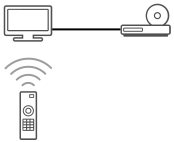
Using features available for BRAVIA Sync-compatible devices
To operate BRAVIA Sync-compatible devices from the TV, use the (Input select) button on the remote control to select the device you want to operate.
Blu-ray/DVD player
- Automatically turns the TV on and switches the input to the connected Blu-ray/DVD player when the Blu-ray/DVD player starts to play.
- Automatically turns the connected Blu-ray/DVD player off when you turn the TV off.
- Allows operations such as menu operation and playback with the (Up) / (Down) / (Left) / (Right) buttons on the TV remote control.
AV receiver
- Automatically turns the connected AV receiver on and switches the sound output from the TV speaker to the audio system when you turn the TV on. This function is only available if you have previously used the AV receiver to output the TV’s sound.
- Automatically switches the sound output to the AV receiver by turning the AV receiver on when the TV is turned on.
- Automatically turns the connected AV receiver off when you turn the TV off.
- Adjusts the volume ((Volume) +/- buttons) and mutes the sound ((Mute) button) of the connected AV receiver through the TV’s remote control.
Video camera
- Automatically turns the TV on and switches the input to the connected video camera when the camera is turned on.
- Automatically turns the connected video camera off when you turn the TV off.
- Allows operations such as menu operation and playback with the (Up) / (Down) / (Left) / (Right) buttons on the TV remote control.
Adjusting BRAVIA Sync settings
Select within the text to jump to the related settings screen.
When BRAVIA Sync is set up, you will be able to turn off a connected device with the TV or set a device connected via HDMI cable to be operated with the TV’s remote control.
- Turn on the connected device.
- To enable [BRAVIA Sync control], press the (Quick Settings) button on the remote control, then select [Settings] — [Channels & Inputs] — [External inputs] — [BRAVIA Sync settings] — [BRAVIA Sync control].
- Activate BRAVIA Sync on the connected device.
When a specific Sony BRAVIA Sync-compatible device is connected and powered on and [BRAVIA Sync control] is enabled, BRAVIA Sync is automatically activated on that device. For details, refer to the instruction manual of the connected device.
Available options
Available options are shown below. (Options vary depending on your model/region/country.)
- [Auto devices off]
- If disabled, the connected device does not turn off automatically when the TV is turned off.
- [Auto TV on]
- If disabled, the TV does not turn on automatically when the connected device is turned on.
- [BRAVIA Sync device list]
- Displays the BRAVIA Sync device list.
Viewing pictures in 4K from compatible devices
- Viewing pictures in 4K resolution
- Settings for viewing pictures through HDMI input with higher quality
Viewing pictures in 4K resolution
You can connect a digital still camera/camcorder that supports HDMI 4K output to HDMI 输入 of the TV to display high resolution photos stored on the camera. You can also display high resolution photos stored in connected USB devices or your home network. A picture with a 4K or higher resolution can be displayed in 4K resolution (3840×2160).
The availability of this function depends on your region/country.
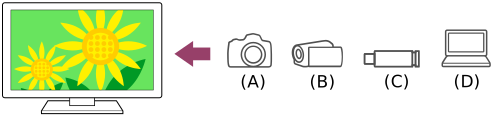
- Digital still camera
- Camcorder
- USB device
- Network device
To view pictures stored on a USB device or network device in 4K resolution
- Connect the USB device or network device to the TV.
- Press the (HOME) button, and select 我的 from the Home menu, then select [Media Player].
- Select the USB device name or network device name.
- Select the folder, and then select the file to play.
To view pictures stored on a digital still camera/camcorder
- Connect a digital still camera or camcorder that supports HDMI output to the HDMI 输入 jack (socket) of the TV, using an HDMI cable.
- Press the (Input select) button repeatedly to select the connected device.
- Set the connected device to 4K output.
- Start playback on the connected device.
To check the supported file formats
- Supported files and formats
To view pictures in 4K resolution with higher quality
You can set the HDMI signal format to Enhanced format to view pictures in 4K resolution with higher quality.
For information about Enhanced format or changing the settings, refer to the Settings for viewing pictures through HDMI input with higher quality page.
Note
- A 3D picture cannot be displayed.
- If you change the picture by pressing the (Left) / (Right) buttons, it may take a moment for the picture to be displayed.
Settings for viewing pictures through HDMI input with higher quality
Select within the text to jump to the related settings screen.
To display a picture from a device connected to the HDMI input terminal in a higher quality HDMI format*1, set [HDMI signal format/VRR] in [External inputs].
*1 Such as 8K, 4K 100/120 Hz, 4K 60p 4:2:0 10 bit, 4K 60p 4:4:4, or 4:2:2
HDMI signal format
To change the HDMI signal format setting, press the (Quick Settings) button on the remote control, then select [Settings] — [Channels & Inputs] — [External inputs] — [HDMI signal format/VRR] — the HDMI input you want to set.
Follow the on-screen instructions, and set the HDMI signal format for the HDMI input terminal to a suitable format below. Available HDMI signal formats depend on your model and the HDMI input.
- Standard format
- Enhanced format
- Enhanced format (Advanced)
Note
- Support for the display of 4K 100/120 Hz picture depends on your model/region/country.
- Support for the Variable Refresh Rate (VRR) feature depends on your model.
- When using Enhanced format, picture and sound may not be output correctly. In this case, connect the device to an HDMI 输入 that is in [Standard format], or change the HDMI signal format of HDMI 输入 to [Standard format].
- Only set to Enhanced format when using compatible devices.
- When you watch 4K picture with High-Quality, use a Premium High Speed HDMI™ Cable(s) that supports speeds of 18 Gbps. For details on a Premium High Speed HDMI™ Cable(s) that supports 18 Gbps, refer to the cable specifications.
- To display 4K 100/120 Hz or 8K picture, an Ultra High Speed HDMI™ Cable that supports 48 Gbps is required. Refer to the cable specifications to find out whether a cable supports 48 Gbps.
BRAVIA Connectivity Guide
Descriptions about connecting devices to the TV are also available on the Sony support website. Refer to it as necessary.
- https://www.sony.net/tv_connectivity_guide/ https://www.sony.net/tv_connectivity_guide/

Supported files and formats
- Photos
- Music
- Videos
- Audio sampling rates (for videos)
- External subtitles
Photos
To enjoy photos, you may need to update the TV's software.
Use case : USB / Home Network
| File Format | Extension |
|---|---|
| JPEG | *.jpg / *.jpe / *.jpeg |
| HEIF | *.heic / *.heif / *.hif |
| ARW *1 | *.arw |
- *1 ARW is only to be used for playing back files.
Other supported files and formats
- Music
- Videos
- Audio sampling rates (for videos)
- External subtitles
Music
Use case : USB / Home Network
mp4
Extension: *.mp4 / *.m4a
| Description | Sampling Rate |
|---|---|
| AAC-LC | 16k / 22.05k / 24k / 32k / 44.1k / 48k |
| HE-AAC v1 / v2 | 24k / 32k / 44.1k / 48k |
3gpp
Extension: *.3gp / *.3g2
| Description | Sampling Rate |
|---|---|
| AAC-LC | 16k / 22.05k / 24k / 32k / 44.1k / 48k |
| HE-AAC v1 / v2 | 24k / 32k / 44.1k / 48k |
Asf
Extension: *.wma
| Description | Sampling Rate |
|---|---|
| WMA9 Standard | 8k / 11.025k / 16k / 22.05k / 32k / 44.1k / 48k |
ogg
Extension: *.ogg
| Description | Sampling Rate |
|---|---|
| Vorbis | 8k / 11.025k / 16k / 22.05k / 32k / 44.1k / 48k |
Other
| Description | Sampling Rate |
|---|---|
| LPCM *1 | 32k / 44.1k / 48k |
Extension: *.mp3
| Description | Sampling Rate |
|---|---|
| MP1L1 / MP1L2 / MP1L3 / MP2L1 / MP2L2 | 32k / 44.1k / 48k |
| MP2L3 | 16k / 22.05k / 24k |
| MP2.5L3 | 8k / 11.025k / 12k |
Extension: *.wav
| Description | Sampling Rate |
|---|---|
| WAV *2 | 32k / 44.1k / 48k / 88.2k / 96k / 176.4k / 192k |
Extension: *.flac
| Description | Sampling Rate |
|---|---|
| FLAC | 16k / 22.05k / 32k / 44.1k / 48k / 88.2k / 96k / 176.4k / 192k |
Extension: *.aac
| Description | Sampling Rate |
|---|---|
| AAC-LC | 16k / 22.05k / 24k / 32k / 44.1k / 48k |
| HE-AAC v1 / v2 | 24k / 32k / 44.1k / 48k |
- *1 The use case of LPCM is Home Network only.
- *2 The use case of WAV is 2ch only.
Other supported files and formats
- Photos
- Videos
- Audio sampling rates (for videos)
- External subtitles
Videos
Use case : USB / Home Network
MPEG1 (*.mpg / *.mpe / *.mpeg)
Subtitle Type : External
| Video Codec (Profile@Level) | Audio Codec | Max. / Min. Resolution | Max. Frame Rate |
|---|---|---|---|
| MPEG1 | MPEG1L2 | 1920x1080 / QCIF (176x144) | 1920x1080@30fps / 1280x720@60fps |
MPEG2PS (*.mpg / *.mpe / *.mpeg)
Subtitle Type : External
| Video Codec (Profile@Level) | Audio Codec | Max. / Min. Resolution | Max. Frame Rate |
|---|---|---|---|
| MPEG2 MP@HL, MP@H14L, MP@ML | MPEG1L1 / MPEG1L2 / LPCM / AC3 | 1920x1080 / QCIF (176x144) | 1920x1080@30fps / 1280x720@60fps |
MPEG2TS
Extension : *.m2t
Subtitle Type : External
| Video Codec (Profile@Level) | Audio Codec | Max. / Min. Resolution | Max. Frame Rate |
|---|---|---|---|
| MPEG2 MP@HL, MP@H14L, MP@ML | MPEG1L1 / MPEG1L2 / AAC-LC / HE-AAC v1 / HE-AAC v2 / AC3 / E-AC3 | 1920x1080 / QCIF (176x144) | 1920x1080@30fps / 1280x720@60fps |
Extension : *.m2ts / *.mts
Subtitle Type : External
| Video Codec (Profile@Level) | Audio Codec | Max. / Min. Resolution | Max. Frame Rate |
|---|---|---|---|
| AVC / H.264 BP@L3, MP@L4.2, HP@L4.2 | MPEG1L1 / MPEG1L2 / AAC-LC / HE-AAC v1 / HE-AAC v2 / AC3 / E-AC3 | 1920x1080 / QCIF (176x144) | 1920x1080@60fps |
MP4 (*.mp4)
Subtitle Type : External
| Video Codec (Profile@Level) | Audio Codec | Max. / Min. Resolution | Max. Frame Rate |
|---|---|---|---|
| AVC / H.264 BP@L3, MP@L4.2, HP@L4.2 | AAC-LC / HE-AAC v1 / HE-AAC v2 / AC3 / E-AC3 / AC4 / MPEG1L1 / MPEG1L2 | 1920x1080 / QCIF (176x144) | 1920x1080@120fps |
| MPEG4 SP@L6, ASP@L5, ACEP@L4 | AAC-LC / HE-AAC v1 / HE-AAC v2 / AC3 / E-AC3 / MPEG1L1 / MPEG1L2 | 1920x1080 / QCIF (176x144) | 1920x1080@30fps / 1280x720@60fps |
| AVC / H.264 BP@L5.2, MP@L5.2, HP@L5.2 *1 | AAC-LC / HE-AAC v1 / HE-AAC v2 / AC3 / E-AC3 / AC4 / LPCM | 3840x2160 / QCIF (176x144) | 3840x2160@60p / 1920x1080@120fps |
| HEVC / H.265 MP@L5.1, Main10@L5.1 | AAC-LC / HE-AAC v1 / HE-AAC v2 / AC3 / AC4 / E-AC3 | 3840x2160 / QCIF (176x144) | 3840x2160@60p / 1920x1080@120fps |
| HEVC / H.265 MP@L6, MP10@L6 | LPCM | 3840x2160 | 3840x2160@120fps (XAVC v2) / 3840x2160@60fps |
| AVC BL@L6, HP@L6, HP10@L6 | AAC-LC / HE-AAC v1 / HE-AAC v2 / AC3 / AC4 / E-AC3 | 3840x2160 / 3840x2160 | 3840x2160@120fps (XAVC v2) / 3840x2160@60fps |
| HEVC / H.265 MP@L6, MP10@L6 | AAC-LC / HE-AAC v1 / HE-AAC v2 / AC3 / AC4 / E-AC3 | 3840x2160 / 3840x2160 | 3840x2160@60fps |
- *1 This line includes the XAVC S format use case. The maximum supported bitrate for XAVC S is 100 Mbps.
avi (*.avi)
Subtitle Type : External
| Video Codec (Profile@Level) | Audio Codec | Max. / Min. Resolution | Max. Frame Rate |
|---|---|---|---|
| Motion JPEG | μ-LAW / PCM (U8) / PCM (S16LE) | 1280x720 / QCIF (176x144) | 1280x720@30fps |
Asf (*.asf / *.wmv)
Subtitle Type : External
| Video Codec (Profile@Level) | Audio Codec | Max. / Min. Resolution | Max. Frame Rate |
|---|---|---|---|
| MP@HL, SP@ML | WMA9 Standard | 1920x1080 / QCIF (176x144) | 1920x1080@30fps / 1280x720@60fps |
MKV (*.mkv)
Subtitle Type : Internal / External
| Video Codec (Profile@Level) | Audio Codec | Max. / Min. Resolution | Max. Frame Rate |
|---|---|---|---|
| AVC / H.264 BP@L3, MP@L4.2, HP@L4.2 | DTS core / AC3 / AAC-LC / E-AC3 / HE-AAC v1 / HE-AAC v2 / MPEG1L1 / MPEG1L2 / Vorbis | 1920x1080 / QCIF (176x144) | 1920x1080@60fps |
| MPEG4 SP@L6, ASP@L5, ACEP@L4 | DTS core / AC3 / AAC-LC / E-AC3 / HE-AAC v1 / HE-AAC v2 / MPEG1L1 / MPEG1L2 / Vorbis | 1920x1080 / QCIF (176x144) | 1920x1080@30fps / 1280x720@60fps |
| VP8 | DTS core / AC3 / AAC-LC / E-AC3 / HE-AAC v1 / HE-AAC v2 / MPEG1L1 / MPEG1L2 / Vorbis | 1920x1080 / QCIF (176x144) | 1920x1080@30fps / 1280x720@60fps |
| VP9 Profile 0, Profile 2 | DTS core / AC3 / AAC-LC / E-AC3 / HE-AAC v1 / HE-AAC v2 / MPEG1L1 / MPEG1L2 / Vorbis | 3840x2160 / QCIF (176x144) | 3840x2160@60fps |
| AVC / H.264 BP@L5.2, MP@L5.2, HP@L5.2 | DTS core / AC3 / AAC-LC / E-AC3 / HE-AAC v1 / HE-AAC v2 | 3840x2160 / QCIF (176x144) | 3840x2160@60p / 1920x1080@120fps |
| HEVC / H.265 MP@L5.1, Main10@L5.1 | DTS core / AC3 / AAC-LC / E-AC3 / HE-AAC v1 / HE-AAC v2 | 3840x2160 / QCIF (176x144) | 3840x2160@60p / 1920x1080@120fps |
| AVC BL@L6, HP@L6, HP10@L6 | DTS core / AC3 / AAC-LC / E-AC3 / HE-AAC v1 / HE-AAC v2 | 3840x2160 / 3840x2160 | 3840x2160@60fps |
| HEVC / H.265 MP@L6, MP10@L6 | DTS core / AC3 / AAC-LC / E-AC3 / HE-AAC v1 / HE-AAC v2 | 3840x2160 / 3840x2160 | 3840x2160@60fps |
3gpp (*.3gp / *.3g2)
Subtitle Type : External
| Video Codec (Profile@Level) | Audio Codec | Max. / Min. Resolution | Max. Frame Rate |
|---|---|---|---|
| MPEG4 SP@L6, ASP@L5, ACEP@L4 | AAC-LC / HE-AAC v1 / HE-AAC v2 / AC3 / E-AC3 / MPEG1L1 / MPEG1L2 | 1920x1080 / QCIF (176x144) | 1920x1080@30fps / 1280x720@60fps |
| AVC / H.264 BP@L3, MP@L4.2, HP@L4.2 | AAC-LC / HE-AAC v1 / HE-AAC v2 / AC3 / E-AC3 / MPEG1L1 / MPEG1L2 | 1920x1080 / QCIF (176x144) | 1920x1080@60fps |
MOV (*.mov)
Subtitle Type : External
| Video Codec (Profile@Level) | Audio Codec | Max. / Min. Resolution | Max. Frame Rate |
|---|---|---|---|
| AVC / H.264 BP@L3, MP@L4.2, HP@L4.2 | AAC-LC / HE-AAC v1 / HE-AAC v2 / AC3 / E-AC3 / MPEG1L1 / MPEG1L2 / μ-LAW / PCM (U8) / PCM (S16BE) / PCM (S16LE) | 1920x1080 / QCIF (176x144) | 1920x1080@60fps |
| MPEG4 SP@L6, ASP@L5, ACEP@L4 | AAC-LC / HE-AAC v1 / HE-AAC v2 / AC3 / E-AC3 / MPEG1L1 / MPEG1L2 / μ-LAW / PCM (U8) / PCM (S16BE) / PCM (S16LE) | 1920x1080 / QCIF (176x144) | 1920x1080@30fps / 1280x720@60fps |
| Motion JPEG | AAC-LC / HE-AAC v1 / HE-AAC v2 / AC3 / E-AC3 / MPEG1L1 / MPEG1L2 / μ-LAW / PCM (U8) / PCM (S16BE) / PCM (S16LE) | 1280x720 / QCIF (176x144) | 1280x720@30fps |
WebM (*.webm)
Subtitle Type : External
| Video Codec (Profile@Level) | Audio Codec | Max. / Min. Resolution | Max. Frame Rate |
|---|---|---|---|
| VP8 | Vorbis | 1920x1080 / QCIF (176x144) | 1920x1080@30fps / 1280x720@60fps |
| VP9 Profile 0, Profile 2 | Vorbis | 3840x2160 / QCIF (176x144) | 3840x2160@60fps |
Other supported files and formats
- Photos
- Music
- Audio sampling rates (for videos)
- External subtitles
Audio sampling rates (for videos)
| Audio Codec | Sampling Rate |
|---|---|
| LPCM | 44.1k / 48k |
| MPEG1L1 / MPEG1L2 | 32k / 44.1k / 48k |
| MPEG1L3 | 32k / 44.1k / 48k |
| AAC-LC | 16k / 22.05k / 24k / 32k / 44.1k / 48k |
| HE-AAC v1 / v2 | 24k / 32k / 44.1k / 48k |
| AC3 | 32k / 44.1k / 48k |
| AC4 | 44.1k / 48k |
| E-AC3 | 32k / 44.1k / 48k |
| Vorbis | 8k / 11.025k / 16k / 22.05k / 32k / 44.1k / 48k |
| WMA9 | 8k / 11.025k / 16k / 22.05k / 32k / 44.1k / 48k |
| DTS core | 44.1k / 48k |
| μ-LAW | 8k |
| PCM (U8) | 8k |
| PCM (S16LE) | 11.025k / 16k / 44.1k |
| PCM (S16BE) | 11.025k / 16k / 44.1k |
Other supported files and formats
- Photos
- Music
- Videos
- External subtitles
External subtitles
Use case : USB
| File Format | Extension |
|---|---|
| SubStation Alpha | *.ass / *.ssa |
| SubRip | *.srt |
Other supported files and formats
- Photos
- Music
- Videos
- Audio sampling rates (for videos)
Connecting to a Network
- Connecting to a network
- Home network features
Connecting to a network
- Connecting to a network using a LAN cable
- Connecting to a network using Wi-Fi
Connecting to a network using a LAN cable
Connecting to a network using a LAN cable
A wired LAN connection allows you to access the Internet and your home network.
Make sure to connect to the Internet or home network via a router.
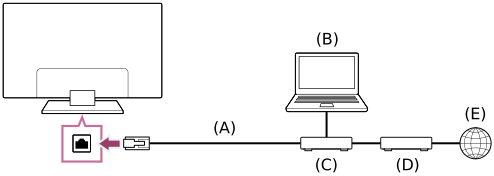
- LAN cable
- Computer
- Router
- Modem
- Internet
- Set up your LAN router.
For details, refer to the instruction manual of your LAN router, or contact the person who set up the network (network administrator).
Note
- It is strongly recommended for security purposes to connect your TV to the Internet via a router/modem that includes router functionality. Direct connection of your TV to the Internet may expose your TV to a security threat such as extraction or tampering of content or personal information.
Contact your service provider or network administrator to confirm your network includes router functionality. - The network-related settings that are required may vary depending on the Internet service provider or router. For details, refer to the instruction manuals provided by the Internet service provider or those supplied with the router. You can also contact the person who set up the network (network administrator).
- Depending on the operating environment of the network, connection speed may differ. The communication rate and quality are not guaranteed.
Connecting to a network using Wi-Fi
Select within the text to jump to the related settings screen.
The built-in wireless LAN device allows you to access the Internet and enjoy the benefits of networking in a cable-free environment.
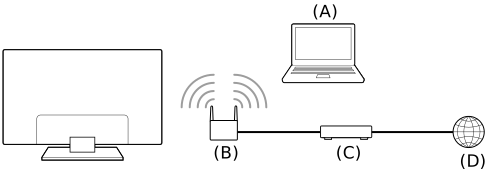
- Computer
- Wireless router
- Modem
- Internet
- Set up your wireless router.
For details, refer to the instruction manual of your wireless router, or contact the person who set up the network (network administrator). - Press the (Quick Settings) button on the remote control, then select [Settings] — [Network and Internet].
- Select a network you want to connect to and set the password.
To turn off the built-in wireless LAN
- To disable [Wi-Fi], press the (Quick Settings) button on the remote control, then select [Settings] — [Network and Internet] — [Wi-Fi].
Hint
- For smooth video streaming:
- Change the setting of your wireless router to a high-speed networking standard such as 802.11n, 802.11ac or 802.11ax if possible.
For details on how to change the setting, refer to the instruction manual of your wireless router, or contact the person who set up the network (network administrator). - If the above procedure does not deliver any improvement, change the setting of your wireless router to 5GHz, which may help improve the video streaming quality.
- The 5GHz band may not be supported depending on your region/country. If the 5GHz band is not supported, the TV can only connect to a wireless router using the 2.4GHz band.
- Change the setting of your wireless router to a high-speed networking standard such as 802.11n, 802.11ac or 802.11ax if possible.
Note
- It is strongly recommended for security purposes to connect your TV to the Internet via a router/modem that includes router functionality. Direct connection of your TV to the Internet may expose your TV to a security threat such as extraction or tampering of content or personal information.
Contact your service provider or network administrator to confirm your network includes router functionality. - The network-related settings that are required may vary depending on the Internet service provider or router. For details, refer to the instruction manuals provided by the Internet service provider or those supplied with the router. You can also contact the person who set up the network (network administrator).
- If you select the [Show password] option in the password entry screen, the exposed password may be seen by other individuals.
Home network features
- Adjusting home network settings
- Playing content from a computer
Adjusting home network settings
Select within the text to jump to the related settings screen.
You can adjust the following home network settings.
To connect to a server
Connect the client device (TV) and the server device (BD/DVD recorder) to the same network.
To register the TV as a client device on the server, refer to the server device manual.
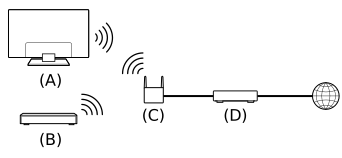
- TV
- BD/DVD recorder
- Wireless LAN router
- Modem
To check the server connection
Press the (Quick Settings) button on the remote control, then select [Settings] — [Network and Internet] — [Home network setup] — [Server diagnostics] — follow the on-screen instructions to perform diagnostics.
To use the remote device
Press the (Quick Settings) button on the remote control, then select [Settings] — [Network and Internet] — [Remote device settings] — the desired option.
- [Control remotely]
- Enable operation of the TV from a registered device.
Playing content from a computer
You can enjoy content (photo/music/video files) stored on a network device located in another room, if you connect the TV to a home network via a router.
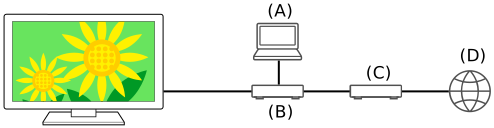
- Computer (Server)
- Router
- Modem
- Internet
- Connect the TV to your home network.
- Press the (HOME) button, and select 我的 from the Home menu, then select [Media Player].
- Select the network device name.
- Select the folder, and then select the file to play.
To check the supported file formats
- Supported files and formats
Note
- Depending on the file, playback may not be possible even when using the supported formats.
Settings
The menus displayed in the TV settings vary depending on your model/region/country.
- Using the Quick Settings
- Using the Eco Dashboard
- Channels & Inputs Channels and External inputs, etc.
- Display & Sound Picture, Sound and Audio output, etc.
- Network and Internet
- Privacy Configure detection of unknown apps.
- Apps
- System Date and time, Language, System sounds, Accessibility and LED indicator, etc.
- Remotes and accessories Remote control and Bluetooth settings.
- Timers & Clock On timer, Sleep timer, Alarm, Clock display, etc.
Using the Quick Settings
Select within the text to jump to the related settings screen.
If you press the (Quick Settings) button on the remote control, you can quickly access features such as [Picture & Sound], [Content type], [Picture mode], [Sleep timer], and [Picture Off] on the current screen, and settings such as [Speakers] depending on the connected devices. You can also display [Settings] from [Quick Settings].
Note
- The menus displayed in the TV settings vary depending on your model/region/country.
- Press the (Quick Settings) button on the remote control.
- Move the focus to change a setting or select it.
To change the settings that are displayed
- Press the (Quick Settings) button on the remote control.
- Move the focus left or right, and select (Edit).
- Select the desired setting.
- Select [Close].
Hint
- To change the order or hide a displayed item, press and hold the (Enter) button on the remote control with that item highlighted, and [Move] and [Hide] will be displayed. If you select [Move], use (Left) / (Right) on the remote control to move the item to the desired position, and then press the (Enter) button on the remote control.
- With [BRAVIA notifications] in Quick Settings, you can check if there are notifications such as software updates and low battery levels in the remote control.
Using the Eco Dashboard
You can configure various settings to reduce power consumption, such as Power saving.
You can also check descriptions for features while setting them.
- Press the (Quick Settings) button on the remote control, and select [Eco Dashboard].
- In the displayed menu, move the focus left or right and select the desired setting.

Channels & Inputs
Select within the text to jump to the related settings screen.
- Press the (Quick Settings) button on the remote control, then select [Settings] — [Channels & Inputs] — the desired option.
Available options
- [Channels]
- Configures the settings related to receiving broadcast programming.
- [Channel preferences]
- Configures [Subtitle settings] and [Audio settings (Broadcast)].
- [External inputs]
- Configures the settings of the external inputs and BRAVIA Sync.
For details about BRAVIA Sync, refer to BRAVIA Sync-compatible devices.
Display & Sound
Select within the text to jump to the related settings screen.
- Press the (Quick Settings) button on the remote control, then select [Settings] — [Display & Sound] — the desired option.
Available options
- [Picture & Sound]
- [Content type]
- Configures [Content type] based on the content.
Adjust the picture and sound based on the [Content type].
For information about [Content type], refer to the Selecting the Content type based on the current content page.- [Picture]
- Configures display settings that adjust the picture quality, such as screen brightness.
To adjust the picture quality to your preferences, refer to the the Adjusting the picture quality page. - [Sound (***)]
- Configures settings that adjust the sound.
To adjust the sound quality to your preferences, refer to the Adjusting the sound quality page.
- [Audio output]
- Configures selection settings related to speakers.
For details, refer to [Audio output] in Adjusting the sound quality. - [Ambient Optimisation Pro]
- Configures settings for [Auto adjust according to sensors] and [Auto adjust according to installation environment].
For details, refer to Adjusting the picture/sound quality automatically. - [Expert panel settings](only models equipped with an OLED panel)
- Use when setting [Pixel shift] or manually performing [Panel refresh].
Network and Internet
Configures settings for such things as wireless LANs, wired LANs, and home networks.
Privacy
Configure detection of unknown apps.
Apps
Allows you to configure or uninstall apps, or clear the cache.
System
Select within the text to jump to the related settings screen.
- Press the (Quick Settings) button on the remote control, then select [Settings] — [System] — the desired option.
Note
- Depending on the settings of the TV, some options may not be displayed or available.
Available options
- [Accessibility]
- Configures the settings of accessibility features and services for helping users navigate their devices more easily.
- [About]
- Displays information about the TV.
Here, you can reset your TV - [Date and time]
- Configures the current time and auto clock display.
- [Language]
- Selects the menu language. The selected menu language will also set the voice recognition language.
- [Keyboard]
- Configures the settings of the on-screen keyboard.
- [Storage]
- Changes the settings related to data storage.
- [Screen saver]
- Configures the settings of the screen saver.
- [Power and energy]
- Configures the settings related to saving energy and the startup TV screen.
- [System sounds]
- Configures the system sounds.
- [Voice Assistant]*
- Configures the settings of the built-in MIC.
To use the built-in MIC, you may need to update the TV's software. - [Gesture Control]
- Configures the gesture operations used when facing the camera.
- [LED indicator]
- Configures the [Operational response] and [Built-in MIC LED]* settings. (The displayed menu varies depending on the model.)
- [Initial setup]
- Sets up the basic features such as network and channels for first time use.
- [Retail mode settings]
- Enriches the display for shop front use by setting [Demo mode], etc.
- [Restart]
- Restarts the TV.
* Only TVs with a built-in MIC
Remotes and accessories
Select within the text to jump to the related settings screen.
- Press the (Quick Settings) button on the remote control, then select [Settings] — [Remotes and accessories] — the desired option.
Available options
You can enable or disable Bluetooth, or register Bluetooth devices.
- [Bluetooth]
- Enables or disables Bluetooth.
- [Pair accessory]
- Pairs Bluetooth devices.
- [3D surround device settings]
- You can enjoy the immersive sound of 3D surround (stereophonic sound).
For details, visit the following URL.https://www.sony.net/bravia-xr-3ds2
https://www.sony.net/bravia-xr-3ds2
- [BRAVIA CAM]
- Connects the Camera and Microphone Unit to set up Camera sensing functions.
- [Remote control]
- Setup for pairing the Voice Remote Control.
Timers & Clock
In Timers & Clock, you can set the On timer, Sleep timer, Alarm, and Clock display.
Adding Timers & Clock to the input selection screen
- Press the (Input select) button.
Available devices and apps are displayed at the bottom of the screen. - Press the (Right) button on the remote control and select (Edit).
- Select Timers & Clock and press the Enter button.
Timers & Clock is added.
To configure settings for Timers & Clock
- Press the (Input select) button on the remote control and select the following.
[Timers & Clock] — the desired setting
Available options
- [On timer]
- Turns on the TV to the desired channel or input at a preset time.
- [Sleep timer]
- Turns off the TV after a preset time.
- [Alarm]
- Plays a sound after a preset time.
- [Clock display]
- Displays the clock on the TV screen always or at every hour.
Troubleshooting
- Reset (restart) your TV
- Software updates
- Self diagnostics
- Frequently Asked Questions for Troubleshooting
Reset (restart) your TV
If you have trouble such as the picture not displaying on the screen or the remote control not working, reset the TV with the following procedure. If the problem persists, try the factory reset procedure below.
If an external USB device is connected to the TV, disconnect the USB device from the TV before resetting.
Power Reset
- Restart the TV with the remote control.
Press and continue holding the power button on the remote control for about 5 seconds until the TV restarts (a shutting down message will appear).If the issue persists, unplug the TV and press the power button on the TV once.
Then wait 2 minutes before turning on the TV. Depending on the model, you can press and hold the power button on the TV (40 seconds or longer) until it turns off and restarts. - Unplug the AC power cord (mains lead).
If the problem persists after step 1, unplug the TV power cord (mains lead) from the electrical outlet. Then press the power button on the TV, and release it. Wait for 2 minutes, and plug the power cord (mains lead) back into the electrical outlet.
Hint
- TV models with 1 button on the TV (power button only) can also be restarted using the power button. Press the power button on the TV to display the operation menu, select [Restart] in the menu, and then press and hold the power button to restart the TV.
- Your personal settings and data will not be lost after the TV restarts.
Factory data reset
If the problem persists after a power reset, try a factory data reset.
For details, refer to Factory data reset.
Software updates
Sony will provide software updates from time to time in order to enhance functionality and provide users with the latest TV experience. The easiest way to receive software updates is via an internet connection to the TV.
To check for software updates automatically
- Press (Input select) on the remote control and select [Help]. If [Help] does not exist, select [Edit] and add [Help].
- Select [Status & Diagnostics]. Enable [Automatically check for update] in [Status & Diagnostics] — [System software update].
Hint
- To update the software manually, select [Software update].
- You can check the BRAVIA notifications or support website for a list of changes made by the software update.
Note
- When [Automatically check for update] is disabled, the TV cannot receive notifications even when a software update is available.
Updating software via USB storage device
If you do not have a network connection, you can also update the software by using a USB storage device.
For more about the support site, please see the Support Site page.
Self diagnostics
Check if the TV is working properly.
- Press (Input select) on the remote control and select [Help]. If [Help] does not exist, select [Edit] and add [Help].
- Select [Status & Diagnostics] — [Self diagnostics].
Hint
You can also check the following symptoms in [Status & Diagnostics].
- [Internet connection diagnostics]
- [External device connection diagnostics]
- [Picture/Sound test]
If the problem persists, try the following.
- Reset (restart) the TV. For details, refer to Reset (restart) your TV.
- Check and try Software updates.
- Support Site
Frequently Asked Questions for Troubleshooting
For troubleshooting information, you can also refer to “Frequently Asked Questions” in our support site below.
- https://www.sony.net/androidtv-faq/

- https://www.sony.net/androidtv-faq/
- https://service.sony.com.cn/faqList.html

- https://service.sony.com.cn/faqList.html
Index/Other
- Index
- About the Help Guide
- Help Guide structure
- Support Site
- Keeping the TV updated
- Factory data reset
- Trademark information
Index
TV programmes
|
|
Picture/display
|
|
Sound/voice
|
Remote control
|
|
Connections
|
External devices
|
|
File playback
|
|
Other
|
|
About the Help Guide
This Help Guide explains how to use this TV. You can also refer to the Setup Guide for descriptions about TV installation, and the Reference Guide for information such as specifications, and wall mounting of this TV.
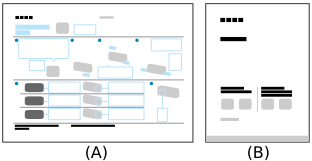
- Setup Guide
- Reference Guide
Help Guide versions
There are two versions of the Help Guide: the built-in version and the online version. The online Help Guide includes the latest information.
The online Help Guide is automatically displayed when the TV is connected to the internet, otherwise the built-in Help Guide is displayed.

Help Guide structure
For details about the structure of the Help Guide, see the Help Guide structure page.
Note
- To use the latest features described in the Help Guide, you may need to update the TV’s software. For details about software updates, see the Software updates page.
- The names of settings in the Help Guide may differ from those displayed on the TV depending on the TV’s release date or your model/country/region.
- The images and illustrations used in the Help Guide may differ depending on your TV model.
- Design and specifications are subject to change without notice.
- The Help Guide contains descriptions common across all models/regions/countries. Some descriptions of features do not apply depending on your model/region/country.
Hint
- You can visit the following URL to refer to the online Help Guide on a mobile device.
- https://rd1.sony.net/help/tv/lch1/h_ch/

- This Help Guide is written for all regions/countries. Some descriptions contained in this Help Guide do not apply to some regions and countries.
Help Guide structure
The Help Guide is structured as follows.
Getting Started
- How to use the remote control
- Connecting terminal
- How the LEDs light up
- Home menu
- Selecting inputs
- Performing acoustic auto calibration
- Accessibility features
Useful features
- Searching for content/operating the TV with your voice
- Selecting the Content type based on the current content
- Game Menu
- Finding the remote control (only models supplied with a buzzer built-in remote control)
- Using the Camera and Microphone Unit
Watching TV
- Watching TV programmes
- Useful features when watching TV
- Adjusting the picture/screen/sound quality to your preferences
Using the TV with Other Devices
- USB devices
- TV box, Blu-ray and DVD players
- Computers, cameras, and camcorders
- Audio system (such as an AV receiver or sound bar)
- Video game consoles
- Experiencing 3D surround with a neckband speaker or headphones
- Bluetooth devices
- Adjusting the AV sync setting
- BRAVIA Sync-compatible devices
- Viewing pictures in 4K from compatible devices
- BRAVIA Connectivity Guide
- Supported files and formats
Connecting to a Network
- Connecting to a network
- Home network features
Settings
- Using the Quick Settings
- Using the Eco Dashboard
- Channels & Inputs
- Display & Sound
- Network and Internet
- Privacy
- Apps
- System
- Remotes and accessories
- Timers & Clock
Troubleshooting
Index/Other
- Index
- About the Help Guide
- Support Site
- Keeping the TV updated
- Factory data reset
- Trademark information
Support Site
Follow Sony and enjoy professional and convenient services.
Sony Service and Support website.
https://service.sony.com.cn/https://service.sony.com.cn/
Sony China After-Sales Service WeChat Official Account
Sony China WeChat Official Account
Keeping the TV updated
The TV acquires data such as programme guides while it is in standby/networked standby mode. To keep your TV updated, we recommend that you turn off the TV normally by using the power button on the remote control or TV.
Factory data reset
Select within the text to jump to the related settings screen.
You can perform the Factory data reset. If an external USB device is connected to the TV, disconnect the USB device from the TV before resetting.
Note
Performing a factory reset will delete all of the TV’s data and settings (such as Wi-Fi and wired network setting information and installed apps).
- Press the (Quick Settings) button on the remote control, then select [Settings] — [System] — [About] — [Reset] — [Factory data reset].
- Delete everything.
If you have set a PIN code on your TV, you will be prompted to input it.
After the factory reset process completes successfully, the TV will start the Initial Setup wizard.
Trademark information

- The Bluetooth® word mark and logos are registered trademarks owned by Bluetooth SIG, Inc. and any use of such marks by Sony Group Corporation and its subsidiaries is under license.

- Manufactured under license from IMAX Corporation. IMAX® is a registered trademark of IMAX Corporation in the United States and/or other countries. For DTS patents, see http://patents.dts.com. Manufactured under license from DTS, Inc. DTS,DTS:X and the DTS,DTS:X logos are registered trademarks or trademarks of DTS, Inc. in the United States and other countries. © 2024 DTS, Inc. ALL RIGHTS RESERVED.

- Covered by one or more claims of the HEVC patents listed at
patentlist.accessadvance.com.
- Wi-Fi®, Wi-Fi Alliance®, Wi-Fi CERTIFIED™ and Wi-Fi CERTIFIED 6® are registered trademarks or trademarks of Wi-Fi Alliance.
- Wi-Fi CERTIFIED™ logo and Wi-Fi CERTIFIED 6® logo are registered trademarks of Wi-Fi Alliance.
- BRAVIA and
 logo are trademarks or registered marks of Sony Group Corporation or its affiliates.
 - All other trademarks are the property of their respective owners.
Note
- The availability of each service depends on your region/country.