


Alm. Fjernbetjening
Den medfølgende fjernbetjening samt placeringen af knapperne og knappernes navne varierer afhængigt af model/land/område.
Øverste knapper på fjernbetjeningen
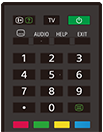
 (Vis info/tekst)
Vis oplysninger.
TV
Skift til en tv-kanal eller indgang, og få vist TV-menu. Se siden Brug af TV-menu for at få flere oplysninger.
 (Strømtilslutning)
Tænder eller skifter til standby-/netværksstandbytilstand.
 (Indstilling af undertekster)
Slå undertekster til eller fra (når funktionen er tilgængelig).
AUDIO
Vælg kilde for lyd på flere sprog eller dobbeltlyd for det aktuelt viste program (afhængigt af programkilde).
HELP
Vis menuen Hjælp. Du kan få adgang til Hjælpevejledning herfra.
EXIT
Vend tilbage til den foregående skærm, eller forlad menuen. Tryk for at forlade en interaktiv programtjeneste, når en sådan er aktiv.
Nummerknap/・(prik)
Brug knapperne 0-9 til at vælge digitale kanaler.
 (Tekst)
Vis tekstoplysninger.
Farveknapper
Udfør tilhørende funktion på tidspunktet.
Nederste knapper på fjernbetjeningen
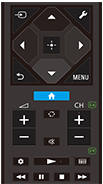
 (Valg af indgang)
Vis og vælg indgangskilden osv. Se siden Valg af indgange for at få flere oplysninger.
 (Hurtige indstillinger)
Vis Hurtige indstillinger. Se siden Brug af Hurtige indstillinger for at få flere oplysninger.
 (Op) /
 (Ned) /
 (Venstre) /
 (Højre) /
 (Enter) (Navigation D-Pad)
Menunavigation og valg på skærmen.
 (TILBAGE)
Vend tilbage til den forrige skærm.
 (HOME)
Vis menuen Home for tv'et. Se siden Menuen Home for at få flere oplysninger.
MENU
Viser en menu på tv'et, så du kan anvende knapfunktioner, der ikke findes på fjernbetjeningen, på skærmen.
 +/- (Lydstyrke)
Juster lydstyrken.
 (Spring)
Spring frem og tilbage mellem to kanaler eller indgange. Tv'et skifter mellem den aktuelle kanal eller indgang og den sidst valgte kanal eller indgang.
 (Slå lyden fra)
Slå lyden fra. Tryk igen for at slå lyden til.
Tip!
- Du kan slå genveje til brugerassistance til eller fra ved at trykke på knappen
(Slå lyden fra) og holde den nede i 3 sekunder.
CH +/- (Kanal)
I tv-tilstand: Vælg kanalen.
I teksttilstand: Vælg
 (Næste) eller
 (Forrige) side.
 (Kontrolpanel)
Vis Kontrolpanel.
 (Afspil) /
 (Hurtigt tilbage) /
 (Pause) /
 (Stop) /
 (Hurtigt frem)
Betjen medieindhold på tv'et og tilsluttede BRAVIA Sync-kompatible enheder.
 (Oversigt)
Vis den digitale programoversigt for tv'et eller kabel-/satellitboksen. Se siden Brug af programoversigten for at få flere oplysninger.
For at lukke denne skærm og springe til Indstillinger-skærmen skal du vælge følgende link.
 Hop til Indstillinger-skærmen
Sådan mutes fjernbetjeningens betjeningslyd
-
Tryk på knappen
(Hurtige indstillinger) på fjernbetjeningen, og vælg nedenstående i rækkefølge for at deaktivere.[Indstillinger] — [System] — [Systemlyde]
Om udskiftning af fjernbetjeningens batteri
- Åbn fjernbetjeningens dæksel som vist herunder.
- Fjern fjernbetjeningens dæksel, og udskift batterierne.
- Kontrollér, at batterierne vender, så de matcher de positive (+) og negative (-) symboler i batterirummet.
-
Glidetype

-