


Connecting a camera or camcorder and viewing stored content
To connect a camera or camcorder
Connect your Sony digital still camera or camcorder using an HDMI cable. Use a cable that has an HDMI mini jack (socket) for the digital still camera/camcorder end, and a standard HDMI jack (socket) for the TV end.
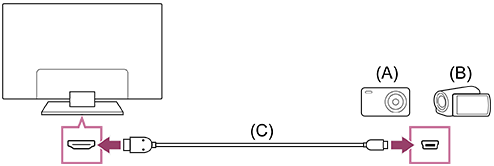
(A) Digital still camera
(B) Camcorder
(C) HDMI cable (not supplied)*
* Be sure to use an authorised Premium High Speed HDMI™ Cable(s) bearing the HDMI logo.
To view content stored on a digital still camera/camcorder
-
After connecting the digital still camera/camcorder, turn it on.
-
Press the
 (Input select) button repeatedly to select the connected digital still camera/camcorder.
 -
Start playback on the connected digital still camera/camcorder.
To check the supported file formats
Hint
- If you connect a BRAVIA Sync-compatible device, you can operate it by simply using the TV’s remote control. Make sure that the device is BRAVIA Sync-compatible. Some devices may not be compatible with BRAVIA Sync even though they have an HDMI jack (socket).