


Using the Voice Remote Control microphone
Voice Remote Controls that support voice control have a Voice assistant/MIC button, and a built-in microphone. Ask Google to find movies, stream apps, play music, and control the TV - all with your voice. Press the Voice assistant (or MIC) button on the Voice Remote Control to get started.
- Press and hold the Voice assistant/MIC button on your Voice Remote Control.
The microphone on the Voice Remote Control will be activated while the button is pressed, and the LED on the Voice Remote Control will light up.
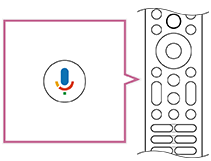
- Speak into the microphone while pressing and holding the Voice assistant/MIC button.
Speech examples may be displayed depending on your model.

Search results are displayed when you speak into the microphone.
Note
- The type of remote control supplied with the TV, and the availability of a Voice Remote Control with a built-in microphone varies depending on your model/region/country. An optional remote control is available in some models/regions/countries.