


Adjusting the sound quality
To close this screen and jump to the Settings screen, select the following link.
 Jump to the Settings screen
You can configure various settings related to the TV’s sound such as sound quality.
Note
- The actual display may vary or some settings may not be available depending on your model/country/region, TV settings, and the connected device.
Press the
 (Quick Settings) button on the remote control, then select [Settings] — [Display & Sound] — the desired option.
You can change the following settings.
Sound
Adjust settings by input such as the TV or HDMI, and other common settings, to enjoy various sound effects.
You can configure settings such as those below.
Sound customisation
Adjust sound quality.
For details, refer to “Sound” advanced settings .
Dynamic range settings
Adjust the sound level of current input.
For details, refer to “Sound” advanced settings .
Auto Volume
Keeps the volume level constant for all programmes and inputs.
For details, refer to Auto Volume .
Balance
Adjust the speaker balance.
For details, refer to Balance .
TV position
Change [TV position] based on the TV Installation.
Post-processing
Select the audio processing technology.
Audio output
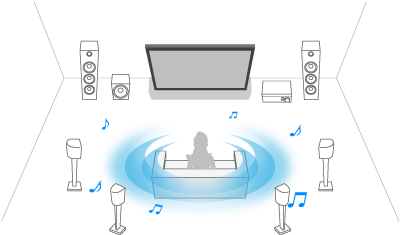
Configure to output sound from an audio system instead of the TV speakers.
You can configure settings such as those below.
Speakers
Select the TV speakers or audio system for audio output.
A/V sync
Adjust audio and video timing while using a Bluetooth A2DP audio device or a specific audio system connected with an HDMI cable.
Digital output delay
Adjust the audio output timing to sync with video.
Digital audio out
Configure the output method when outputting digital audio. This setting is available only when [Speakers] is set to [Audio system].
Hint
- There is less deterioration and noise from signal transmission, and the sound quality is superior compared to analogue connections.
Digital audio out volume
Applied for PCM only. The volume levels between PCM and compressed audio will differ.