
Getting Started
About the Help Guide
Installation
Remote control
Connecting terminal
How the LEDs light up
Home menu
Selecting inputs
Accessibility features
Useful features
Searching for content/operating the TV with your voice
- Using the Voice Remote Control microphone [4]
- Using the built-in MIC on the TV (only TVs with a built-in MIC) [5]
Game Menu
Enjoying apps
- Installing apps [6]
- Enjoying safe apps and video streaming services (Security and restrictions) [7]
- Using Streaming Services [8]
BRAVIA Connect App
Finding the Voice Remote Control (only models supplied with a buzzer built-in Voice Remote Control)
Available features
Watching TV
Watching TV programmes
- Watching Live TV [9]
- Using the programme guide [10]
- Receiving digital broadcasts [11]
- Receiving satellite broadcasts [12]
- Sorting or editing the channels [13]
Useful features when watching TV
Preventing children from viewing harmful content
Adjusting the picture/screen/sound quality to your preferences
- Adjusting the picture quality [14]
- Adjusting the sound quality [15]
- “Sound” advanced settings [16]
- Auto Volume [17]
- Balance [18]
Display subtitles
Recording TV Programmes
Recording to a USB HDD device
- Using a USB HDD device for recording [19]
- Timer recording [20]
- Information about using a USB HDD device for recording [21]
Watching/deleting recorded content
Understanding the symbols displayed in the recorded title list
Using the TV with Other Devices
USB devices
- Playing content stored on a USB device [22]
- Information about USB devices used for storing photos and music [23]
TV box, Blu-ray and DVD players
Smartphones and tablets
Computers, cameras, and camcorders
- Connecting a computer and viewing stored content [28]
- Connecting a camera or camcorder and viewing stored content [29]
- Computer video signal specifications [30]
Audio system (such as an AV receiver or sound bar)
- Outputting audio from an audio system [31]
- Connecting an audio system [32]
- Adjusting an audio system [33]
- Audio formats [34]
- Accessing audio system settings [35]
Video game consoles
Bluetooth devices (such as Bluetooth headphones)
Adjusting the AV sync setting
CEC-compatible devices
Viewing pictures in 4K from compatible devices
- Viewing pictures in 4K resolution [40]
- Settings for viewing pictures through HDMI input with higher quality [41]
BRAVIA Connectivity Guide
Supported files and formats
Available devices and settings
Connecting to a Network
Connecting to a network using a LAN cable
Connecting to a network using Wi-Fi
Settings
Using the Quick Settings
Using the Eco Dashboard
Channels & Inputs
Display & Sound
Network and Internet
Accounts and profiles
Privacy
Apps
System
Remotes and accessories
Help and feedback
Timers & Clock
Available Settings
Troubleshooting
Reset (restart) your TV
Software updates
Self diagnostics
Frequently Asked Questions for Troubleshooting
Others
Specifications
Support Site
Keeping the TV updated
Factory data reset
Trademark information
[1] Getting StartedAbout the Help Guide
This Help Guide explains how to use this TV. You can also refer to the Setup Guide for descriptions about TV installation, and the Reference Guide for information such as specifications, and wall mounting of this TV.
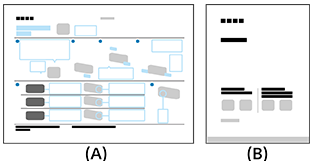
(A) Setup Guide
(B) Reference Guide
Help Guide versions
There are two versions of the Help Guide: the built-in version and the online version. The online Help Guide includes the latest information.
The online Help Guide is automatically displayed when the TV is connected to the internet, otherwise the built-in Help Guide is displayed.

Note
- To use the latest features described in the Help Guide, you may need to update the TV’s software. For details about software updates, see the Software updates page.
- The names of settings in the Help Guide may differ from those displayed on the TV depending on the TV’s release date or your model/country/region.
- The images and illustrations used in the Help Guide may differ depending on your TV model.
- Design and specifications are subject to change without notice.
- The Help Guide contains descriptions common across all models/regions/countries. Some descriptions of features do not apply depending on your model/region/country.
Hint
- This Help Guide is written for all regions/countries. Some descriptions contained in this Help Guide do not apply to some regions and countries.
[2] Getting StartedInstallation
Refer to the paper manuals supplied with your TV for installation, terminal, and wall mounting information.
Manuals are available on the support site.
[3] Getting StartedRemote control Voice Remote Control
The supplied Voice Remote Control, button layout, button names and available features vary depending on your model/country/region.
Upper buttons on the Voice Remote Control
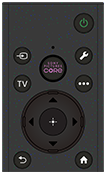
 (Power)
Turns on or switches to standby/networked standby mode.
 (MIC)
(MIC)
Speak into here to use the microphone in the Voice Remote Control. There is an LED at the microphone hole.
 (Input select)
Display and select the input source, etc. For details, refer to the Selecting inputs page.
SONY PICTURES CORE
Enjoy movies on SONY PICTURES CORE by the single press of a button.
 (Quick Settings)
Display Quick Settings. For details, refer to Using the Quick Settings page.
TV
Switch to a TV channel or input and display the TV menu.
 (More options)
Display additional features or settings based on current content or input.
 (Up) /
  (Down) /
  (Left) /
  (Right) /
  (Enter) (Navigation D-Pad)
On screen menu navigation and selection.
In TV mode: Display and select programmes on other channels while watching TV (Digital/Analogue).
 (BACK)
Return to the previous screen.
 (HOME)
Display the Home menu. For details, refer to the Home menu page.
Turns on if the TV is in standby mode.
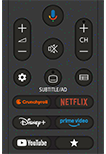
Lower buttons on the Voice Remote Control
 +/- (Volume)
Adjust the volume.
 (Voice assistant/Microphone)
Ask Google for a little help on the big screen. Press the Voice assistant (or MIC) button on the remote to get started.
For details, refer to the Using the Voice Remote Control microphone page.
Voice assistant is not available in certain languages/countries/regions.
 (Mute)
Mute the sound. Press again to restore the sound.
Hint
- The accessibility shortcut service can be turned on or off by pressing and holding (Mute) for 3 seconds.
CH +/- (Channel)
Select the channel.
 (Dashboard)
Display Dashboard.
 SUBTITLE/AD (Subtitle/Closed Caption/Audio Description)
Turn subtitles on or off (when the feature is available).
In Accessibility settings, the button function can be changed to switch audio.
 (Guide)
Display the digital programme guide of the TV or TV box (TV box control compatible models only). For details, refer to the Using the programme guide page.
App buttons (Online service)
Enjoy various streaming services by the single press of a button.
 (Customisable)
Launch preferred app assigned by user.
Hint
- You can use the convenient [Find remote] feature to find the Voice Remote Control by pressing the Power button on the TV. For details, refer to Finding the Voice Remote Control (only models supplied with a buzzer built-in Voice Remote Control) .
To close this screen and jump to the Settings screen, select the following link.  Jump to the Settings screen
How to mute the Voice Remote Control operation sound
-
Press the
(Quick Settings) button on the Voice Remote Control, and select the following in order to disable them.[Settings] — [System] — [System sounds]
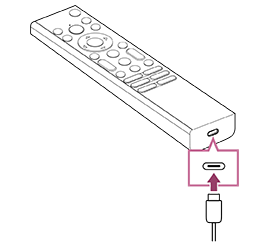
How to charge the Voice Remote Control (rechargeable Voice Remote Control)
The included Voice Remote Control is equipped with a rechargeable battery. Follow the steps below to charge the battery when necessary.
-
Connect the included USB cable to the Voice Remote Control.
-
Connect the USB cable to your USB mains adaptor.
The LED above the microphone lights up red when charging starts.
Note
- In a high or low temperature, the charging speed may become slow or charging may stop, which will make charging inefficient. We recommend that you charge the battery in an environment where the ambient temperature is between 15°C ~ 35°C.
It takes approximately two hours to fully charge the battery from the empty state. The time it takes to fully charge may change depending on usage conditions. - If the Voice Remote Control is not used for a long period of time, it may not be able to be charged due to over-discharge. Charge the battery at least once every six months.
- Do not get the USB terminal wet. Do not use or charge the battery in wet conditions. In addition, avoid fog, sand, dust, and static electricity while using it.
- When charging, use the following equipment that can supply an output current of 0.5 A (500 mA) or more.
- Commercially available USB mains adaptor
- A computer equipped with a USB terminal as standard (We do not guarantee the charging operation of the Voice Remote Control on all computers.)
- When charging, only use the included USB cable, and be sure to connect the Voice Remote Control directly to your computer or charger. If you connect it via a USB hub, etc., a charging failure may occur.
Hint
-
If the battery power drops to a low level, it will be indicated by a lamp or buzzer as follows.
30% or less: When you press the Power button, the lamp on the Voice Remote Control flashes red.
10% or less: When you press the Power button, the lamp on the Voice Remote Control flashes red and the buzzer sounds.
You can turn the buzzer off/on by holding down the
(BACK) button while pressing the (Volume) - button. -
You can check the remaining battery power level with the following settings.
[Settings] — [Remotes and accessories] — [Accessories]
The remaining charge which is displayed may differ from the actual remaining charge in some cases. Use it as a rough estimate.
-
If you charge the Voice Remote Control after not using it for a long period of time, the lamp on the Voice Remote Control may not light up right away.
Check if the TV is working properly
- Press the Power button on the TV to determine if the problem is with the remote control or not. For the location of the Power button, refer to the Reference Guide/Setup Guide supplied with the TV.
- If the TV is not working, try resetting it.
Reset (restart) your TV
Check if the remote control is working properly
- Point the remote control at the remote control sensor located at the front of the TV.
- Keep the remote control sensor area clear from obstacles.
- Fluorescent light can interfere with remote control operation; try turning off any fluorescent light.
- Open the Voice Remote Control cover as shown below.
- Remove the Voice Remote Control cover and replace the batteries with new ones.
- Check that the orientation of each battery matches the positive (+) and negative (-) symbols in the battery compartment.
- Sliding type

- Sliding type
Note
- Remote controls with a Voice assistant/MIC button are connected to the TV using Bluetooth. Radio interference may occur in the following situations and cause issues such as poor operation of microphone or remote control because Bluetooth radio waves use the same frequency as radio waves emitted from microwaves and wireless LANs (IEEE 802.11a/b/g/n/ac/ax).
- There are people or obstacles (such as metal objects or walls) between the TV and remote control.
- A microwave is being used nearby
- There is a wireless LAN access point nearby
- The TV and remote control are unpaired
- Use the remote control closer to the TV
- Remove obstacles between the TV and remote control
- Use the remote control when a microwave is not in use
- Turn off other Bluetooth devices
-
Check the TV’s Bluetooth setting and turn it on and off
Press the(Quick Settings) button on the remote control and select the following in order.
If [Settings] — [Remotes and accessories] — [Bluetooth] is disabled, enable it. If it is enabled, disable and then enable it again. - Set wireless LAN access points and microwaves at least 10 m away from the TV
- If the 5 GHz band (IEEE802.11a) is available in the wireless LAN, connect to the 5 GHz band
- Pair the remote control again
Press the(Quick Settings) button on the remote control, and select the following in order.
[Settings] — [Remotes and accessories] — [Remote control] — [Connect via Bluetooth] — [Connect a new remote] — follow the on-screen instructions to reconnect the remote control.
If you cannot operate the TV with the supplied remote control, select the above in order until [Connect a new remote] using another Sony TV's remote control, and then try connecting again with the supplied remote control.
- Depending on your model, a Bluetooth remote control is supplied and already paired with the TV. At the time of shipment, the supplied paired remote control cannot be used to operate other TVs. When checking remote control operation, use with the TV with which the remote control was supplied.
Reset the remote control
If the remote control does not operate correctly due to poor battery contact or static electricity, the problem may be resolved by resetting the remote control.
- Remove the batteries from the remote control.
- Press the Power button on the remote control for three seconds.
- Install new batteries into the remote control.
If the problem persists, refer to Reset (restart) your TV and Frequently Asked Questions for Troubleshooting pages.
Note
- When you unplug the TV and plug it in again, the TV may not be able to turn on for a while, even if you press the Power button on the remote control or the TV. This is because it takes time to initialise the system. Wait for about 10 to 20 seconds, then try again.
[4] Getting StartedRemote control IR Remote Control
The included remote control, as well as the layout of the buttons and the button names, vary depending on your model/country/region.
Upper buttons on the remote control
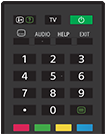
 (Info/Text reveal)
Display information.
TV
Switch to a TV channel or input and display the TV menu.
(Power)
Turns on or switches to standby/networked standby mode.
(Subtitle setting)
Turn subtitles on or off (when the feature is available).
AUDIO
Select multilingual source sound or dual sound for the programme currently being viewed (depending on programme source).
HELP
Display the Help menu. Help Guide can be accessed from here.
EXIT
Return to the previous screen or exit from the menu. When an Interactive Application service is available, press to exit from the service.
Number Button/・(Dot)
Use with the 0-9 buttons to select digital channels.
 (Text)
Display text information.
Colour buttons
Execute corresponding function at that time.
Lower buttons on the remote control
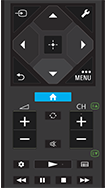
(Input select)
Display and select the input source, etc. For details, refer to the Selecting inputs page.
(Quick Settings)
Display Quick Settings. For details, refer to the Using the Quick Settings page.
(Up) / (Down) / (Left) / (Right) / (Enter) (Navigation D-Pad)
On screen menu navigation and selection.
(BACK)
Return to the previous screen.
(HOME)
Display the Home menu. For details, refer to the Home menu page.
Turns on if TV at standby mode.
(More options) / MENU
Display additional features or settings based on current content or input.
+/- (Volume)
Adjust the volume.
 (Jump)
Jump back and forth between two channels or inputs. The TV alternates between the current channel or input and the last channel or input that was selected.
(Mute)
Mute the sound. Press again to restore the sound.
Hint
- The accessibility shortcut service can be turned on or off by pressing and holding (Mute) for 3 seconds.
CH +/- (Channel)
In TV mode: Select the channel.
In Text mode: Select the  (Next) or
  (Previous) page.
(Dashboard)
Display Dashboard.
 (Play) /
  (Fast rewind) /
  (Pause) /
  (Stop) /
  (Fast forward)
Operate media contents on the TV and connected CEC-compatible device.
(Guide)
Display the digital programme guide of the TV or TV box. For details, refer to Using the programme guide page.
To close this screen and jump to the Settings screen, select the following link. Jump to the Settings screen
How to mute the remote control operation sound
-
Press the
(Quick Settings) button on the remote control, and select the following in order to disable them.[Settings] — [System] — [System sounds]
About replacing the remote control battery
- Open the remote control cover as shown below.
- Remove the remote control cover and replace the batteries with new ones.
- Check that the orientation of each battery matches the positive (+) and negative (-) symbols in the battery compartment.
-
Sliding type

-
[5] Getting StartedRemote control Available types of remote control
[6] Getting Started Connecting terminal
The availability of terminals and types or shapes of connectors may vary depending on your TV.
For the label and location of the terminals, refer to the Setup Guide (printed manual).
The Setup Guide can also be downloaded from the Support Site.
| Terminal label | Description |
|---|---|
|
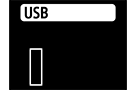
USB Connects to Digital still camera/Camcorder/USB storage media. Note
|
|
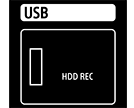
USB HDD REC Connects to the USB HDD device or Digital still camera/Camcorder/USB storage media. |
|
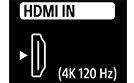
HDMI IN (4K 120 Hz) Connects to the HDMI device. The HDMI interface can transfer the digital video and audio on a single cable. To enjoy high quality 4K contents, connect a Premium High Speed HDMI™ Cable(s) and follow the instructions displayed on the screen to set the [HDMI signal format] of the HDMI IN port. (HDCP 2.3-compatible) If you use an HDMI device that supports video output in 4K 100/120 Hz, connect the Ultra High Speed HDMI™ Cable, and follow the instructions displayed on the screen to set the [HDMI signal format] of the HDMI IN port. (HDCP 2.3-compatible) Note
|
|
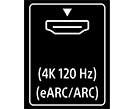
HDMI IN (eARC/ARC) To connect an audio system that supports eARC (Enhanced Audio Return Channel) or ARC (Audio Return Channel), connect to the HDMI port labelled “eARC/ARC” on the TV. It is a feature that sends audio to an audio system that supports eARC/ARC through an HDMI cable. If the audio system does not support eARC/ARC, you need to connect with DIGITAL AUDIO OUT (OPTICAL). Hint
|
|
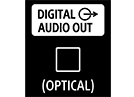
DIGITAL AUDIO OUT (OPTICAL) Connects to an audio system with optical audio input. |
|
Connects to Cable/Antenna/External Box. Note
|
|
Connects to satellite input. Note
|
|
LAN Connect to a Router. |
|
CAM (Conditional Access Module) Provides access to pay TV services. For details, refer to the instruction manual supplied with your CAM. Note
|




[7] Getting StartedHow the LEDs light up
To close this screen and jump to the Settings screen, select the following link. Jump to the Settings screen
You can check the status of the TV by looking at how the LEDs light up.
The location of the LEDs varies by model.
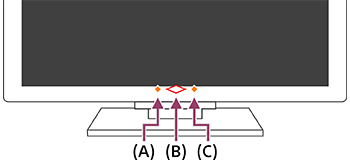
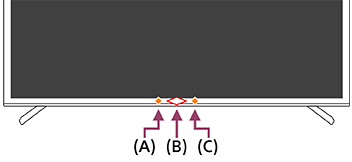
(A) Built-in MIC switch LED (On the centre left at the bottom of the TV. Only TVs with a built-in MIC.*)
(B) Operational response LED (In the centre at the bottom of the TV.)
(C) Voice function LED (On the centre right at the bottom of the TV. Only TVs with a built-in MIC.*)
* The built-in MIC on the TV may not be available depending on your region/model/language.
Voice function LED
- Lights up or blinks in white
- When “Hey Google” is detected and the TV is communicating with the server. The lighting pattern of this LED depends on the server communication status.
-
Turns “on” in amber
-
When the Built-in MIC switch is switched off while the TV is turned off or in standby mode.
You need to press the Voice assistant/MIC button on the Voice Remote Control and finish activating the built-in MIC on the TV (only TVs with a built-in MIC*).
-
When the Built-in MIC switch is switched off while the TV is turned off or in standby mode.
Note
- The colour of the voice function LED may vary due to specification changes.
Operational response LED
-
Turns “on” in white
- When the TV is turning on.
- When receiving signals from the remote control.
-
“Blinks” slowly in white
- When updating the software using a USB storage device.
- When pressing the Power button on the remote control while the TV is starting up.
Built-in MIC Switch LED
- Turns “on” in amber
- When the Built-in MIC switch is switched on while the TV is turned on or in standby mode (only TVs with a built-in MIC*).
However, the LED may not turn on depending on the settings.
- When the Built-in MIC switch is switched on while the TV is turned on or in standby mode (only TVs with a built-in MIC*).
* The built-in MIC may not be available depending on your region/model/language.
To turn off the voice function LED and the Built-in MIC switch LED
-
Press the (Quick Settings) button on the remote control, then select [Settings] — [System] — [LED indicator], disable [Voice detection status].
To turn off the white operational response LED
-
Press the (Quick Settings) button on the remote control, then select [Settings] — [System] — [LED indicator], disable [Operational response].
[8] Getting StartedHome menu
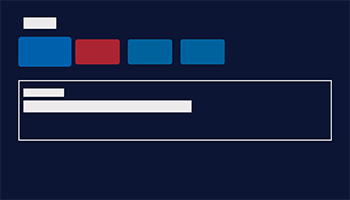
The screen displayed when you press the (HOME) button on the remote control is called the Home menu. From the Home menu, you can search for content and select recommended content, apps, and settings.
The items displayed on the Home menu depends on whether a Google Account has been setup on the TV.
(Some features do not apply depending on your model/region/country. The images are for reference only. They may differ from the actual screen.)
(A) The Home menu when a Google Account is setup on the TV
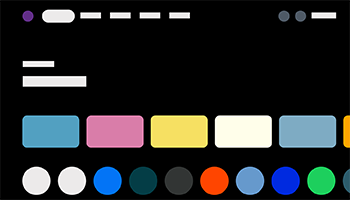
(B) The Home menu when a Google Account is not setup on the TV
Setting up a Google Account and enjoying the TV
If you connect the TV to the Internet and setup a Google Account, you can install desired apps on the TV and enjoy Internet videos and use your voice to search for content.
Enjoying the TV without setting up a Google Account
Even if you do not setup a Google Account, you can watch TV broadcasts and/or view content from devices connected to the TV such as a Blu-ray player.
Note
- To setup a Google Account later and enjoy the TV, set up Google TV™ from the Home menu or settings menu.
- If you delete the Google Account, the TV will return to the factory default settings.
Hint
-
Depending on the TV settings, the Home screen will be displayed when the TV is turned on. If you change the following setting, you can change the screen that is displayed when the TV is turned on to the TV broadcast channel or external input such as HDMI that you were watching before turning off the TV.
- Press the (Quick Settings) button on the remote control.
- Select [Power-on behaviour], and then select [Last used input].
The next time the TV is turned on, the TV broadcast channel or external input such as HDMI that you were watching before turning off the TV will be displayed.
Specifications may be subject to change without notice.
- Press the
- For other information, see “Frequently Asked Questions” on the Sony Support Site.
Frequently Asked Questions for Troubleshooting
[9] Getting StartedSelecting inputs
To use devices (such as a Blu-ray/DVD player or USB flash drive) connected to the TV, or to watch TV after such use, you will need to switch the input.
- Press the (Input select) button repeatedly to select the connected device.
Alternatively, press the(Input select) button, use the (Left) / (Right) buttons to select a connected device, and then press the (Enter) button.
Note
- If there are no devices connected to an HDMI input, the HDMI input may not be displayed in the [Input menu].
To edit the input items
-
Press the
(Input select) button. -
Press the
(Right) button (or (Left) button depending on the TV's display language) and select  (Edit).
 -
Select the input/device you want to show or hide.
-
Select [Close].
Hint
- To change the order or hide a displayed item, press the (Up) button on the remote control with that item highlighted, and [Move] and [Hide] will be displayed. If you select [Move], use (Left) / (Right) on the remote control to move the item to the desired position, and then press the (Enter) button on the remote control.
- You can switch to TV broadcasting by simply pressing the TV button on the remote control.
[10] Getting StartedAccessibility features
To close this screen and jump to the Settings screen, select the following link. Jump to the Settings screen
This TV has accessibility features in [Accessibility] such as the following:
- Text to speech for on-screen text
- Text scaling that enlarges all text on the screen
- Text magnification that enlarges the text at the currently focused location and displays it in a separate window
- Bold text and High-contrast text
- Colour settings such as Colour correction and Colour inversion
- Audio settings such as Audio settings (Broadcast), Audio description
- Subtitle settings such as SUBTITLE button audio description shortcut
- Accessibility shortcut
- Time to take action (accessibility timeout) and Key repeat delay
- Power-on volume
Note
- Some features may not be supported depending on your model/region/country.
Press the (Quick Settings) button on the remote control, then select [Settings] — [Accessibility] to configure the user assistive features.
[Accessibility] has a shortcut function so you can turn it on or off by pressing and holding the (Mute) button on the remote control for 3 seconds.
Hint
- To change the shortcut function, select [Accessibility shortcut] in [Accessibility], enable [Enable accessibility shortcut], and change the function in [Shortcut service].
- To use text-to-speech with the Help Guide, view the Help Guide from the Sony support website using a computer or smartphone.
- For more information about accessibility, please visit the Sony support website.
https://www.sony.net/A11y.GoogleTV/

https://www.sony.net/A11y.GoogleTV/
[11] Useful featuresSearching for content/operating the TV with your voiceUsing the Voice Remote Control microphone
Voice Remote Controls that support voice control have a Voice assistant/MIC button, and a built-in microphone. Ask Google to find movies, stream apps, play music, and control the TV - all with your voice. Press the Voice assistant (or MIC) button on the Voice Remote Control to get started.
- Press and hold the Voice assistant/MIC button on your Voice Remote Control.
The microphone on the Voice Remote Control will be activated while the button is pressed, and the LED on the Voice Remote Control will light up.
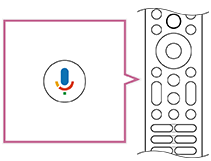
- Speak into the microphone while pressing and holding the Voice assistant/MIC button.
Speech examples may be displayed depending on your model.

Search results are displayed when you speak into the microphone.
Note
- The type of remote control supplied with the TV, and the availability of a Voice Remote Control with a built-in microphone varies depending on your model/region/country. An optional remote control is available in some models/regions/countries.
[12] Useful featuresSearching for content/operating the TV with your voice Using the built-in MIC on the TV (only TVs with a built-in MIC)
The built-in MIC on the TV may not be available depending on your region/country/language.
For details about languages that support the built-in MIC on the TV feature, refer to the following Sony support website.
https://www.sony.net/tv-hf/aep/

https://www.sony.net/tv-hf/aep/
Hint
- The URL is subject to change without notice.
To close this screen and jump to the Settings screen, select the following link. Jump to the Settings screen
Do more on your TV using only your voice. Just start with “Hey Google” to:
- Control your TV and smart home devices
- Enjoy music and entertainment
- Get answers
- Plan your day and manage tasks

Face the TV and say, “Hey Google” to get started.
When the voice function LED lights up or blinks in white, start speaking.
The location of the LED varies by model.
(A) Built-in MIC switch LED (On the centre left at the bottom of the TV. Only TVs with a built-in MIC.*)
(B) Operational response LED (In the centre at the bottom of the TV.)
(C) Voice function LED (On the centre right at the bottom of the TV. Only TVs with a built-in MIC.*)
* The built-in MIC on the TV may not be available depending on your region/model/language.
To use the built-in MIC, enable the following setting.
-
Turn on the built-in MIC switch on the TV.
The built-in MIC switch is located at the bottom centre of the TV. Refer to the Setup Guide.
There may be a tactile dot next to the built-in MIC switch depending on your model. To turn on the built-in MIC, slide the switch towards the tactile dot. - Pair the TV with the Voice Remote Control. For details, refer to Remotes and accessories page.
Press the Voice assistant/MIC button on the Voice Remote Control to complete the setup, depending on your model/country/region. (Only models with the built-in MIC switch)
Alternatively, press the
(Quick Settings) button on the remote control, then select [Settings] — [Privacy] — [Voice assistant] — enable [Voice control] and [Hands-free mic].
Note
- Power consumption will increase when the built-in MIC is enabled as it is always listening.
-
The voice recognition performance of the built-in MIC may also degrade in the following cases.
- When eARC features are enabled
- When a sound bar is connected
- When [Digital audio out] is set to [Prioritise pass through]
Hint
- When the built-in MIC switch on the TV is enabled, the Operational response LED lights up in amber even when the TV is turned off (you can also set it so it does not light up).
-
The TV's built-in MIC may pick up sound from the surroundings and respond unintentionally. You can use [Built-in MIC sensitivity] to change the mic sensitivity.
Press the
(Quick Settings) button on the remote control, and select the following in order.[Settings] — [System] — [Built-in MIC sensitivity]
[13] Useful featuresGame Menu
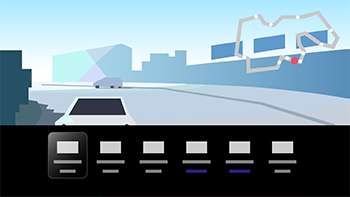
If you press the (More options) button after connecting a game console or computer, or after starting a game app, the game-specific menu is displayed at the bottom of the screen.
Hint
- Depending on the game console or computer you connect, or the game app you launch, the [Picture mode] may automatically change to [Game]. If [Game] is not selected automatically, set it manually.
Note
- The available options may vary.
- Unsupported options are greyed out (not available).
[14] Useful featuresEnjoying apps Installing apps
To close this screen and jump to the Settings screen, select the following link. Jump to the Settings screen
You can install apps to the TV, just like you do with smartphones and tablets.
Note
- You can only install apps that are compatible with TVs. They may differ from apps for smartphones/tablets.
Hint
-
If you do not have a Google Account or want to create a shared account, create a new account by accessing the following website.
https://accounts.google.com/signup

https://accounts.google.com/signup
The website above may vary depending on your region/country. It is also subject to change without notice. For details, refer to the Google homepage.
- We recommend that you create a Google Account on a computer or mobile device.
- Press the (HOME) button, and select the Apps tab on the Home screen.
- Select “Search for apps and games”.
- Use the on-screen keyboard to search for app name.
- Select an app from the search results and install it.
Hint
- You can select a category from the Apps tab in the Home menu and select a desired app.
After downloading, the app is automatically installed and added. You can select [Open] to launch the app.
About paid apps
There are free apps and paid apps. To purchase a paid app, a prepaid Google Play gift card code or credit card information is required. You can purchase a Google Play gift card from various retailers.
To update an installed app
-
You can enable [Auto-update apps].
Press the
(Quick Settings) button on the remote control, select [Settings] — [Apps] — [Manage updates] — enable [Auto-update apps].
Hint
- You can search your desired app from the Apps tab in the Home menu and update the app if [Update] option is available.
To delete an app
-
Press the
(Quick Settings) button on the remote control, select [Settings] — [Apps], select an app to be deleted, and uninstall it.
[15] Useful featuresEnjoying apps Enjoying safe apps and video streaming services (Security and restrictions)
To close this screen and jump to the Settings screen, select the following link. Jump to the Settings screen
You can ensure safe use of the TV by setting installation restrictions on apps that are downloaded from unknown sources, or age restrictions on programmes and videos. (Some features do not apply depending on your model/region/country.)
You can set the following [Parental controls] features in order to:
- Restrict TV channels
- Restrict installation of apps from unknown sources
- Restrict use of apps (password lock feature)
You can restrict features by setting the following.
To set age restrictions on programmes
-
Press the
(Quick Settings) button on the remote control, and then select the following in order.[Settings] — [System] — [Parental controls] — [Channels] — [TV rating]
The options depend on your model/country/region/settings.
To restrict apps (password lock feature)
Set to restrict children from using apps such as internet browsers.
Set restrictions in [Parental controls].
If this is set, you will be required to input the PIN when starting an app.
-
Press the
(Quick Settings) button on the remote control, and select the following in order.[Settings] — [System] — [Parental controls] — [Apps]
-
Set or input the PIN.
-
Enable [Restrict apps].
-
Select the apps that you want to restrict from the app list.
Restricted apps will change from
 (Unlocked) to
  (Locked). To restrict all apps, select [All apps].
To restrict the installation of apps from unknown sources
-
Press the
(Quick Settings) button on the remote control, and select the following in order.[Settings] — [Privacy] — [Security and restrictions] — [Unknown sources] — change the setting in [Install unknown apps].
Note
- If you change the [Security and restrictions] settings, your device and personal data are more vulnerable to attack by unknown apps from sources other than Play Store. You agree that you are solely responsible for any damage to your device or loss of data that may result from using these apps.
- If you forget the PIN, you must reset the TV to its original factory settings. Make sure you do not forget the PIN.
Hint
- Other separate restrictions may be available depending on the app. For details, refer to the app’s Help.
[16] Useful featuresEnjoying apps Using Streaming Services
You can use video streaming services such as YouTube™ and Netflix to watch Internet content. The available services vary depending on your country and region. You can launch these services by selecting their apps in the Home menu. If a Google Account is set on the TV, you can also select content that is displayed in the Home menu.
Note
- Video streaming services such as Netflix and Amazon Prime are paid services.
- Supported video streaming services depend on the model/region/country, and some models/regions/countries do not support such services.
[17] Useful featuresBRAVIA Connect App
You can install the mobile app on your smartphone to operate this unit and set up a compatible audio system.


Note
- To maximise the features and performance of this TV and audio system, you may need to update the TV's software and the “Sony | BRAVIA Connect” app to the latest version.
- The availability of this function depends on your model/region/country.
[18] Useful features Finding the Voice Remote Control (only models supplied with a buzzer built-in Voice Remote Control)
The Voice Remote Control supplied with the TV has a feature that allows you to find the Voice Remote Control by playing a sound from a built-in buzzer when you cannot find it, such as when you do not remember where you left it (for example, under a cushion or hidden under a newspaper), or when you are watching a movie in a dark room.
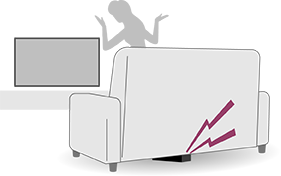
Use the following procedures to find the Voice Remote Control.
Using the Power button on the TV
-
Press the Power button on the TV.
A menu is displayed on the TV screen.
-
Follow the on-screen instructions and select [Find remote] on the displayed menu.
A buzzer plays from the Voice Remote Control.
Using the built-in MIC on the TV (only TVs with a built-in MIC)
-
With the TV's built-in MIC enabled, say “Ok Google, where is the remote control?” to the TV.
A buzzer plays from the Voice Remote Control.
Note
- The [Find remote] option, which is displayed by pressing the Power button on the TV, is only displayed when a Voice Remote Control with a built-in buzzer is paired with the TV.
- The feature to find the Voice Remote Control using the built-in MIC on the TV is available only to some models/countries/regions/languages.
- To find the Voice Remote Control using the TV's built-in MIC, the TV must be turned on (depending on the model). In some languages, you can find the Voice Remote Control using the TV's built-in MIC even when the TV is turned off.
- There is a limit to the distance you can search for the Voice Remote Control from your TV. The buzzer cannot be played by the Voice Remote Control in places where the signals do not reach.
[19] Useful featuresAvailable features
Searching for content/operating the TV with your voice
Using the Voice Remote Control microphone
Using the built-in MIC on the TV (only TVs with a built-in MIC)
Enjoying game features
BRAVIA Connect App
Finding the Voice Remote Control
Finding the Voice Remote Control (only models supplied with a buzzer built-in Voice Remote Control)
[20] Watching TVWatching TV programmes Watching Live TV
- Press the TV button on the remote control to display TV channel or switch to input.
- Press the CH +/- button and select the preferred channel.
[21] Watching TVWatching TV programmes Using the programme guide
You can quickly find your preferred programmes.
- Press the (Guide) button to display the digital programme guide.
[22] Watching TVWatching TV programmes Receiving digital broadcasts
To close this screen and jump to the Settings screen, select the following link. Jump to the Settings screen
- Press the (Quick Settings) button on the remote control, then select [Settings] — [Channels & Inputs] — [Channels] — [Channel setup] — [Auto tuning].
- Follow the on-screen instructions to tune in all available digital channels and store them in the TV.
Hint
- You can retune the TV by selecting [Auto tuning] and following the on-screen instructions after moving to a new residence, changing service providers, or to search for newly launched channels.
[23] Watching TVWatching TV programmes Receiving satellite broadcasts
To close this screen and jump to the Settings screen, select the following link. Jump to the Settings screen
If you have a satellite dish installed, you can view satellite broadcasts by configuring the tuner settings.
- Press the (Quick Settings) button on the remote control, then select [Settings] — [Channels & Inputs] — [Channels] — [Channel setup] — [Auto tuning] for subscribed satellite broadcasts.
- Follow the on-screen instructions.
[24] Watching TVWatching TV programmes Sorting or editing the channels
To close this screen and jump to the Settings screen, select the following link. Jump to the Settings screen
You can sort the channel display according to your preferred order.
- Press the (Quick Settings) button on the remote control, then select [Settings] — [Channels & Inputs] — [Channels] — [Channel list edit].
If multiple items are displayed, select the one you want to edit. - Choose the channel you want to move to a new position.
You can select to [Insert] or [Swap] the selected channel. To change it, select [Sorting type].
- Choose the new position where you want to move the selected channel.
- Select [Done] to apply the changes.
Note
- Available options may vary depending on your region/country.
Editing the channel list with a smartphone
You can edit the channel list with your smartphone.
-
Press the
(Quick Settings) button on the remote control, then select [Settings] — [Channels & Inputs] — [Channels] — [Channel list edit from mobile device]. -
Follow the on-screen instructions.
[25] Watching TV Useful features when watching TV
Timers
Use a timer to turn the TV on and off.
You can turn off the TV at a preset time (timer function) or play a tone at a preset time (alarm function).
For details, refer to Timers & Clock.

Parental lock
Use [Parental controls] to set parental restrictions.
For details, refer to [Parental controls] under System.

Picture quality/sound quality adjustment
Adjust the picture quality and sound quality according to your preferences.
For details, refer to Display & Sound.
Subtitles
For details, refer to Display subtitles .
[26] Watching TV Preventing children from viewing harmful content
To close this screen and jump to the Settings screen, select the following link. Jump to the Settings screen
When Profile lock or Device lock is enabled, a PIN verification screen will be displayed every time you turn on the TV. Enter the PIN that you set for Profile lock or Device lock.
If your TV is set to Set up Google TV in the initial setup, you can enable Profile lock.
If your TV is set to Set up basic TV in the initial setup, you can enable Device lock.
Setting the Profile lock
To use this function, you may need to update the TV's software.
You can do one of the following methods to set the Profile lock.
- If your TV is set to Google TV (you are logged in with a Google Account), select [Profile lock] at the end of initial setup and follow the on-screen instructions to create a PIN.
-
Press the
(Quick Settings) button on the remote control and select [Settings] — [Accounts and sign-in].Select an account, then select Profile lock.
Follow the on-screen instructions to create a PIN.
Hint
- You can set Profile lock for each account you use.
Disabling the Profile lock
-
Press the
(Quick Settings) button on the remote control and select [Settings] — [Accounts and sign-in]. -
Select an account, then disable the Profile lock.
Note
- You will need to enter the PIN you set to disable the Profile lock. If you forget your PIN, you can reset the PIN by entering your Google Account password.
Setting the Device lock (Only for France)
If your TV’s country/region setting is France (you chose France in the [Select your region or country] step during the initial setup) and your TV is set to basic TV (you are not logged in with a Google Account), the [Create a PIN] screen will appear in the initial setup. Select [Set up PIN] and follow the on-screen instructions to set up your Device lock PIN.
Hint
- If you select [Not now], you can create a PIN later.
Setting the Device lock PIN
-
Press
(Quick Settings) button on the remote control, then select [Settings] — [Privacy] — [Device lock] — enable Device lock. -
When Device lock is enabled, instructions on how to create a PIN will be displayed. Follow the on-screen instructions to set up your Device lock PIN.
Setting the Device lock
- Press the (Dashboard) button on the remote control and display the Dashboard screen.
- Select
 (Help and feedback) at the bottom right of the Dashboard screen.
 - Enable the Device lock and follow the on-screen instructions to set up your Device lock PIN.
Disabling the Device lock
-
Press
(Quick Settings) button on the remote control, then select [Settings] — [Privacy] — [Device lock]. -
Disable the Device lock.
Note
- You will need to enter the PIN you set to disable the Device lock. If you forget your PIN, a factory data reset is required.
[27] Watching TVAdjusting the picture/screen/sound quality to your preferences Adjusting the picture quality
To close this screen and jump to the Settings screen, select the following link. Jump to the Settings screen
You can configure various settings related to the TV display such as colour and brightness for picture quality, or screen size.
Note
- The actual display may vary or some settings may not be available depending on your model/country/region and the content you are watching.



Press the (Quick Settings) button on the remote control, then select [Settings] — [Display & Sound] — the desired option.
You can change the following settings.
Picture
Adjust the picture settings such as Brightness, Colour, and Hue.
Picture mode
Change the picture quality according to the content you are watching such as movies or sports.
Auto picture mode
Automatically sets the picture mode based on the content from HDMI devices.
Light sensor
Optimises brightness according to ambient light.
Brightness
Adjust the backlight to display the brightest whites and deepest blacks.
Colour
Adjust the colour saturation level.
Advanced
You can set the following.
-
Brightness
You can set the following.
-
Brightness
Adjust the luminance level of the screen.
-
Contrast
Adjust the picture white level.
-
Gamma
Adjust the light and dark balance. Brighten or darken the brightness between white and black.
-
Black level
Adjust the picture black level.
-
Black adjust
Enhance the black in images for stronger contrast.
-
Adv. contrast enhancer
Automatically adjusts the contrast based on picture brightness.
-
Black equaliser
Brightens dark areas of the image to make it easier to identify people and objects. Applicable when [Picture mode] is set to [Game] or [Dolby Vision Game].
-
-
Colour
You can set the following.
-
Colour
Adjust the colour saturation level.
-
Hue
Adjust the green and red tones.
-
Colour temperature
Adjust the colour temperature.
-
Adv. colour temperature
Adjust the colour temperature in detail.
-
Live Colour
Improve the vividness of colours.
-
-
Clarity
You can set the following.
-
Sharpness
Adjust the picture detail.
-
Reality Creation
Adjusts fineness and noise for realistic picture.
If you select [Manual], you can adjust [Type] and [Intensity].
-
Type
-
Detail preferred
Shows more details of the original video by faithfully reproducing its texture and patterns.
-
Cleanness preferred
Displays a cleaner video by reducing noise and jagged lines.
-
-
Intensity
Adjusts fineness and noise for realistic picture.
-
Random noise reduction
Reduce repetitive random noise.
-
Digital noise reduction
Reduce video compression noise.
-
-
Motion
You can set the following.
-
Motion blur reduction
Adjusts the strength of clarity by inserting a black frame to reduce motion blur. Applicable when [Picture mode] is set to [Game] or [Dolby Vision Game].
-
Motionflow
Refines moving images. Increases the number of image frames to display videos smoothly. If you select [Custom], you can adjust [Smoothness (Film)], [Smoothness (Camera)] and [Clearness].
-
Smoothness (Film)
Adjusts the motion judder for content mainly shot on film at frame rates such as 24 frames per second by using frame interpolation.
-
Smoothness (Camera)
Adjust the motion blur of content mainly shot by camera at frame rates such as 50 or 60 frames per second by using frame interpolation.
-
Clearness
Adjust Clearness level.
-
Film mode
Optimises picture quality based on video content, such as movies and computer graphics.
-
-
Video signal
You can set the following.
-
Colour space
Set the input signal’s colour space. Typically set to [Auto].
-
HDR mode
Set the input’s HDR type. Typically set to [Auto].
-
HDMI video range
Set the HDMI input signal’s dynamic range. Typically set to [Auto].
-
-
Reset
You can set the following.
-
Reset
Return all picture settings for current picture mode to factory default.
-
Screen
Adjust the aspect ratio and viewable screen area.
Wide mode
Adjust the picture size.
Hint
- When 4 096 × 2 160p is input and [Wide mode] is set to [Vertical fit], the resolution is displayed as 3 840 × 2 160p. To display 4 096 × 2 160p, set [Wide mode] setting to [Horizontal fit], [Auto] or [Full].
Display area
Adjust the viewable screen area. Set to [Auto] to automatically adjusts the viewable screen area based on the signal.
Screen size
Adjust the vertical and horizontal screen size.
Screen position
Adjust the vertical and horizontal screen position.
[28] Watching TVAdjusting the picture/screen/sound quality to your preferences Adjusting the sound quality
To close this screen and jump to the Settings screen, select the following link. Jump to the Settings screen
You can configure various settings related to the TV’s sound such as sound quality.
Note
- The actual display may vary or some settings may not be available depending on your model/country/region, TV settings, and the connected device.
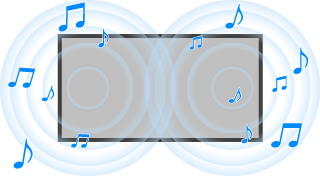
Press the (Quick Settings) button on the remote control, then select [Settings] — [Display & Sound] — the desired option.
You can change the following settings.
Sound
Adjust settings by input such as the TV or HDMI, and other common settings, to enjoy various sound effects.
You can configure settings such as those below.
Sound customisation
Adjust sound quality.
For details, refer to “Sound” advanced settings .
Dynamic range settings
Adjust the sound level of current input.
For details, refer to “Sound” advanced settings .
Auto Volume
Keeps the volume level constant for all programmes and inputs.
For details, refer to Auto Volume.
Balance
Adjust the speaker balance.
For details, refer to Balance.
TV position
Change [TV position] based on the TV Installation.
Post-processing
Select the audio processing technology.
Audio output
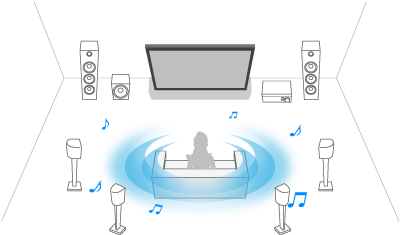
Configure to output sound from an audio system instead of the TV speakers.
You can configure settings such as those below.
Speakers
Select the TV speakers or audio system for audio output.
A/V sync
Adjust audio and video timing while using a Bluetooth A2DP audio device or a specific audio system connected with an HDMI cable.
Digital output delay
Adjust the audio output timing to sync with video.
Digital audio out
Configure the output method when outputting digital audio. This setting is available only when [Speakers] is set to [Audio system].
Hint
- There is less deterioration and noise from signal transmission, and the sound quality is superior compared to analogue connections.
Digital audio out volume
Applied for PCM only. The volume levels between PCM and compressed audio will differ.
[29] Watching TVAdjusting the picture/screen/sound quality to your preferences “Sound” advanced settings
This page introduces various settings for the features you can configure in [Sound].
Note
- The actual display may vary or some settings may not be available depending on your model/country/region, TV settings, and the connected device.
Sound customisation
| Setting | Description |
|---|---|
| Surround | Virtually reproduce realistic surround sound. |
| Dialogue enhancer | Emphasises voice. |
| Equaliser | Adjust sound based on different frequencies. |
| Reset | Return all sound customisation settings to factory default settings. |
Dynamic range settings
| Setting | Description |
|---|---|
| Dynamic range | Compensates for audio level difference between input sources (for Dolby Digital audio, HE-AAC audio and MPEG audio). |
| DTS Dynamic range | Adjusts dynamic range of DTS signal. |
[30] Watching TVAdjusting the picture/screen/sound quality to your preferencesAuto Volume
To close this screen and jump to the Settings screen, select the following link. Jump to the Settings screen
The volume is automatically adjusted to a certain level according to changes in the volume level of broadcasts and input signals.
Reducing the volume difference that occurs when switching channels or inputs allows you to watch at a constant volume level. To enable this feature, press the (Quick Settings) button on the remote control, then select the following settings.
[Settings] — [Display & Sound] — [Sound] — [Auto Volume]
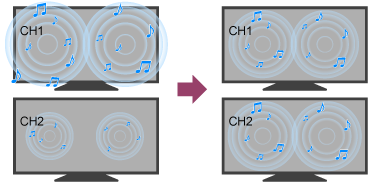
Note
- The effect varies depending on your model/country/region, settings, broadcast, and input signal.
[31] Watching TVAdjusting the picture/screen/sound quality to your preferencesBalance
To close this screen and jump to the Settings screen, select the following link. Jump to the Settings screen
Adjusts the balance of the left and right sound.
Due to the distance to walls and windows and the reflection of sound, you may hear the left and right sound become unbalanced. You can adjust the volume balance. To adjust the sound balance, press the (Quick Settings) button on the remote control, then select the following settings.
[Settings] — [Display & Sound] — [Sound] — [Balance]
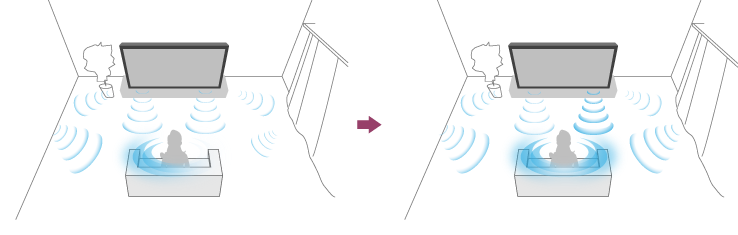
Note
- The effect varies depending on your model/country/region, settings, and installation environment.
[32] Watching TV Display subtitles
To close this screen and jump to the Settings screen, select the following link. Jump to the Settings screen
You can press the SUBTITLE/AD (Subtitle/Closed Caption/Audio Description) button on the remote control to enable subtitles and verbal description of the visual content.
Subtitles for TV broadcasts and apps
Two types of subtitles may be available depending on the TV programme.
Press (Quick Settings) button on the remote control, then select [Settings] — [Accessibility] — [Subtitle settings] — [Broadcast] — [Subtitle] then select the preferred type of subtitle.
- [Basic]
These subtitles only display the audio portion of the content.
- [For hard of hearing]
These subtitles display the audio portion and non-speech elements of the content. Your TV will display [For hard of hearing] subtitles whenever they are available.
Note
- Subtitles may not be available for content in TV broadcasts and apps.
- Some features may not be supported depending on your model/region/country.
[33] Recording TV ProgrammesRecording to a USB HDD device Using a USB HDD device for recording
To close this screen and jump to the Settings screen, select the following link. Jump to the Settings screen
This function is available only in limited regions/countries/TV models.
USB HDD recording models have [Recording Settings] in [Settings] — [Channels & Inputs].
Connect a USB HDD device to your TV to record digital broadcasts.
Connect the USB HDD device to the TV’s USB port labelled “HDD REC” (if there is a blue USB port, that port supports HDD recording).
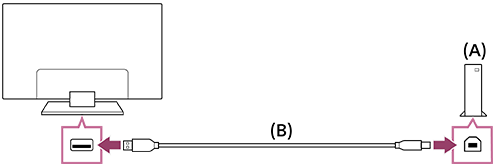
(A) USB HDD device
(B) USB cable (not supplied)
- Connect a USB HDD device to the USB port (blue) labelled “HDD REC” on your TV.
- Turn the USB HDD device on.
- Wait until the screen [USB drive connected] is displayed.
- Go to [Recording Settings] in [Settings] — [Channels & Inputs].
- Select Recording device and ensure PVR is enabled.
Note
-
If the device is not detected in step 4, follow the instructions in the message and check that the USB HDD device for recording is connected to the Super Speed USB port (blue).
If the USB HDD device for recording is not recognised even after you have checked the connection, you need to check if the device is installed as “Removable storage” in [Settings] — [System] — [Storage] because it may have already been registered as a device for purposes other than recording. Refer to “ Information about using a USB HDD device for recording ” to use USB HDD device for recording.
[34] Recording TV ProgrammesRecording to a USB HDD device Timer recording
To close this screen and jump to the Settings screen, select the following link. Jump to the Settings screen
This function is only available in limited regions/countries/TV models.
USB HDD recording models have [Recording Settings] in [Settings] — [Channels & Inputs].

- Press the (Guide) button.
-
Highlight the desired programme in the programme guide, press (More options) and select [Schedule List].
- Ensure the programme timing and other information are correct, then select [Confirm].
To check, modify or delete timer settings
Checking, modifying, or deleting timer settings is performed in [Recording timer list].
-
Press the
(More options) button and select [Recorded Title List] (Recorded Title List). If [Recorded Title List] does not exist, select [Edit] and add [Recorded Title List]. -
Press
(More options) again and select [Schedule List]. -
In Schedule List, press
(More options) and select [Edit]. -
Configure the timer setting.
-
Select [Confirm].
Note
- Timer recording will not work when the AC power cord (mains lead) is unplugged.
[35] Recording TV ProgrammesRecording to a USB HDD device Information about using a USB HDD device for recording
To close this screen and jump to the Settings screen, select the following link. Jump to the Settings screen
This function is only available in limited regions/countries/TV models.
USB HDD recording models have [Recording Settings] in [Settings] — [Channels & Inputs].
- The USB HDD device must be used exclusively for recording. Use a separate USB HDD device for viewing photos and videos.
- Only USB HDDs larger than 32 GB are supported.
- Connection of a USB HDD device via a USB hub is not supported. Connect the device directly to the TV.
- Only this TV will be able to play the data recorded on the USB HDD that has been recognised by this TV.
- Recording is supported only for digital TV and radio broadcasts. Recording of data broadcasts is not supported.
- Some scrambled signals may not be recorded due to CAM, subscription, or copy control restrictions.
- Recording cannot be performed in the following cases:
- The TV cannot recognise the USB HDD device.
- More than 1 000 programmes are recorded on the USB HDD device.
- The USB HDD device is full.
- Automatic selection of the programme may not be possible while it is being recorded.
- Recording a programme is not possible unless its recording has been authorised.
- If using a Conditional Access Module (CAM), avoid using its parental rating protection, which may not work during recording. As an alternative, use programme block or the TV’s own parental rating if it is supported by the broadcaster.
- In Norway, some programmes cannot be recorded due to legal restrictions.
- If the TV is subjected to impact during USB HDD recording, noise may occur in the recorded content.
- In no event shall Sony be liable for recording failure or any damage or loss of recorded content caused or associated with the TV’s malfunction, signal interference, or any other problem.
[36] Recording TV Programmes Watching/deleting recorded content
To close this screen and jump to the Settings screen, select the following link. Jump to the Settings screen
This function is only available in limited regions/countries/TV models.
USB HDD recording models have [Recording Settings] in [Settings] — [Channels & Inputs].
To watch recorded content
-
Press the
(More options) button and select [Recorded Title List] (Recorded Title List). If [Recorded Title List] does not exist, select [Edit] and add [Recorded Title List], then select the content to be watched.
To delete recorded content
-
Press the
(More options) button and select [Recorded Title List] (Recorded Title List). If [Recorded Title List] does not exist, select [Edit] and add [Recorded Title List].
-
Highlight the programme you want to delete, select the
 (Delete icon) in the Menu list.
For information about the meaning of the symbols in the recorded title list, see Understanding the symbols displayed in the recorded title list .
[37] Recording TV Programmes Understanding the symbols displayed in the recorded title list
This function is only available in limited regions/countries/TV models.
 : Currently recording
[38] Using the TV with Other DevicesUSB devicesPlaying content stored on a USB device
To record programmes to a USB storage device, see Timer recording .
To watch recorded programmes, see Watching/deleting recorded content .
Connecting a USB device
Connect a USB storage device to the USB port of the TV to enjoy photo, music, and video files stored on the device.
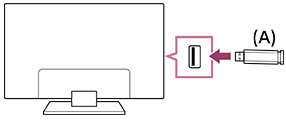
(A) USB storage device
Enjoy photos/music/movies stored on a USB device
You can enjoy photos/music/movies stored on a USB device on the TV screen.
-
If the USB device connected to the TV has a power switch, turn it on.
-
Press the
(HOME) button, and select [Apps] from the Home menu, then select [Media Player].If the supplied remote control has an APPS button, you can press the APPS button.
-
Select the USB device name.
-
Select the folder, and select the file to play.
To check the supported file formats
Note
- Some photo images or folders take time to display depending on the image dimension, file size, and number of files in a folder.
- Displaying the USB device may take some time because the TV accesses the USB device every time the USB device is connected.
- All USB ports on the TV support Hi-Speed USB. The blue USB port supports SuperSpeed (USB 3.2 Gen 1, USB 3.1 Gen 1 or USB 3.0). USB hubs are not supported.
- While accessing the USB device, do not turn off the TV or USB device, do not disconnect the USB cable, and do not remove or insert recording media. Otherwise, data stored on the USB device may be corrupted.
- Depending on the file, playback may not be possible, even when using the supported formats.
- To enjoy photos, you may need to update the TV's software.
Hint
- For other information, see “Frequently Asked Questions” on the Sony Support Site.
Frequently Asked Questions for Troubleshooting
[39] Using the TV with Other DevicesUSB devicesInformation about USB devices used for storing photos and music
- The USB ports on the TV support FAT32, exFAT, and NTFS file systems.
- When connecting a Sony digital still camera to the TV with a USB cable, USB connection settings on your camera need to be set to “Auto” or “Mass Storage” mode.
-
If your digital still camera does not work with your TV, try the following:
- Set the USB connection settings on your camera to “Mass Storage”.
- Copy the files from the camera to a USB flash drive, then connect the drive to the TV.
- Some photos and movies may be magnified, resulting in low picture quality. Depending on the size and aspect ratio, images may not be displayed in full screen.
- It may take a while to display a photo, depending on the file and/or settings.
- In no event shall Sony be liable for recording failure or any damage or loss of recorded contents caused or associated with the TV’s malfunction, the USB device’s malfunction, or any other problem.
[40] Using the TV with Other DevicesTV box, Blu-ray and DVD players Connecting a TV box, Blu-ray or DVD player
Connect a TV box, Blu-ray/DVD player to the TV.
Use a connection method below based on the terminals available on your TV.
Note
- The available terminals depend on your model/region/country.
HDMI connection
For optimum picture quality, we recommend connecting your player to the TV using an HDMI cable. If your Blu-ray/DVD player has an HDMI jack (socket), connect it using an HDMI cable.
To connect an audio system or sound bar at the same time, refer to HDMI connection (eARC supported) in Connecting an audio system.
To adjust the video and audio output timing, refer to Adjusting the AV sync setting.
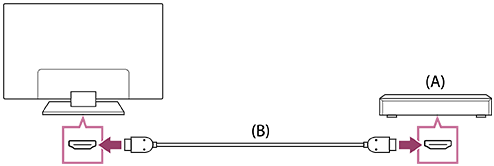
(A) Blu-ray/DVD player (same as connecting a TV box)
(B) HDMI cable (not supplied)*
* Be sure to use an authorised Premium High Speed HDMI™ Cable(s) bearing the HDMI logo.
[41] Using the TV with Other DevicesTV box, Blu-ray and DVD playersWatching Blu-ray and DVD discs
You can watch content from Blu-ray/DVD discs or other content supported by your player on the TV.
- Turn on the connected Blu-ray/DVD player.
-
Press the (Input select) button repeatedly to select the connected Blu-ray/DVD player.
- Start playback on the connected Blu-ray/DVD player.
Hint
- If you connect a CEC-compatible device with an HDMI connection, you can operate it by simply using the TV’s remote control.
[42] Using the TV with Other DevicesSmartphones and tablets Displaying the iPhone/smartphone or iPad/tablet app screen on the TV
Google Cast™ or AirPlay allows you to display (cast) your favourite websites and app screens on your mobile device directly to the TV.
Using Google Cast
-
Connect a mobile device such as a smartphone or tablet to the same network that the TV is connected to.
-
Launch a Google Cast supported app on the mobile device.
-
Tap the Cast button from the app. (
 (cast))
 -
Select the TV as the cast destination.
The screen of the mobile device is displayed on the TV.
Using AirPlay
This TV supports AirPlay 2.
-
Make sure your Apple device is connected to the same network as your TV.
-
The procedure depends on the content that will be displayed on the TV as follows.
-
To display video, tap
 (AirPlay Video).
 -
To display photos, tap
 (Action share).
 -
To play music, tap
 (AirPlay Audio).
 -
To display the screen of a mobile device, tap
 (Mirroring).
(In some apps, you may have to tap another icon first.)
-
-
Select AirPlay on a mobile device such as an iPhone or iPad, and select the TV to use with AirPlay.
Hint
-
The TV supports Apple HomeKit.
You can control the TV with a mobile device such as an iPhone or iPad by pressing the
(Input select) button on the remote control, selecting (AirPlay), and following the on-screen instructions to setup Apple HomeKit.Available operations vary depending on the version of the app and software.
-
If you select [Optimised] or [Increased] in [Energy modes], you can turn on the TV with apps on a mobile device such as an iPhone or iPad.
Press the
(Quick Settings) button on the remote control, then select [Eco Dashboard] — [Energy modes] to change the setting.If [Eco Dashboard] does not exist, select
[Edit] and add [Eco Dashboard].
Note
- Operation of a mobile device such as iPhone or iPad varies depending on the OS version.
[43] Using the TV with Other DevicesSmartphones and tabletsBRAVIA Connect App
You can install the mobile app on your smartphone to operate this unit and set up a compatible audio system.
Note
- To maximise the features and performance of this TV and audio system, you may need to update the TV's software and the “Sony | BRAVIA Connect” app to the latest version.
- The availability of this function depends on your model/region/country.
[44] Using the TV with Other DevicesComputers, cameras, and camcordersConnecting a computer and viewing stored content
To connect a computer
Use an HDMI cable to connect your computer to the TV.
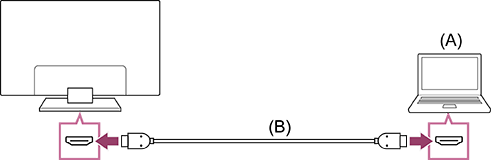
(A) Computer
(B) HDMI cable (not supplied)*
* Be sure to use an authorised Premium High Speed HDMI™ Cable(s) bearing the HDMI logo. We recommend an authorised Ultra High Speed HDMI™ Cable when connecting to a computer that supports 4K 120Hz.
To check the video signal specifications
To view content stored on a computer
After connecting the computer, press the (Input select) button, then select the input the computer is connected to.
To check the supported file formats
Note
- For optimum picture quality, we recommend that you set your computer to output video signals according to one of the timings listed in “Computer video signal specifications”.
- Depending on the connection status, the image may be blurred or smeared. In this case, change the computer’s settings and select another input signal from the “Computer video signal specifications” list.
[45] Using the TV with Other DevicesComputers, cameras, and camcordersConnecting a camera or camcorder and viewing stored content
To connect a camera or camcorder
Connect your Sony digital still camera or camcorder using an HDMI cable. Use a cable that has an HDMI mini jack (socket) for the digital still camera/camcorder end, and a standard HDMI jack (socket) for the TV end.
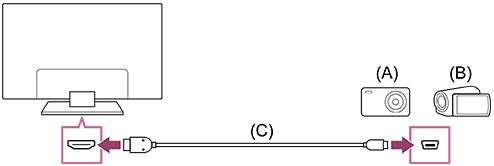
(A) Digital still camera
(B) Camcorder
(C) HDMI cable (not supplied)*
* Be sure to use an authorised Premium High Speed HDMI™ Cable(s) bearing the HDMI logo.
To view content stored on a digital still camera/camcorder
-
After connecting the digital still camera/camcorder, turn it on.
-
Press the
(Input select) button repeatedly to select the connected digital still camera/camcorder. -
Start playback on the connected digital still camera/camcorder.
To check the supported file formats
Hint
- If you connect a CEC-compatible device, you can operate it by simply using the TV’s remote control. Make sure that the device is CEC-compatible. Some devices may not be compatible with CEC even though they have an HDMI jack (socket).
[46] Using the TV with Other DevicesComputers, cameras, and camcordersComputer video signal specifications
(Resolution, Horizontal frequency/Vertical frequency)
- 640 x 480, 31.5 kHz/60 Hz
- 800 x 600, 37.9 kHz/60 Hz
- 1 024 x 768, 48.4 kHz/60 Hz
- 1 280 x 1 024, 64.0 kHz/60 Hz
- 1 600 x 900, 55.9 kHz/60 Hz
- 1 680 x 1 050, 65.3 kHz/60 Hz
- 1 920 x 1 080, 67.5 kHz/60 Hz
- 3 840 x 2 160, 67.5 kHz/30 Hz
- 3 840 x 2 160, 135.0 kHz/60 Hz (8 bits)
Hint
- If your computer outputs 3 840 x 2 160p, 120Hz, you can use it as a video input signal.
Note
- The picture may be blurry and may not be displayed correctly depending on your connection status. In this case, change the computer’s settings and select a different input signal.
[47] Using the TV with Other DevicesAudio system (such as an AV receiver or sound bar)Outputting audio from an audio system
You can connect audio systems such as AV receivers or sound bars to the TV. Select a connection method below according to the specifications of the audio system you want to connect.
- Connecting with an HDMI cable (For details, carefully read “Connection using an HDMI cable” below.)
- Connecting with a digital optical cable
For connection methods, refer to the Connecting an audio system page.
Note
- Refer to the instruction manual of the device to be connected.
Connection using an HDMI cable
This TV supports Audio Return Channel (ARC) or Enhanced Audio Return Channel (eARC). You can use an HDMI cable to output audio from audio systems that support ARC and eARC.
On TVs that support eARC, you can output (pass-through) audio signals from external input devices connected to the TV to eARC supported audio systems by using the HDMI terminal bearing the text “eARC/ARC”.
For connection methods, refer to the Connecting an audio system page.
Note
- The location of the HDMI terminal that supports eARC/ARC varies depending on the model. Refer to the included Setup Guide.
[48] Using the TV with Other DevicesAudio system (such as an AV receiver or sound bar)Connecting an audio system
To close this screen and jump to the Settings screen, select the following link. Jump to the Settings screen
See the illustrations below to connect an audio system such as an AV receiver or sound bar.
Note
- The available terminals depend on your model/region/country.
Sound bar connection
We recommend connecting the TV's HDMI input terminal (eARC or ARC) to the sound bar's HDMI output terminal (eARC or ARC) with an HDMI cable.
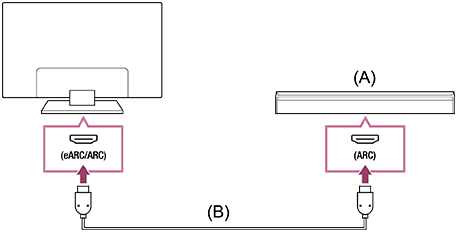
(A) Sound bar
(B) HDMI cable (not supplied)*
* We recommend Sony's Premium High Speed HDMI™ Cable(s).
To connect a sound bar via HDMI, see “HDMI connection”.
If you connect the TV to a sound bar via HDMI, you can use the following features.
- Link the power state of the sound bar and TV
- Display and configure the sound bar settings on the TV
Note
- The available functions depend on the sound bar.
- Depending on the sound bar, “eARC” or “ARC” may not be indicated on the HDMI terminal. For details on how to connect, refer to the sound bar manual.
Hint
There may be three tactile dots next to the HDMI input terminal depending on your model. Use them as a guide during installation.
Audio amp connection
We recommend connecting the TV's HDMI input terminal (eARC or ARC) to the audio amp's HDMI output terminal (eARC or ARC) via HDMI. Depending on your audio system, you can also connect with a digital optical cable.
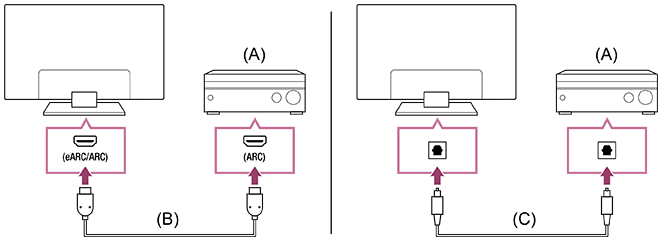
(A) Audio amp
(B) HDMI cable (not supplied)*
(C) Digital optical cable (not supplied)
* We recommend Sony's Premium High Speed HDMI™ Cable(s).
To connect an audio amp via HDMI, see “HDMI connection”. To connect an audio amp with a digital optical cable, see “Digital optical cable connection”.
Note
- ALWAYS keep small accessories out of the reach of children, so that they are not mistakenly swallowed.
HDMI connection (eARC supported)
-
Connect the external input device and TV with an HDMI cable. Connect the TV and audio system with another HDMI cable.
Connect the audio system to the TV’s HDMI input terminal bearing the text “ARC” or “eARC/ARC”.
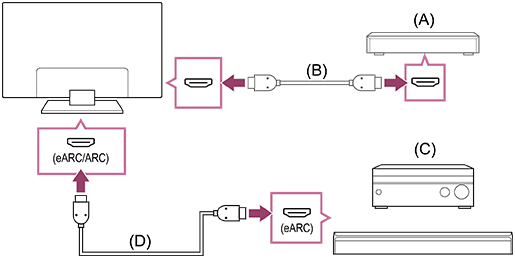
(A) External input device (such as a Blu-ray/DVD recorder)
(B) HDMI cable (not supplied)
(C) AV receiver or sound bar
(D) HDMI cable with Ethernet (not supplied)*
* We recommend authorised Premium High Speed HDMI™ Cable(s) bearing the HDMI logo.
-
Press the
(Quick Settings) button on the remote control, then select [Settings] — [Display & Sound] — [Audio output] — [Speakers] — [Audio system]. -
Enable the audio system’s eARC feature.
Refer to the instruction manual of the device.
Note
-
If audio is being output from an eARC supported device while you are watching HDMI input, the TV operates as follows:
- audio from system sounds and audio responses is not output, and
- the voice recognition performance of the built-in MIC may degrade (only TVs with a built-in MIC).
Hint
There may be three tactile dots next to the HDMI input terminal depending on your model. Use them as a guide during installation.
HDMI connection (ARC supported)
-
Connect the TV and audio system with an HDMI cable.
Connect to the TV’s HDMI input terminal bearing the text “ARC” or “eARC/ARC”.
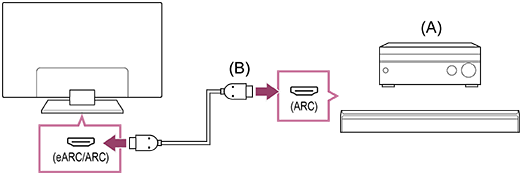
(A) AV receiver or sound bar
(B) HDMI cable (not supplied)*
* We recommend authorised Premium High Speed HDMI™ Cable(s) bearing the HDMI logo.
Note
- For ARC connections, voice recognition performance may degrade (only TVs with a built-in MIC).
- If [Digital audio output] is set to [Prioritise pass through], the TV operates as follows for some audio signal:
- audio from system sounds and audio responses is not output, and
- the voice recognition performance of the built-in MIC may degrade (only TVs with a built-in MIC).
Hint
There may be three tactile dots next to the HDMI input terminal depending on your model. Use them as a guide during installation.
Digital optical cable connection
-
Connect the TV and audio system with a digital optical cable.
Connect to the audio system’s digital optical input terminal.
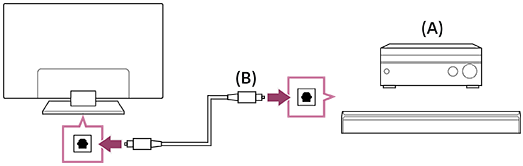
(A) AV receiver or Sound bar
(B) Optical audio cable (not supplied)
Note
- ALWAYS keep small accessories out of the reach of children, so that they are not mistakenly swallowed.
Hint
-
For more information, please visit the Sony support website.
-
For troubleshooting information, you can also refer to “Frequently Asked Questions” in our support site below.
https://www.sony.net/androidtv-faq/

https://www.sony.net/androidtv-faq/
HDMI connection centred on an audio system (eARC supported)
You can make connections centred on an audio system as follows.
For TV settings, refer to HDMI connection (eARC supported). For the audio system settings, refer to your device manual.
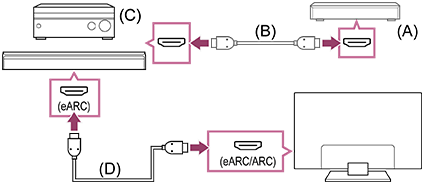
(A) External input device (such as a Blu-ray/DVD recorder)
(B) HDMI cable (not supplied)
(C) AV receiver or sound bar
(D) HDMI cable with Ethernet (not supplied)*
* We recommend authorised Premium High Speed HDMI™ Cable(s) bearing the HDMI logo.
[49] Using the TV with Other DevicesAudio system (such as an AV receiver or sound bar)Adjusting an audio system
To close this screen and jump to the Settings screen, select the following link. Jump to the Settings screen
After connecting an audio system to the TV, adjust the TV’s audio output from the audio system.
Adjusting an audio system connected with an HDMI cable or digital optical cable
-
After connecting the TV to your audio system, press the
(Quick Settings) button on the remote control, then select [Settings] — [Display & Sound] — [Audio output] — [Speakers] — [Audio system]. -
Turn on the connected audio system, then adjust the volume.
If you connect a CEC-compatible device with an HDMI connection, you can operate it by simply using the TV’s remote control.
Note
-
You need to configure the [Digital audio out] settings according to your audio system. Press the (Quick Settings) button on the remote control, then select [Settings] — [Display & Sound] — [Audio output] — [Digital audio out].
- If the audio system is not compatible with Dolby Digital or DTS, set [Settings] — [Display & Sound] — [Audio output] — [Digital audio out] to [PCM].
- When using HDMI input with Super Audio CD or DVD-Audio, DIGITAL AUDIO OUT (OPTICAL) may not provide an audio signal.
-
If the TV is connected via eARC and [Digital audio out] is set to [Prioritise pass through], TV sounds such as those from remote control operation or voice responses may not output because audio signals from the HDMI input are passed through to the eARC audio system. To output those sounds from the TV, try the following.
- Stop watching the HDMI input device.
- Set [Digital audio out] to [Auto] or [PCM].
Hint
-
If a specific audio system is connected with an HDMI cable, you can adjust the output timing of the picture and sound.
For details about supported models, refer to the support site.
[50] Using the TV with Other DevicesAudio system (such as an AV receiver or sound bar)Audio formats
HDMI IN 1/2/3/4
In eARC (Enhanced Audio Return Channel) mode
- 7.1 channel linear PCM: 32/44.1/48/88.2/96/176.4/192 kHz
- Dolby Audio
- Dolby Atmos
- DTS
- DTS Express
- DTS-HD Master Audio
- DTS-HD High Resolution Audio
- DTS:X
Except eARC mode
- 7.1 channel linear PCM: 32/44.1/48/88.2/96/176.4/192 kHz
- Dolby Audio
- Dolby Atmos
- DTS
- DTS Express
- DTS-HD Master Audio
- DTS-HD High Resolution Audio
- DTS:X
eARC/ARC (Enhanced Audio Return Channel/Audio Return Channel) (HDMI IN 3 only)
In eARC mode
- 7.1 channel linear PCM: 32/44.1/48/88.2/96/176.4/192 kHz
- Dolby Audio
- Dolby Atmos
- DTS
- DTS-HD Master Audio
- DTS-HD High Resolution Audio
- DTS:X
In ARC mode
- Two channel linear PCM: 48 kHz 16 bits
- Dolby Audio
- Dolby Atmos
- DTS
For details, refer to the support page.
[51] Using the TV with Other DevicesAudio system (such as an AV receiver or sound bar)Accessing audio system settings
You can access the audio system (such as an AV amplifier or sound bar) settings such as audio quality from the TV’s Quick Settings.

- Connect the audio system via the HDMI (eARC/ARC) terminal.
- Press the (Quick Settings) button on the remote control, and select an audio system setting.
- For details about audio system settings, please refer to your audio system's manual.
Note
- Audio system settings are displayed only for supported models.
For information about supported models, refer to the support site.
https://www.sony.net/hav_faq
- The settings that are displayed depend on the audio system model.
Hint
- For settings that are not displayed by default, select settings to add from (Edit).
[52] Using the TV with Other DevicesVideo game consoles
To close this screen and jump to the Settings screen, select the following link. Jump to the Settings screen
Connecting
Connect an HDMI-supported video game console to your TV with an HDMI cable.
To connect an audio amp or sound bar at the same time, refer to HDMI connection (eARC supported) in Connecting an audio system.
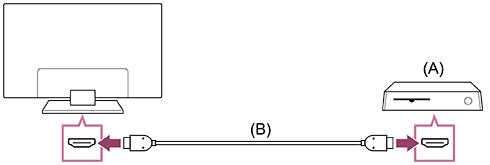
(A) Video game console
(B) HDMI cable (sold separately)
Hint
- A Premium High Speed HDMI™ Cable(s) is fine for general purposes, but if you want to connect a video game console that supports 4K 120Hz, use the HDMI cable included with the game console, or an Ultra High Speed HDMI™ Cable.
- The type and position of the HDMI port differs depending on your TV. Refer to the documentation provided with the TV.
Changing HDMI input settings
After connecting, set the connected HDMI input port.
To maximise the performance of your TV and video game console, set the [HDMI signal format/VRR].
Auto setup
-
With the video game console turned on, connect it to the TV with an HDMI cable.
Set by following the instructions on the TV screen.
Manual setup
-
Press the
(Quick Settings) button on the remote control, and select the following in order.[Settings] — [Channels & Inputs] — [External inputs] — [HDMI signal format/VRR]
Select the optimal format for your video game console.
Hint
- If you connect a video game console that supports 4K 120 Hz video output, set to [Enhanced format (Advanced)].
- If you connect a video game console that supports VRR, enable [VRR (Variable Refresh Rate)].
Note
-
When connecting a video game console that supports 4K 120Hz and VRR, check the label of the HDMI input ports on the TV and connect to the HDMI input port that is labelled 4K 120Hz or connect to the HDMI input port that is displayed as [VRR (Variable Refresh Rate)] for [HDMI signal format].
The available [HDMI signal format] depends on the model. Some HDMI formats may also not be supported depending on the model/region/country.
-
If [VRR (Variable Refresh Rate)] is enabled, slight brightness fluctuations (flicker) may occur on the TV screen depending on the frequency of the content output from the connected video game console.
[53] Using the TV with Other DevicesBluetooth devices (such as Bluetooth headphones)Connecting a Bluetooth device (such as Bluetooth headphones)
To close this screen and jump to the Settings screen, select the following link. Jump to the Settings screen
To pair the TV with a Bluetooth device
-
Turn the Bluetooth device such as Bluetooth headphones on and put it in pairing mode.
To put your Bluetooth device in pairing mode, refer to the instruction manual of the device.
-
Press the
(Quick Settings) button on the remote control, then select [Settings] — [Remotes and accessories] — [Pair accessory] to put the TV in pairing mode.Available Bluetooth devices will be displayed.
-
Select the desired device, then follow the on-screen instructions.
If you are prompted to enter a passcode, refer to the instruction manual of the device.
After pairing is completed, the device connects to the TV.
To connect to a paired Bluetooth device
-
Press the
(Quick Settings) button on the remote control, then select [Settings] — [Remotes and accessories]. -
Select a paired but unconnected device.
-
Select [Connect].
Note
- When a sound bar and the TV are connected through Bluetooth, connect the external input device such as a Blu-ray/DVD recorder to the TV.
[54] Using the TV with Other DevicesBluetooth devices (such as Bluetooth headphones)Supported Bluetooth profiles
The TV supports the following profiles:
- HID (Human Interface Device Profile)
- HOGP (HID over GATT Profile)
- A2DP (Advanced Audio Distribution Profile)
- AVRCP (Audio/Video Remote Control Profile)
- SPP (Serial Port Profile)
[55] Using the TV with Other DevicesAdjusting the AV sync setting
To close this screen and jump to the Settings screen, select the following link. Jump to the Settings screen
If a Bluetooth audio device is connected, there may be a delay between the picture and sound due to the properties of Bluetooth. You can adjust the delay between the picture and sound with the A/V sync setting.
If the audio device is connected with an HDMI cable, the sound may be delayed due to the properties of the audio device. In that case, you can adjust the video and audio output timing with the A/V sync setting.
-
Press the
(Quick Settings) button on the remote control, then select [Settings] — [Display & Sound] — [Audio output] — [A/V sync] — the desired option.
Note
- Depending on the connected Bluetooth audio device or connected HDMI device, the picture and sound may not match even when the [A/V sync] setting is set to [Auto].
- If [Picture mode] is set to one of the options below, the output timing of the picture and sound is not adjusted even when the [A/V sync] setting is set to [Auto].
- [Game]
- [Graphics]
- The responsiveness of the TV while playing video games may feel slower due to the [A/V sync] setting adding a delay to the output timing of the picture. For games that are dependant on response time, we do not recommend you use a Bluetooth device and recommend that you use the TV speakers or a sound bar with a wired (HDMI cable/digital optical cable) connection instead.
[56] Using the TV with Other DevicesCEC-compatible devicesUsing features available for CEC-compatible devices
If a CEC-compatible device (e.g., Blu-ray player, AV receiver) is connected with an HDMI cable, you can operate the device with the TV’s remote control.
To operate CEC-compatible devices from the TV, use the (Input select) button on the remote control to select the device you want to operate.
Blu-ray/DVD player
- Automatically turns the TV on and switches the input to the connected Blu-ray/DVD player when the Blu-ray/DVD player starts to play.
- Automatically turns the connected Blu-ray/DVD player off when you turn the TV off.
-
Allows operations such as menu operation and playback with the (Up) / (Down) / (Left) / (Right) buttons on the TV remote control.
AV receiver
- Automatically turns the connected AV receiver on and switches the sound output from the TV speaker to the audio system when you turn the TV on. This function is only available if you have previously used the AV receiver to output the TV’s sound.
- Automatically switches the sound output to the AV receiver by turning the AV receiver on when the TV is turned on.
- Automatically turns the connected AV receiver off when you turn the TV off.
- Adjusts the volume ((Volume) +/- buttons) and mutes the sound ((Mute) button) of the connected AV receiver through the TV’s remote control.
Video camera
- Automatically turns the TV on and switches the input to the connected video camera when the camera is turned on.
- Automatically turns the connected video camera off when you turn the TV off.
-
Allows operations such as menu operation and playback with the (Up) / (Down) / (Left) / (Right) buttons on the TV remote control.
Note
- “CEC control” (CEC) is only available for connected CEC-compatible devices.
[57] Using the TV with Other DevicesCEC-compatible devicesAdjusting CEC settings
To close this screen and jump to the Settings screen, select the following link. Jump to the Settings screen
When CEC is set up, you will be able to turn off a connected device with the TV or set a device connected via HDMI cable to be operated with the TV’s remote control.
- Turn on the connected device.
-
To enable [CEC control], press the (Quick Settings) button on the remote control, then select [Settings] — [Channels & Inputs] — [External inputs] — [CEC settings] — [CEC control].
- Activate CEC on the connected device.
When a specific Sony CEC-compatible device is connected and powered on and [CEC control] is enabled, CEC is automatically activated on that device. For details, refer to the instruction manual of the connected device.
Available options
Available options are shown below. (Options vary depending on your model/region/country.)
[Auto devices off]
If disabled, the connected device does not turn off automatically when the TV is turned off.
[Auto TV on]
If disabled, the TV does not turn on automatically when the connected device is turned on.
[CEC device list]
Displays the CEC device list.
[58] Using the TV with Other DevicesViewing pictures in 4K from compatible devicesViewing pictures in 4K resolution
You can connect a digital still camera/camcorder that supports HDMI 4K output to HDMI IN of the TV to display high resolution photos stored on the camera. You can also display high resolution photos stored in connected USB devices. A picture with a 4K or higher resolution can be displayed in 4K resolution (3 840 × 2 160).
The availability of this function depends on your region/country.

(A) Digital still camera
(B) Camcorder
(C) USB device
To view pictures stored on a USB device or network device in 4K resolution
-
Connect the USB device or network device to the TV.
-
Press the
(HOME) button, and select Apps from the Home menu, then select [Media Player].If the supplied remote control has an APPS button, you can press the APPS button.
-
Select the USB device name or network device name.
-
Select the folder, and then select the file to play.
To view pictures stored on a digital still camera/camcorder
-
Connect a digital still camera or camcorder that supports HDMI output to the HDMI IN jack (socket) of the TV, using an HDMI cable.
-
Press the
(Input select) button repeatedly to select the connected device. -
Set the connected device to 4K output.
-
Start playback on the connected device.
To check the supported file formats
To view pictures in 4K resolution with higher quality
You can set the HDMI signal format to Enhanced format to view pictures in 4K resolution with higher quality.
For information about Enhanced format or changing the settings, refer to the Settings for viewing pictures through HDMI input with higher quality page.
Note
- A 3D picture cannot be displayed.
- If you change the picture by pressing the (Left) / (Right) buttons, it may take a moment for the picture to be displayed.
[59] Using the TV with Other DevicesViewing pictures in 4K from compatible devicesSettings for viewing pictures through HDMI input with higher quality
To close this screen and jump to the Settings screen, select the following link. Jump to the Settings screen
To display a picture from a device connected to the HDMI input terminal in a higher quality HDMI format*1, set [HDMI signal format/VRR] in [External inputs].
*1 Such as 4K 100/120 Hz, 4K 60p 4:2:0 10 bit, 4K 60p 4:4:4, or 4:2:2
HDMI signal format
To change the HDMI signal format setting, press the (Quick Settings) button on the remote control, then select [Settings] — [Channels & Inputs] — [External inputs] — [HDMI signal format/VRR] — the HDMI input you want to set.
Follow the on-screen instructions, and set the HDMI signal format for the HDMI input terminal to a suitable format below. Available HDMI signal formats depend on your model and the HDMI input.
- Standard format
- Enhanced format (ALLM)
- Enhanced format (Advanced)
Note
- Support for the display of 4K 100/120 Hz picture depends on your model/region/country.
- Support for the Variable Refresh Rate (VRR) feature depends on your model.
- When using Enhanced format (ALLM), picture and sound may not be output correctly. In this case, connect the device to an HDMI IN that is in [Standard format], or change the HDMI signal format of HDMI IN to [Standard format].
- Only set to Enhanced format (ALLM) when using compatible devices.
- When you watch 4K picture with High-Quality, use a Premium High Speed HDMI™ Cable(s) that supports speeds of 18 Gbps. For details on a Premium High Speed HDMI™ Cable(s) that supports 18 Gbps, refer to the cable specifications.
- To display 4K 100/120 Hz picture, an Ultra High Speed HDMI™ Cable that supports 48 Gbps is required. Refer to the cable specifications to find out whether a cable supports 48 Gbps.
[60] Using the TV with Other Devices BRAVIA Connectivity Guide
Descriptions about connecting devices to the TV are also available on the Sony support website. Refer to it as necessary.
https://www.sony.net/tv_connectivity_guide/

https://www.sony.net/tv_connectivity_guide/
[61] Using the TV with Other DevicesSupported files and formatsPhotos
To enjoy photos, you may need to update the TV's software.
Use case : USB
| File Format | Extension |
|---|---|
| JPEG | *.jpg / *.jpeg |
| PNG | *.png |
| BMP | *.bmp |
| GIF | *.gif |
| WebP | *.webp |
| HEIF (HEIC) | *.heic / *.heif / *.hif |
Other supported files and formats
[62] Using the TV with Other DevicesSupported files and formatsMusic
Use case : USB
| Audio Codec | Sample rate | Container/File Extension | Notes |
|---|---|---|---|
| MPEG1/2 Layer1 | 16kHz ~ 48kHz | MP3 (.mp3) | |
| AVI (.avi) | |||
| ASF (.asf) | |||
| WMV (.wmv) | |||
| MKV (.mkv, .mka) | |||
| 3GPP (.3gpp, .3gp) | |||
| MP4 (.mp4, .mov, .m4a) | |||
| MPEG transport stream (.ts, .trp, .tp) | |||
| MPEG program stream (.DAT, .VOB, .MPG, .MPEG) | |||
| FLV (.flv) | |||
| OGM (.ogm) | |||
| MPEG1/2 Layer2 | 16kHz ~ 48kHz | MP3 (.mp3) | |
| AVI (.avi) | |||
| ASF (.asf) | |||
| WMV (.wmv) | |||
| MKV (.mkv, .mka) | |||
| 3GPP (.3gpp, .3gp) | |||
| MP4 (.mp4, .mov, .m4a) | |||
| MPEG transport stream (.ts, .trp, .tp) | |||
| MPEG program stream (.DAT, .VOB, .MPG, .MPEG) | |||
| FLV (.flv) | |||
| OGM (.ogm) | |||
| MPEG1/2/2.5 Layer3 | 8kHz ~ 48kHz | MP3 (.mp3) | |
| AVI (.avi) | |||
| ASF (.asf) | |||
| WMV (.wmv) | |||
| MKV (.mkv, .mka) | |||
| 3GPP (.3gpp, .3gp) | |||
| MP4 (.mp4, .mov, .m4a) | |||
| MPEG transport stream (.ts, .trp, .tp) | |||
| MPEG program stream (.DAT, .VOB, .MPG, .MPEG) | |||
| FLV (.flv) | |||
| OGM (.ogm) | |||
| AC3 (DD) | 32kHz, 44.1kHz, 48kHz | AC3 (.ac3) | |
| AVI (.avi) | |||
| MKV (.mkv, .mka) | |||
| 3GPP (.3gpp, .3gp) | |||
| MP4 (.mp4, .mov, .m4a) | |||
| MPEG transport stream (.ts, .trp, .tp) | |||
| MPEG program stream (.DAT, .VOB, .MPG, .MPEG) | |||
| WMV (.wmv) | |||
| ASF (.asf) | |||
| OGM (.ogm) | |||
| EAC3 (DDP) | 32kHz, 44.1kHz, 48kHz | EAC3 (.ec3) | Dolby MS12 |
| AVI (.avi) | |||
| MKV (.mkv, .mka) | |||
| 3GPP (.3gpp, .3gp) | |||
| MP4 (.mp4, .mov, .m4a) | |||
| MPEG transport stream (.ts, .trp, .tp) | |||
| MPEG program stream (.DAT, .VOB, .MPG, .MPEG) | |||
| WMV (.wmv) | |||
| ASF (.asf) | |||
| OGM (.ogm) | |||
| AAC-LC, HEAAC | 8kHz ~ 48kHz | AAC (.aac) | |
| AVI (.avi) | |||
| MKV (.mkv, .mka) | |||
| 3GPP (.3gpp, .3gp) | |||
| MP4 (.mp4, .mov, .m4a) | |||
| MPEG transport stream (.ts, .trp, .tp) | |||
| MPEG program stream (.DAT, .VOB, .MPG, .MPEG) | |||
| FLV (.flv) | |||
| WAV (.wav) | |||
| WMV (.wmv) | |||
| ASF (.asf) | |||
| OGM (.ogm) | |||
| VORBIS | Up to 192kHz | MKV (.mkv, .mka) | Supports stereo decoding only |
| WebM (.webm) | |||
| 3GPP (.3gpp, .3gp) | |||
| MP4 (.mp4, .mov, .m4a) | |||
| Ogg (.ogg) | |||
| WMV (.wmv) | |||
| ASF (.asf) | |||
| AVI (.avi) | |||
| DTS Core | Up to 48kHz | MPEG transport stream (.ts, .trp, .tp) | |
| MPEG program stream (.DAT, .VOB, .MPG, .MPEG) | |||
| WAV (.wav) | |||
| MKV (.mkv, .mka) | |||
| 3GPP (.3gpp, .3gp) | |||
| MP4 (.mp4, .mov, .m4a) | |||
| AVI (.avi) | |||
| OGM (.ogm) | |||
| DTS (.dts) | |||
| DTS LBR | 44.1kHz, 48kHz | MP4 (.mp4, .mov, .m4a) | |
| 3GPP (.3gpp, .3gp) | |||
| MPEG transport stream (.ts, .trp, .tp) | |||
| MKV (.mkv, .mka) | |||
| DTS XLL | Up to 192kHz | MPEG transport stream (.ts, .trp, .tp) | |
| MP4 (.mp4, .mov, .m4a) | |||
| 3GPP (.3gpp, .3gp) | |||
| MKV (.mkv, .mka) | |||
| DTS Master Audio | Up to 48kHz | MPEG transport stream (.ts, .trp, .tp) | |
| MP4 (.mp4, .mov, .m4a) | |||
| 3GPP (.3gpp, .3gp) | |||
| MKV (.mkv, .mka) | |||
| DTS:X(P1) | 48kHz | MPEG transport stream (.ts, .trp, .tp) | |
| MP4 (.mp4, .mov, .m4a) | |||
| 3GPP (.3gpp, .3gp) | |||
| MKV (.mkv, .mka) | |||
| LPCM | 8kHz ~ 192kHz | WAV (.wav) | |
| AVI (.avi) | |||
| MKV (.mkv, .mka) | |||
| 3GPP (.3gpp, .3gp) | |||
| MP4 (.mp4, .mov, .m4a) | |||
| MPEG transport stream (.ts, .trp, .tp) | |||
| MPEG program stream (.DAT, .VOB, .MPG, .MPEG) | |||
| WMV (.wmv) | |||
| ASF (.asf) | |||
| FLV (.flv) | |||
| OGM (.ogm) | |||
| IMA-ADPCM | 8kHz ~ 48kHz | WAV (.wav) | |
| MS-ADPCM | 8kHz ~ 48kHz | AVI (.avi) | |
| MKV (.mkv, .mka) | |||
| OGM (.ogm) | |||
| G711 A/mu-law | 8kHz ~ 48kHz | WAV (.wav) | |
| AVI (.avi) | |||
| MKV (.mkv, .mka) | |||
| FLV (.flv) | |||
| FLAC | 8kHz ~ 192kHz | MKV (.mkv, .mka) | |
| FLAC (.flac) | |||
| 3GPP (.3gpp, .3gp) | |||
| MP4 (.mp4, .mov, .m4a) | |||
| OPUS | 8kHz ~ 48kHz | MKV (.mkv, .mka) | |
| WebM (.webm) | |||
| Ogg (.ogg) | |||
| AC4 | 48kHz | MPEG transport stream (.ts, .trp, .tp) | Dolby MS12 |
| 3GPP (.3gpp, .3gp) | |||
| MP4 (.mp4, .mov, .m4a) | |||
| AC4 (.ac4) | |||
| AMR-NB | 8kHz | 3GPP (.3gpp, .3gp) | |
| MP4 (.mp4, .mov, .m4a) | |||
| MKV (.mkv, .mka) | |||
| WebM (.webm) | |||
| AVI (.avi) | |||
| AMR-WB | 16kHz | 3GPP (.3gpp, .3gp) | |
| MP4 (.mp4, .mov, .m4a) | |||
| MKV (.mkv, .mka) | |||
| WebM (.webm) | |||
| AVI (.avi) |
Other supported files and formats
[63] Using the TV with Other DevicesSupported files and formatsVideos
Use case : USB
MPEG1 (*.mpg / *.mpe / *.mpeg)
Subtitle Type : External
| Video Codec (Profile@Level) | Audio Codec | Max. / Min. Resolution | Max. Frame Rate |
|---|---|---|---|
| MPEG1 | MPEG1L2 | 720 x 576@30fps | 720 x 576@30fps |
MPEG2PS (*.mpg / *.mpe / *.mpeg)
Subtitle Type : External
| Video Codec (Profile@Level) | Audio Codec | Max. / Min. Resolution | Max. Frame Rate |
|---|---|---|---|
| MPEG2 MP@HL | MPEG1L1 / MPEG1L2 / LPCM / AC3 | 1 920 x 1 080 / QCIF (176 x 144) | 1 920 x 1 080@30fps / 1 280 x 720@60fps |
MP4 (*.mp4)
Subtitle Type : External
| Video Codec (Profile@Level) | Audio Codec | Max. / Min. Resolution | Max. Frame Rate |
|---|---|---|---|
| AVC / H.264 MP@L4.2, HP@L4.2 | AAC-LC / HE-AAC v1 / HE-AAC v2 / AC3 / E-AC3 / AC4 / MPEG1L1 / MPEG1L2 | 1 920 x 1 080 / QCIF (176 x 144) | 1 920 x 1 080@60fps |
| MPEG4 SP@L6, ASP@L5 | AAC-LC / HE-AAC v1 / HE-AAC v2 / AC3 / E-AC3 / MPEG1L1 / MPEG1L2 | 1 920 x 1 080 / QCIF (176 x 144) | 1 920 x 1 080@30fps / 1 280 x 720@60fps |
| AVC / H.264 MP@L5.2, HP@L5.2 *1 | AAC-LC / HE-AAC v1 / HE-AAC v2 / AC3 / E-AC3 / AC4 / LPCM | 3 840 x 2 160 / QCIF (176 x 144) | 3 840 x 2 160@60p / 1 920 x 1 080@60fps |
| HEVC / H.265 MP@L5.1, Main10@L5.1 | AAC-LC / HE-AAC v1 / HE-AAC v2 / AC3 / AC4 / E-AC3 | 3 840 x 2 160 / QCIF (176 x 144) | 3 840 x 2 160@60p / 1 920 x 1 080@60fps |
*1 This line includes the XAVC S format use case. The maximum supported bitrate for XAVC S is 100 Mbps.
avi (*.avi)
Subtitle Type : External
| Video Codec (Profile@Level) | Audio Codec | Max. / Min. Resolution | Max. Frame Rate |
|---|---|---|---|
| Motion JPEG | μ-LAW / PCM (U8) / PCM (S16LE) | 1 280 x 720 / QCIF (176 x 144) | 1 280 x 720@30fps |
MKV (*.mkv)
Subtitle Type : Internal / External
| Video Codec (Profile@Level) | Audio Codec | Max. / Min. Resolution | Max. Frame Rate |
|---|---|---|---|
| AVC / H.264 MP@L4.2, HP@L4.2 | AC3 / AAC-LC / E-AC3 / HE-AAC v1 / HE-AAC v2 / MPEG1L1 / MPEG1L2 / Vorbis | 1 920 x 1 080 / QCIF (176 x 144) | 1 920 x 1 080@60fps |
| MPEG4 SP@L6, ASP@L5 | AC3 / AAC-LC / E-AC3 / HE-AAC v1 / HE-AAC v2 / MPEG1L1 / MPEG1L2 / Vorbis | 1 920 x 1 080 / QCIF (176 x 144) | 1 920 x 1 080@30fps / 1 280 x 720@60fps |
| VP8 | AC3 / AAC-LC / E-AC3 / HE-AAC v1 / HE-AAC v2 / MPEG1L1 / MPEG1L2 / Vorbis | 1 920 x 1 080 / QCIF (176 x 144) | 1 920 x 1 080@30fps / 1 280 x 720@60fps |
| VP9 Profile 0, Profile 2 | AC3 / AAC-LC / E-AC3 / HE-AAC v1 / HE-AAC v2 / MPEG1L1 / MPEG1L2 / Vorbis | 3 840 x 2 160 / QCIF (176 x 144) | 3 840 x 2 160@60fps |
| AVC / H.264 MP@L5.2, HP@L5.2 | AC3 / AAC-LC / E-AC3 / HE-AAC v1 / HE-AAC v2 | 3 840 x 2 160 / QCIF (176 x 144) | 3 840 x 2 160@60p / 1 920 x 1 080@60fps |
| HEVC / H.265 MP@L5.1, Main10@L5.1 | AC3 / AAC-LC / E-AC3 / HE-AAC v1 / HE-AAC v2 | 3 840 x 2 160 / QCIF (176 x 144) | 3 840 x 2 160@60p / 1 920 x 1 080@60fps |
3gpp (*.3gp / *.3g2)
Subtitle Type : External
| Video Codec (Profile@Level) | Audio Codec | Max. / Min. Resolution | Max. Frame Rate |
|---|---|---|---|
| MPEG4 SP@L6, ASP@L5 | AAC-LC / HE-AAC v1 / HE-AAC v2 / AC3 / E-AC3 / MPEG1L1 / MPEG1L2 | 1 920 x 1 080 / QCIF (176 x 144) | 1 920 x 1 080@30fps / 1 280 x 720@60fps |
| AVC / H.264 MP@L4.2, HP@L4.2 | AAC-LC / HE-AAC v1 / HE-AAC v2 / AC3 / E-AC3 / MPEG1L1 / MPEG1L2 | 1 920 x 1 080 / QCIF (176 x 144) | 1 920 x 1 080@60fps |
MOV (*.mov)
Subtitle Type : External
| Video Codec (Profile@Level) | Audio Codec | Max. / Min. Resolution | Max. Frame Rate |
|---|---|---|---|
| AVC / H.264 MP@L4.2, HP@L4.2 | AAC-LC / HE-AAC v1 / HE-AAC v2 / AC3 / E-AC3 / MPEG1L1 / MPEG1L2 / μ-LAW / PCM (U8) / PCM (S16BE) / PCM (S16LE) | 1 920 x 1 080 / QCIF (176 x 144) | 1 920 x 1 080@60fps |
| MPEG4 SP@L6, ASP@L5 | AAC-LC / HE-AAC v1 / HE-AAC v2 / AC3 / E-AC3 / MPEG1L1 / MPEG1L2 / μ-LAW / PCM (U8) / PCM (S16BE) / PCM (S16LE) | 1 920 x 1 080 / QCIF (176 x 144) | 1 920 x 1 080@30fps / 1 280 x 720@60fps |
WebM (*.webm)
Subtitle Type : External
| Video Codec (Profile@Level) | Audio Codec | Max. / Min. Resolution | Max. Frame Rate |
|---|---|---|---|
| VP8 | Vorbis | 1 920 x 1 080 / QCIF (176 x 144) | 1 920 x 1 080@30fps / 1 280 x 720@60fps |
| VP9 Profile 0, Profile 2 | Vorbis | 3 840 x 2 160 / QCIF (176 x 144) | 3 840 x 2 160@60fps |
MEG2TS (*.ts / *.trp / *.tp)
| Video Codec | Video Profile | Audio Codec | Max Resolution / Frame Rate |
|---|---|---|---|
| AVC/H.264 | Baseline, Main, High, High(10‑bit) Profile up to Level 5.2 For Baseline profile, not support FMO, ASO & redundant slice |
MPEG1L1 / MPEG2L1 / MPEG1L3 / MPEG2L3 / MPEG2.5L3 / AC3(DD) / EAC3(DDP) / AAC-LC, HEAAC / DTS Core / DTS LBR / DTS XLL / DTS Master Audio / DTS:X(P1) / DTS:X(P1) / LPCM / AC4 | 3 840 x 2 160@60fps 1 920 x 1 080@120fps |
| HEVC/H.265 | Main(8‑bit)/Main10(10‑bit) Profile, High Tier @Level 5.1 | MPEG1L1 / MPEG2L1 / MPEG1L3 / MPEG2L3 / MPEG2.5L3 / AC3(DD) / EAC3(DDP) / AAC-LC, HEAAC / DTS Core / DTS LBR / DTS XLL / DTS Master Audio / DTS:X(P1) / DTS:X(P1) / LPCM / AC4 | 3 840 x 2 160@60fps 1 920 x 1 080@120fps |
| MPEG1/2 | MPEG2: MP@HL | MPEG1L1 / MPEG2L1 / MPEG1L3 / MPEG2L3 / MPEG2.5L3 / AC3(DD) / EAC3(DDP) / AAC-LC, HEAAC / DTS Core / DTS LBR / DTS XLL / DTS Master Audio / DTS:X(P1) / DTS:X(P1) / LPCM / AC4 | MPEG1: 720 x 576@30fps MPEG2: 3 840 x 2 160@30fps 1 920 x 1 080@120fps |
| MPEG4 | Simple Profile, Advanced Simple Profile@Level 5, GMC only support one point | MPEG1L1 / MPEG2L1 / MPEG1L3 / MPEG2L3 / MPEG2.5L3 / AC3(DD) / EAC3(DDP) / AAC-LC, HEAAC / DTS Core / DTS LBR / DTS XLL / DTS Master Audio / DTS:X(P1) / DTS:X(P1) / LPCM / AC4 | 1 920 x 1 080@60fps |
Other supported files and formats
[64] Using the TV with Other DevicesSupported files and formatsAudio sampling rates (for videos)
| Audio Codec | Sampling Rate |
|---|---|
| MPEG1/2 Layer1 | 16kHz ~ 48kHz |
| MPEG1/2 Layer2 | 16kHz ~ 48kHz |
| MPEG1/2/2.5 Layer3 | 8kHz ~ 48kHz |
| AC3 (DD) | 32kHz, 44.1kHz, 48kHz |
| EAC3 (DDP) | 32kHz, 44.1kHz, 48kHz |
| AAC-LC, HEAAC | 8kHz ~ 48kHz |
| WMA | 8kHz ~ 48kHz |
| WMA 10 Pro M0 | 8kHz ~ 48kHz |
| WMA 10 Pro M1 | 8kHz ~ 48kHz |
| WMA 10 Pro M2 | 8kHz ~ 96kHz |
| VORBIS | Up to 192kHz |
| DTS Core | Up to 48kHz |
| DTS LBR | 44.1kHz, 48kHz |
| DTS XLL | Up to 192kHz |
| DTS Master Audio | Up to 48kHz |
| DTS:X(P1) | 48kHz |
| LPCM | 8kHz ~ 192kHz |
| IMA-ADPCM | 8kHz ~ 48kHz |
| MS-ADPCM | 8kHz ~ 48kHz |
| G711 A/mu-law | 8kHz ~ 48kHz |
| FLAC | 8kHz ~ 192kHz |
| OPUS | 8kHz ~ 48kHz |
| AC4 | 48kHz |
| AMR-NB | 8kHz |
| AMR-WB | 16kHz |
Only standard sample rates are supported for ranged values.
Other supported files and formats
[65] Using the TV with Other DevicesSupported files and formatsExternal subtitles
Use case : USB
| File Format | Extension |
|---|---|
| SubStation Alpha | *.ass / *.ssa |
| SubRip | *.srt |
| SAMI | *.smi |
| SubIdx (VobSub) | *.sub |
Other supported files and formats
[66] Using the TV with Other DevicesAvailable devices and settings
USB devices
Playing content stored on a USB device
Information about USB devices used for storing photos and music
TV box, Blu-ray and DVD players
Smartphones and tablets
Displaying the iPhone/smartphone or iPad/tablet app screen on the TV
Computers, cameras, and camcorders
Connecting a computer and viewing stored content
Audio system (such as an AV receiver or sound bar)
Gaming device
Bluetooth devices
Connecting a Bluetooth device (such as Bluetooth headphones)
AV sync settings
Viewing pictures in 4K from compatible devices
Viewing pictures in 4K resolution
Settings for viewing pictures through HDMI input with higher quality
TV connection with devices
Supported files and formats
[67] Connecting to a NetworkConnecting to a network using a LAN cable
A wired LAN connection allows you to access the Internet.
Make sure to connect to the Internet via a router.
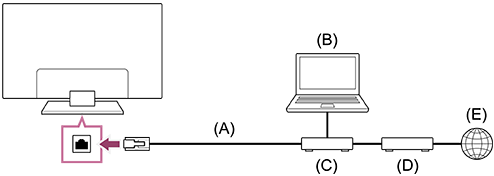
(A) LAN cable
(B) Computer
(C) Router
(D) Modem
(E) Internet
-
Set up your LAN router.
For details, refer to the instruction manual of your LAN router, or contact the person who set up the network (network administrator).
Note
-
It is strongly recommended for security purposes to connect your TV to the Internet via a router/modem that includes router functionality. Direct connection of your TV to the Internet may expose your TV to a security threat such as extraction or tampering of content or personal information.
Contact your service provider or network administrator to confirm your network includes router functionality. - The network-related settings that are required may vary depending on the Internet service provider or router. For details, refer to the instruction manuals provided by the Internet service provider or those supplied with the router. You can also contact the person who set up the network (network administrator).
- Depending on the operating environment of the network, connection speed may differ. The communication rate and quality are not guaranteed.
[68] Connecting to a NetworkConnecting to a network using Wi-Fi
To close this screen and jump to the Settings screen, select the following link. Jump to the Settings screen
The built-in wireless LAN device allows you to access the Internet and enjoy the benefits of networking in a cable-free environment.
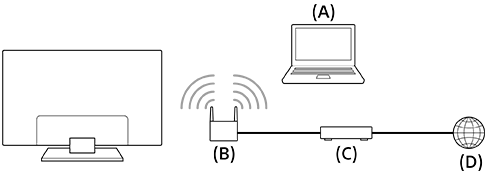
(A) Computer
(B) Wireless router
(C) Modem
(D) Internet
- Set up your wireless router.
For details, refer to the instruction manual of your wireless router, or contact the person who set up the network (network administrator).
-
Press the (Quick Settings) button on the remote control, then select [Settings] — [Network and Internet].
- Select a network you want to connect to and set the password.
To turn off the built-in wireless LAN
-
To disable [Wi-Fi], press the
(Quick Settings) button on the remote control, then select [Settings] — [Network and Internet] — [Wi-Fi].
Hint
- For smooth video streaming:
- Change the setting of your wireless router to a high-speed networking standard such as 802.11n, 802.11ac or 802.11ax if possible.
For details on how to change the setting, refer to the instruction manual of your wireless router, or contact the person who set up the network (network administrator). - If the above procedure does not deliver any improvement, changing the setting of your wireless router to 5GHz/6GHz may help improve the video streaming quality.
- The 5GHz/6GHz band may not be supported depending on your region/country. If the 5GHz/6GHz band is not supported, the TV can only connect to a wireless router using the 2.4GHz band.
- Change the setting of your wireless router to a high-speed networking standard such as 802.11n, 802.11ac or 802.11ax if possible.
Note
-
It is strongly recommended for security purposes to connect your TV to the Internet via a router/modem that includes router functionality. Direct connection of your TV to the Internet may expose your TV to a security threat such as extraction or tampering of content or personal information.
Contact your service provider or network administrator to confirm your network includes router functionality. - The network-related settings that are required may vary depending on the Internet service provider or router. For details, refer to the instruction manuals provided by the Internet service provider or those supplied with the router. You can also contact the person who set up the network (network administrator).
- If you keep the [Hide password] option in the password entry screen unchecked, the exposed password may be seen by other individuals.
[69] SettingsUsing the Quick Settings
To close this screen and jump to the Settings screen, select the following link. Jump to the Settings screen
If you press the (Quick Settings) button on the remote control, you can quickly access features such as [Picture mode], [Sleep timer], and [Picture off] on the current screen. You can also display [Settings] from [Quick Settings].
Note
- The menus displayed in the TV settings vary depending on your model/region/country.
- Press the (Quick Settings) button on the remote control.
- Move the focus to change a setting or select it.
To change the settings that are displayed
-
Press the
(Quick Settings) button on the remote control. -
Move the focus left or right, and select
(Edit). -
Select the desired setting.
-
Select [Close].
Hint
- To change the order or hide a displayed item, press and hold the (Enter) button on the remote control with that item highlighted, and [Move] and [Hide] will be displayed. If you select [Move], use (Left) / (Right) on the remote control to move the item to the desired position, and then press the (Enter) button on the remote control.
[70] SettingsUsing the Eco Dashboard
You can configure various settings to reduce power consumption, such as Power saving.
You can also check descriptions for features while setting them.
Note
- The menus displayed in the TV settings vary depending on your model/region/country.
- Press the (Quick Settings) button on the remote control, and select [Eco Dashboard].
- In the displayed menu, move the focus left or right and select the desired setting.

[71] Settings Channels & Inputs
To close this screen and jump to the Settings screen, select the following link. Jump to the Settings screen
You can configure settings related to TV broadcasts and external devices connected to the TV, including [Channels], which allows you to configure the optimal channel settings for your area.
Note
- The menus displayed in the TV settings vary depending on your model/region/country.

- Press the (Quick Settings) button on the remote control, then select [Settings] — [Channels & Inputs] — the desired option.
Available options
[Channels]
Configures the settings related to receiving broadcast programming. You can also configure the settings related to receiving satellite broadcast programming.
-
To tune digital channels
-
To tune your satellite
-
To sort channels or edit the channel list
[Channel preferences]
Configures [Subtitle settings], [Audio settings (Broadcast)] and [Update Guide in Standby / Networked standby].
[External inputs]
Configures the settings of the external inputs and CEC.
For details about CEC, refer to Using features available for CEC-compatible devices.
-
[TV button shortcut]
Configures what will be launched when the TV button on the remote control is pressed.
[Info banner]
Display programme information when channel is changed.
[Recording Settings]
Configures the settings of USB HDD devices for recording. (This option may not be available depending on your model/region/country.)
[72] SettingsDisplay & Sound
To close this screen and jump to the Settings screen, select the following link. Jump to the Settings screen
You can set the image and sound quality modes that are appropriate for the content you are watching, as well as detailed settings such as your preferred brightness and left-right balance of sound.
Note
- The menus displayed in the TV settings vary depending on your model/region/country.
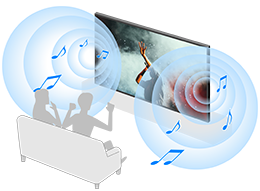
- Press the (Quick Settings) button on the remote control, then select [Settings] — [Display & Sound] — the desired option.
Available options
[Picture]
Configures display settings that adjust the picture quality, such as screen brightness.
To adjust the picture quality to your preferences, refer to the Adjusting the picture quality page.
[Screen]
Adjusts the screen size and position.
[Sound]
Configures settings that adjust the sound.
To adjust the sound quality to your preferences, refer to the Adjusting the sound quality page.
[Audio output]
Configures selection settings related to speakers.
For details, refer to [Audio output] in Adjusting the sound quality page.
Hint
- To mute the remote control operation sound, refer to Voice Remote Control .
[73] SettingsNetwork and Internet
Configures settings for such things as wireless LANs and wired LANs.
For details about connecting to the Internet, refer to Connecting to a network using a LAN cable or Connecting to a network using Wi-Fi.
Note
- The menus displayed in the TV settings vary depending on your model/region/country.
Related functions
[IP control]
Enable [Simple IP control] to let other devices to communicate with the TV. This may result in higher energy consumption.
[BRAVIA Connect remote control feature]
Let the BRAVIA Connect app control this TV.
[74] Settings Accounts and profiles
To close this screen and jump to the Settings screen, select the following link. Jump to the Settings screen
Note
- The menus displayed in the TV settings vary depending on your model/region/country.
-
Press the (Quick Settings) button on the remote control, then select [Settings] — [Accounts and profiles] — the desired option.
Available options
When a Google Account is set on the TV
Configure the Google Account or add other accounts.
When a Google Account is not set on the TV
[Accounts and profiles] cannot be used. To set a Google Account, set up Google TV from the settings menu.
[75] SettingsPrivacy
You can restrict the installation of apps from unknown sources.
Note
- The menus displayed in the TV settings vary depending on your model/region/country.
[76] SettingsApps
Allows you to configure or uninstall apps, or clear the cache.
Note
- The menus displayed in the TV settings vary depending on your model/region/country.
[77] SettingsSystem
To close this screen and jump to the Settings screen, select the following link. Jump to the Settings screen
-
Press the (Quick Settings) button on the remote control, then select [Settings] — [System] — the desired option.
Note
- The menus displayed in the TV settings vary depending on your model, region, or country, and some options may not be displayed or available based on the TV's settings.
Available options
[Ambient mode]
Configures what is displayed on the screen when the TV is not operated after a certain amount of time while displaying content other than broadcasts and videos.
[Power and energy]
Configures the settings related to saving energy and the startup TV screen.
[About]
Displays information about the TV.
Here, you can reset your TV.
[Date and time]
Configures the current time and auto clock display.
[Language]
Selects the menu language. The selected menu language will also set the voice recognition language.
[Keyboard]
Configures the settings of the on-screen keyboard.
[Storage]
Changes the settings related to data storage.
[Cast]
Configures the operation permissions when casting from an external device.
For details, refer to Displaying the iPhone/smartphone or iPad/tablet app screen on the TV .
[System sounds]
Configures the system sounds.
[Parental controls]
Configures the parental lock settings for restricting usage of items such as [Channels] and [Apps].
[Built-in MIC sensitivity]*
Set the balance of sensitivity and accuracy when processing voice commands.
For details, refer to Using the built-in MIC on the TV (only TVs with a built-in MIC) .
[LED indicator]
Configures the [Operational response] and [Voice detection status]* settings. (The displayed menu varies depending on the model.)
For details, refer to How the LEDs light up.
[Apple AirPlay & HomeKit]
Configures the settings for Apple AirPlay & HomeKit.
[Retail mode settings]
Enriches the display for shop front use by setting [Demo mode], etc.
[Restart]
Restarts the TV.
For details, refer to Reset (restart) your TV .
* Only TVs with a built-in MIC
[78] SettingsRemotes and accessories
To close this screen and jump to the Settings screen, select the following link. Jump to the Settings screen
You can pair Bluetooth devices, including the supplied Voice Remote Control, and enable/disable Bluetooth.
Note
- The menus displayed in the TV settings vary depending on your model/region/country.
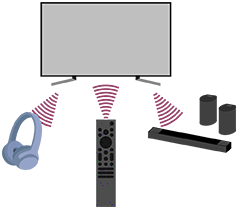
- Press the (Quick Settings) button on the remote control, then select [Settings] — [Remotes and accessories] — the desired option.
Available options
You can enable or disable Bluetooth, or register Bluetooth devices.
[Bluetooth]
Enables or disables Bluetooth.
[Pair accessory]
Pairs Bluetooth devices.
For details, refer to Connecting a Bluetooth device (such as Bluetooth headphones).
[Remote control]
Setup for pairing the Voice Remote Control. Follow the on-screen instructions.
Hint
- To mute the remote control operation sound, refer to Voice Remote Control .
[79] Settings Help and feedback
Help from Sony can be displayed here. You can also give Google feedback.
[80] SettingsTimers & Clock
In Timers & Clock, you can set the On timer, Sleep timer, Alarm, and Clock display.
Note
- The menus displayed in the TV settings vary depending on your model/region/country.
Available options
[On timer]
Turns on the TV to the desired channel or input at a preset time.
[Sleep timer]
Turns off the TV after a preset time.
[Alarm]
Plays a sound after a preset time.
[Clock display]
Displays the clock on the TV screen always or at every hour.
[81] SettingsAvailable Settings
[82] Troubleshooting Reset (restart) your TV
In most cases when you are using the TV and an issue occurs such as the picture not displaying on the screen or the remote control not working, resetting the TV may resolve the issue. Reset the TV with the following procedure.
Power Reset
-
Restart the TV with the remote control.
Press and hold the Power button on the remote control and select [Restart].
The TV will turn off and then restart after about one minute.
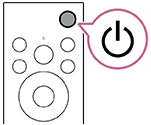
-
Unplug the AC power cord (mains lead).
If the problem persists after step 1, unplug the TV power cord (mains lead) from the electrical outlet. Wait for 2 minutes, and plug the power cord (mains lead) back into the electrical outlet.
Hint
- TV models with 1 button on the TV (Power button only) can also be restarted using the Power button. Press the Power button on the TV to display the operation menu, select [Restart] in the menu, and then press and hold the Power button to restart the TV.
- Your personal settings and data will not be lost after the TV restarts.
Factory data reset
If the problem persists after a power reset, try a factory data reset.
If an external USB device is connected to the TV, disconnect the USB device from the TV before resetting.
For details, refer to Factory data reset.
[83] TroubleshootingSoftware updates
To close this screen and jump to the Settings screen, select the following link. Jump to the Settings screen
Sony will provide software updates from time to time in order to enhance functionality and provide users with the latest TV experience. The easiest way to receive software updates is via an internet connection to the TV.
If you want to check if your software is up-to-date, select [System software update] from [Settings] — [System] — [About].
Updating software via USB storage device
If you do not have a network connection, you can also update the software by using a USB storage device. Use your computer to download the latest software from the Sony support website onto a USB storage device. Insert the USB storage device to a USB port on the TV and the software update will start automatically.
If you will update the TV software by using a USB storage device, you should read the cautions for update by USB storage device on the website.
For more about the support site, please see the Support Site page.
[84] TroubleshootingSelf diagnostics
Check if the TV is working properly.
-
Press the (HOME) button, and select Apps from the Home menu, then select [Help].
- Select [Status & Diagnostics] — [Self diagnostics].
Hint
You can also check the following symptom in [Status & Diagnostics] — [Signal diagnostics] — [Network status and diagnostics].
- [Internet connection diagnostics]
If the problem persists, try the following.
- Reset (restart) the TV. For details, refer to Reset (restart) your TV .
- Check and try Software updates.
- Support Site
[85] TroubleshootingFrequently Asked Questions for Troubleshooting
For troubleshooting information, you can also refer to “Frequently Asked Questions” in our support site below.
https://www.sony.net/androidtv-faq/
https://www.sony.net/androidtv-faq/
[86] Others Specifications
You can find the specification information on the Sony support website:
Please visit the product page of your TV and refer to Specifications. For more about the support website, see the Support Site page.
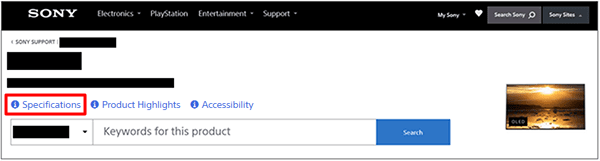
Note
- A Specifications page may not be available depending on your model. In such cases, please refer to the Reference Guide.
[87] OthersSupport Site
For the latest information and Online Help Guide, please visit the Sony support website:

https://www.sony.eu/support/
[88] Others Keeping the TV updated
The TV acquires data such as programme guides while it is in standby/networked standby mode. To keep your TV updated, we recommend that you turn off the TV normally by using the Power button on the remote control or TV.
[89] OthersFactory data reset
To close this screen and jump to the Settings screen, select the following link. Jump to the Settings screen
You can perform the Factory data reset. If an external USB device is connected to the TV, disconnect the USB device from the TV before resetting.
Note
Performing a factory reset will delete all of the TV’s data and settings (such as Wi-Fi and wired network setting information, Google Account and other login information, and installed apps).
-
Press the (Quick Settings) button on the remote control, then select [Settings] — [System] — [About] — [Reset] — [Factory data reset] — [Factory data reset].
- Select [Erase everything].
If you have set a PIN code on your TV, you will be prompted to input it.
After the factory reset process completes successfully, the TV will start the Initial Setup wizard. You must agree to the Google Terms of Service and Google Privacy Policy.
[90] OthersTrademark information

-
The Bluetooth® word mark and logos are registered trademarks owned by Bluetooth SIG, Inc. and any use of such marks by Sony Group Corporation and its subsidiaries is under license.

-
Manufactured under license from DTS, Inc. and/or its affiliates. For patents, see https://xperi.com/dts-patents/. DTS, the DTS logo, DTS:X, the DTS:X logo, Virtual:X, and the DTS Virtual:X logo are trademarks or registered trademarks of DTS, Inc. and/or its affiliates in the U.S. and/or other countries. © DTS, Inc. and/or its affiliates. All rights reserved.

-
Covered by one or more claims of the HEVC patents listed at patentlist.accessadvance.com.
-
Wi-Fi®, Wi-Fi Alliance®, Wi-Fi CERTIFIED™ and Wi-Fi CERTIFIED 6® are registered trademarks or trademarks of Wi-Fi Alliance.
-
Wi-Fi CERTIFIED™ logo and Wi-Fi CERTIFIED 6® logo are registered trademarks of Wi-Fi Alliance.
-
Disney+ and all related logos and marks are trademarks of Disney Enterprises, Inc. or its affiliates.
-
©2026 Amazon.com, Inc. or its affiliates. Amazon, Alexa, Prime Video and all related logos are trademarks of Amazon.com (http://amazon.com/), Inc. or its affiliates. Amazon Prime membership and/or Prime Video fees apply. See primevideo.com (http://primevideo.com/terms) for details.
-
Apple, Apple Home, AirPlay and HomeKit are trademarks of Apple Inc., registered in the U.S. and other countries and regions.
To use AirPlay and Apple HomeKit with this TV, the latest version of iOS, iPadOS, or macOS is recommended.
-
Google TV is the name of this device's software experience and a trademark of Google LLC. Google, YouTube, Google Cast, Google Play, and other marks are trademarks of Google LLC.
-
BRAVIA and
 logo are trademarks or registered marks of Sony Group Corporation or its affiliates.
-
All other trademarks are the property of their respective owners.
Note
- The availability of each service depends on your region/country.